Introduction - AI-assisted meetings
Written By Stanislas
Last updated 5 days ago
Swiftask helps you record, transcribe, and analyze meetings with AI assistance. Capture important moments automatically, convert audio to text with exceptional accuracy, and extract key insightsβall without manual effort.
Use AI-assisted meetings when you want to focus on the conversation while Swiftask handles recording, transcription, and analysis in the background.
Overview
The AI-assisted meetings feature automates the entire meeting workflow. Swiftask detects when a conversation starts on your computer, automatically begins recording, and uses advanced AI to transcribe and analyze the discussion. After your meeting ends, you'll have a complete transcript with automatic key points extraction, all synchronized to the cloud for easy access from any device.
AI-assisted meetings are designed to free you from the burden of note-taking so you can focus entirely on what matters: the conversation itself.
Prerequisites
To use AI-assisted meetings, you need:
A Swiftask account (sign up at swiftask.ai)
The Swiftask desktop application installed on your computer (for automatic meeting detection)
A microphone on your device (built-in or external)
Microphone permissions enabled for Swiftask in your operating system
What you can do with your meetings
Swiftask provides six powerful AI-assisted capabilities for your meetings:

Automatic recording
Capture your meetings effortlessly. The app automatically detects conversations and starts recording without any manual action.
Key features:
Automatic meeting detection on your computer
Background recording without disrupting your work
Intuitive controls to pause or stop recording
Intelligent transcription
Convert audio to text with exceptional accuracy thanks to advanced AI technology. Swiftask handles multiple speakers, background noise, and technical terminology.
Key features:
Multi-language speech recognition
Speaker identification
Automatic correction and continuous learning
Automatic key points
Swiftask automatically identifies important moments and decisions made during your meetings, saving you time on manual note-taking.
Key features:
Extracts decisions and action items
Identifies discussion highlights
Summarizes key takeaways
Cloud synchronization
Access your recordings and transcripts from any device thanks to secure synchronization. Your meeting data is always available when you need it.
Key features:
Instant cloud backup
Access from web, mobile, or desktop
Secure storage and encryption
Simplified sharing
Easily share your transcripts with your team via secure links or PDF exports. No complicated setup required.
Key features:
Secure shareable links
PDF export functionality
Team collaboration ready
Advanced search
Instantly find any information in your transcripts thanks to our powerful search engine. Search across all your meetings at once.
Key features:
Full-text search across transcripts
Quick navigation to specific moments
Organized meeting library
Step-by-step guide
1. Open the meeting section
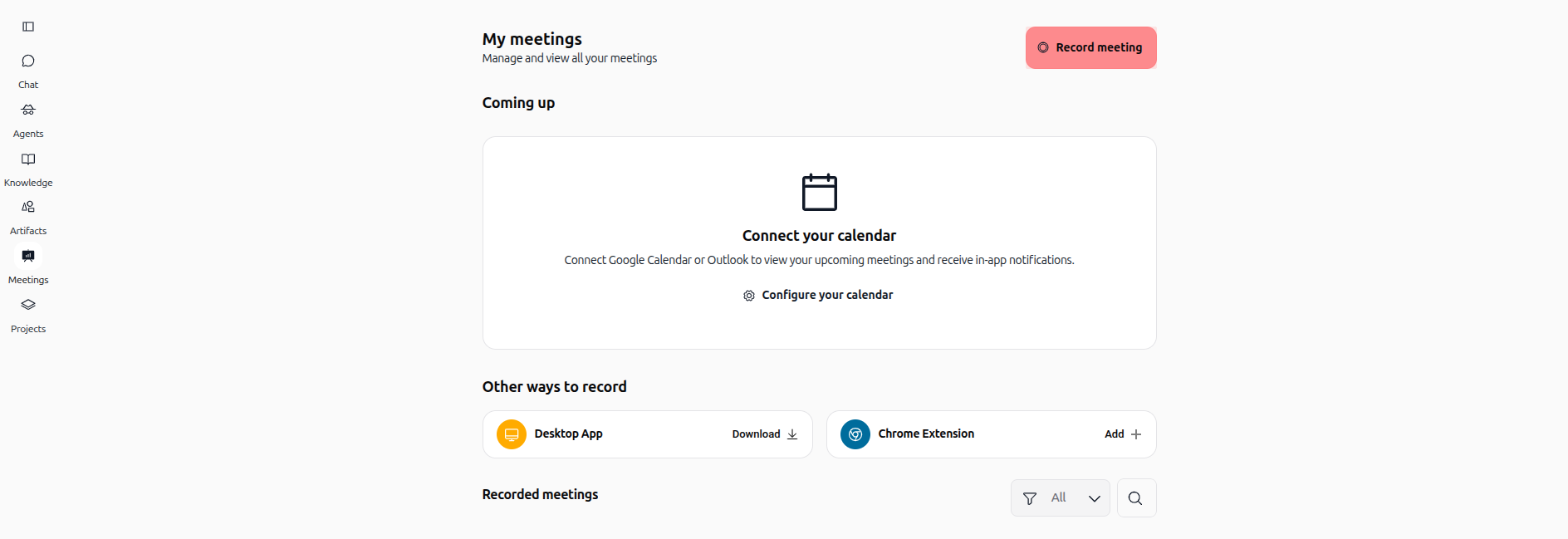
Navigate to the Meetings section in the left sidebar of Swiftask. You'll see your meeting library with options to organize and access your recordings.

What you'll see:
All meetings β Complete list of all your recorded meetings
Personal meetings β Your individual recordings
Collections β Organize meetings by project or category
Filter options β View meetings from today, this week, or this month
2. Open the desktop application
To start recording a meeting, open the Swiftask desktop application. Click Open desktop application to launch the application on your computer.
3 . Start recording
Navigate to the Meetings section and click Record Meeting to start recoding
During recording:
A small indicator shows that Swiftask is capturing audio
4. Transcription begins
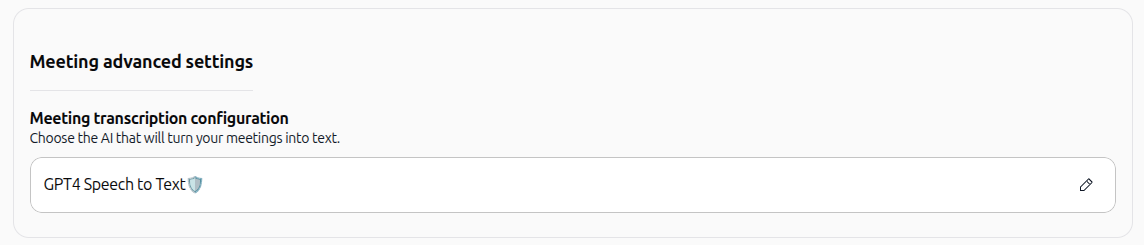
When your meeting ends, Swiftask begins transcription. The AI converts your audio to text using advanced speech recognition technology.
Transcription features:
Multi-language support
Speaker identification ( speaker A, speaker B, ...)
5. Access your transcript
Once transcription is complete, your transcript appears in the Meetings section. You can:
Review the full text of your meeting
Copy scripts
Assing meeting to a collection
Share with your team using secure links
Automatic and effortless recording
Never miss an important moment in your meetings again. Swiftask simplifies the recording process so you can focus on what really matters: your conversation.

Key benefits:
Automatic meeting detection on your computer
Background recording without disrupting your work
Intuitive controls to pause or stop recording
AI-powered accurate transcription
Our cutting-edge technology converts your conversations to text with exceptional accuracy, even in noisy environments or with multiple speakers.
Key capabilities:
Multi-language speech recognition
Speaker identification
Practical use cases
Capture client meetings
Record client calls to ensure you don't miss any requirements or commitments. Transcripts serve as an official record of what was discussed and agreed upon.
Example: A sales team records client discovery calls. The transcript captures all feature requests and budget constraints, which can be instantly shared with the product team.
Document team decisions
Record team meetings to create a permanent record of decisions, action items, and who is responsible for what. No more confusion about who said what.
Example: During a project kickoff meeting, Swiftask records and transcribes the discussion. Key decisions about timeline and budget are automatically highlighted for easy reference.
Training and onboarding
Record training sessions for new team members. They can review transcripts at their own pace, and you can share specific sections with others.
Example: A manager records a training session on company processes. New hires can search the transcript for specific topics and watch the recording segment for clarification.
Compliance and audit
Maintain accurate records of important discussions for compliance, legal, or audit purposes. Transcripts provide evidence of what was discussed and when.
Example: A compliance officer records quarterly reviews with department heads. Transcripts serve as official documentation for regulatory requirements.
Tips & best practices
Position your microphone properly
If using an external microphone, position it 6-12 inches from your mouth. Ensure the microphone is not blocked and has a clear path to your voice.
Minimize background noise
While Swiftask handles some background noise, you'll get better transcripts if you record in a relatively quiet environment. Close windows, silence notifications, and ask others to minimize disruptions.
Review transcripts for accuracy
Always review the transcribed text after your meeting. While transcription is highly accurate, you may want to correct technical terms, proper nouns, or industry-specific language that the AI might not recognize perfectly.
Organize meetings with collections
Use collections to organize your meetings by project, client, or team. This makes it easier to find meetings later and share them with the right people.
Troubleshooting
Transcription is incomplete or inaccurate
Cause: Poor audio quality, heavy background noise, or unclear speech.
Solution:
Record in a quieter environment
Speak more clearly and at a natural pace
Use a higher-quality microphone if available
Manually edit the transcript to correct any errors
For technical terms or names, you can add them manually after transcription
Microphone not detected
Cause: Your device doesn't have a microphone, or it's not connected.
Solution:
Check that your microphone is properly connected (for external microphones)
Ensure your device's built-in microphone is functional
Try using a different microphone if available
Check your operating system's microphone permissions for Swiftask
Additional resources
Record meeting β Step-by-step guide to starting your first meeting recording
Quick interface tour β Learn how to navigate the Meetings section
Meeting transcription β Detailed guide to transcription features and options
Chat quick start β Use Chat to discuss your meeting transcripts with AI
Ready to record your first meeting? Open the Swiftask desktop application now and let AI handle the recording while you focus on the conversation.