Roles and authorizations
Written By Stanislas
Last updated 8 months ago
Workspace roles control what team members can do in your Swiftask workspace. Each role defines a specific set of permissions that determine access to features, data, and administrative functions. By assigning the right role to each team member, you maintain security, streamline operations, and protect sensitive billing information.
Understanding workspace roles helps you structure your team effectively. You can give full control to workspace leaders, enable day-to-day work for your team, provide read-only access to stakeholders, and grant billing oversight to finance partners—all without compromising security or operational efficiency.
Overview
Swiftask workspaces use five distinct roles to balance security, operational efficiency, and financial oversight. Each role is designed for a specific purpose, from full workspace control to specialized billing access.
The five workspace roles:
Owner – The workspace creator with full control over all features and settings
Admin – Trusted leaders with the same permissions as the Owner
Member – Standard users who create and manage their own work
Viewer – Read-only observers who can see workspace content but cannot make changes
Billing Partner – Financial specialists with access to billing and subscription management only
Permissions are managed through a granular system. While each role has default behaviors, Owners and Admins can customize permissions for specific use cases through the Role administration panel.
How roles work
Role assignment
The workspace Owner assigns roles to team members when inviting them or updating their permissions. Multiple Admins can exist in a workspace, but there is only one Owner (the workspace creator).
Permission levels
Roles control access to workspace features at different levels:
Full control – Create, edit, delete, and manage all aspects of a feature
View/Update – See information and make limited changes
View Only – See information but cannot make any changes
No access – Cannot see or interact with the feature
Granular customization
Owners and Admins can toggle specific permissions within roles. For example, you can prevent a Member from deleting projects while still allowing them to create and edit their own work.
Master permissions matrix
The table below shows the complete overview of all five roles and their default permissions:
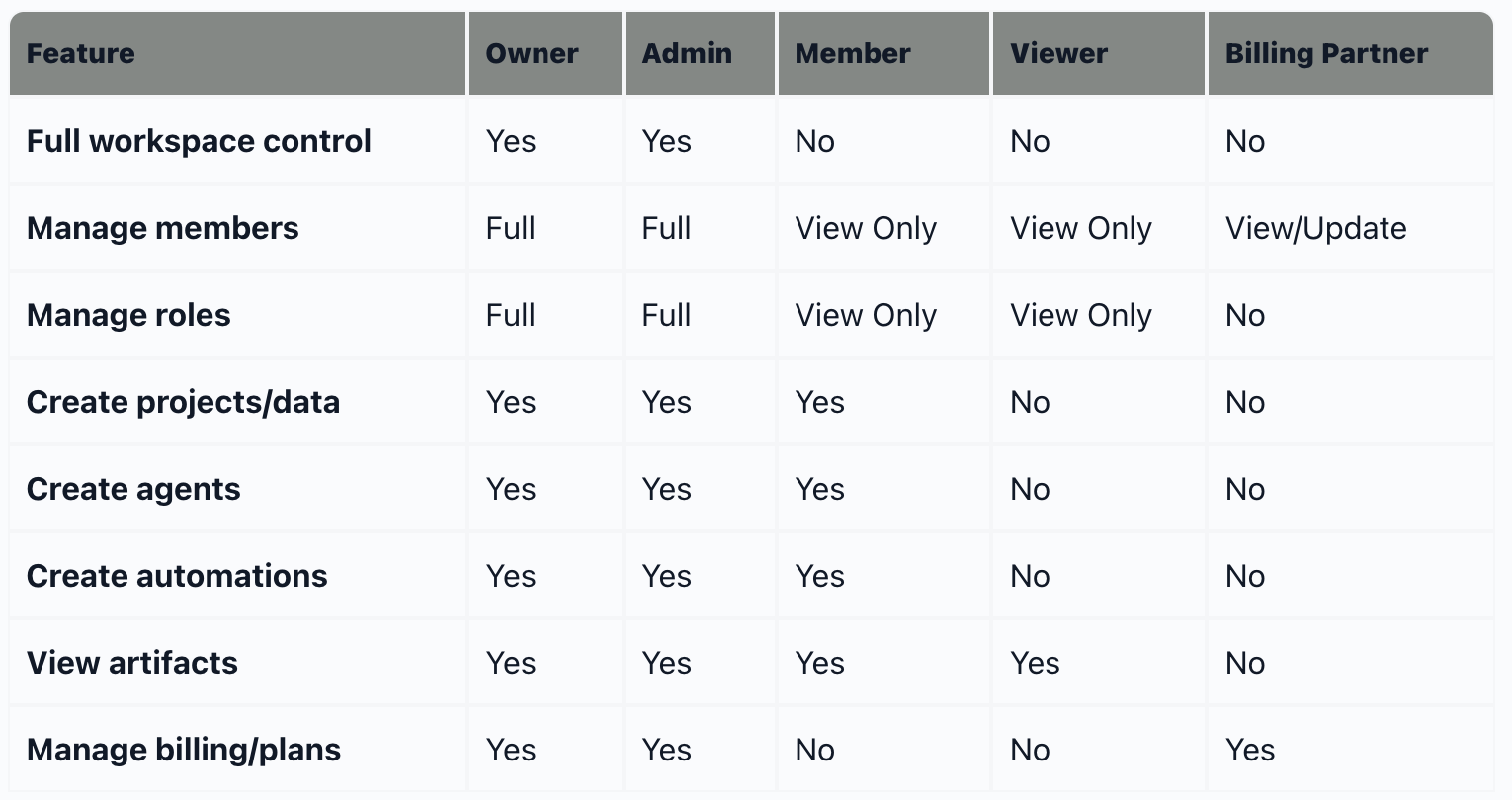
Note: Members can create and update artifacts but cannot share them or assign them to collections.
Role summaries
Owner & Admin
Purpose: Primary controllers of the workspace.
Who should have this role: Workspace founders, department heads, and trusted leaders who need full control over team management, technical resources, and billing.
Key capabilities:
Full management of the user lifecycle (invite, update, delete members)
Complete control over the technical stack (agents, automations, data sources)
Power to modify the subscription plan and purchase additional credits
Limitations: None. These roles are designed for complete workspace control.
Member
Purpose: Standard operational role for day-to-day work and production.
Who should have this role: Team members who actively use Swiftask to create agents, manage projects, and collaborate on work.
Key capabilities:
Autonomy: Can create, update, and delete their own projects and data sources
Creation: Full rights to build agents and initiate automations
Collaboration: Can schedule and update meetings
Limitations: Cannot manage other users, modify roles, or access any billing or financial data.
Viewer
Purpose: Read-only access for stakeholders, auditors, or guest observers.
Who should have this role: Executives, clients, auditors, or team members who need visibility into workspace activity without making changes.
Key capabilities:
Visibility: Can see the workspace structure, existing projects, and generated artifacts
Transparency: Access to view the member list and active roles
Limitations: Strictly read-only. No ability to create, edit, or delete any workspace assets.
Billing Partner
Purpose: Financial oversight for external accountants or internal finance departments.
Who should have this role: Accountants, finance team members, or billing administrators who need to manage subscriptions and invoices without accessing technical work.
Key capabilities:
Financial oversight: Can view and download invoices and update subscription plans
Account maintenance: Can update member details (often used to manage seat licensing costs)
Limitations: Zero technical access. This role cannot see projects, agents, data sources, or any work-related content.
Choosing the right role
Use Owner or Admin when:
The person needs to manage team members and assign roles
They need to configure workspace settings and defaults
They require access to billing and subscription management
They are responsible for workspace governance and oversight
Use Member when:
The person needs to create agents, projects, and automations
They work with AI tools and data sources daily
They collaborate with other team members on projects
They don't need to manage other users or billing
Use Viewer when:
The person needs visibility into workspace activity
They review work but don't create or edit content
They are external stakeholders, auditors, or executives
They need transparency without operational access
Use Billing Partner when:
The person manages invoices and subscription plans
They are external accountants or finance team members
They need to update member details for billing purposes
They should not have access to technical work or projects
Managing roles
To view or change member roles:
Navigate to Workspace administration → Members
Find the team member in the list
Click on the eye and click their current role to open the role dropdown
Select the new role from the list
Changes take effect immediately
For detailed instructions on managing members and assigning roles, see the Managing members guide.
Security best practices
Maintain at least two Owners or Admins
Having multiple Owners or Admins prevents workspace lockout if one admin leaves the organization or loses access. This ensures continuity of workspace management.
Keep most users as Members
Assign the Member role to most active users. This protects billing settings and prevents accidental changes to workspace configuration while still enabling full productivity.
Use Viewer for external stakeholders
Give read-only access to clients, executives, or auditors who need visibility without the ability to modify workspace content.
Separate billing access with Billing Partner
Use the Billing Partner role for finance teams who need to manage invoices and subscriptions without accessing technical projects or sensitive work content.
Review roles regularly
Audit role assignments quarterly to ensure team members have appropriate access levels. Remove access for members who have left the organization.
What's next
This section includes detailed guides for each workspace role:
Owner role – Full capabilities and responsibilities of workspace owners
Admin role – How admins manage workspace operations
Member role – What members can do and how to work effectively
Viewer role – Read-only access and visibility permissions
Billing Partner role – Financial oversight without technical access
Each guide provides specific permissions, use cases, and best practices for that role.
Ready to manage workspace roles? Navigate to Workspace administration → Role to view and assign roles to your team members.
Was this helpful?
Still need help? Ask the team