Get started in Chat
Written By Stanislas
Last updated 8 months ago
Chat is your gateway to AI in Swiftask. It's where you interact with multiple AI models, ask questions, get advice, and generate ideas—all from one unified interface. Whether you need quick answers or creative content, Chat gives you instant access to powerful AI capabilities without switching platforms.
Overview
Chat is an AI-powered conversational interface that connects you to enterprise-grade AI models. You can switch between different AI models instantly, explore AI recommendations, and work with specialized agents—all in one place. Chat is available to all Swiftask users and is your default starting point when you log in.
The chat interface
Left panel: Navigation
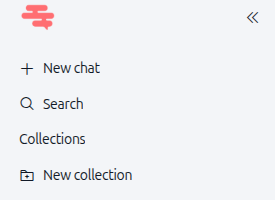
The left panel is your navigation hub. It contains everything you need to start new conversations and access Chat settings.
Main elements:
New chat – Start a fresh conversation anytime
Search – Find past conversations by keyword
Collections – Organize chats by project or topic
New collection – Create a custom collection to group related conversations
Chat history
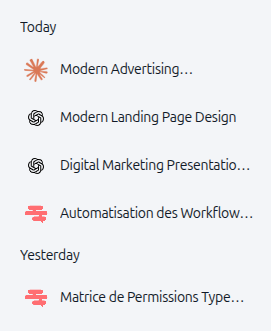
Below the Collections section, you'll see your Chat history organized by time. Each conversation is displayed with a title and icon, making it easy to recognize what you discussed.
How it works:
Conversations are grouped by date: Today, Yesterday, December 2025, etc.
Click any conversation to resume it immediately
Your most recent chats appear at the top
Central interface: Your workspace
The main chat area is where you interact with AI. This is where you'll spend most of your time in Chat.
Top section:
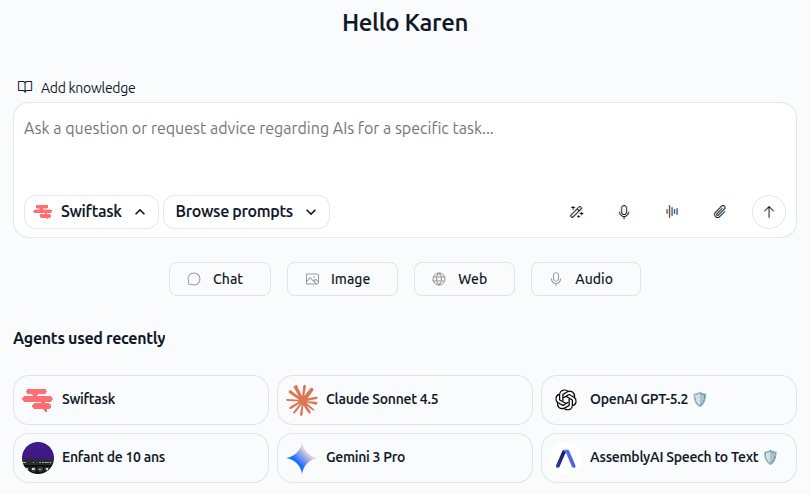
Greeting – "Hello [Your Name]"
Add knowledge button – Link documents to your conversation (covered in detail in another guide)
Input & Controls Area:
Input field – Type your question or request
AI Model selector – Currently shows "Swiftask" with a dropdown. Click to switch to other AI models (Claude Sonnet 4.5, OpenAI GPT-5.2, Gemini 3 Pro, and more)
Browse prompts – Access saved prompts and templates to jump-start your conversation
Toolbar Icons (right side):
Magic icon – Enhance with AI – Improve or refine your message
Microphone icon – Start recording – Capture voice input for your message
Wave icon – Start conversation – Begin a new interactive session
Files icon – Upload files and more – Attach documents, images, and other files to your conversation
Mode Buttons: Below the input area, switch between four interaction modes:
Chat – Conversational text-based interaction (default)
Image – Generate or analyze images
Web – Search and extract information from the internet
Audio – Work with voice and audio files
Agents Section: Below the mode buttons, you'll see "Agents used recently"—a grid of AI agents you've interacted with. Click any agent to switch to that agent instantly.
Practical Use Cases
Here are three common ways to use Chat right away:
Chat Mode: Get Quick Answers and Analyze Documents
Use Chat mode for conversational interaction. Ask questions, get explanations, or upload documents for analysis.
Example: "Analyze this quarterly report and tell me what the top 3 challenges are for our business."
Simply type your question in the input field, click the Files icon to attach your document, and Chat will analyze it and provide insights.
Image Mode: Generate Creative Visuals
Switch to Image mode to create visual content. Describe what you want, and AI generates images based on your description.
Example: "Create a professional logo for a tech startup focused on AI solutions. Make it modern and minimalist with blue and white colors."
Click the Image mode button, describe your vision, and let AI bring it to life.
Voice Input: Start a Conversation Hands-Free
Use the Start recording feature (microphone icon) to capture voice input when you prefer speaking over typing, or use the Start conversation feature (wave icon) for interactive sessions.
Example: "Record a voice message asking for help brainstorming marketing campaign ideas for a new product launch."
Click the Microphone icon to start recording, speak your request, and Chat will transcribe and respond to your message.
What's Next
Now that you're familiar with Chat, explore deeper features:
Using Agents from Chat – Invoke specialized AI agents for complex tasks
Browse and Change AI Models – Learn when to use different models
Attaching Files & Documents – Upload files for analysis
Voice Input & Audio – Use voice to interact with Chat
Managing Conversation History – Organize and find past conversations
You're ready to start chatting! Type your first message in the input field and press Enter. Chat is here to help with whatever you need.