Sub agents
Written By Stanislas
Last updated 6 months ago
Overview
Sub agents allow you to build a multi-agent architecture by connecting multiple agents together into a single workflow. Instead of a single agent handling all tasks, you can attach specialized agents (called sub agents) to perform specific functions. This creates a visual, interconnected system where agents can delegate work to each other based on what each one does best.
Use sub agents when you want to break down complex tasks across different specialized agents, create reusable agent combinations, or build hierarchical workflows where one agent orchestrates work across multiple specialized agents.
Prerequisites
Access to the Agents section in Swiftask
At least one existing agent to configure (the parent agent)
Access to the agents you want to attach as sub agents (either public bots or private agents you have permission to use)
Agent editing permissions
Step-by-step guide
Access the Sub agents section
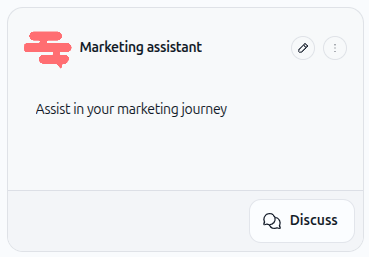
Navigate to the Agents section in the left panel.
Find the agent you want to configure and click the pencil icon to edit it.
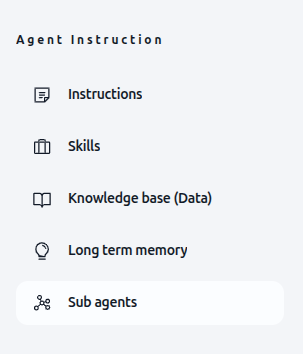
In the agent configuration screen, locate the Sub agents section in the left panel.
Attach your first sub agent
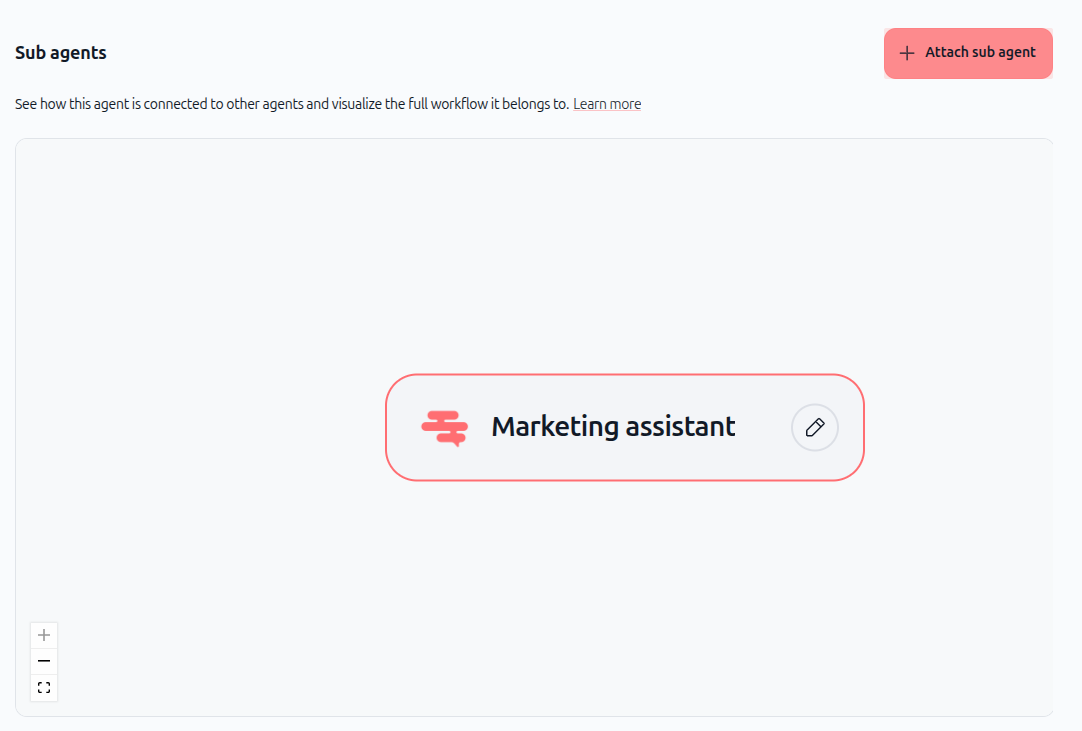
Click the + Attach sub agent button in the Sub agents section.
A modal dialog appears titled "Attach a new sub agent". Fill in the required fields:
Name: Give the sub agent a skill name (e.g., "Image creation")
Skill function: Describe what this sub agent will do (e.g., "Use this sub agent to create image")
Target agent: Select the agent you want to attach from the dropdown list
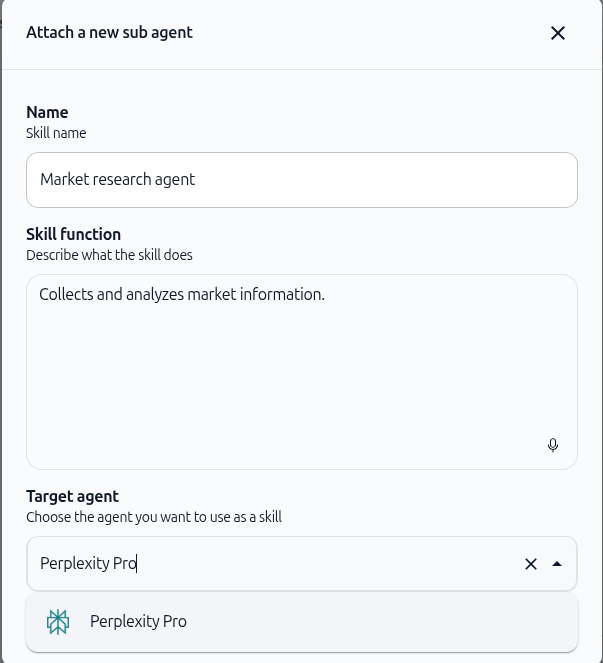
Click the Target agent dropdown to search and select from available agents (public bots, private agents, or agents that themselves have sub agents).
Confirm your selection by clicking the button “Attach sub agent”. The sub agent is now attached.
View the multi-agent visualization
Once you attach a sub agent, the Sub agents section displays a visual diagram showing how your agents are connected.
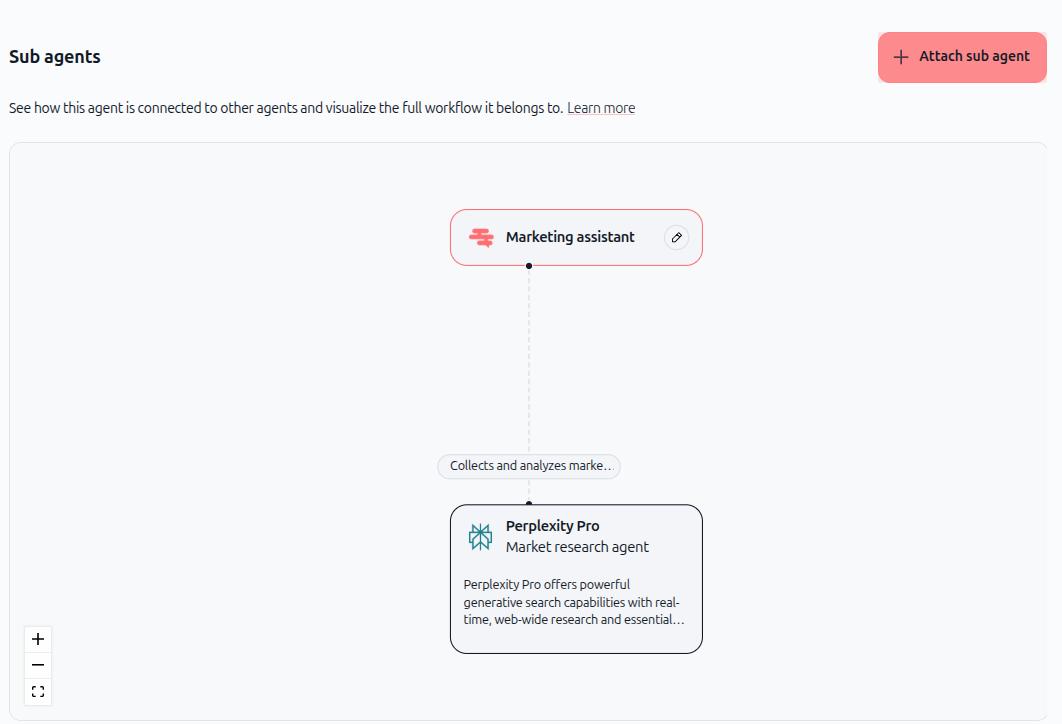
The diagram shows:
Your main agent at the top
Connected sub agents below
Descriptions of what each sub agent does
Lines connecting agents to show the workflow relationship
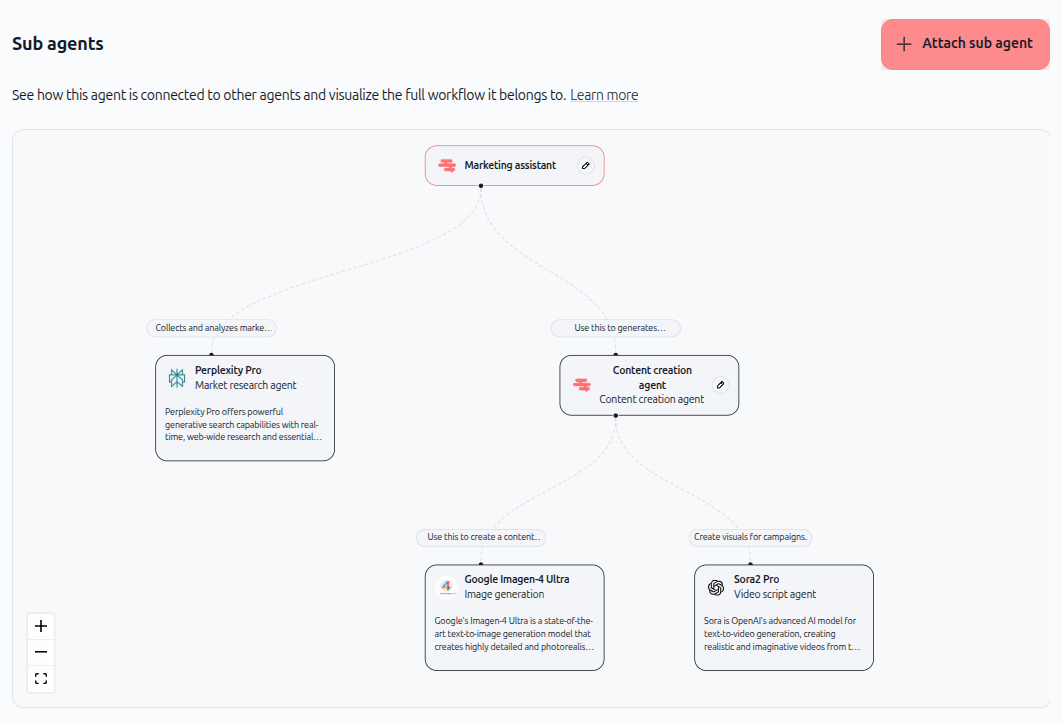
Attach nested sub agents
You can attach a private agent that itself has sub agents. When you do this, the entire sub-agent tree is visualized, showing the full multi-level architecture.
Manage sub agents in the Skills section
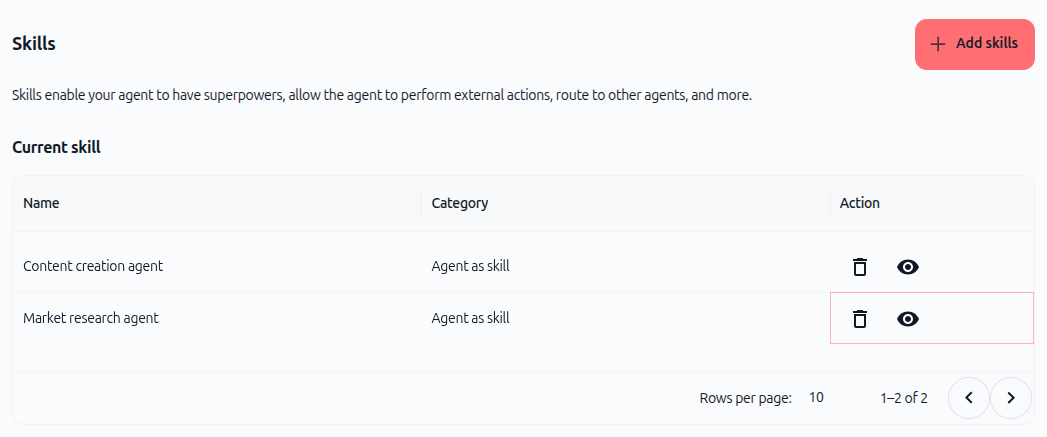
After attaching sub agents, they appear in the Skills section of your agent configuration. Each attached sub agent is listed as an "Agent as skill" with the name you assigned.
From the Skills section, you can:
View the sub agent by clicking the eye icon
Delete the sub agent by clicking the trash icon
Practical use cases
Customer support orchestration: Create a main support agent that routes customer requests to specialized sub agents—one for billing questions, one for technical issues, and one for account management. The main agent decides which sub agent should handle each request.
Content creation workflow: Build a content agent that uses sub agents for different tasks: one for writing, one for image generation, and one for editing. The main agent orchestrates the workflow, passing content between sub agents.
Multi-language support: Set up a main agent with sub agents for different languages. When a customer writes in a specific language, the main agent routes the request to the appropriate language-specific sub agent.
Specialized expertise delegation: Create a research agent that delegates to sub agents with different skills—one for web research, one for data analysis, and one for report generation—combining their outputs into a final result.
Tips & best practices
Clear naming: Use descriptive names for your sub agents that clearly indicate their purpose (e.g., "Image Generator," "Data Analyzer," "Email Sender").
Focused responsibilities: Each sub agent should have a single, well-defined purpose. This makes the workflow easier to understand and maintain.
Reuse agents: Don't create duplicate agents. If you already have a specialized agent, attach it as a sub agent instead of building a new one.
Document the workflow: Use the skill function description to explain what each sub agent does and when it should be used.
Test connections: After attaching sub agents, test the main agent to ensure it correctly routes tasks to the appropriate sub agents.
Leverage nested agents: If you have a complex workflow, you can attach a private agent that already has its own sub agents, creating a multi-level hierarchy.
Troubleshooting
I can't find the agent I want to attach
The agent may not be visible if it's private and you don't have access to it, or if it hasn't been created yet. Verify that the agent exists and that you have the necessary permissions to use it.
The sub agent isn't appearing in the visualization
After attaching a sub agent, refresh the page or navigate away and back to the agent configuration. The visualization should update to show the new connection.
I want to remove a sub agent
Go to the Skills section and click the trash icon next to the sub agent you want to delete. Confirm the deletion.