Share Agent - Require user's own account
Written By Stanislas
Last updated 7 months ago
Overview
When you share an agent that uses external integrations—like Gmail, Google Drive, Slack, or Outlook—you can choose how those integrations work for your teammates. The option "Require user's own account" means each person must authenticate with their own account for that integration. No one uses your credentials; everyone uses theirs.
This approach keeps data private, maintains clear audit trails, and respects your company's access controls automatically.
Why this matters
Data privacy and security
Each person's emails, files, and messages stay on their own account. You never share your login credentials with teammates, and they don't share theirs with you. The agent acts on behalf of whoever is using it, but always through their own authentication.
Compliance and accountability
In regulated industries (finance, healthcare, legal), actions must be traceable to the person who performed them. If your agent sends an email, it should come from that person's email address, not a shared account. This keeps audit logs clean and meets regulatory requirements.
Respects existing permissions
Your teammate may have access to different folders, channels, or distribution lists than you. By using their own account, the agent automatically respects those boundaries. If Jessica doesn't have access to a spreadsheet, the agent won't access it either—which is correct.
Clear responsibility
When one shared account handles everything, it's unclear who's responsible for what. With individual accounts, it's obvious: "This agent used my Gmail, so I own this action."
Prerequisites
For owners:
You own or can edit the agent
The skill supports this option (typically integrations like Gmail, Google Drive, Slack, Outlook)
Permission to share agents in your workspace
For recipients:
Access to the shared agent (shared with you as User, Admin, or Owner)
A Swiftask account in the same workspace
Access to the external account you'll authenticate with (e.g., your own Gmail, Google Drive)
Step-by-step guide
Step 1: Owner enables the option
Open your agent and navigate to Skills
Click Add a skill (e.g., Gmail, Google Drive, Slack)
Select the skill category and fill in the form:
Tool name: Give it a descriptive name (e.g., "Gmail Tool" or "Gmail - Personal Use")
Authentication: Sign in with YOUR account (e.g., your Gmail)
Scroll to the bottom of the form and locate the toggle: "Require user's own account"
Turn the toggle ON
Click Save
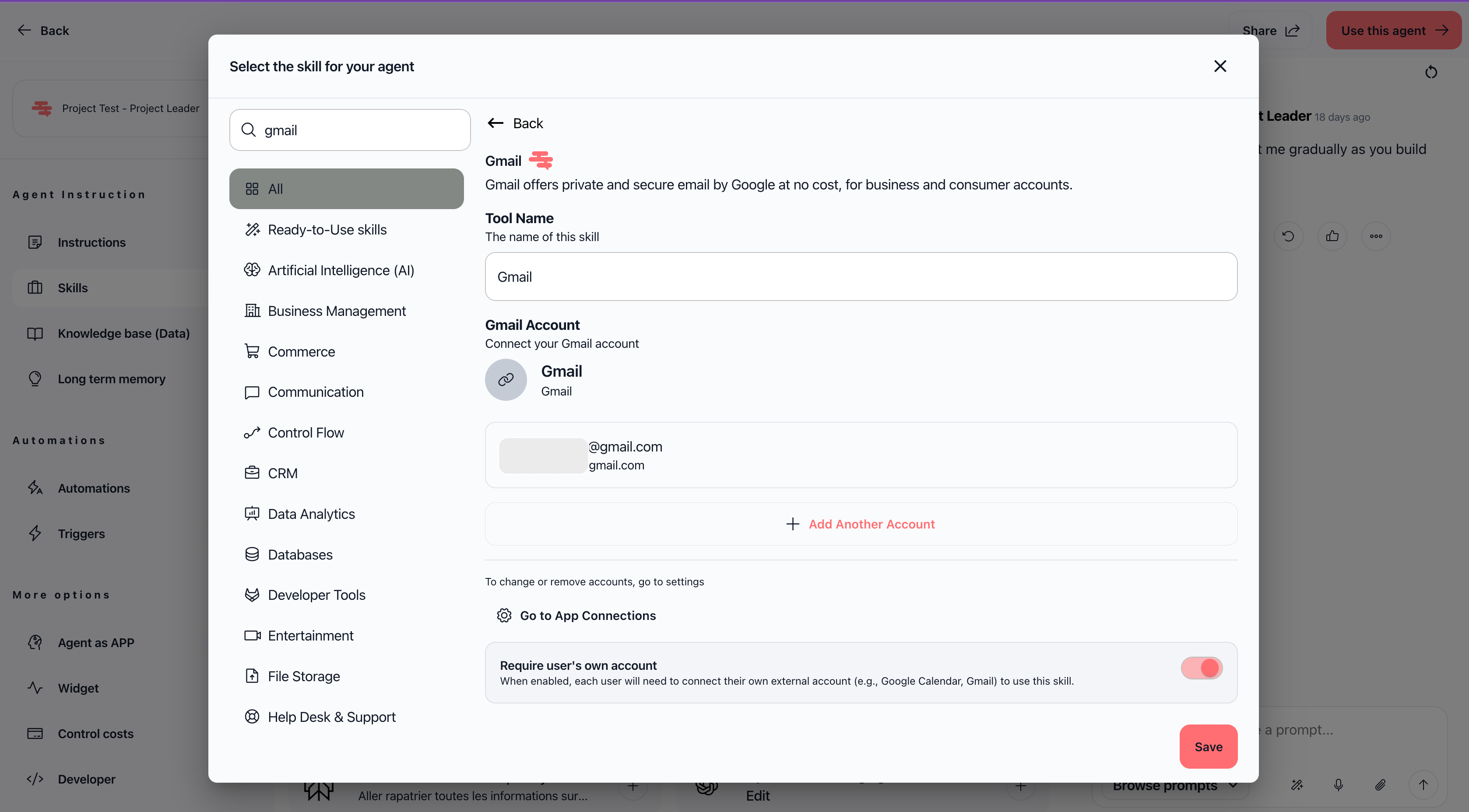
The skill is now configured. When you share this agent, recipients will see a prompt to configure their own account.
Step 2: Owner shares the agent
Go to Agents → Find your agent
Click the three-dot menu on the agent card
Select Share the agent
Add users or groups as you normally would
Assign roles (Owner, Admin, User)
Click Save
Recipients now have access to the agent, but they'll see a configuration prompt.
Step 3: Recipient sees the configuration prompt
When a recipient opens the shared agent (in Chat or the Agents section), they see a blue banner at the top:
"Configuration required"
The message explains: "This agent uses [Skill Name]. Please connect your own account to use this agent."
Below the message is a Configure button for each skill that requires setup.
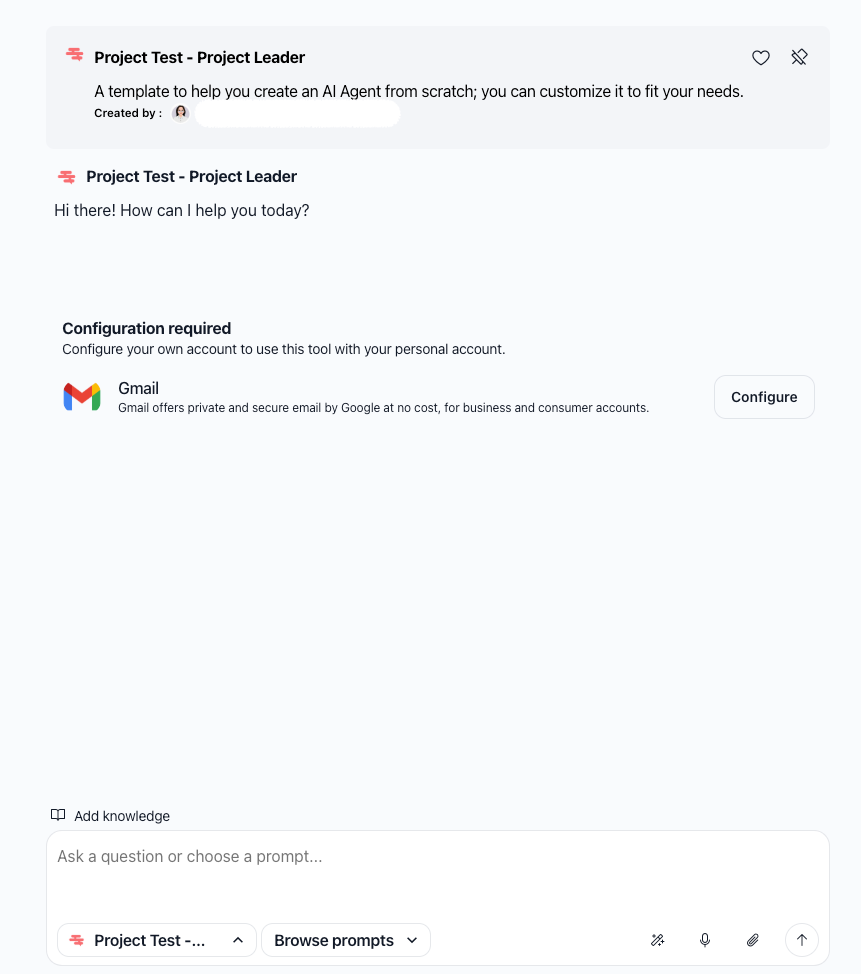
Step 4: Recipient configures their account
Click Configure next to the skill name
A dialog opens: "Configure the skill"
Enter a name for this tool (e.g., "My Gmail" or "Sarah's Google Drive")
Click Authenticate or Connect account
Sign in with YOUR account (e.g., your Gmail, not the owner's)
Grant permissions if prompted
Click Save
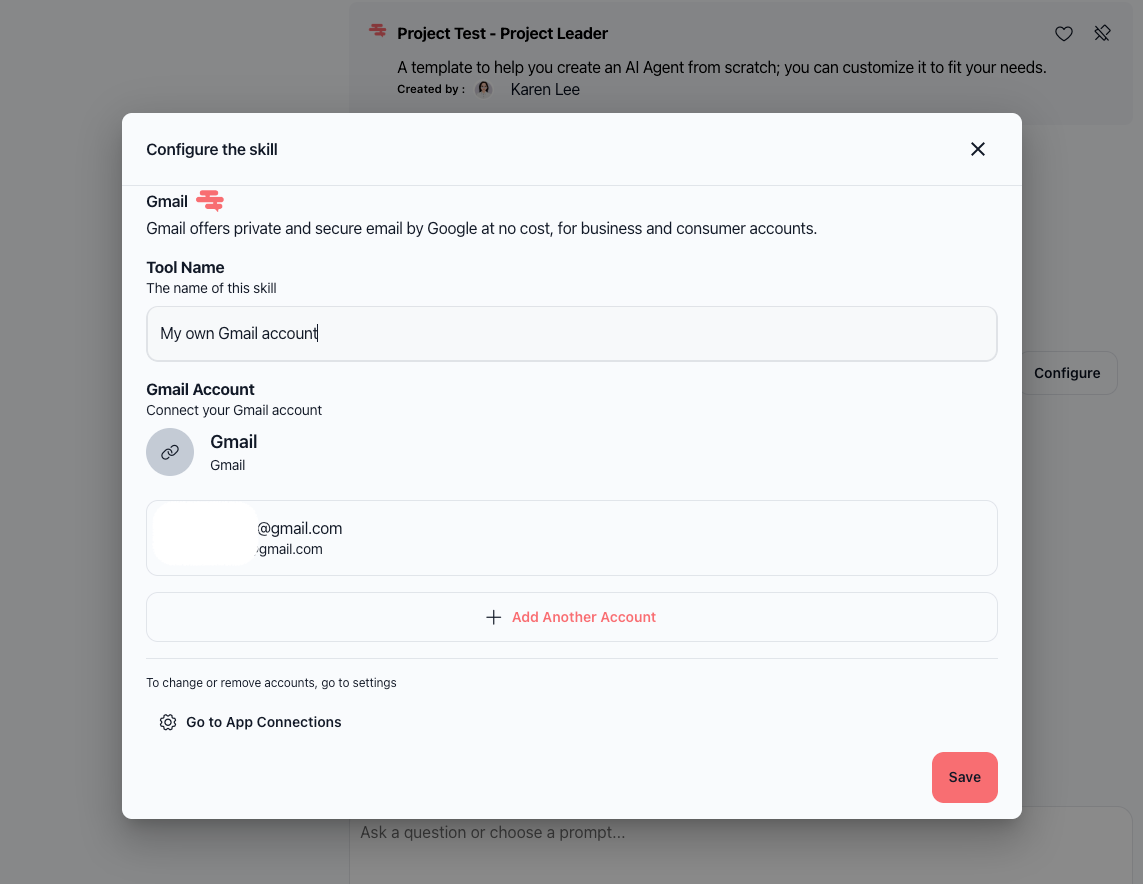
The configuration is now complete. The "Configuration required" banner disappears, and the recipient can use the agent. All actions (sending emails, accessing files, etc.) happen through their own account.
Practical use cases
HR team with recruitment agent
You're the HR manager. You've built an agent that drafts offer letters and sends them to candidates using Gmail. You enable "Require user's own account" for the Gmail skill and share the agent with your 3 HR coordinators.
Each coordinator configures their own Gmail:
Sarah configures sarah@company.com
Mike configures mike@company.com
Jessica configures jessica@company.com
When the agent sends an offer letter, it comes from whichever coordinator is using it. Candidates can reply directly to that person. Everything is clear and traceable.
Finance team with reporting agent
You've built an agent that pulls expense data from Google Sheets and generates monthly reports. You enable "Require user's own account" for the Google Sheets skill and share the agent with your finance team.
Each team member configures their own Google account. Now the agent can only access spreadsheets that each person has permission to see:
If Mike has access to the "Q1 Budget" sheet, the agent can pull from it when Mike uses it
If Jessica doesn't have access to the "CEO Expenses" sheet, the agent won't access it when she uses it (respecting her actual permissions)
This automatic permission enforcement is a huge advantage—no manual access control needed.
Support team with Slack agent
You've built an agent that responds to Slack messages and logs them to your ticketing system. You enable "Require user's own account" for the Slack skill and share it with your support team.
Each support agent configures their own Slack account. The agent now:
Sees only the channels they're in
Posts messages using their authentication
Respects their permission level (if someone isn't in a private channel, the agent can't access it)
Tips and best practices
Communicate clearly
When you share the agent, tell recipients they need to configure their own account. Don't leave them guessing. A simple message like "This agent requires you to authenticate with your own Gmail account" prevents confusion.
Test it yourself first
Before sharing, configure the agent with your account and test it. Make sure it works as expected. This way, you can help recipients troubleshoot if they run into issues.
Use descriptive skill names
Instead of generic names like "Gmail Tool", use names that make it obvious:
"Gmail - Use Your Own Account"
"Google Drive - Personal Access"
"Slack - Team Channel Access"
This reduces confusion and support requests.
Verify prerequisites
Before sharing, make sure your teammates have access to the accounts they'll need:
If the agent needs Gmail, make sure everyone has a Gmail account
If the agent needs Slack, make sure everyone is in the Slack workspace
If the agent needs Google Drive, make sure everyone has a Google account
Troubleshooting
Frequently asked questions
Q: Does the owner need to configure their account too?
A: Yes. When you set up the skill, you authenticated with your account. You can use the agent immediately. Recipients need to configure their accounts separately before they can use it.
Q: Can I change this setting after sharing?
A: Yes. Go to Agent → Skills → Edit the skill → Toggle "Require user's own account" OFF. However, this is not recommended. If you turn it off, new recipients can use your account instead of their own, which reduces security and clarity.
Q: What if someone misconfigures their account?
A: They'll see an error when they try to use the agent. They can click Configure again to fix it. If the problem persists, check that they're signing into the correct account.
Q: Can I require it for some people but not others?
A: No. The toggle applies to everyone who receives the agent. Either everyone uses their own account, or everyone uses yours. If you need both options, create two versions of the agent.
Q: What if I want to turn this off later?
A: Go to Agent → Skills → Edit the skill → Toggle "Require user's own account" OFF. Existing recipients will still use their configured accounts, but new recipients will be able to use your account instead.
Q: Does this work with all skills?
A: Only skills that integrate with external services (Gmail, Google Drive, Slack, Outlook, Microsoft Teams, etc.) support this option. Internal Swiftask features don't have this toggle.
What happens next
Once all recipients have configured their accounts:
The "Configuration required" banner disappears
Recipients can use the agent immediately
All actions (emails, file access, messages) happen through their own accounts
You can modify access or roles anytime by opening the share dialog again
Usage and credits are tracked under the agent owner's workspace account
Additional resources
Share an agent – Learn how to share agents with users and groups, and assign roles
Create an AI agent step by step – Build your first custom agent and add skills
Using agents from chat – Access and interact with shared agents
Workspace administration – Manage roles, permissions, and team access
Summary
The key principle: Each person uses their own account. Data stays private. Actions are traceable.