Chat - Managing history / finding past conversations
Written By Stanislas
Last updated 10 days ago
Keep your conversations organized and find past chats instantly. Swiftask automatically saves your entire conversation history and gives you powerful tools to search, organize, and manage your chats with ease.
Whether you need to revisit a previous discussion, organize conversations by project, or quickly find a specific chat, this guide shows you how.
Overview
Every conversation you have in Chat is automatically saved and organized by date. You can search for conversations by keyword, create custom collections to group related chats, and resume any past conversation with a single click. This makes it easy to maintain continuity across your work and never lose important discussions.
Step-by-step guide
1. View your conversation history
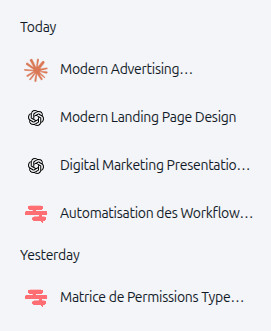
When you open Chat, your conversation history appears in the left panel below the Collections section.
Click Chat in the left sidebar
Look at the left panel to see your conversation history
Your conversations are organized by date:
Today – Conversations from today
Yesterday – Conversations from yesterday
[Month Year] – Older conversations grouped by month (e.g., "December 2025")
Each conversation shows its title and a small icon. Your most recent chats appear at the top.
2. Resume a past conversation
To continue a conversation you've had before, simply click it from your history.
In the left panel, locate the conversation you want to resume
Click the conversation title
The conversation opens immediately, and you can continue chatting right where you left off. The full message history is preserved, so the AI has context from your previous discussion.
3. Search for conversations
Search by keyword
If you have many conversations, use the search feature to find a specific chat by keyword.
In the left panel, click the Search field (or look for the search icon)
Type a keyword, phrase, or topic from the conversation you're looking for
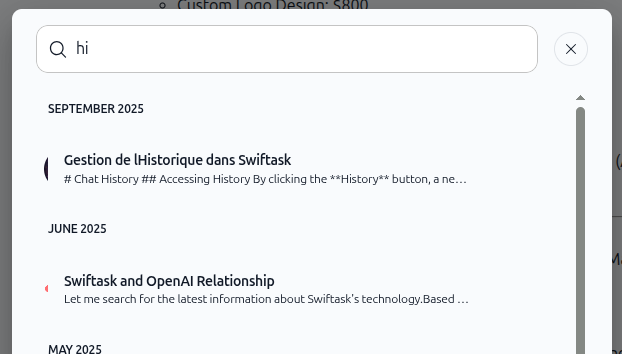
Results appear instantly, grouped by date
As shown in the image below, search results display the conversation title and a snippet of its content, organized by month. Each result shows the relevant conversation with a preview of its content.
Click any result to open that conversation
Filter by agent
You can also filter your conversation history to show only conversations with a specific agent.
In the left panel, next to the Search chat field, click Filter by agent

A "Filter by agent" window appears
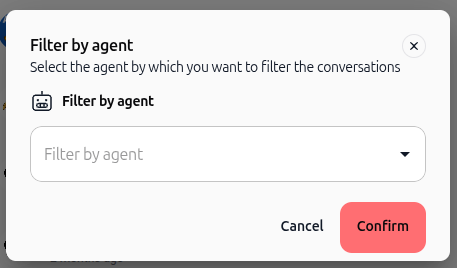
Click the Filter by agent dropdown and select the agent you want to search
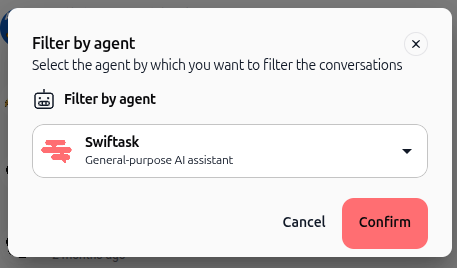
Click Confirm
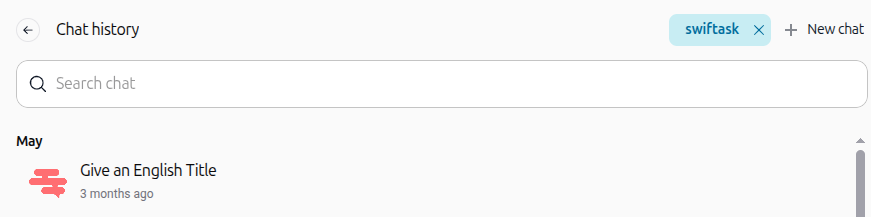
Your conversation history now shows only conversations with that agent. The selected agent appears as a tag next to New chat. Click the x on the tag to remove the filter and see all conversations again.
4. Create a collection
Collections let you group related conversations by project, topic, or client. This keeps your Chat history organized and makes it easy to find conversations for a specific purpose.
In the left panel, locate the Collections section
Click New collection
A dialog box opens titled "New collection."
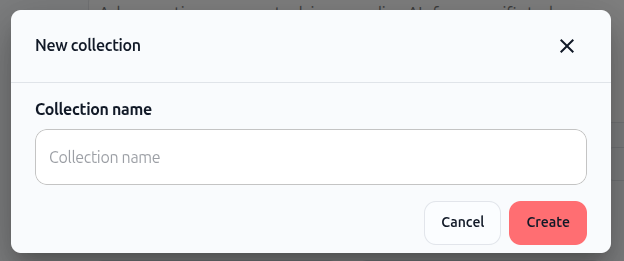
Type a name for your collection in the Collection name field
Click the Create button (red/coral button)
Your new collection now appears in the Collections section of the left panel.
Example collection names:
"Project Alpha"
"Client Research"
5. Add conversations to a collection
Once you have a collection, you can organize conversations into it. There are two ways to add conversations to a collection:
Method 1: Drag and drop
In the conversation history (below the Collections section), click and hold a conversation
Drag it over the collection you want to add it to
Release to drop it into the collection
Method 2: Using the conversation menu
Right-click on a conversation (or click the menu icon if available)
Select the collection from the menu options
The conversation moves into that collection
6. Rename a collection
If you want to change a collection's name, you can rename it anytime.
In the Collections section, locate the collection you want to rename
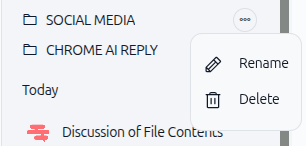
Click the menu icon (three dots) next to the collection name, or right-click the collection
Click Rename (pencil icon)
A text field appears with the current collection name highlighted.
Type the new name
Press Enter or click outside the field to save
7. Delete a collection
To remove a collection you no longer need:
In the Collections section, locate the collection you want to delete
Click the menu icon (three dots) next to the collection name, or right-click the collection
Click Delete (trash icon)
A confirmation dialog appears asking you to confirm the deletion.
Click Delete to confirm
Practical use cases
Organize by project: Create collections for each project you're working on (e.g., "Website Redesign," "Q1 Planning," "Client Proposal"). Add relevant conversations to each collection to keep project discussions together.
Organize by client or team: If you work with multiple clients or teams, create a collection for each. This makes it easy to find all conversations related to a specific client or team member.
Quick reference: Create a "Quick Answers" collection for conversations with useful information you reference often (e.g., writing tips, code snippets, process explanations).
Research and brainstorming: Group all brainstorming and research conversations in one collection so you can easily revisit ideas and inspiration when you need them.
Troubleshooting
I can't find a conversation I know I had.
Use the search feature to find it by keyword instead of scrolling
Try searching for different keywords from the conversation
Check if the conversation might be in a collection you created
Search returned no results.
Try searching for a different keyword or phrase from the conversation
Search is case-insensitive, but make sure you're using words that appeared in the conversation
A conversation I'm looking for is not showing in search.
Make sure you're searching for words that actually appeared in the conversation
Try searching for the conversation title instead of content
If the conversation is very recent, it may take a moment to appear in search results
Additional resources
Chat – Getting started – Learn the Chat interface and basic features
Chat Quick Start – Start your first conversation with AI
Attaching files & documents – Upload files to your conversations for analysis
Ready to organize your conversations? Start by creating a collection for your current project. Then add relevant conversations to it using drag-and-drop. Your Chat history will stay organized and easy to navigate.