Chat - Dict from microphone
Written By Stanislas
Last updated 8 months ago
Voice input: Start recording – User guide
Capture and transcribe voice messages directly in Chat. Instead of typing, speak your message and let AI transcribe it automatically.
Use voice input when you prefer speaking over typing, or when you want to quickly dictate messages while multitasking.
Overview
The Start recording feature lets you record audio messages in Chat, which are automatically transcribed into text. After transcription, the text appears in your input field where you can review, edit, and send it. This feature supports multiple languages, making it accessible for users worldwide.
Voice input is ideal for quick dictation, hands-free interaction, or when you want to express ideas naturally through speech.
Prerequisites
To use voice input, you need:
A Swiftask account (sign up at swiftask.ai)
Access to Chat
A microphone on your device
Microphone permissions enabled in your browser (the system will prompt you on first use)
Step-by-step guide
1. Open Chat and locate the microphone icon
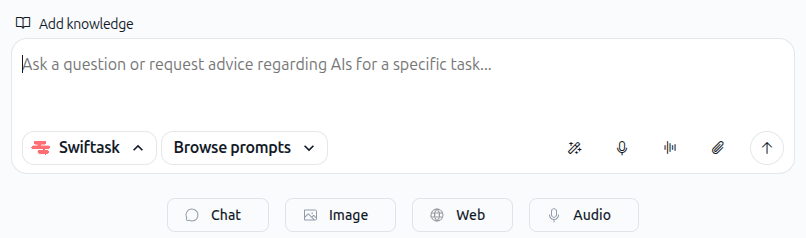
Navigate to Chat. In the input area at the bottom of the screen, look for the toolbar icons on the right side of the input field.
The toolbar contains several icons for different actions. The microphone icon (shown in the image below) is located in the right toolbar, between the magic wand icon (Enhance with AI) and the wave icon (Start conversation).
2. Click the microphone icon to start recording
Click the microphone icon to begin recording your voice message.
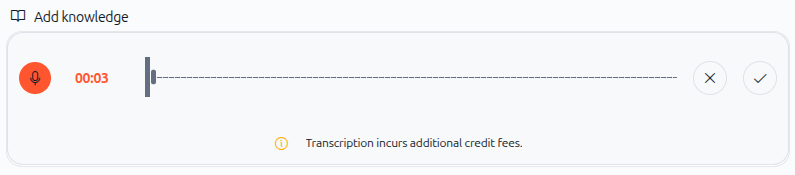
The recording interface opens immediately, showing:
Timer – Displays elapsed time (e.g., 00:03)
Waveform display – Visual representation of your audio
Cancel button (X) – Stop recording and discard
Confirm button (✓) – Stop recording and transcribe
As shown in the image below, the recording interface is ready for your voice input.
3. Speak your message clearly
Speak your message naturally into your microphone. The waveform display updates in real time as you speak, showing that your audio is being captured.
Keep speaking until you've completed your message.
4. Confirm your recording
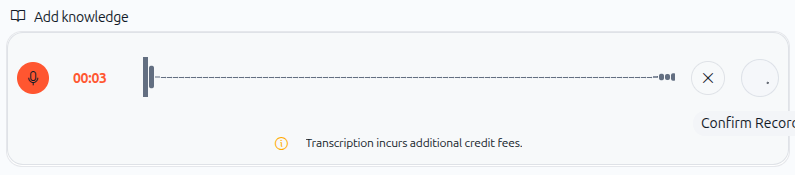
Once you finish speaking, click the checkmark button (✓) to confirm and transcribe your recording.
A confirmation dialog appears, as shown below, indicating that your audio is being processed.
5. Review and edit the transcribed text
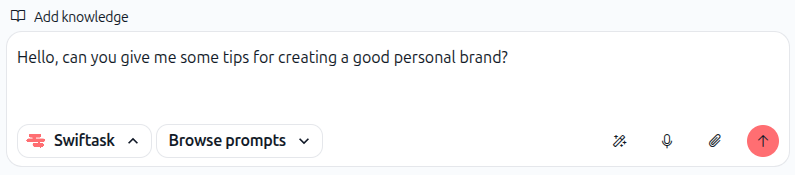
After transcription completes, the transcribed text automatically appears in your Chat input field. You can now:
Review the transcribed text for accuracy
Edit the text if needed (correct any words or add context)
Send the message by pressing Enter or clicking the send button
As shown in the image below, the transcribed message appears in the input field, ready for you to send or modify.
6. Send your message
Press Enter or click the send button (up arrow icon) to send your transcribed message to Chat.
Chat will respond to your message as it would to any typed message.
Supported languages
Voice input supports transcription in multiple languages, including:
English
And many other languages
Speak in your preferred language, and the transcription will adapt automatically.
Practical use cases
Quick brainstorming: "Record a voice message asking for help brainstorming marketing campaign ideas for a new product launch." Speak your thoughts naturally, and Chat will transcribe them instantly.
Hands-free messaging: While driving or multitasking, dictate a message instead of typing. Click the microphone icon, speak, confirm, and send.
Non-English speakers: Dictate messages in your native language. Voice input transcribes and Chat responds in the language you use.
Capturing ideas on the go: Use your phone or laptop microphone to quickly capture an idea before you forget it. No need to type it out manually.
Tips & best practices
Speak clearly and at a natural pace – The transcription works best when you speak clearly without rushing. Use natural pauses between sentences.
Use punctuation in your speech – If you need specific punctuation, you can say "period," "comma," "question mark," or "exclamation point" while recording, or add it manually when editing.
Edit before sending – Always review the transcribed text before sending. Transcription is accurate but may occasionally need minor corrections, especially with technical terms or names.
Keep messages concise – While there's no strict time limit, shorter recordings are easier to transcribe accurately. If you have a long message, consider breaking it into two recordings.
Cancel and retry if needed – If you make a mistake while recording, click the X button to cancel and start over. There's no penalty for retrying.
Troubleshooting
Microphone not detected
Cause: Your device doesn't have a microphone, or it's not connected.
Solution:
Check that your microphone is properly connected (for external microphones)
Ensure your device's built-in microphone is functional
Try using a different microphone if available
Transcription is inaccurate
Cause: Background noise, unclear speech, or unfamiliar words.
Solution:
Speak more clearly and at a natural pace
Record in a quiet environment to reduce background noise
Manually edit the transcribed text in the input field before sending
For technical terms or names, spell them out or add them manually after transcription
Recording won't start
Cause: Microphone permissions not granted to Swiftask.
Solution:
Check your browser settings and allow microphone access for swiftask.ai
Refresh the page and try again
Clear your browser cache and cookies, then retry
Additional resources
Chat – Getting started – Learn how to start your first conversation in Chat
Chat – Attaching files & documents – Combine voice input with file analysis for richer interactions
Browse and change AI models – Choose the best AI model for your voice-based conversations
Ready to use voice input? Click the microphone icon in Chat now and start dictating your messages!