Variables
Written By Stanislas
Last updated 16 days ago
Variables allow you to create and manage environment variables for your workspace. Variables are key-value pairs that can be used in agent prompts to personalize responses and behaviors. By centralizing values in variables, you can update information once and have it reflected across all agents that reference it.
Variables simplify agent management and ensure consistency. Instead of hardcoding values in multiple agent prompts, you define them once as variables and reference them wherever needed. This makes maintenance easier and reduces errors.
Overview
Variables are workspace-wide key-value pairs that can be referenced in agent prompts and configurations.
What you can do:
Create variables – Define reusable values for agent prompts
View variable details – See variable values and which agents use them
Search variables – Quickly find specific variables by name
Track usage – See which agents reference each variable
Delete variables – Remove unused variables from your workspace
Common use cases:
Company information – Store company name, address, or contact details
Configuration values – Define URLs, settings, or parameters
Dynamic content – Personalize agent responses with centralized values
Multi-agent consistency – Ensure all agents use the same values
Prerequisites
To manage variables, you need:
Access to Workspace administration
Understanding of how variables will be used in agent prompts
Note: All workspace members can create and view variables. Modification and deletion may require specific permissions depending on your workspace configuration.
Accessing variables
To manage variables:
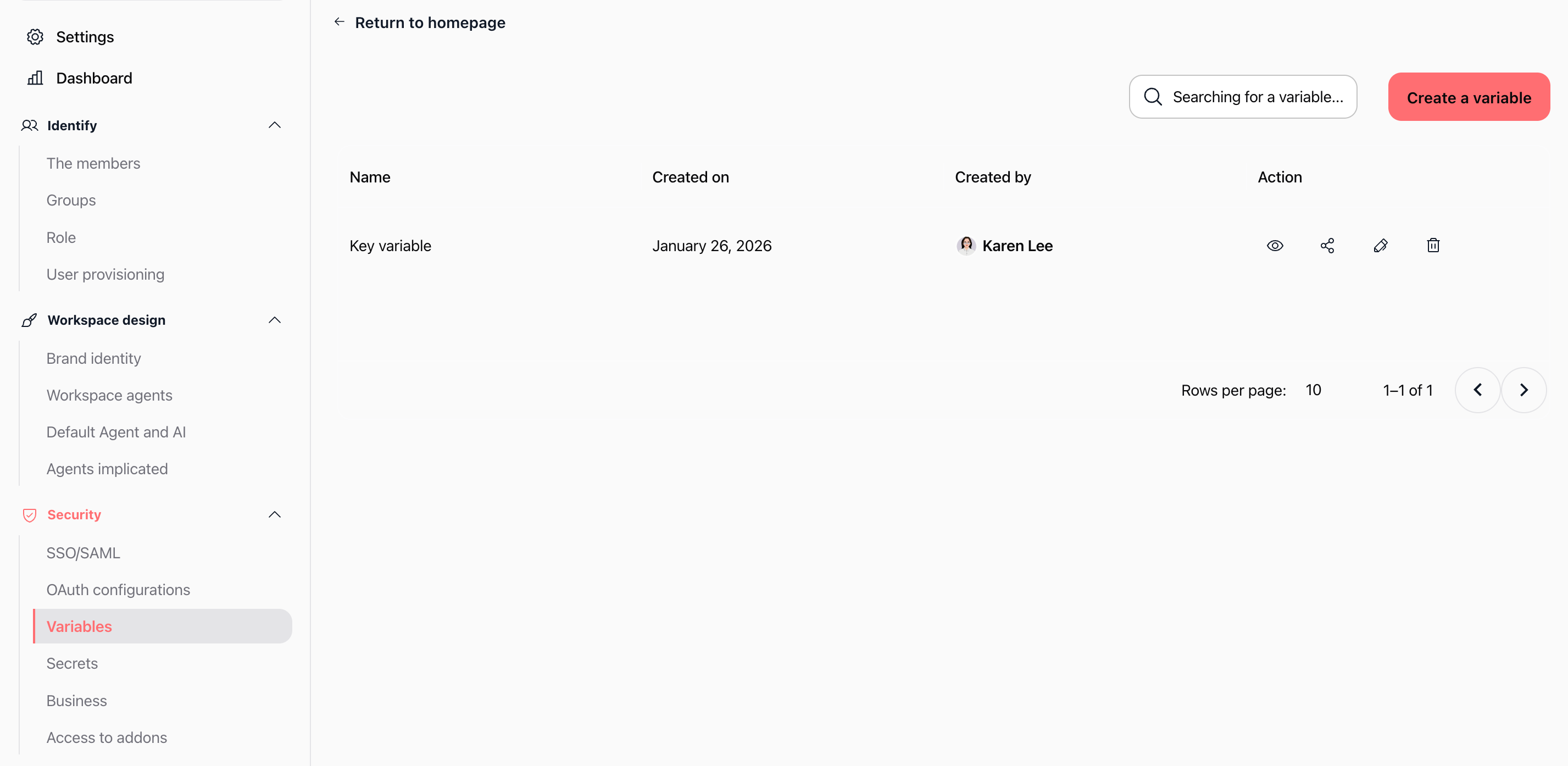
Click {} Variables in the left sidebar (icon with curly braces)
You'll see the variables management page
Route: /{workspaceId}/workspace/variables
Understanding the interface
Page header
Search bar: "Search any variable..." - Filter variables by name
Create variable button: Top right, opens the creation modal
Variables table
The table displays all variables with the following columns:
Name – Variable label (key)
Created at – Creation date (format: "26 Jan 2026")
Created by – User who created the variable (avatar + name)
Action – Eye icon (👁️) to view variable details
Details panel
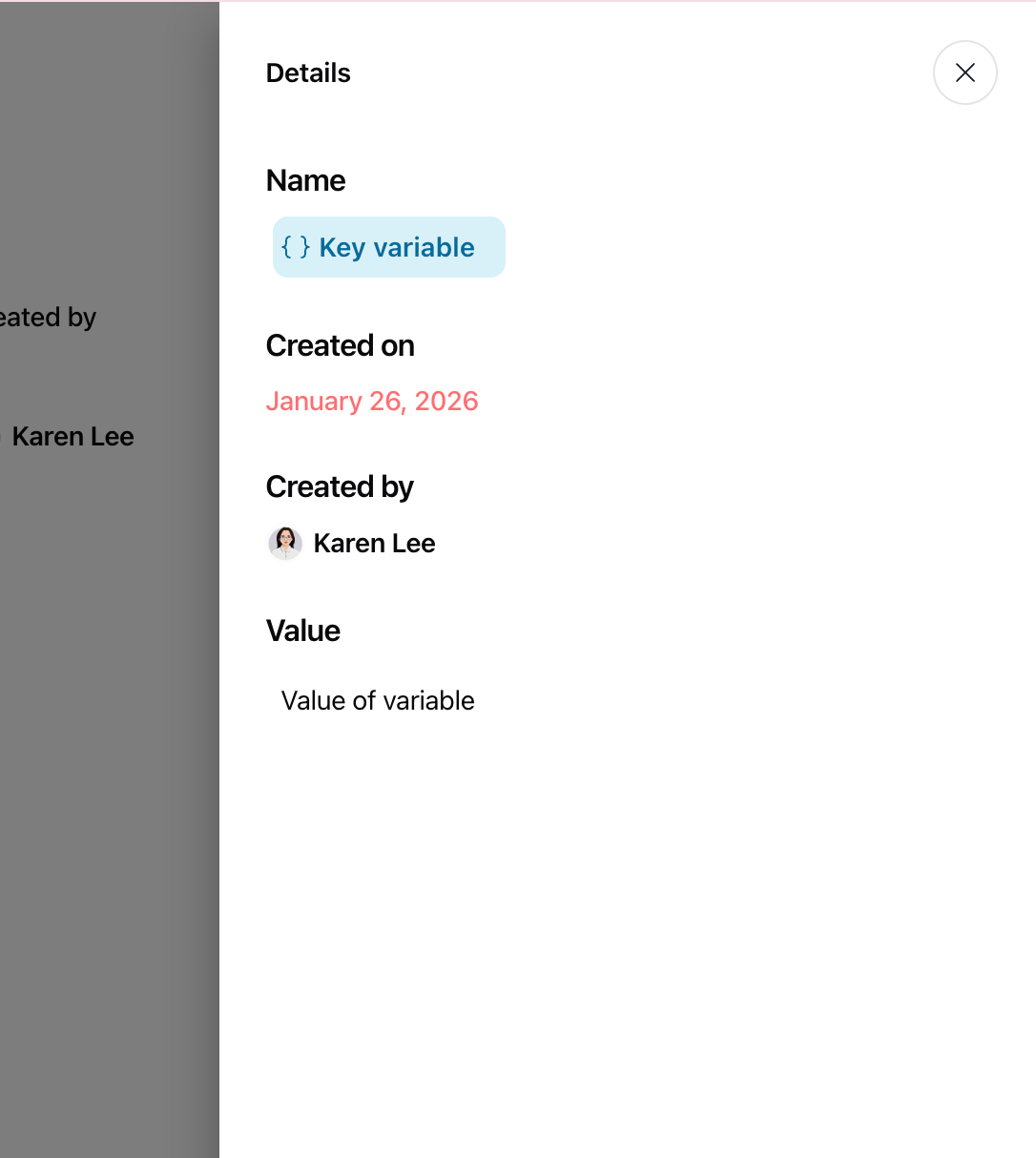
Clicking the eye icon or a table row opens a "Details" panel on the right side showing:
Name – Variable name with {} icon
Created at – Creation date (displayed in red)
Created by – Creator's profile picture and name
Value – Variable value (displayed in a card)
Reference Usage – List of agents using this variable (if applicable)
Creating a variable
Step 1: Open the creation modal
Click the "Create variable" button in the top right.
Step 2: Fill in the form
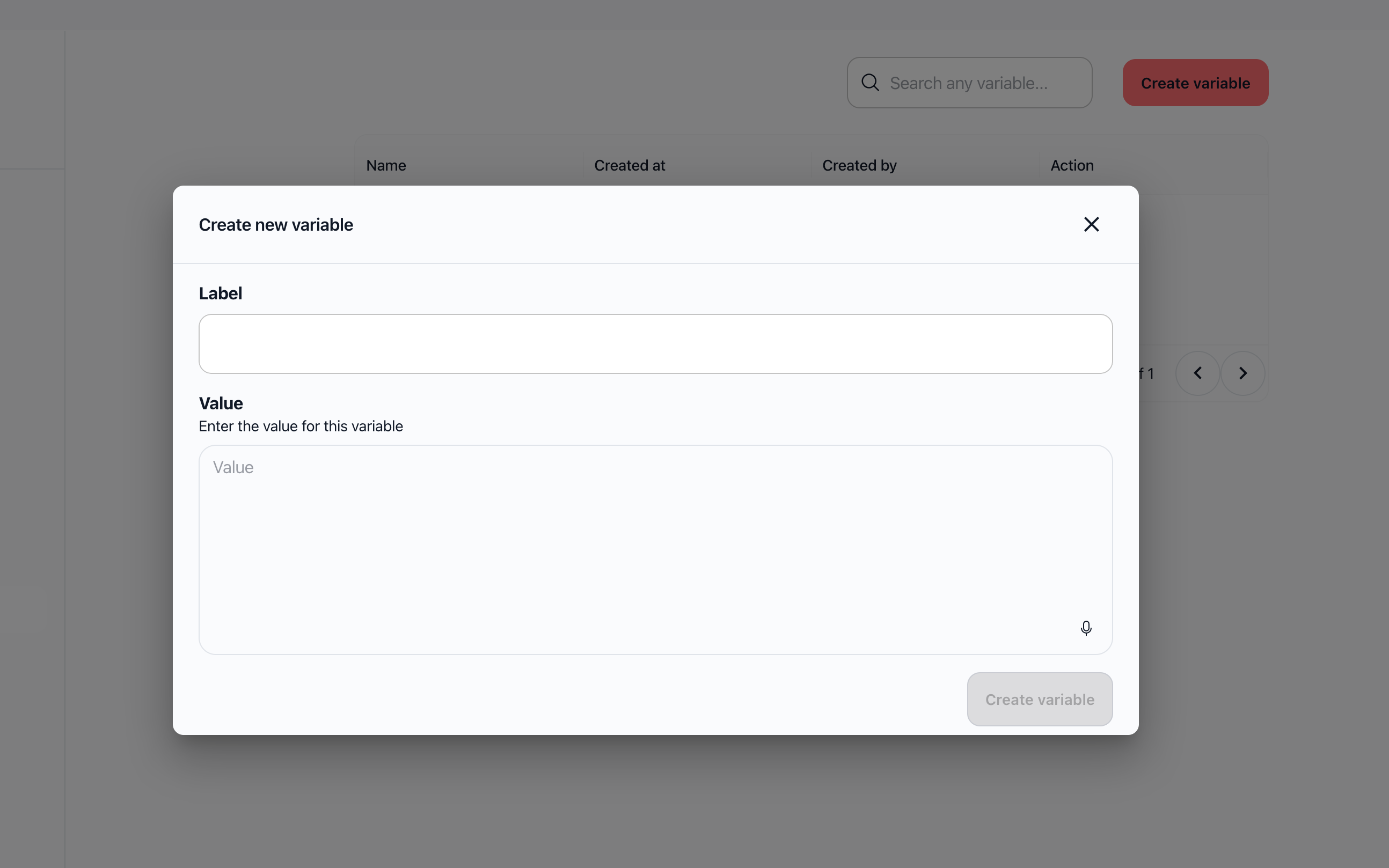
The "Create new variable" modal opens with two fields:
Label (required)
Name of the variable
Examples: "Key variable", "API_URL", "COMPANY_NAME"
Important: The label must be unique and descriptive
Value (required)
Value of the variable
Description: "Enter the value for this variable"
Multi-line text area
Note: A microphone icon may be present for voice input
Step 3: Confirm creation
Verify both fields are filled (the button is grayed out otherwise)
Click "Create variable"
A confirmation message appears: "The variable has been created"
The variable appears in the table
Example:
Label: "COMPANY_NAME" Value: "Futur Corp" Viewing variable details
Method 1: From the table
Click the eye icon (👁️) in the "Action" column
The "Details" panel opens on the right side
Method 2: Click on a row
Click directly on a table row
The "Details" panel opens automatically
Information displayed
The details panel shows:
Name – Full variable name with {} icon
Created at – Creation date in red
Created by – Creator's profile picture and name
Value – Variable value displayed in a card
Reference Usage – List of agents using this variable (with usage dates)
Reference Usage is particularly important—it shows you which agents depend on this variable, helping you understand the impact of changes or deletions.
Searching for variables
How to search
Use the search bar "Search any variable..." at the top left
Type the variable name (or part of it)
Results filter automatically in real-time
To reset, clear the search text
Search features:
Case-insensitive – Finds "Key" if you type "key"
Partial search – Finds "COMPANY_NAME" if you type "company"
Searches by label only – Does not search in values
Editing a variable
How to edit
Open the variable details (eye icon or click on row)
In the details panel, use the edit option if available
Modify the value
Save changes
Note: Editing may require specific permissions depending on your role.
Important: When editing a variable, consider that all agents referencing it will be affected by the change.
Deleting a variable
How to delete
Open the variable details
Use the delete option (if available)
A confirmation dialog appears: "Are you sure you want to delete this variable?"
Confirm the deletion
A confirmation message appears: "The variable has been deleted"
Important considerations:
Deletion is irreversible – You cannot undo this action
Check usage first – Verify the variable isn't used by agents before deleting
Agent impact – Agents using this variable may be affected or break
Best practice: Always check Reference Usage before deleting a variable.
Using variables in agent prompts
How variables work
Variables can be referenced in agent prompts using the appropriate syntax. This allows you to:
Personalize responses – Use dynamic values in agent outputs
Centralize information – Change a value once for all agents
Secure data – Store information centrally rather than in individual prompts
Example usage
If you create a variable:
Label: "COMPANY_NAME" Value: "Acme Corporation" This variable can be used in agent prompts to personalize responses with the company name. When you update the variable value, all agents referencing it automatically use the new value.
Agent prompt example:
"Welcome to {COMPANY_NAME}! How can I assist you today?" This would render as: "Welcome to Acme Corporation! How can I assist you today!"
Practical use cases
Case 1: Company name variable
Objective: Centralize the company name for all agents
Steps:
Click "Create variable"
Label: "COMPANY_NAME"
Value: "Futur Corp"
Click "Create variable"
Reference this variable in agent prompts
Result: All agents use the same company name. When you rebrand or change the name, update it once in the variable.
Case 2: API URL variable
Objective: Store an external API URL for agent integrations
Steps:
Create a variable:
Label: "API_BASE_URL"
Value: "https://api.example.com/v1"
Reference this variable in agent prompts or configurations
Result: All agents use the same API endpoint. If the API URL changes, update it once in the variable.
Case 3: Configuration values
Objective: Store configuration parameters used across multiple agents
Steps:
Create variables for common settings:
Label: "MAX_RETRIES"
Value: "3"
Label: "TIMEOUT_SECONDS"
Value: "30"
Reference these in agent instructions
Result: Consistent configuration across all agents, easy to adjust globally.
Best practices
Naming conventions
Use clear names – "COMPANY_NAME" rather than "VAR1"
Naming convention – Use uppercase and underscores (e.g., "API_KEY", "MAX_RETRIES")
Be descriptive – The name should clearly indicate the variable's purpose
Variable values
Don't store sensitive data – Use "Secrets" for confidential information
Document values – Add comments or descriptions if necessary
Verify values – Ensure values are correct before using them in agents
Management
Regular review – Periodically verify that variables are still in use
Delete unused variables – Keep the list clean and manageable
Document usage – Note which agents use which variables
Check references before deleting – Always review "Reference Usage"
Security
Variables vs. Secrets:
Variables – For non-sensitive values (names, URLs, configurations)
Secrets – For confidential information (passwords, API keys, tokens)
Limitations and important notes
Permissions
All workspace members can create and view variables
Modification and deletion may require specific permissions depending on your configuration
Contact an administrator if you need additional permissions
Sensitive values
Do not store secrets in variables
Use the Secrets section for confidential information (passwords, API keys, etc.)
Variables may be visible to all workspace members
References and dependencies
Variables can be used by multiple agents
Deleting a variable may affect all agents that use it
Always check Reference Usage before deleting
Uniqueness
Labels must be unique within the workspace
If you try to create a variable with an existing label, an error may occur
Use descriptive, unique names to avoid conflicts
Troubleshooting
Issue: I can't create a variable
Possible causes:
Label or Value fields are empty
The label already exists
Connection problem
Solutions:
Verify both fields are filled
Use a different label
Check your internet connection
Issue: Search doesn't work
Cause: Input or filtering problem.
Solution: Clear the search and try again, or refresh the page.
Issue: I can't see a variable's value
Cause: The value may be hidden for security.
Solution: Click the eye icon to see complete details.
Issue: I can't delete a variable
Cause: The variable may be used by agents or you don't have permissions.
Solution:
Check Reference Usage to see which agents use it
Contact an administrator if you need permissions
Remove references from agents before deleting
Issue: Variable changes don't reflect in agents
Cause: Agents may cache variable values or need to be restarted.
Solution:
Wait a few moments for changes to propagate
Test the agent to verify the new value is used
Contact support if the issue persists
Frequently asked questions
What's the difference between Variables and Secrets?
Variables: For non-sensitive values (names, URLs, configurations) that may be visible to workspace members
Secrets: For confidential information (passwords, API keys, tokens) with enhanced security
Can I use a variable in multiple agents?
Yes, a variable can be referenced by multiple agents simultaneously. This is one of the main benefits of using variables.
What happens if I delete a variable that's being used?
Agents using this variable may be affected or break. Always check Reference Usage before deleting.
Are variables shared between workspaces?
No, variables are specific to each workspace. Each workspace has its own set of variables.
Can I export the list of variables?
This feature is not currently available in the interface. You can manually document your variables if needed.
How do I know which agents use a variable?
Open the variable details panel and check the Reference Usage section, which lists all agents using the variable.
Can I rename a variable?
Renaming may not be directly supported. You may need to create a new variable with the desired name and update agent references.
Is there a limit to the number of variables?
There is no documented limit, but it's best practice to keep your variable list manageable and delete unused variables.
Additional resources
Secrets – Learn how to store confidential information securely
Agents – Understand how to create and configure agents that use variables
Workspace administration – Overview of all admin features
Ready to create variables? Navigate to {} Variables in the left sidebar to define reusable values for your agents.
Was this helpful?
Still need help? Ask the team