Automatic synchronisation
Written By Stanislas
Last updated 16 days ago
Overview
Automatic synchronisation pulls updates from your connected data sources on a schedule you define. When enabled, Swiftask checks your files at your chosen frequency and refreshes indexed content in your knowledge base.
This removes the need to manually click Resync whenever documents change. Your AI agents always reference the latest data without manual intervention.
Prerequisites
To configure and manage automatic synchronisation, you need:
An active Swiftask account.
Access to the Knowledge section with permissions to manage data sources.
An imported cloud data source (such as Google Drive, SharePoint, or Dropbox) or document.
Step-by-step guide
You can configure and manage automatic synchronisation in two ways: directly from a data source's settings or through the dedicated Auto sync dashboard.
Navigation method 1: Configure auto sync from a data source
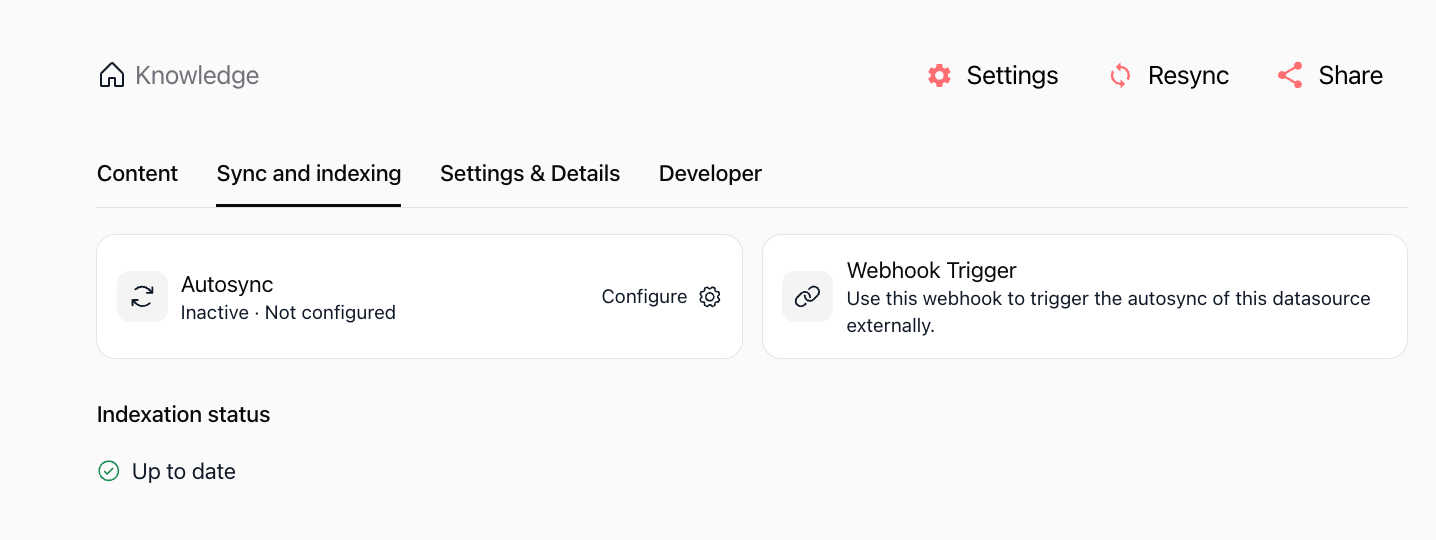
1. Open the data source and select Sync and indexing
In the left sidebar, click Knowledge.
Select your imported data source.
Click the Sync and indexing tab in the top navigation bar.
2. Open the Autosync configuration modal
Locate the Autosync card.
Click Configure (gear icon) to open the setup window.
3. Choose your synchronisation frequency
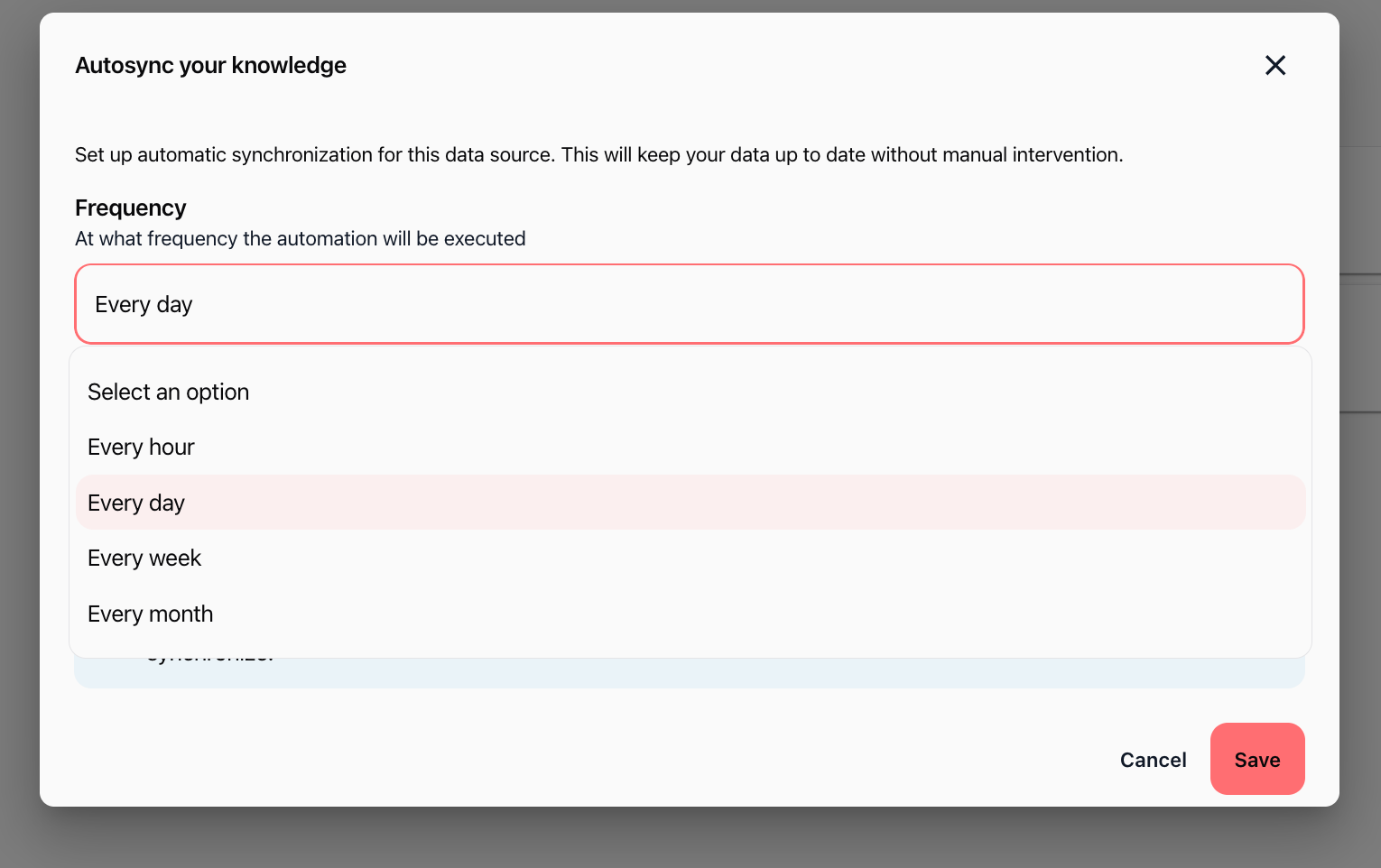
Click the Frequency dropdown menu.
Select how often Swiftask checks for updates:
Every hour
Every day
Every week
Every month
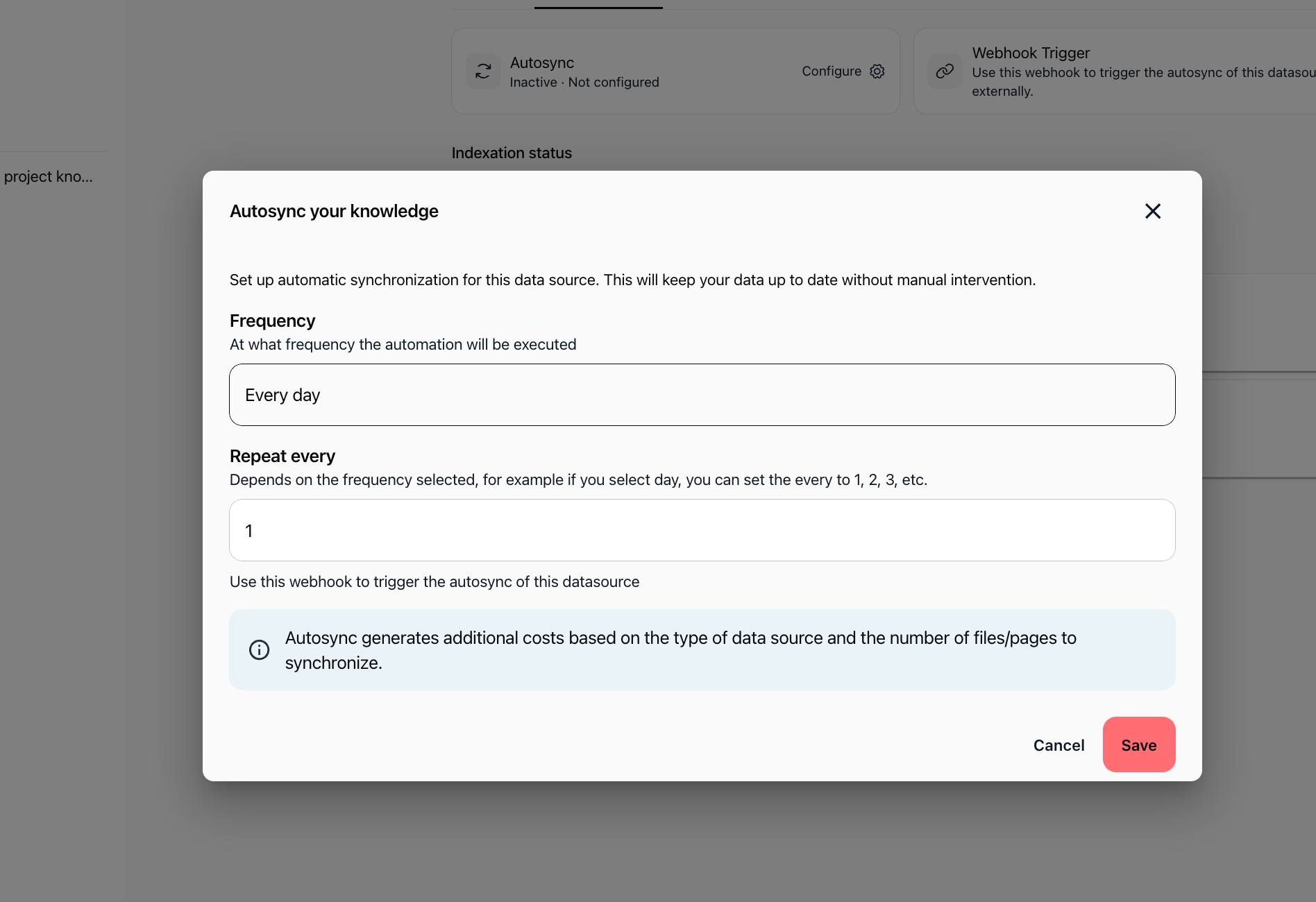
4. Set repeat interval and review costs
In the Repeat every field, enter your desired interval multiplier (for example, enter
1for every day, or3for every 3 days).Review the cost notice: autosync generates credit usage based on data source type and the number of files or pages synced.
Click Save.
Navigation method 2: Manage schedules from the Auto sync dashboard
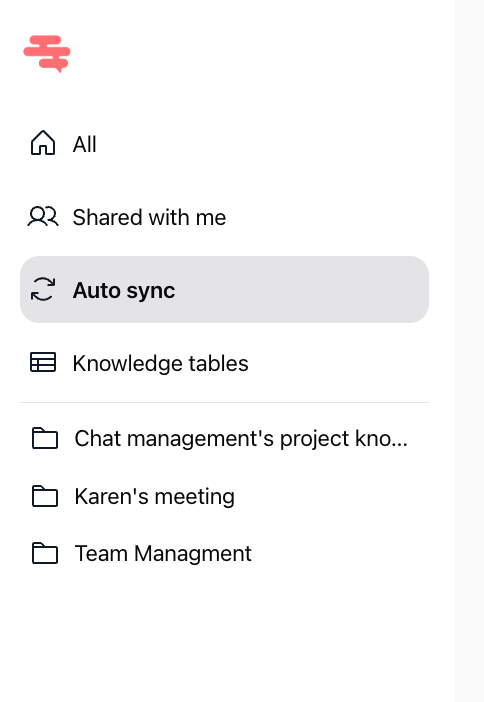
1. Access the Auto sync dashboard from the sidebar
Open the Knowledge section.
In the left navigation menu, click Auto sync.
2. Monitor scheduled data sources
The Knowledge auto sync table lists all configured synchronisation tasks. You can view:
Source: The name of the connected data source.
Category: The source type (e.g., Document, Cloud storage).
Schedule: The recurring execution frequency.
Next run: The date and time of the upcoming sync.
Run status: The current state (such as ACTIVE).
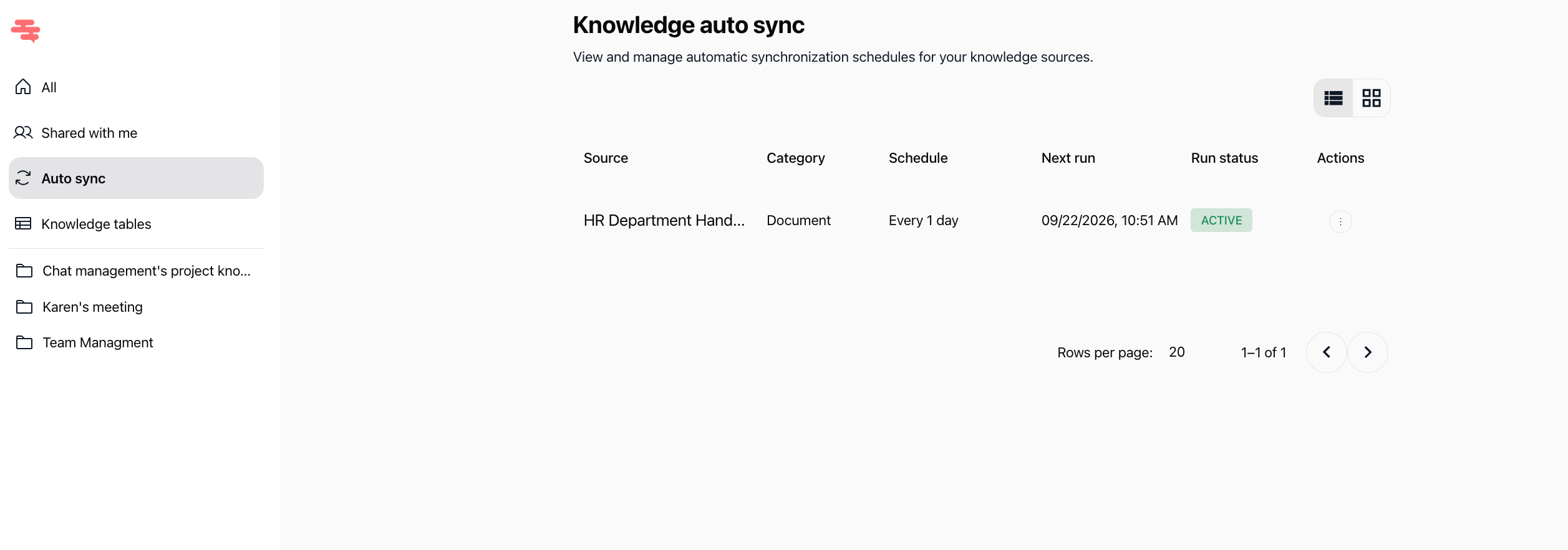
3. View automation details or edit schedules
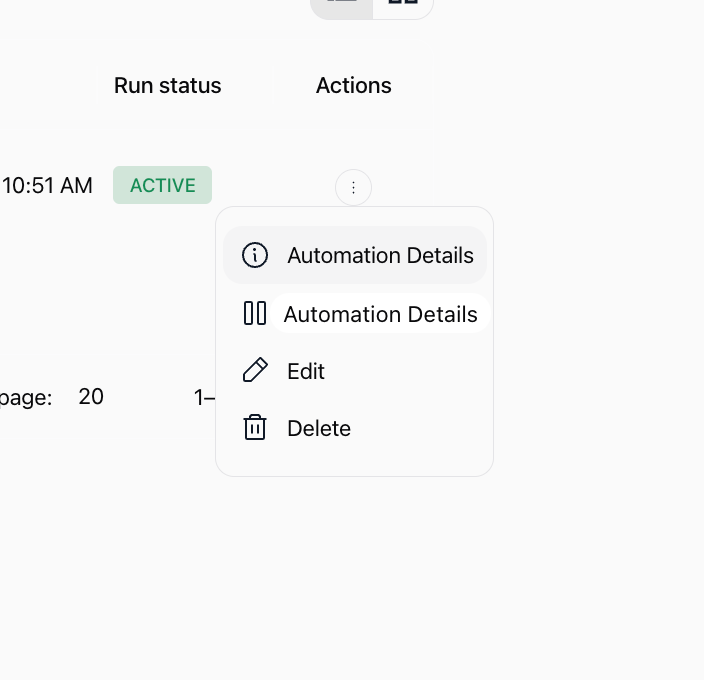
Click the three dots (⋮) under the Actions column for any data source.
Choose from the available options:
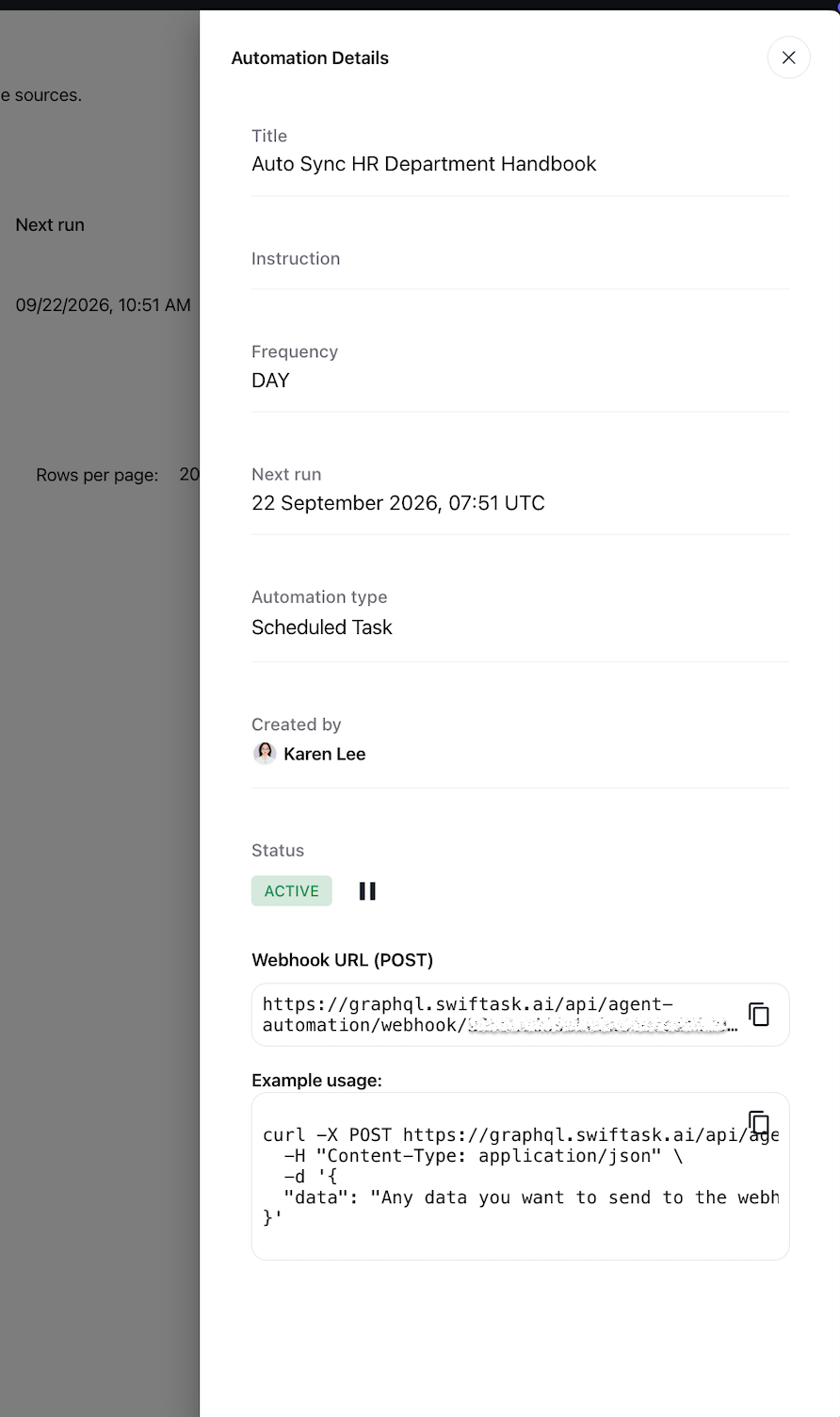
Automation Details: Inspect scheduling metadata, execution status, and the external webhook trigger.
Edit: Adjust frequency or repeat intervals.
Delete: Remove the scheduled automation.
When opening Automation Details, a side panel displays configuration parameters, author details, status controls, and the Webhook URL (POST) with cURL examples for programmatic triggering.
Practical use cases
Weekly product documentation refresh
Your product team updates technical guides in Google Drive every Monday. Set frequency to Every week with a repeat interval of 1. Customer support agents always answer questions using updated product features without manual resyncs.
Monthly policy compliance updates
HR contracts and policies hosted in SharePoint are revised once a month. Setting autosync to Every month ensures your internal policy agent always consults valid guidelines.
Daily research paper imports
New industry reports are added to Dropbox on a daily basis. Set autosync to Every day so research agents incorporate newly published data every morning.
External pipeline webhook triggers
When an internal CI/CD script publishes new documentation, you can trigger an immediate sync by sending an HTTP POST request to the Webhook URL found in Automation Details.
Tips & best practices
Align frequency with updates: Avoid scheduling hourly syncs for files that update weekly to optimize credit consumption.
Test with manual resync first: Use the Resync button on the data source page to ensure initial indexing succeeds before enabling automation.
Use the central dashboard: Check the Auto sync sidebar tab regularly to audit all active syncs and upcoming run dates in one place.
Secure webhook URLs: Treat the webhook POST URL shown in Automation Details as sensitive credentials.
Troubleshooting
Syncs are not running on schedule
Cause: The data source may have experienced connection or permission issues, or the automation is paused.
Fix: Check the Run status in the Knowledge auto sync dashboard. Open the data source and click Resync to verify connectivity.
Credit usage is higher than expected
Cause: Frequent sync intervals on large data sources consume credits on each cycle.
Fix: Reduce the frequency (e.g., from hourly to daily) or adjust the Repeat every interval in the autosync settings.
Changes do not appear immediately in chat
Cause: Synchronization runs on the defined schedule, not instantaneously upon file modification.
Fix: Wait for the scheduled execution time shown in Next run, or trigger an immediate sync using the Resync button.
Additional resources
Introduction to Knowloadge base – Learn core knowledge base concepts and structure
Import from Cloud (Google Drive, Dropbox, SharePoint) – Connect and import cloud files
Import documents / files – Upload local files directly into Swiftask
Was this helpful?
Still need help? Ask the team