Chat – Attaching files & documents
Written By Stanislas
Last updated 8 months ago
Upload documents, images, and files to Chat so AI can analyze them. Swiftask automatically extracts text from your files using OCR and provides intelligent analysis to help you get insights faster.
Whether you need to summarize a PDF, extract data from an image, or analyze multiple documents at once, file attachments make it easy to work with any content directly in Chat.
Overview
Attaching files to Chat lets you send documents, images, and data files to AI for analysis. Swiftask automatically processes your files—extracting text from images and PDFs using OCR, parsing structured data, and preparing everything for analysis.
You can attach multiple files at once, mixing different file types (for example, a PDF and an image in the same message). The AI will analyze all of them together or separately, depending on your question.
Prerequisites
To attach files in Chat, you need:
A Swiftask account (sign up at swiftask.ai)
Access to Chat
Files on your device or in your file system (up to ~100 MB per file)
File attachment is available to all Swiftask users.
Supported file types
Swiftask accepts a wide range of file formats:
Documents: PDF, DOCX, TXT, CSV, XLSX
Images: PNG, JPG, JPEG, GIF, WEBP
Data formats: JSON, XML, CSV
File size limit: Up to approximately 100 MB per file
Step-by-step guide
1. Open Chat
Navigate to Chat in Swiftask. You're ready to attach files immediately.
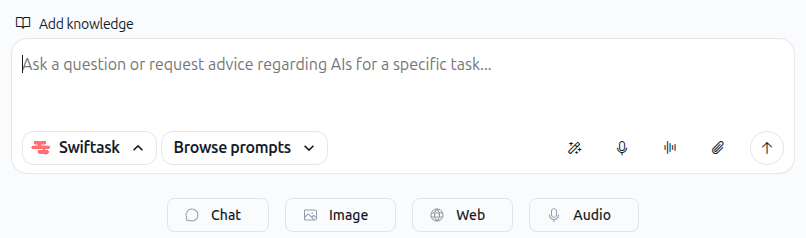
2. Click the files icon
In the input area at the bottom of the screen, locate the toolbar on the right side of the input field. Click the Files icon (it looks like a paperclip or attachment symbol).
3. Select your file(s)
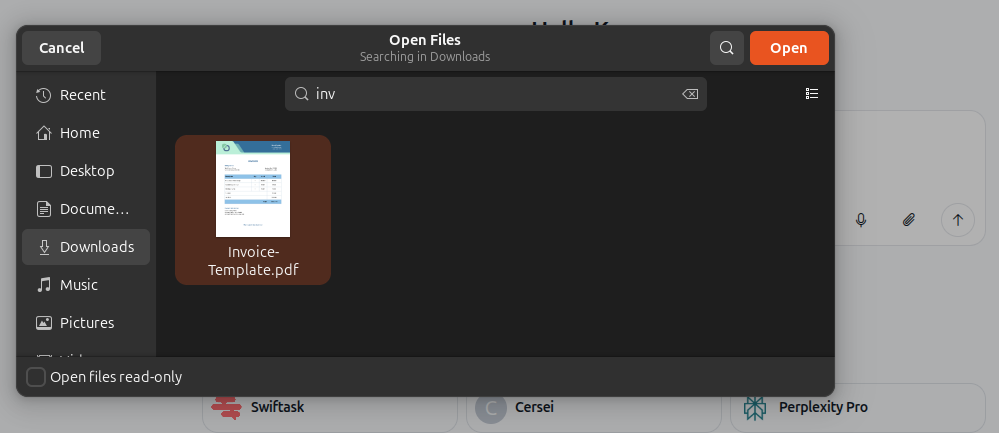
A file browser dialog opens. Navigate to the file(s) you want to attach and select them.
As shown in the image below, you can select multiple files at once. Simply click each file you want to include—Swiftask will attach them all together.
4. Confirm your selection
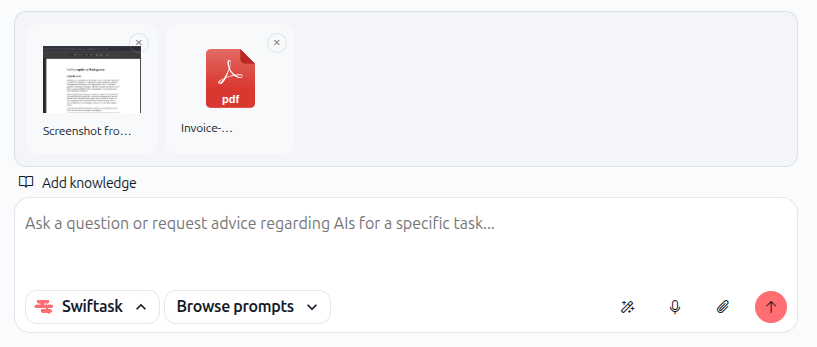
Select the file(s) you need. They will now appear in the chat input area.
As shown in the image below, you can see all attached files displayed as thumbnails or file icons. If you attached multiple files (like a screenshot and a PDF), they all appear together.
5. Type your question or request
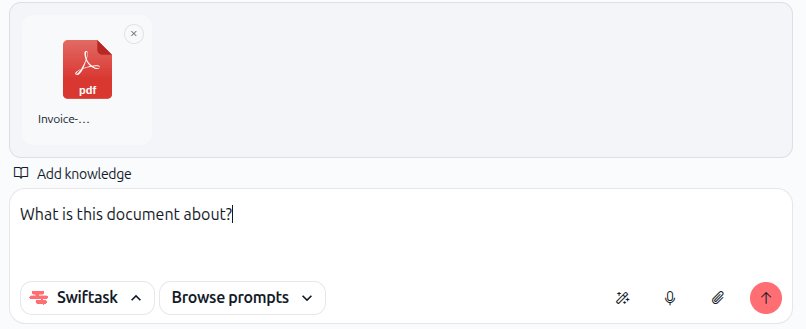
In the input field, type what you'd like the AI to do with your file(s). Be specific about what you need.
Examples:
"Summarize this PDF"
"Extract all names and email addresses from this document"
"What are the key points in this screenshot?"
"Compare these two images and tell me the differences"
6. Send your message
Press Enter or click the Send button (arrow icon). Swiftask will process your files and provide a response.
How file processing works
Automatic OCR and text extraction
When you attach an image or PDF, Swiftask automatically extracts text using OCR (optical character recognition). This means:
Images: Text embedded in screenshots, photos, or scanned documents is automatically extracted
PDFs: All text content is extracted, whether the PDF is text-based or scanned
No manual steps needed: Extraction happens automatically in the background
Document parsing
Swiftask parses your files to understand their structure and content:
Documents (DOCX, TXT): Text is extracted and analyzed
Spreadsheets (CSV, XLSX): Rows, columns, and data relationships are recognized
Data files (JSON, XML): Structured data is parsed and made available for queries
Images (PNG, JPG, GIF, WEBP): Text and visual content are analyzed
Practical use cases
Summarize a report
Attach a PDF report and ask: "Provide a one-page summary of the key findings, challenges, and recommendations."
Extract structured data
Attach a spreadsheet or table image and ask: "Extract all customer names and phone numbers into a list."
Compare documents
Attach multiple PDFs or images and ask: "What are the differences between these two proposals?"
Analyze an invoice
Attach an invoice image or PDF and ask: "What is the total amount, due date, and vendor name?"
Transcribe handwritten notes
Attach a photo of handwritten notes and ask: "Convert this handwriting to clean, typed text."
Tips & best practices
Remove unnecessary files: Only attach files relevant to your question. Extra files may slow down analysis.
Be specific in your question: Instead of "Analyze this," try "Extract the budget numbers from this spreadsheet and show them in a table."
Mix file types strategically: You can attach an image and a PDF together if your question relates to both. For example: "Compare this screenshot with the PDF report and highlight the differences."
Large files: Swiftask handles files up to ~100 MB. Very large files may take longer to process.
Troubleshooting
File didn't attach
Cause: File format not supported or file size exceeds limit
Solution:
Check that your file is one of the supported types (PDF, DOCX, PNG, JPG, etc.)
Verify the file is under 100 MB
Try again with a different file
AI didn't extract text from my image
Cause: Image quality is poor or text is unclear
Solution:
Ensure the image is clear and well-lit
If the image is very small or blurry, consider using a higher-quality version
No response to my file analysis request
Cause: File format not recognized or content is not analyzable
Solution:
Verify the file is not corrupted
Try attaching a simpler file first to test
Check that your question is clear and specific
Additional resources
Chat quick start – Learn how to start your first conversation
Browse and change AI models – Choose the right model for file analysis
Using agents from Chat – Automate file processing with AI agents
Managing conversation history – Organize chats with multiple file attachments
Ready to analyze your files? Click the Files icon in Chat now and attach your first document. Swiftask will handle the rest.