Configure Google Drive credentials for your workspace
Written By Stanislas
Last updated 16 days ago
Google Drive is a powerful cloud storage service that integrates with Swiftask to help your agents access and process files. By configuring custom OAuth 2.0 credentials, your organization maintains full control over the authentication process and ensures secure, compliant data access for all workspace members.
Why configure custom credentials? When you set up your own Google credentials instead of using Swiftask's default ones, you gain complete visibility and control over how your organization's data is accessed. This is especially important for enterprises with strict security or compliance requirements.
Prerequisites
Before you start, you need:
Admin or Owner role in your Swiftask workspace
Access to Workspace administration
Administrative access to your organization's Google Cloud Console
A Google account with permission to create a Google Cloud project
Step 1: Access workspace administration
This is where you configure authentication for your entire workspace.
Click the Settings icon at the bottom of the left sidebar
Select Workspace administration from the menu
Look for the Settings or Authentication section in the left navigation
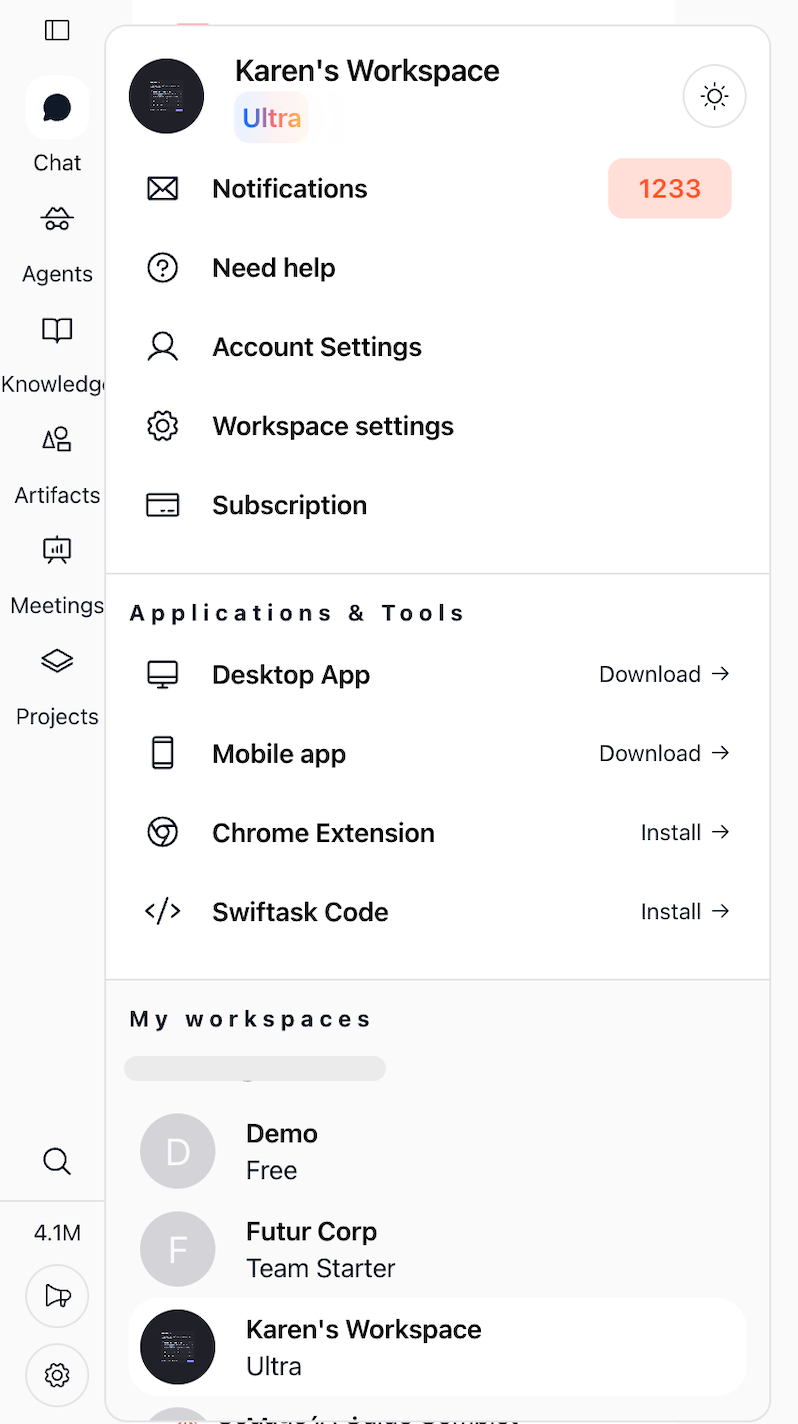
Once you're in workspace administration, you'll see options to manage workspace-wide settings, including external authentication methods like Google Drive.
Step 2: Locate the Google Drive authentication settings
In the workspace administration panel:
Navigate to Settings → Authentication (or similar section depending on your interface)
Look for Google Drive in the list of available external applications
Click Configure next to Google Drive
A dialog or form will open where you can enter your Google credentials.
Step 3: Get your Google credentials from Google Cloud Console
You need to create OAuth 2.0 credentials in Google Cloud. Follow these steps:
3.1 Create a Google Cloud project
Go to Google Cloud Console
Sign in with your organization's Google administrator account
Click the project selector in the top left
Click New Project
Enter a descriptive name (for example:
[Organization Name] - Google Drive Integration)Click Create
Wait a few seconds for the project to be created. It will be automatically selected when ready.
3.2 Enable the required Google APIs
In the left sidebar, go to APIs & Services → Library
Search for and enable each of these APIs:
Google Drive API
Google Sheets API
Google Docs API
Google Slides API
For each API:
Click on it in the results
Click the Enable button
Wait for confirmation
You should see a message: "[API Name] is now enabled for this project"
3.3 Create OAuth 2.0 credentials
Go to APIs & Services → Credentials
Click + Create Credentials at the top
Select OAuth client ID
If you haven't set up the OAuth consent screen yet, Google will ask you to configure it first:
Click Configure Consent Screen
Select Internal as the user type ( No need for google validation)
Click Create
Fill in the required information:
Click Save and Continue.
3.4 Add Google Drive scopes
At the "Scopes" step, click Add or Remove Scopes
Search for and select these four scopes:
https://www.googleapis.com/auth/drive.filehttps://www.googleapis.com/auth/drive- Full Drive access for file operationshttps://www.googleapis.com/auth/spreadsheets- Full Google Sheets accesshttps://www.googleapis.com/auth/documents- Full Google Docs accesshttps://www.googleapis.com/auth/presentations- Full Google Slides accesshttps://www.googleapis.com/auth/userinfo.emailhttps://www.googleapis.com/auth/userinfo.profile
Click Save and Continue
On the "Test users" page, you can add test accounts if needed (optional)
Click Back to Dashboard when done
3.5 Create your OAuth client ID and secret
Go back to APIs & Services → Credentials
Click + Create Credentials
Select OAuth client ID
For "Application type", select Web application
Under "Authorized redirect URIs", click Add URI and enter:
https://graphql.swiftask.ai/app/integrations/connectClick Create
A dialog will show your credentials:
Client ID (public identifier)
Client Secret (private key)
Important: Copy both values to a secure location. The Client Secret won't be shown again after you close this window.
3.6 Configure the OAuth Consent Screen Audience
After creating your consent screen, you need to configure who can access your application. This step is critical for security.
Setting the User Type to "Internal"
When selecting the user type for your OAuth consent screen:
Select
Internal— This means only users within your Google Workspace organization (i.e., accounts sharing the same domain as your workspace) will be able to authenticate.This option does not require Google's validation of your app, which simplifies the setup process significantly.
Access is automatically restricted to emails matching your organization's domain (e.g.,
@yourcompany.com).
✅ Recommended for organizations using Google Workspace (formerly G Suite). If your team uses
@yourcompany.comaccounts managed through Google Workspace, selecting Internal ensures that only members of your organization can connect Google Drive to Swiftask.
⚠️ Special case: Personal Gmail accounts (@gmail.com)
If your organization uses personal Gmail accounts (e.g., user@gmail.com) instead of a managed Google Workspace domain, the Internal option is not available.
In that case:
Select
Externalas the user typeYour app will be in Testing mode by default
Navigate to the "Test users" step in the consent screen setup
Click + Add Users
Enter each Gmail address that should have access to connect Google Drive in Swiftask
Click Save
⚠️ Important: In Testing mode, only the email addresses explicitly listed as test users will be able to authenticate. Up to 100 test users can be added. If you need more users, you would need to publish the app (which requires Google's verification).
Summary table
💡 Tip: If you are unsure which scenario applies to your organization, check whether your Google account is managed by an administrator. Go to myaccount.google.com and look for "Managed by your organization" — if you see this, you are on a Google Workspace domain and should use Internal.
Step 4: Enter your credentials in Swiftask
Now go back to the Swiftask workspace administration where you left off:
You should still see the Google Drive configuration dialog
Paste your Client ID in the "Client ID" field
Paste your Client Secret in the "Client Secret" field
Click Save
You'll see a confirmation message. Google Drive is now configured for your workspace.
Step 5: Test your connection
To verify everything is working:
Go to Settings → External Accounts or Connections (depending on your interface)
Look for the option to add or connect a Google Drive account
Click Connect Google Drive or Add Account
You'll be redirected to Google to authorize access
Sign in and authorize Swiftask to access your Google Drive
You'll be redirected back to Swiftask
Once connected, your workspace members can now use Google Drive integrations with your organization's credentials.
Update or remove credentials
To update your credentials:
Go to Workspace administration → Settings → Authentication
Find Google Drive in the list
Click Edit or Configure
Enter the new Client ID and Client Secret
Click Save
To remove the configuration:
Click Delete next to Google Drive
Confirm the deletion
Swiftask will revert to using default credentials
Security best practices
Do:
Use dedicated credentials for each workspace
Restrict Google Cloud project access to your admin team only
Regularly review who has access in Google Cloud Console
Use a group email address (not personal) for admin contacts
Document who configured the credentials and when
Don't:
Share the Client Secret with non-administrators
Use personal Google accounts for organization credentials
Reuse the same credentials across multiple projects
Leave credentials unprotected or undocumented
The Client Secret is encrypted in the Swiftask database and never displayed after initial save. Only workspace administrators can access it.
Troubleshooting
"Invalid redirect URI" error
What this means: The redirect URL you entered in Google Cloud doesn't match what Swiftask is using.
How to fix it:
Go to Google Cloud Console → APIs & Services → Credentials
Click on your OAuth client ID to edit it
Verify that this exact URL is listed under "Authorized redirect URIs":
https://graphql.swiftask.ai/app/integrations/connectIf it's missing, click Add URI and add it
Save the changes
Try connecting again in Swiftask
"Invalid Client ID" error
What this means: The Client ID you entered is incorrect or the Google Cloud project is no longer active.
How to fix it:
Copy the Client ID again from Google Cloud Console (make sure there are no extra spaces)
Verify that Google Drive API is still enabled in your project
Check that your Google Cloud project is still active
Re-enter the credentials in Swiftask and save
"Permission denied" after connecting
What this means: The scopes (permissions) aren't properly configured in Google Cloud.
How to fix it:
Go to Google Cloud Console → APIs & Services → OAuth consent screen
Make sure all four required scopes are added (see Step 3.4 above)
Save your changes
Disconnect your Google account from Swiftask
Find Swiftask and click to see details
Click Remove access
Connect again to Swiftask and authorize with the updated scopes
Key concepts
OAuth 2.0: A secure protocol that lets applications access Google Drive without storing your password.
Client ID: A public identifier for your application. It's safe to share this.
Client Secret: A private password for your application. Keep this secure and never share it.
Scopes: Permissions that define what your application can do (read files, write files, access profile, etc.).
Next steps
Once Google Drive is configured, your workspace members can:
Use Google Drive as a data source for agents
Export agent outputs to Google Docs and Google Sheets
Integrate Google Drive files into knowledge bases
This guide is for workspace administrators. If you need help, contact your system administrator.
Was this helpful?
Still need help? Ask the team