Subscription
Written By Stanislas
Last updated 16 days ago
Subscription management allows workspace admins to manage your subscription plan, view billing history, track credit usage, and configure subscription settings. By actively managing your subscription, you can optimize costs, ensure uninterrupted service, and scale resources according to your team's needs.
Effective subscription management helps you avoid unexpected charges, maximize savings through annual billing, and ensure your workspace has the resources it needs to operate efficiently.
Overview
The Subscription section provides comprehensive tools for managing your workspace's financial and resource allocation.
What you can do:
View subscription details – See your current plan, billing frequency, and active status
Monitor credit and seat usage – Track remaining AI credits and occupied member seats in real time
Manage extra capacity – Add extra credits or seats as your team grows
Switch to annual billing – Save significantly with yearly payment discounts
Manage billing & invoices – Update payment methods and download invoice receipts
Cancel subscription – End your subscription while retaining access until period end
Prerequisites
To manage subscription settings, you need:
Admin or Owner role in your workspace
Access to Workspace administration
Payment method configured (for paid plans)
Only Admins and Owners can modify subscription settings. Other users can view but not edit subscription information.
Accessing subscription management
To manage your subscription:
Click Subscription in the left sidebar
The Manage subscription page opens
Page structure
The page is organized into four main tabs:
Overview – Plan summary, usage progress bars, and plan change options
Extras – Management of extra AI credits and extra user seats
Billing – Payment method configuration and invoice history
Settings – Subscription cancellation options
Page header:
Title: "Manage subscription"
Description: "Manage your subscription and resources"
Upgrade my plan button: Top right button to upgrade or switch your plan
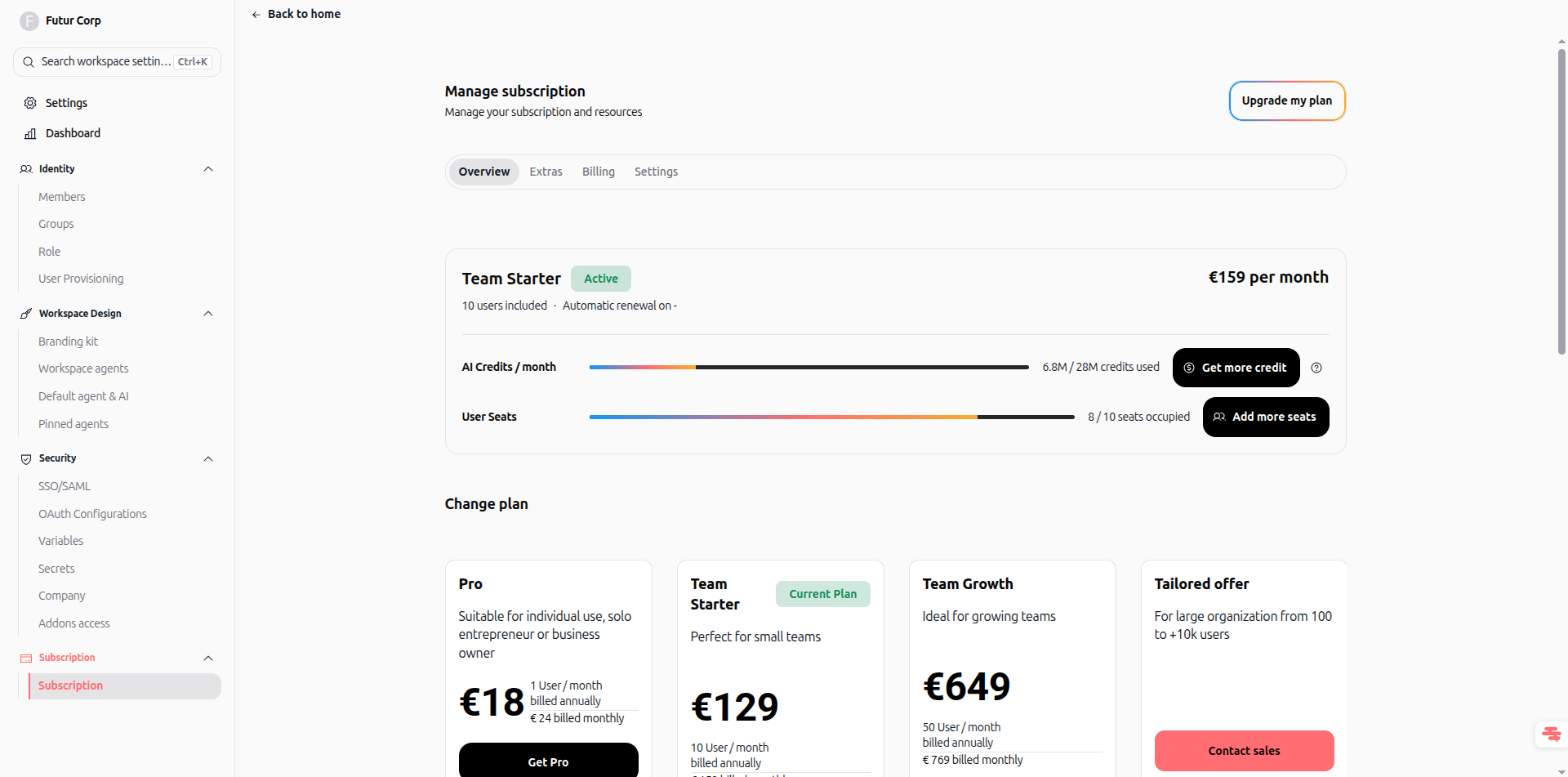
Overview tab
Subscription overview card
Displays your active plan information and resource consumption:
Current plan
Plan name & status: e.g., "Team Starter" with an Active badge
Rate & users: e.g., "€159 per month" and "10 users included · Automatic renewal on -"
Resource usage bars
AI Credits / month: Shows consumed credits vs monthly quota (e.g., "6.8M / 28M credits used"). Click Get more credit to add extra credits.
User Seats: Shows assigned seats vs total included seats (e.g., "8 / 10 seats occupied"). Click Add more seats to adjust seat capacity.
Change plan section
Displays available subscription tiers directly below your current plan:
Pro: For individual use and solo entrepreneurs (€18/month billed annually or €24 billed monthly)
Team Starter: For small teams (current plan)
Team Growth: For growing teams (€649/month billed annually or €769 billed monthly)
Tailored offer: For large organizations from 100 to 10k+ users (with Contact sales button)
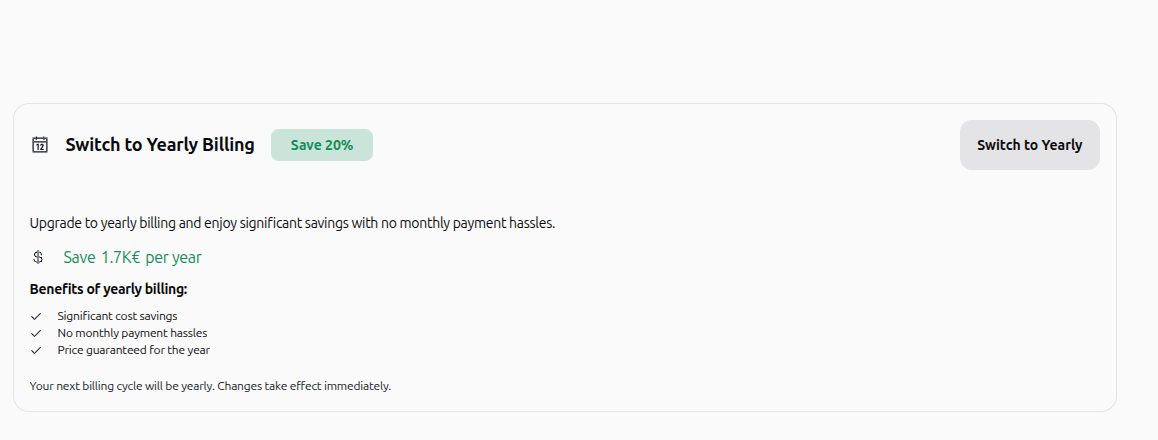
Switch to yearly billing section
Displayed when you are on a monthly plan and eligible for annual savings:
Badge: "Save 20%"
Description: "Upgrade to yearly billing and enjoy significant savings with no monthly payment hassles."
Savings: Estimated savings displayed (e.g., "Save 1.7K€ per year")
Benefits: Significant cost savings, no monthly payment hassles, and price guaranteed for the year
Switch to Yearly button: Click to immediately schedule your next billing cycle as yearly
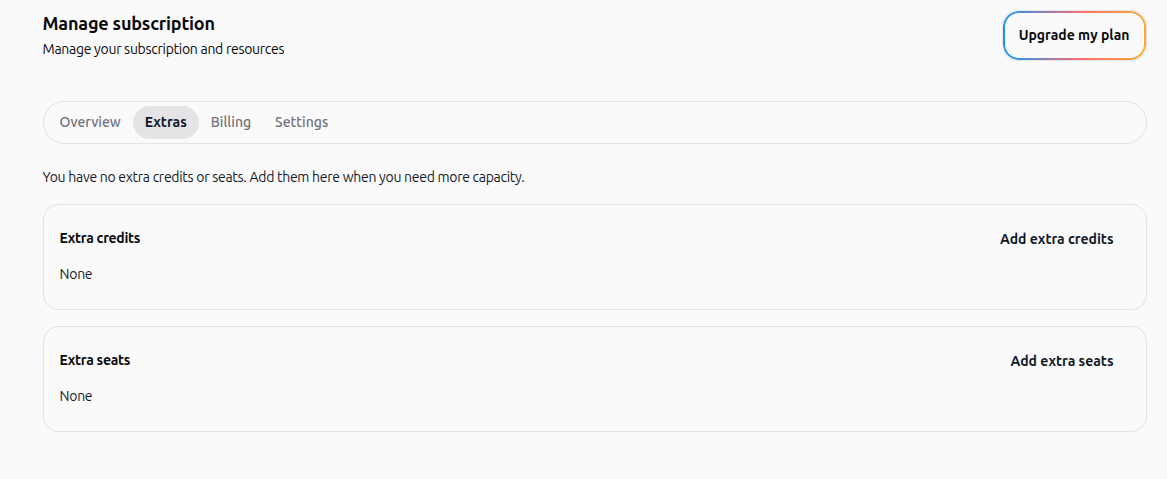
Extras tab
The Extras tab centralizes your additional capacity beyond your base plan limits:
Extra credits: Displays your current extra credit balance or "None". Click Add extra credits to purchase additional credits.
Extra seats: Displays your current extra seat count or "None". Click Add extra seats to add user capacity.
Note: Extra credits and seats are billed monthly on a separate invoice, independent of your base plan.
Managing seats and AI credits
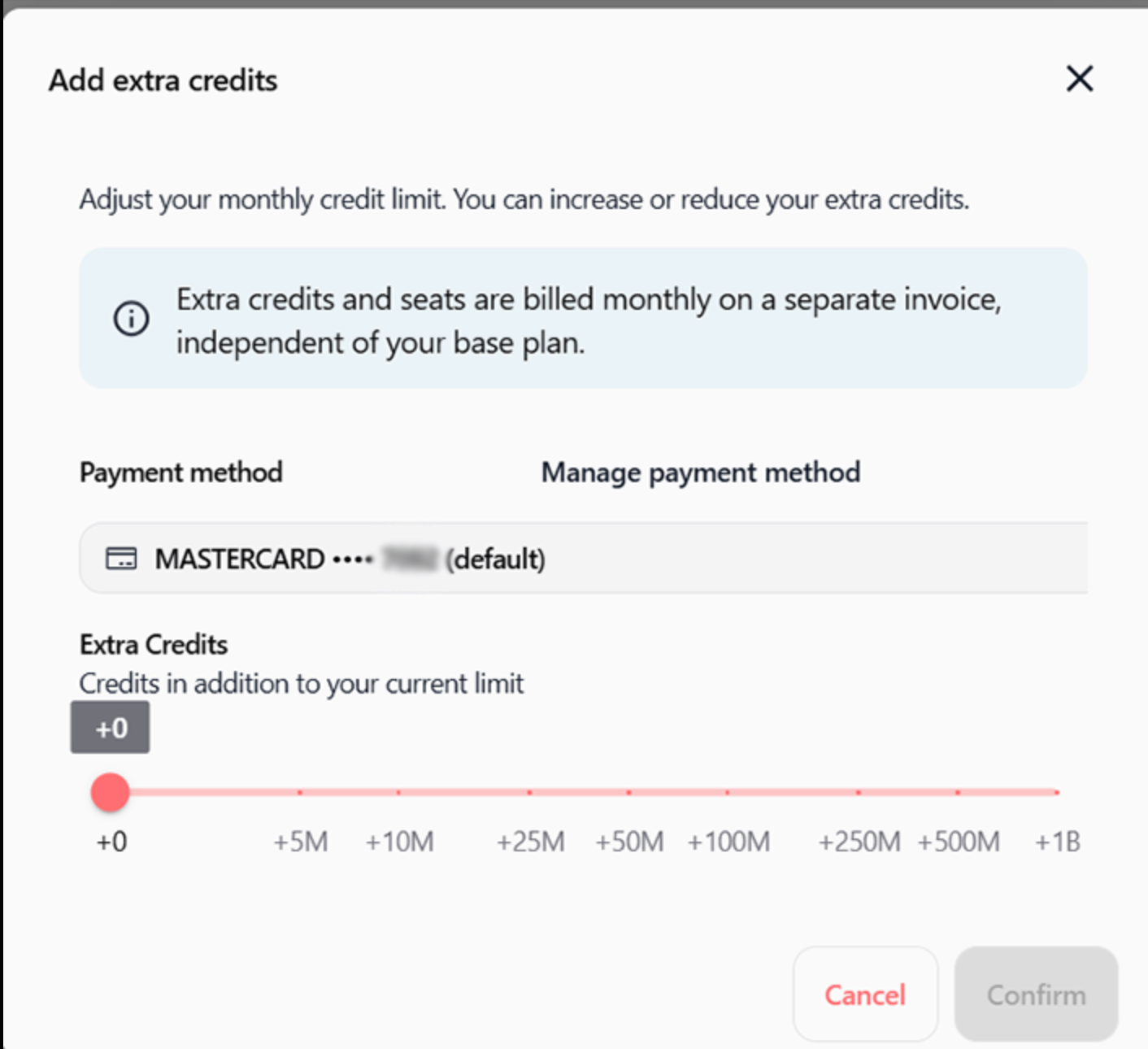
Adding extra AI credits
Click Get more credit from the Overview tab or Add extra credits from the Extras tab to open the modal:
Use the slider to select your additional monthly credit limit: +5M, +10M, +25M, +50M, +100M, +250M, +500M, +1B.
If your account is managed manually, click Contact Swiftask to submit your request.
Click Confirm to apply changes.
Managing user seats
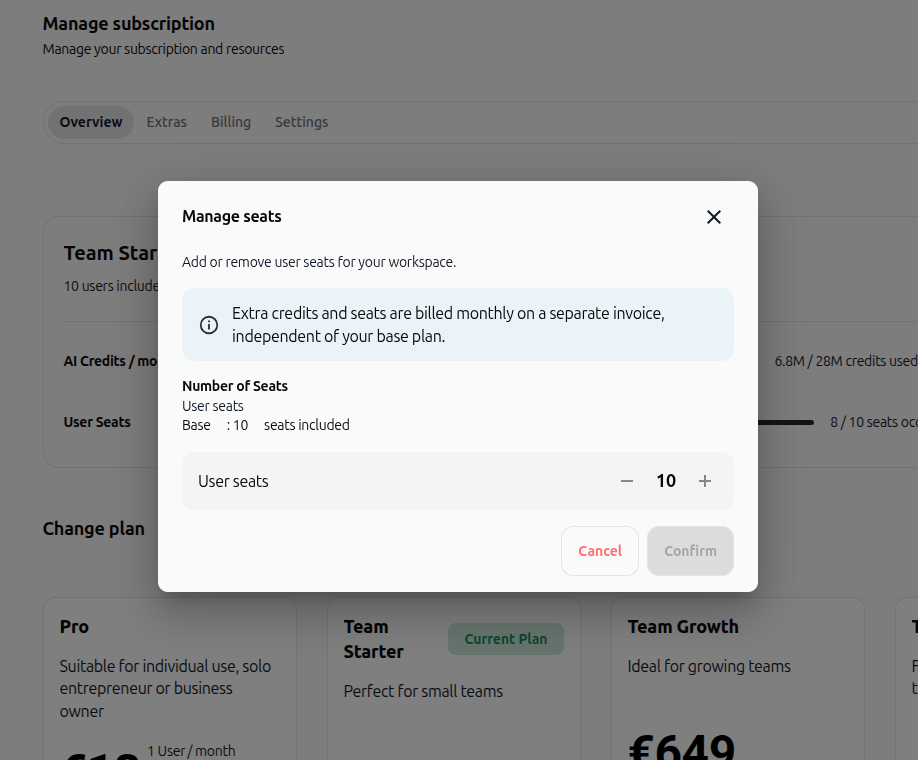
Click Add more seats from the Overview tab or Add extra seats from the Extras tab to open the modal:
View your base included seats (e.g., 10 seats included for Team Starter).
Use the + and - controls to increment or decrement your total seat count.
Click Confirm to validate.
Billing tab
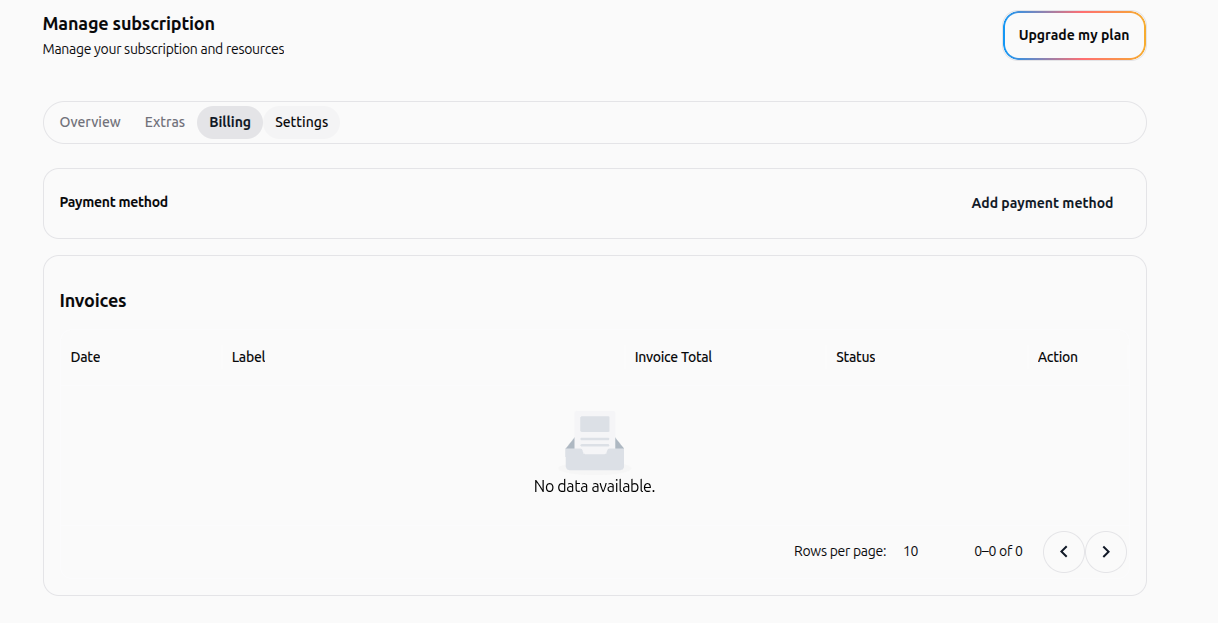
Payment method
Manage your billing payment options:
Click Add payment method to configure a credit or debit card securely
Update or replace active payment information anytime
Invoices section
Lists all generated billing invoices for your workspace:
Date: Date of invoice issue
Label: Plan or service description
Invoice Total: Total billed amount
Status: Payment state (Paid, Open, etc.)
Action: Download PDF invoice for accounting records
Settings tab
Subscription cancellation section
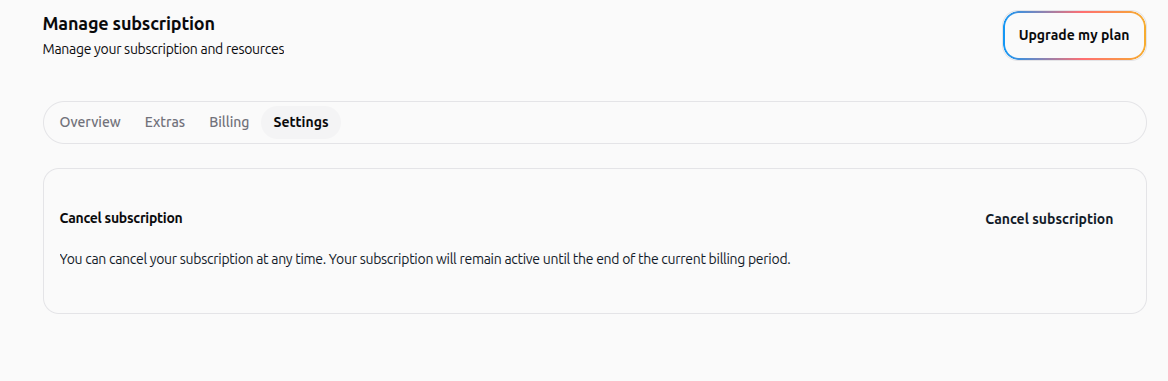
Workspace admins can cancel their plan at any time:
Notice: "You can cancel your subscription at any time. Your subscription will remain active until the end of the current billing period."
Cancel subscription button: Starts the cancellation process
Cancellation process
Click Cancel subscription
Select your cancellation reason in the prompt modal
Confirm cancellation
Your subscription remains active with full feature access until the end of the current billing period
Practical use cases
Case 1: Monitor AI credit usage
Objective: Ensure your workspace does not run out of monthly credits.
Steps:
Go to Subscription → Overview
Check the AI Credits / month progress bar
If credits are running low, click Get more credit
Select the desired credit increment and confirm
Case 2: Switch to annual billing
Objective: Reduce recurring costs with yearly billing.
Steps:
Go to Subscription → Overview
Locate the Switch to Yearly Billing section
Review the calculated yearly savings
Click Switch to Yearly to confirm
Case 3: Download an invoice
Objective: Retrieve past invoices for company accounting.
Steps:
Go to Subscription → Billing
In the Invoices table, find the relevant billing date
Click the download action button to export the invoice as PDF
Case 4: Add extra seats for new teammates
Objective: Expand user capacity beyond the base plan limit.
Steps:
Go to Subscription → Extras (or Overview)
Click Add extra seats (or Add more seats)
Use the counter to specify additional seat slots
Click Confirm to activate new seats immediately
Best practices
Usage monitoring
Check credits regularly: Track monthly AI credit consumption on the Overview bar
Anticipate growth: Add extra seats in advance when onboarding new team members
Billing optimization
Switch to annual: Take advantage of 20% annual savings for ongoing workspaces
Keep payment methods current: Avoid interrupted access by updating expiring cards
Cost control
Separate extras billing: Remember that extra credits and seats are billed on a separate monthly invoice
Adjust capacity dynamically: Reduce extra seats or credits when team requirements scale down
Limitations and important notes
Permissions
Only Admins and Owners can view and modify subscription plans, extras, and billing information
Billing
Prorated: Plan upgrades and extra capacity take effect immediately
Separate invoicing: Extra credits and extra seats are invoiced monthly independent of base plans
Cancellation
Grace period: Subscriptions remain fully active until the end of the current billing cycle
Reactivation: You can reactivate before final expiration
Troubleshooting
Issue: I cannot change plans or add extras
Cause: You do not have Workspace Admin or Owner permissions.
Solution: Request access from your workspace administrator.
Issue: Extra credit slider is not interactive
Cause: Your workspace subscription is managed manually through an enterprise agreement.
Solution: Click the "Contact Swiftask" link in the modal to request credit adjustments directly.
Issue: The "Switch to Yearly" banner is not visible
Cause: Your plan is already set to yearly billing or is on a custom agreement.
Solution: Check your current billing frequency on the Overview card or contact support.
Frequently asked questions
What is the difference between monthly and annual billing?
Monthly billing charges on a recurring month-to-month basis. Annual billing bills once per year with up to 20% discount on total subscription costs.
How are extra seats and credits billed?
Extra seats and credits are billed monthly on a separate invoice, independent of whether your base plan is billed monthly or annually.
Can I cancel and reactivate my plan?
Yes. When cancelled, your plan remains active until the end of the current billing period, during which you can reactivate without loss of workspace data.
Additional resources
Governance and workspace administration – Overview of workspace policies and user controls
Managing members – Invite, assign roles, and manage team members
Settings – General workspace configuration options
Ready to manage your plan? Navigate to Subscription in the left sidebar to configure your plan, extras, and billing.
Was this helpful?
Still need help? Ask the team