Table de connaissances
Written By Stanislas
Last updated 16 days ago
Présentation
Les tableaux de connaissances vous permettent de créer des tableaux simples et organisés pour tout type de données métier et de les connecter directement à vos agents IA. Stockez vos prospects, catalogues de produits, FAQ ou informations client dans des tableaux structurés que vos agents peuvent interroger, lire et mettre à jour pendant les conversations.
Contrairement aux documents non structurés de votre base de connaissances, les tableaux de connaissances offrent un stockage structuré de type base de données avec des colonnes et des types de données définis. Cela donne à vos agents un accès précis et fiable aux données critiques de l'entreprise sans la complexité des bases de données externes.
Les tableaux de connaissances sont disponibles sur tous les plans (Pro, Team Starter, Team Growth et Custom) sans limite technique sur le nombre de tableaux que vous pouvez créer.
Prérequis
Avant de connecter votre premier tableau de connaissances à un agent, vous avez besoin de :
Un compte Swiftask avec accès à la section Connaissances
Une compréhension de base de votre structure de données (quelles colonnes et quels types de données vous avez besoin)
Vos données prêtes à être importées (facultatif, mais recommandé pour les opérations en masse)
Connexion d'un tableau de connaissances à un agent
C'est le principal moyen de donner à vos agents un accès à des données structurées. Vous pouvez soit connecter une table existante, soit en créer une nouvelle directement depuis la configuration des compétences de l'agent.
L'agent peut ensuite interagir avec elle: lire la table, ajouter de nouvelles colonnes ou lignes; en fonction des autorisations que vous lui accordez.
Ajout de la compétence Tableau de connaissances à un agent
Étape 1 : Ouvrez les paramètres de votre agent et accédez à la section Compétences.
Étape 2 : Recherchez ou faites défiler jusqu'à l'outil Swiftask - Tableau de connaissances (Bêta) et cliquez pour l'ajouter.

Étape 3 : Un panneau de configuration s'ouvre. Remplissez les champs obligatoires :
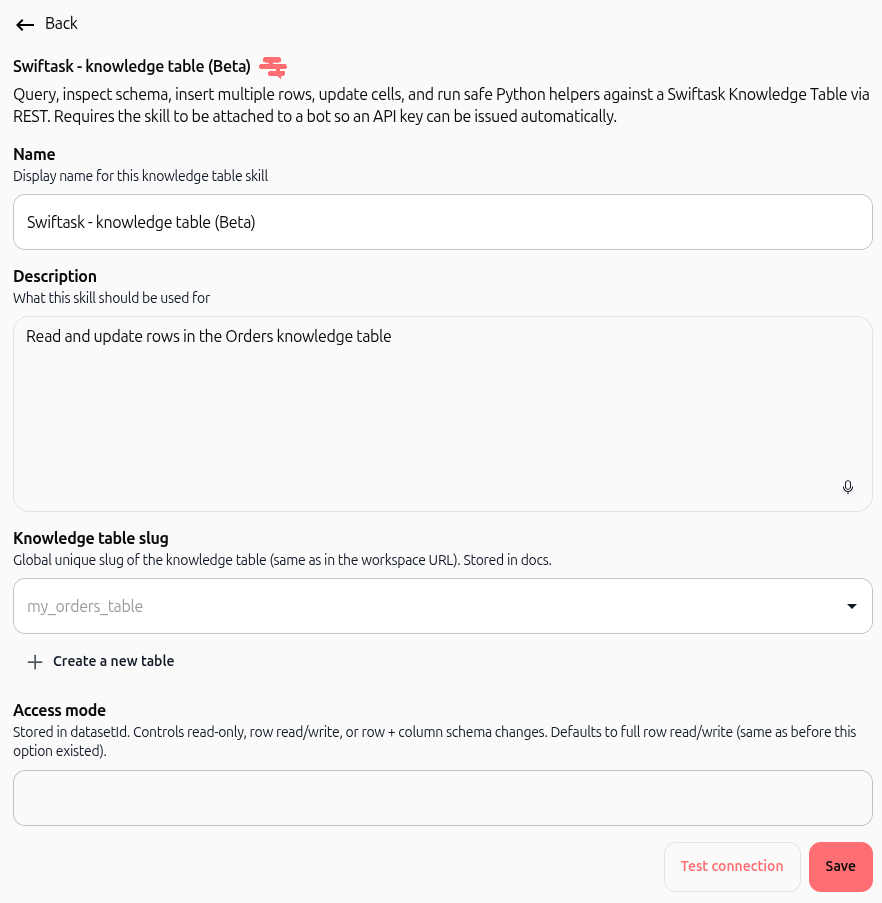
Nom : Nom d'affichage de cette compétence dans votre agent (par exemple, "Base de données des prospects", "Catalogue de produits")
Description : À quoi cette compétence doit être utilisée (par exemple, "Rechercher et mettre à jour les informations sur les prospects")
Slug du tableau de connaissances : Sélectionnez votre tableau dans le menu déroulant
Mode d'accès : Choisissez le niveau d'autorisation approprié (voir "Comprendre les modes d'accès" ci-dessous)
Étape 4 : Cliquez sur Enregistrer pour activer la compétence. Votre agent peut désormais accéder au tableau de connaissances.
Comprendre les modes d'accès
Le mode d'accès détermine les autorisations dont dispose votre agent sur le tableau de connaissances. Choisissez le mode qui correspond à votre cas d'utilisation :
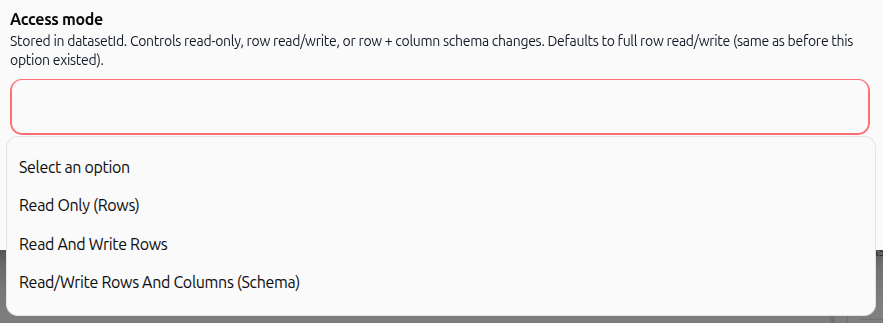
Lecture seule
L'agent peut interroger et afficher les données
L'agent ne peut pas ajouter, modifier ou supprimer des lignes
L'agent ne peut pas modifier la structure du tableau (ajouter/supprimer/renommer des colonnes)
Cas d'utilisation : FAQ, catalogues de produits, données de référence qui ne changent pas pendant les conversations
Lire et écrire des lignes
L'agent peut interroger, afficher, ajouter et modifier des lignes
L'agent peut supprimer des lignes
L'agent ne peut pas modifier la structure du tableau (ajouter/supprimer/renommer des colonnes)
Cas d'utilisation : Dossiers clients, qualification de prospects, mises à jour de statut où les agents doivent modifier les données mais pas le schéma
Lire/écrire des lignes et des colonnes (Schéma)
L'agent a un contrôle total : interroger, modifier les lignes, ajouter des lignes, supprimer des lignes, ajouter de nouvelles colonnes et supprimer des colonnes
L'agent ne peut pas renommer les colonnes existantes
Cas d'utilisation : Automatisation avancée, gestion dynamique des tableaux où les agents doivent adapter la structure elle-même à mesure que votre entreprise évolue
Création d'un tableau de connaissances directement depuis la compétence de l'agent
Si vous n'avez pas encore de tableau de connaissances, vous pouvez en créer un directement depuis la configuration de la compétence de l'agent sans quitter la page.
Étape 1 : Lors de la configuration de la compétence Swiftask - Tableau de connaissances, cliquez sur le bouton + Créer un nouveau tableau sous le menu déroulant Slug du tableau de connaissances.
Étape 2 : Une fenêtre modale s'ouvre. Entrez un nom de tableau (par exemple, "Commandes", "Prospects", "Clients") et ajoutez éventuellement une description.
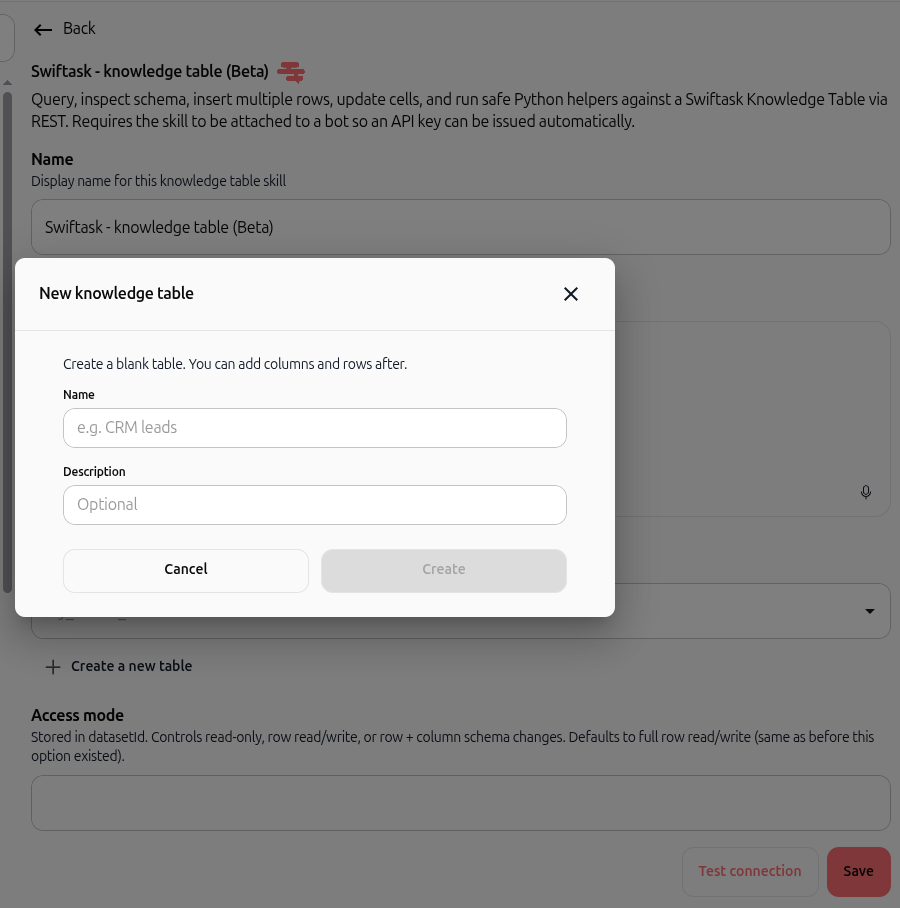
Étape 3 : Cliquez sur Créer. Le nouveau tableau est créé et automatiquement sélectionné dans le champ Slug du tableau de connaissances.
Étape 4 : Vous pouvez maintenant configurer le Mode d'accès et enregistrer la compétence. Le tableau est prêt pour les colonnes et les données,, et vous pouvez demander à l'agent de créer des colonnes et des lignes pour vous, et vous pouvez demander à l'agent de créer des colonnes et des lignes pour vous.
Création d'un tableau de connaissances
Vous pouvez créer des tableaux de connaissances à partir de la section Connaissances de votre espace de travail. Les tableaux sont vides lors de leur création—vous définissez la structure en ajoutant des colonnes, puis vous les remplissez avec des données.
Création d'un nouveau tableau
Étape 1 : Dans la barre latérale gauche, cliquez sur Connaissances, puis sélectionnez Tableaux de connaissances.
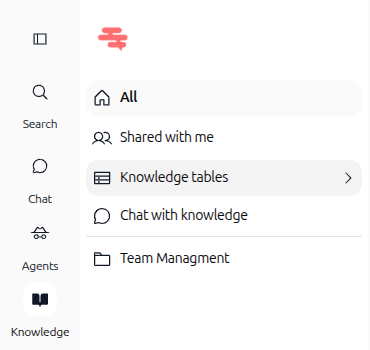
Étape 2 : Sur la page d'aperçu des tableaux de connaissances, cliquez sur le bouton + Nouveau tableau en haut à droite.
Étape 3 : Une boîte de dialogue s'ouvre. Entrez un nom de tableau (par exemple, "Employés", "Produits", "Base de données FAQ") et ajoutez éventuellement une description, puis cliquez sur Créer.
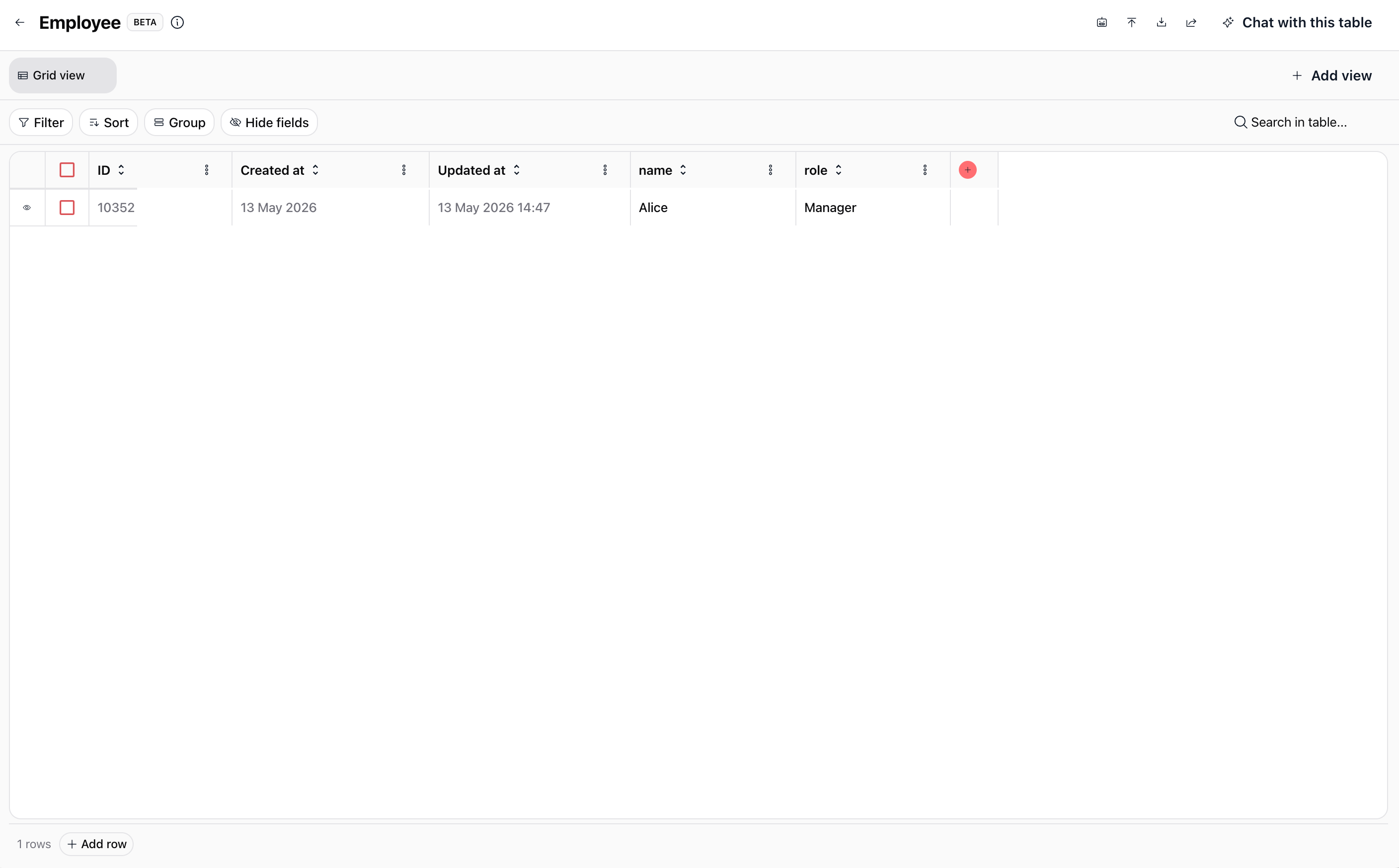
Étape 4 : Votre nouveau tableau est créé et prêt pour la structure. Lorsque vous créez un tableau ou cliquez sur un tableau existant dans la liste, la nouvelle interface s'ouvre avec les colonnes système (ID, Créé le, Mis à jour le), les vues, les contrôles de la barre d'outils et les actions d'en-tête.
Ajout de colonnes à votre tableau
Votre tableau de connaissances commence par trois colonnes système qui sont toujours présentes et ne peuvent pas être modifiées : ID, Créé le et Mis à jour le. Vous ajoutez des colonnes personnalisées pour stocker vos données métier.
Étape 5 : Cliquez sur bouton + (en rouge) dans la zone d'en-tête de colonne.
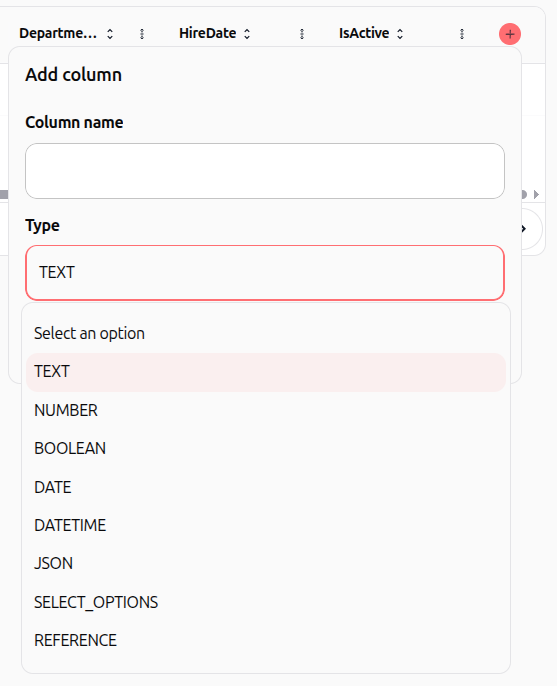
Étape 6 : Configurez chaque colonne :
Nom de la colonne : Utilisez des noms clairs et descriptifs (par exemple, "NomProspect", "Email", "Statut", "Prix")
Type de données : Choisissez parmi :
TEXTE : Noms, descriptions, texte libre
NOMBRE : Quantités, IDs, valeurs numériques
BOOLÉEN : Valeurs oui/non, vrai/faux
DATE : Dates sans heure
DATETIME : Dates avec heure
JSON : Données structurées complexes
OPTIONS_SÉLECTION : Champs déroulants/choix
RÉFÉRENCE : Liens vers d'autres tableaux
Cliquez sur Enregistrer pour ajouter la colonne.
Étape 7 : Répétez ce processus pour chaque colonne dont vous avez besoin. La structure de votre tableau est maintenant définie.
Ajout de données à votre tableau
Saisie manuelle
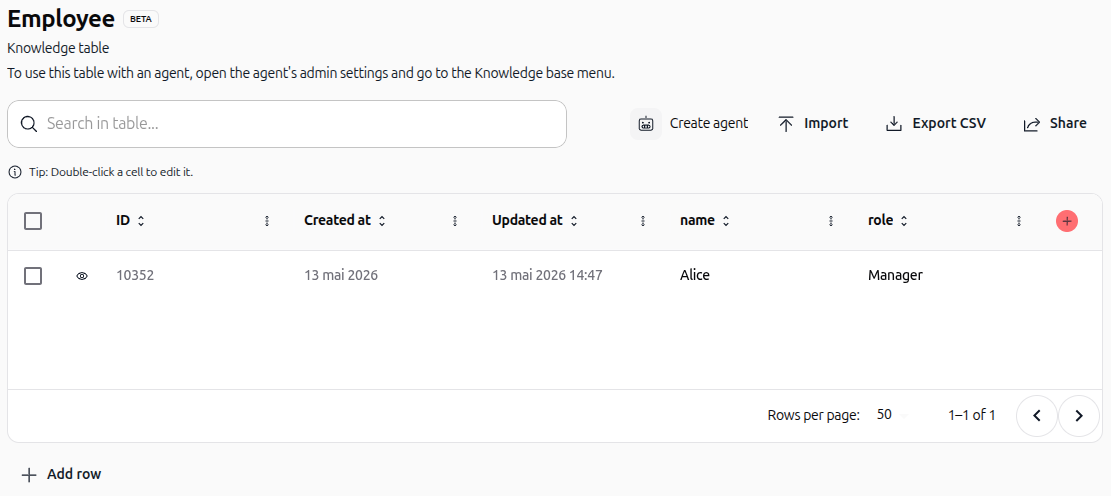
Étape 8 : Cliquez sur + Ajouter une ligne en bas à gauche pour ajouter une nouvelle ligne manuellement. Un éditeur en ligne s'ouvre où vous pouvez remplir les données pour chaque colonne. Cliquez sur Enregistrer une fois terminé.
Import CSV (recommandé pour les données en masse)
Cliquez sur le bouton Importer en haut à droite, sélectionnez un fichier CSV depuis votre ordinateur, et toutes les lignes seront ajoutées automatiquement. Assurez-vous que les en-têtes de votre CSV correspondent exactement aux noms de vos colonnes (sensible à la casse).
Exportation de données
Cliquez sur le bouton Exporter CSV en haut à droite pour télécharger votre tableau sous forme de fichier CSV. C'est utile pour les sauvegardes, l'analyse ou le partage avec d'autres systèmes.
Personnaliser les affichages
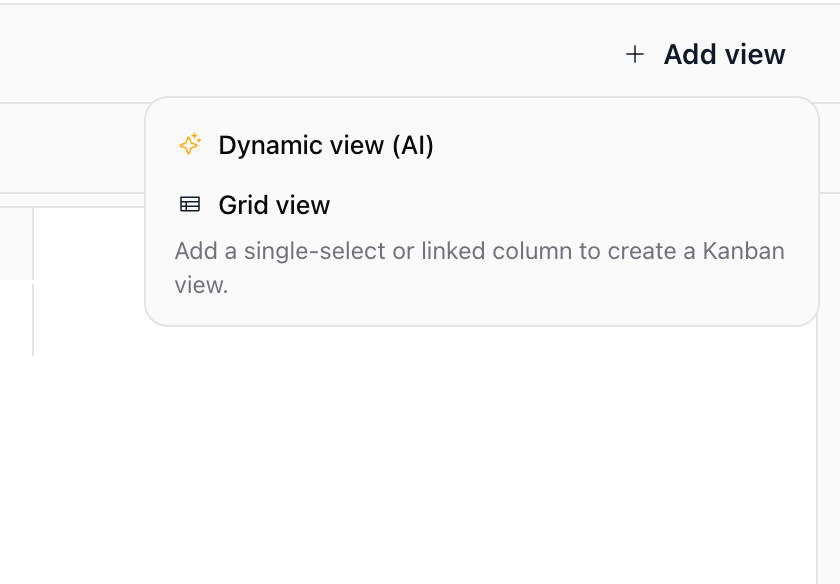
Les tables de connaissances vous permettent d'organiser et de consulter vos données sous plusieurs angles :
Grid view (Vue tableau) : La disposition classique en tableau affichant les lignes et les colonnes.
+ Add view : Cliquez pour créer des affichages alternatifs de vos données.
Dynamic view (AI) : Laissez l'IA générer des vues personnalisées adaptées à votre demande en langage naturel.
Vue Kanban : Ajoutez une colonne à sélection unique ou liée pour visualiser vos enregistrements sous forme de cartes ordonnées par colonnes.
Filtrer, trier et organiser les enregistrements
Utilisez la barre d'outils située au-dessus de votre tableau pour affiner les données affichées :
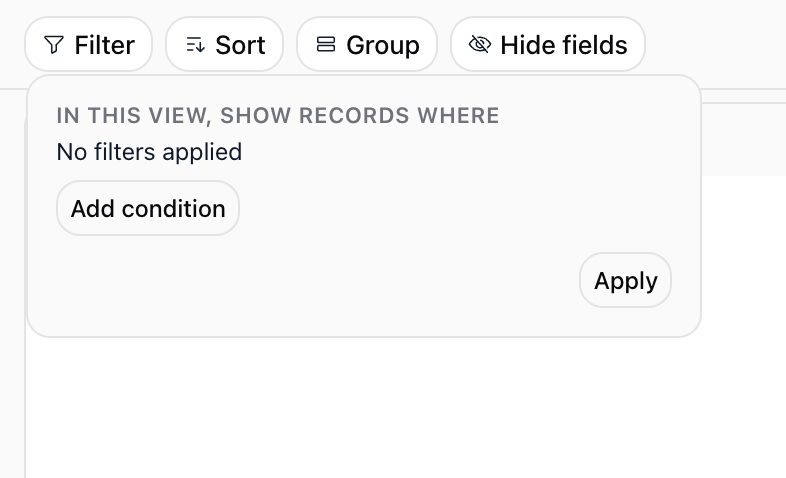
Filter (Filtrer) : Cliquez sur Filter, puis sur Add condition pour définir les critères d'affichage des enregistrements, et cliquez sur Apply.
Sort (Trier) : Classez les enregistrements par ordre croissant ou décroissant selon n'importe quelle colonne.
Group (Grouper) : Regroupez les lignes selon les valeurs d'une colonne (statut, rôle, catégorie) pour structurer vos données en ensembles cohérents.
Hide fields (Masquer les champs) : Activez ou désactivez la visibilité des colonnes pour cibler les données essentielles sans supprimer de colonnes.
Search in table... (Rechercher) : Retrouvez rapidement des enregistrements spécifiques dans le tableau.
Discuter avec votre table et actions rapides
L'en-tête en haut à droite offre des accès directs pour interagir avec votre tableau :
Chat with this table : Lancez une conversation IA disposant du contexte complet des données de votre table. Posez des questions, demandez des synthèses ou interrogez des lignes précises.
Raccourci Agent : Cliquez sur l'icône de robot pour créer ou associer un agent IA configuré pour travailler avec cette table.
Import / Export : Utilisez l'icône d'import pour charger un fichier CSV ou l'icône d'export pour télécharger votre tableau en CSV.
Partager : Gérez les permissions et partagez l'accès à la table avec votre équipe.

Création d'un agent à partir d'un tableau de connaissances
Une fois votre tableau de connaissances créé et rempli, vous pouvez rapidement créer un nouvel agent préconfiguré pour utiliser ce tableau.
Étape 1 : Depuis votre tableau de connaissances, cliquez sur le bouton Créer un agent en haut à droite.
Étape 2 : Une fenêtre modale s'ouvre avec :
Nom de l'agent : Entrez un nom pour votre nouvel agent (par exemple, "Qualificateur de prospects", "Bot de support")
Sélection du modèle : Choisissez parmi les modèles d'agent disponibles (modèle vierge, assistant de connaissances ou modèles spécialisés)
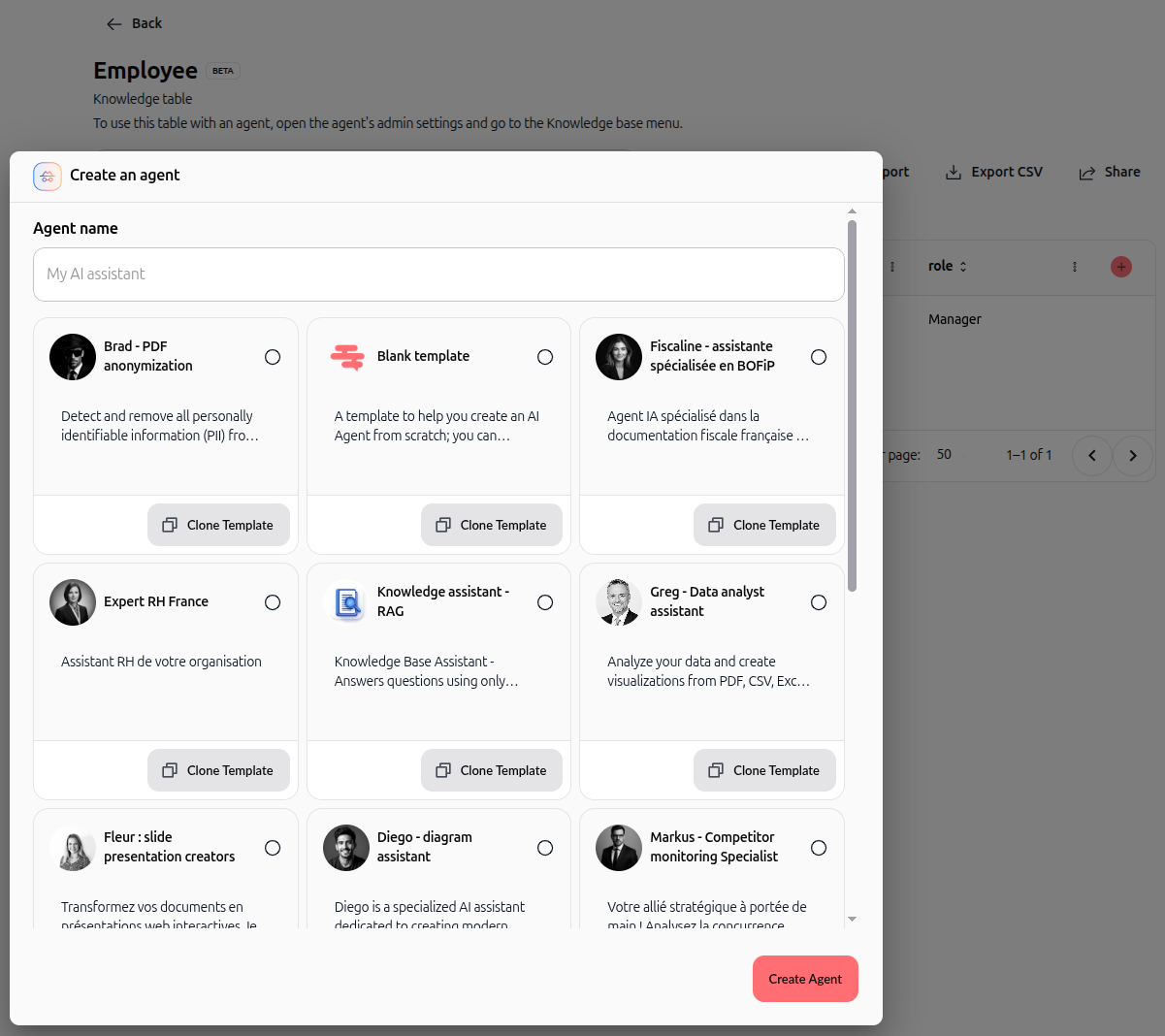
Étape 3 : Cliquez sur Créer un agent. Vous serez redirigé vers la page de configuration de l'agent, et la compétence Swiftask - Tableau de connaissances sera automatiquement ajoutée avec ce tableau sélectionné.
Étape 4 : Configurez les paramètres restants de l'agent et le Mode d'accès de la compétence si nécessaire, puis enregistrez.
Cas d'utilisation pratiques
Les tableaux de connaissances débloquent des capacités puissantes pour les agents. Voici des scénarios réels diversifiés :
Agent de support produit avec recherche de prix
Créez un tableau "Produits" avec des colonnes comme IDProduit, Nom, Catégorie, Prix et StatutStock. Lorsqu'un client demande "Quel est le prix de votre plan premium ?", l'agent interroge le tableau et fournit le prix exact et à jour. Utilisez l'accès Lecture seule pour éviter les modifications accidentelles.
Chatbot de qualification de prospects
Construisez un tableau "Prospects" avec des colonnes comme NomProspect, Email, Entreprise, TypeIndustrie et ScoreQualification. Au fur et à mesure que votre agent commercial qualifie les prospects par conversation, il met à jour le ScoreQualification directement dans le tableau. Utilisez l'accès Lire et écrire des lignes pour que l'agent puisse ajouter de nouveaux prospects et mettre à jour les scores sans restructurer le tableau.
Agent de FAQ multilingue
Créez un tableau "FAQ" avec des colonnes comme QuestionEN, RéponseEN, QuestionFR, RéponseFR, Catégorie et DernièreMiseÀJour. Lorsque les utilisateurs posent des questions en français ou en anglais, l'agent récupère la réponse appropriée du tableau. Utilisez l'accès Lecture seule pour garantir la cohérence.
Assistant de réservation de rendez-vous
Configurez un tableau "CréneauxDisponibles" avec des colonnes comme Date, Heure, TypeService, IDAgent et EstRéservé. Lorsque les clients demandent des rendez-vous, l'agent vérifie les créneaux disponibles, en réserve un en mettant à jour EstRéservé à vrai, et confirme le rendez-vous. Utilisez Lire et écrire des lignes pour maintenir automatiquement votre calendrier synchronisé.
Agent de modération de contenu
Créez un tableau "SoumissionsUtilisateurs" avec des colonnes comme IDSoumission, Contenu, SoumisPar, DateCréation et StatutModération. Au fur et à mesure que l'agent examine les soumissions, il met à jour le StatutModération (Approuvé, Rejeté, NécessiteExamen). Utilisez Lire et écrire des lignes pour maintenir le flux de modération à jour.
Système de gestion des fournisseurs avec schéma dynamique
Créez un tableau "Fournisseurs" avec des colonnes comme NomFournisseur, EmailContact, ConditionsPaiement et ScorePerformance. Utilisez l'accès Lire/écrire des lignes et des colonnes (Schéma) pour que l'agent puisse non seulement mettre à jour les informations sur les fournisseurs, mais aussi ajouter de nouvelles colonnes lorsque de nouveaux attributs deviennent importants (par exemple, NiveauCertification, NoteEnvironnementale). Cela permet au système d'évoluer avec les besoins de votre entreprise.
Annuaire des employés et requêtes RH
Créez un tableau "Employés" avec des colonnes comme Nom, Rôle, Département, DateEmbauche, Responsable et EstActif. Lorsqu'un employé demande "Qui est mon responsable ?", l'agent recherche l'information instantanément. Utilisez l'accès Lecture seule pour protéger les données RH sensibles contre les modifications accidentelles.
Conseils et meilleures pratiques
Utilisez des noms de colonnes clairs et descriptifs : Des noms comme "IDEmployé", "DateEmbauche", "EstActif" sont plus clairs que "ID", "Date", "Statut". Cela aide les agents à comprendre et à traiter correctement les données.
Choisissez le bon type de données : Utiliser DATE pour les dates d'embauche et BOOLÉEN pour le statut actif aide les agents à interpréter et valider correctement les données.
Gardez les tableaux ciblés : Créez un tableau par domaine (employés, produits, commandes). Évitez de mélanger des données non liées dans le même tableau.
Commencez par Lecture seule : Si vous n'êtes pas sûr des autorisations, commencez par un accès en lecture seule et passez à lecture/écriture plus tard si nécessaire.
Testez avec votre agent : Après avoir ajouté la compétence Tableau de connaissances, testez la capacité de l'agent à interroger et interagir avec les données avant de déployer en production.
Utilisez l'import CSV pour les données en masse : Si vous avez de grands jeux de données, utilisez l'import CSV au lieu d'ajouter des lignes manuellement. C'est plus rapide et moins sujet aux erreurs.
Utilisez l'export CSV pour les sauvegardes : Exportez régulièrement votre tableau de connaissances sous forme de CSV pour créer des sauvegardes ou migrer des données vers d'autres systèmes.
Dépannage
L'agent ne trouve pas le tableau de connaissances
Confirmez que le slug du tableau de connaissances dans la configuration de l'outil correspond exactement au nom du tableau
Assurez-vous que le tableau de connaissances est créé et qu'il contient au moins une ligne de données
L'agent ne peut pas mettre à jour les lignes même si j'ai défini Lire et écrire des lignes
Vérifiez que le mode d'accès est correctement défini dans la configuration de la compétence
Vérifiez que l'agent a la compétence correctement enregistrée
L'import CSV échoue
Vérifiez que votre fichier CSV comporte des en-têtes qui correspondent exactement aux noms des colonnes de votre tableau (sensible à la casse)
Vérifiez que les types de données dans votre CSV correspondent aux types des colonnes (par exemple, les dates dans les colonnes DATE doivent être dans un format de date valide)
Ressources supplémentaires
Création d'agents IA – Créez des agents capables d'utiliser vos tableaux de connaissances
Compétences (Outils IA) – Explorez d'autres outils que vous pouvez ajouter à vos agents
API REST Tableau de connaissances – Automatisez la gestion des tableaux via l'API pour des intégrations avancées
Introduction à la base de connaissances – Apprenez comment les documents non structurés complètent les tableaux structurés
Was this helpful?
Still need help? Ask the team