Chat - Instant convesration call with AI
Written By Stanislas
Last updated 8 months ago
Have an instant voice conversation with AI. The conversation feature lets you speak directly to the AI in real-time, without typing.
Use conversation mode when you want to talk to AI naturally, get instant voice responses, or have a quick discussion without typing.
Overview
The Start conversation feature is an instant voice-based interaction with AI. Click the wave icon, and the system begins recording your voice. Speak your question, request, or topic naturally—the AI listens, understands, and responds with audio in real-time. Once the AI finishes speaking, the system automatically listens for your next input. You can continue the conversation fluidly without stopping—just keep speaking when you're ready.
Conversation mode is ideal for quick questions, brainstorming sessions, hands-free interaction, exploring ideas verbally, or when you prefer speaking over typing.
Prerequisites
To use conversation mode, you need:
A Swiftask account (sign up at swiftask.ai)
Access to Chat
A microphone on your device
Microphone permissions enabled in your browser (the system will prompt you on first use)
Step-by-step guide
1. Open Chat and locate the wave icon
Navigate to Chat in Swiftask. In the input area at the bottom of the screen, look for the toolbar icons on the right side of the input field.
The toolbar contains several action buttons. The wave icon (labeled "Start conversation") is located in the right toolbar, between the microphone icon and the files icon.

2. Click the wave icon to begin recording
Click the wave icon to start an instant voice conversation.
The recording interface opens immediately. You'll see a "Recording..." indicator with a red dot and a waveform display showing your audio input in real-time.

3. Speak your question or request naturally
Start speaking into your microphone. The waveform display updates in real-time as you speak, showing that your voice is being captured.
Speak naturally and clearly. You don't need to rush—the AI will understand pauses and natural speech patterns. Simply say what you want to discuss or ask.
Example things to say:
"Help me brainstorm ideas for a new product launch"
"What's the best way to structure a project timeline?"
Keep speaking until you've finished your complete thought or question.
4. Stop recording and AI processes your request
When you finish speaking, the system automatically detects the end of your speech and stops recording.
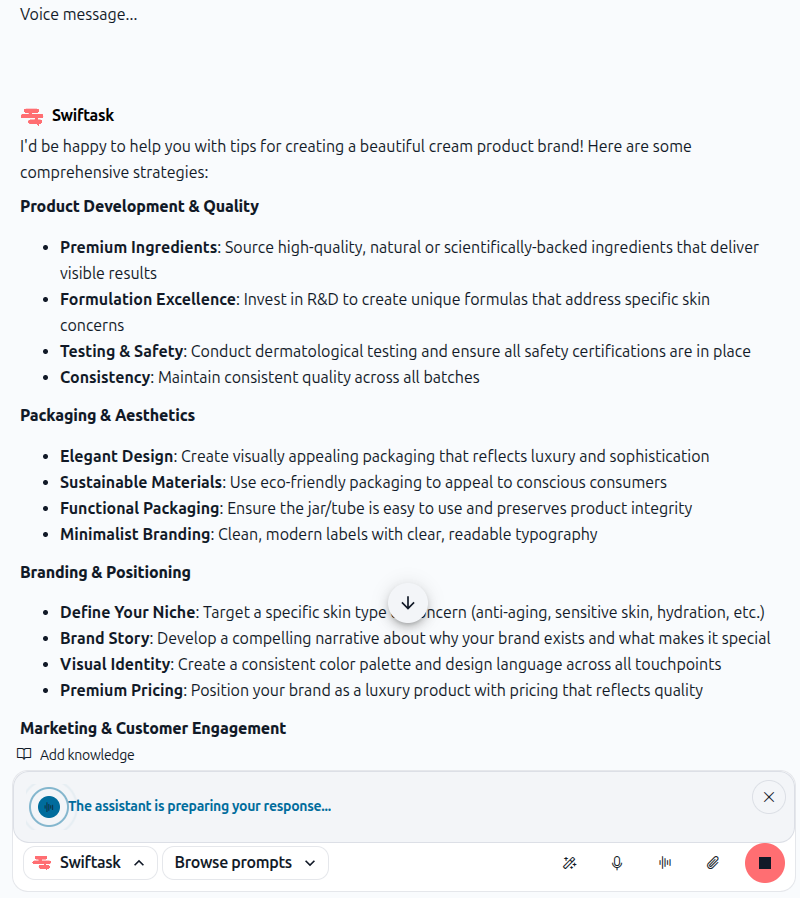
The interface shows a processing indicator: "Processing your request..."
This means the AI is analyzing what you said and preparing its voice response. The Swiftask logo displays while the system processes your input.

5. Listen to the AI's voice response
The AI responds with audio. You'll hear the AI speak its answer directly through your speakers or headphones.
The response also includes:
Text content: A text version of the response is displayed on screen
Read button: Click to replay the audio response if needed
Voice message indicator: Shows that this is an audio response
Listen to the complete response. The system automatically prepares to listen for your next input.
6. Continue the conversation naturally
Once the AI finishes speaking, the system automatically switches to listening mode. You'll see the prompt: "Please speak now"
Simply continue speaking—no need to click anything. Ask your follow-up question, request clarification, or build on the AI's response. The system will automatically detect when you finish speaking and process your input.

You can:
Ask follow-up questions about the AI's response
Request clarification or more details
The conversation flows naturally. The AI remembers everything you discussed and maintains full context throughout your entire interaction.
Practical use cases
Quick brainstorming session
Click the wave icon and say: "I need to launch a new product in the tech market. Help me brainstorm a marketing strategy." Listen to the AI's ideas, then when you see "Please speak now," ask follow-up questions like "What about the budget?" or "How should I reach my target audience?"—all spoken naturally without any clicking.
Getting advice on the go
"I'm managing a complex project with 5 teams. What's the best way to structure timelines and communication?" Get instant voice guidance. When the AI finishes, simply ask clarifying questions as you think of them. The conversation continues seamlessly.
Learning through conversation
"Explain machine learning in simple terms, then give me practical examples of how companies use it." Have a natural dialogue where you ask questions, request different explanations, and deepen your understanding through spoken conversation. Each time the AI finishes, you can immediately ask your next question.
Decision-making support
"Should I focus on customer retention or acquisition first?" Discuss pros and cons verbally. Ask the AI to explore different scenarios and help you think through your options—all through continuous natural conversation without interruptions.
Tips & best practices
Speak clearly and naturally
The AI understands natural speech, including pauses and conversational patterns. You don't need to speak formally or robotically—just talk as you normally would.
Take your time between responses
After the AI finishes speaking and you see "Please speak now," take a moment to think before speaking. The system will wait for you to start talking. Speak at your natural pace.
Keep the conversation flowing
The beauty of conversation mode is that it's continuous. Don't overthink—just speak naturally when you're ready. The AI will listen and respond without any delays or extra steps.
Keep conversations focused
While you can explore multiple topics, focused conversations tend to produce better results. If you want to switch to a completely different topic, consider starting a new conversation.
Additional resources
Chat – Getting started – Learn the basics of Chat and its interface
Voice input: Start recording – Record voice messages for text-based chat
Attaching files & documents – Upload files for analysis during conversations
Managing conversation history – Organize and find past conversations
Ready to have a continuous voice conversation with AI? Click the wave icon in Chat now, start speaking, and experience instant, uninterrupted voice interaction with the AI.