Invoices & subscription
Written By Stanislas
Last updated 7 months ago
Learn how to manage your Swiftask subscription, view and download invoices, update payment methods, and handle subscription changes.
Overview
The subscription management section allows workspace administrators and billing partners to oversee all aspects of your Swiftask subscription. You can view your current plan details, manage payment methods, access invoice history, purchase additional credits, and make changes to your subscription.
This centralized dashboard provides complete visibility into your billing information and gives you control over subscription settings, ensuring you can manage costs and maintain uninterrupted service.
Prerequisites
To access subscription and invoice management, you need:
Admin, Owner, or Billing Partner role in your workspace
Access to workspace administration
An active Swiftask subscription (paid plan)
Note: Only Admins, Owners, and Billing Partners can view invoices and manage subscriptions. Individual users (Members and Viewers) cannot access billing information.
Accessing subscription management
To access your subscription settings :
Click the Settings icon at the bottom of the left sidebar
Select Workspace administration
Click Subscription in the left navigation menu
You'll see the subscription management dashboard with three tabs: Overview, Billing, and Settings.
Subscription overview
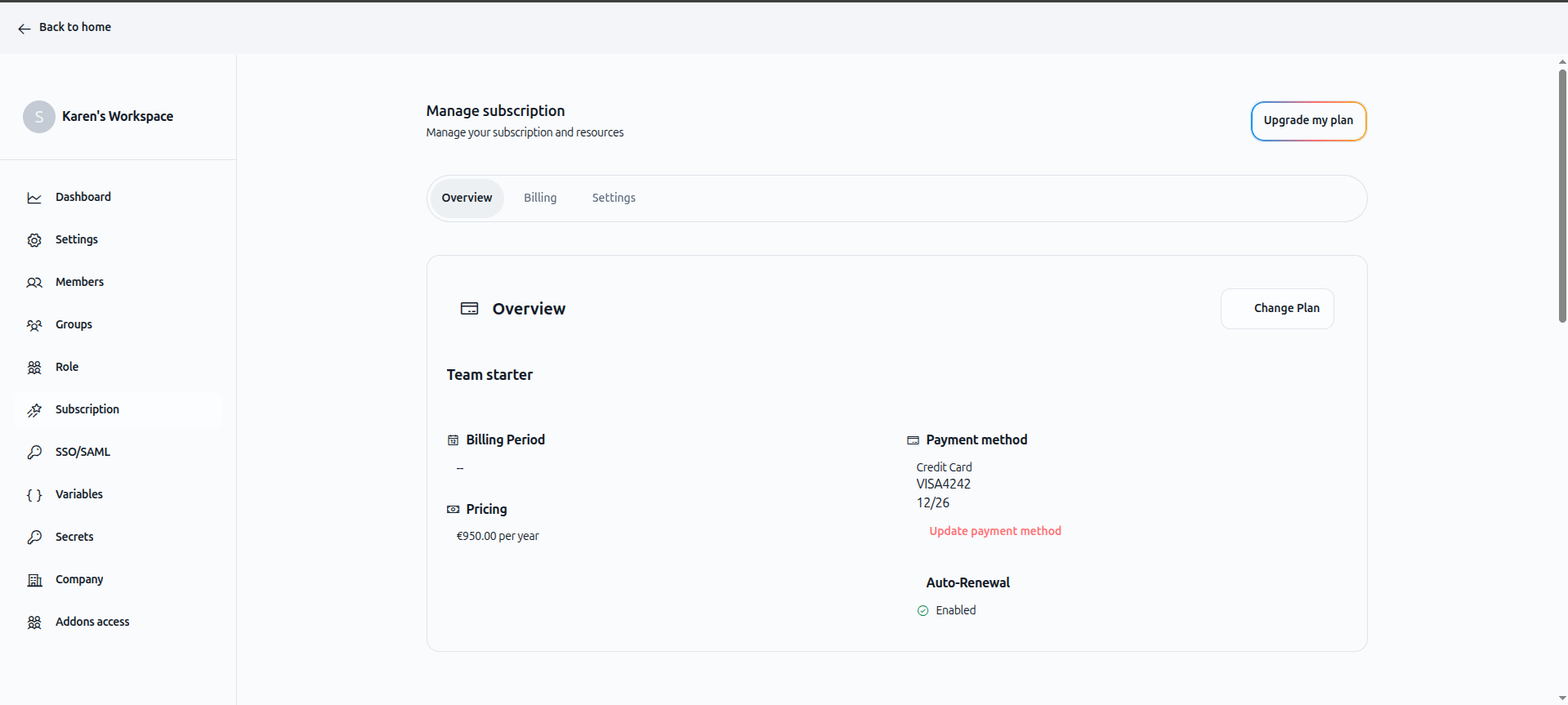
The Overview tab displays your current subscription details and allows you to manage your plan.
Current plan information
Plan name: Displays your current subscription tier (Pro, Team starter, Team Growth, or Tailored offer)
Billing period: Shows your billing cycle (annual or monthly)
Pricing: Displays the total cost per billing period (e.g., €3,830.00 per year)
Payment method: Shows your current payment method with card type and last 4 digits (e.g., Credit Card VISA4242 12/26)
Auto-renewal: Indicates whether automatic renewal is enabled
Managing your subscription
Upgrade my plan button: Click this button in the top-right corner to upgrade to a higher tier
Change plan button: Click to switch between plans or change billing frequency
Update payment method link: Click to modify your payment information
Viewing and downloading invoices
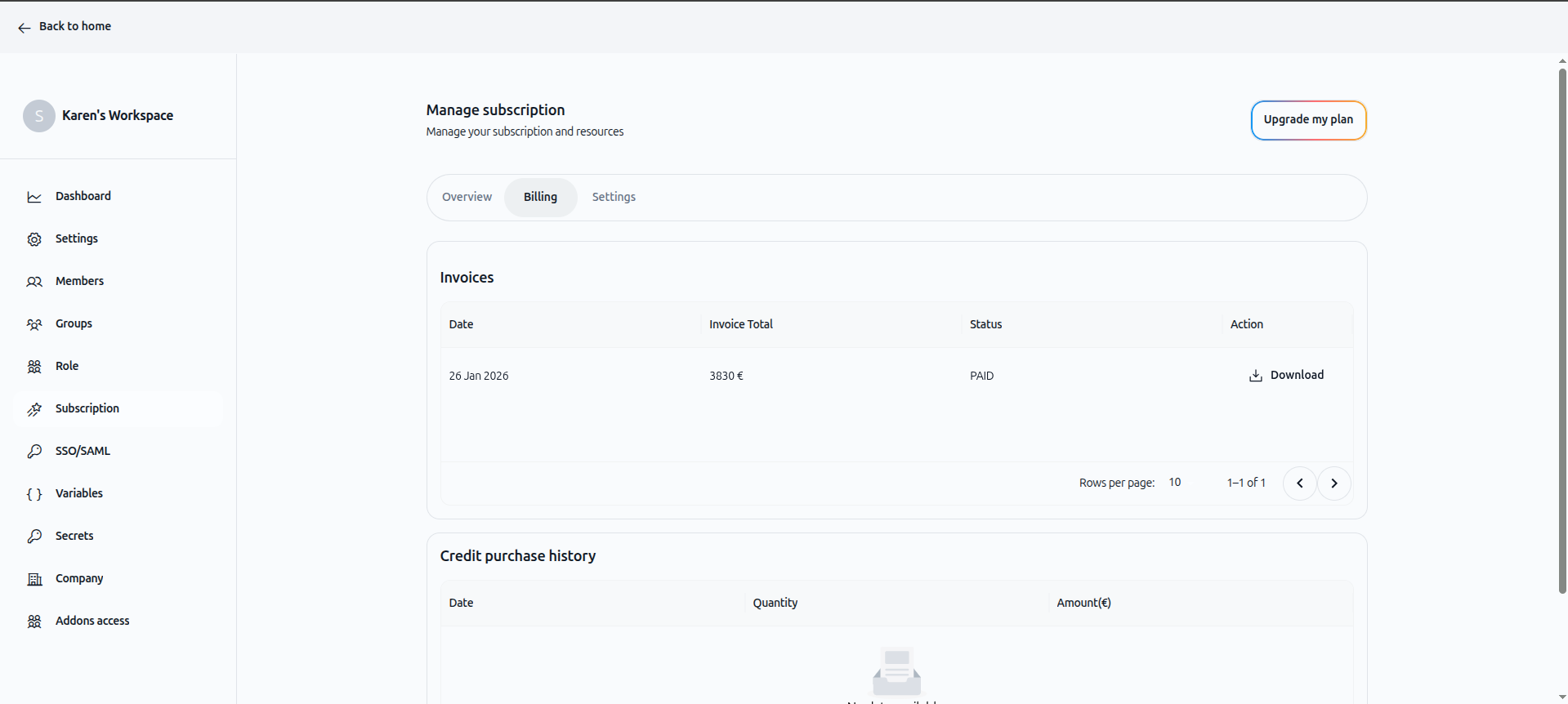
The Billing tab provides access to your complete invoice history and credit purchase records.
Invoice history
The Invoices section displays all your past invoices in a table format:
Columns:
Date: Invoice issue date
Invoice Total: Amount charged (e.g., 3830 €)
Status: Payment status (PAID, PENDING, FAILED)
Action: Download button to save invoice as PDF
Features:
Pagination controls at the bottom (rows per page selector and page navigation)
Search and filter capabilities (if you have many invoices)
Complete historical record of all subscription payments
Downloading an invoice
Navigate to Subscription → Billing tab
Locate the invoice you want to download in the list
Click the Download button in the Action column
The invoice downloads as a PDF file to your computer
Use cases for invoices:
Accounting and bookkeeping
Expense reporting
Tax documentation
Budget tracking
Audit compliance
Credit purchase history
Below the invoices section, the Credit purchase history table shows all additional credit purchases:
Columns:
Date: Purchase date
Quantity: Number of credits purchased
Amount (€): Cost of the purchase
When this section is empty:
If you haven't purchased additional credits, you'll see: "No data available."
Managing payment methods
Viewing current payment method
Your current payment method is displayed in the Overview tab:
Card type (Credit Card)
Card brand and last 4 digits (e.g., VISA4242)
Expiration date (e.g., 12/26)
Updating your payment method
Navigate to Subscription → Overview tab
Click Update payment method (displayed in red text below the payment method section)
You'll be redirected to a secure payment page
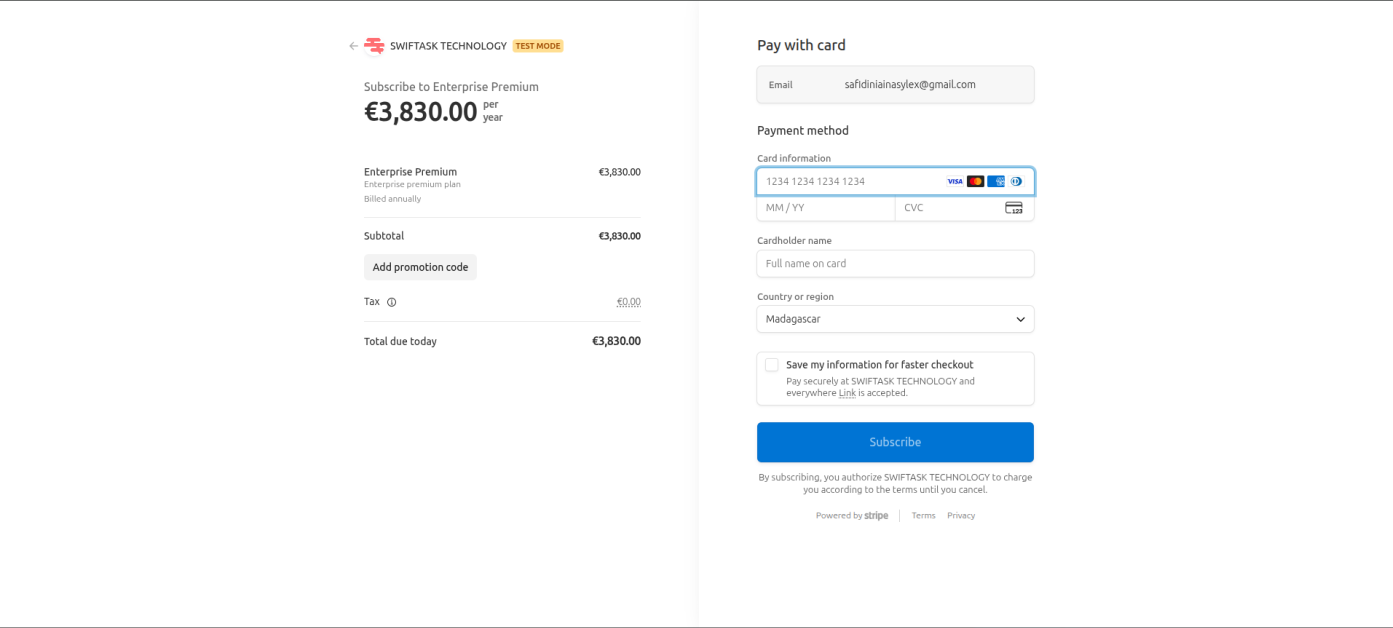
On the payment page, you can:
Enter new card information (card number, expiration date, CVC)
Provide cardholder name
Select country or region
Save information for faster checkout (optional)
Supported payment methods:
Visa
Mastercard
American Express (AmEx)
Diners Club
Security: All payment processing is handled securely through Stripe. Your card information is encrypted and never stored on Swiftask servers.
Payment information required
When adding or updating a payment method, you'll need:
Card number
Expiration date (MM/YY)
CVC security code
Cardholder name
Billing country or region
Upgrading your subscription
When to upgrade
Consider upgrading when:
You're approaching your user capacity limit
You consistently exhaust monthly credits
You need advanced features from higher tiers
Your team is growing
How to upgrade
Method 1: From Overview tab
Navigate to Subscription → Overview
Click Upgrade my plan in the top-right corner
Review available plans and select the one you need
Complete the checkout process
Method 2: From Change plan button
Navigate to Subscription → Overview
Click Change plan
Compare plan features and pricing
Select your new plan and confirm
What happens when you upgrade:
Your new credit allocation takes effect immediately
Additional user slots become available
New features are unlocked
Billing is adjusted based on your new plan
You may receive a prorated credit for your previous plan
Managing auto-renewal
Checking auto-renewal status
In the Overview tab, look for the Auto-Renewal section:
Enabled: Your subscription will automatically renew at the end of the billing period
Disabled: Your subscription will expire at the end of the billing period
Disabling auto-renewal
If you want to prevent automatic renewal without canceling immediately:
Navigate to Subscription → Settings tab
Locate the auto-renewal toggle or setting
Disable auto-renewal
Note: Disabling auto-renewal means your subscription will not be charged again, but you'll retain access until the end of your current billing period.
Canceling your subscription
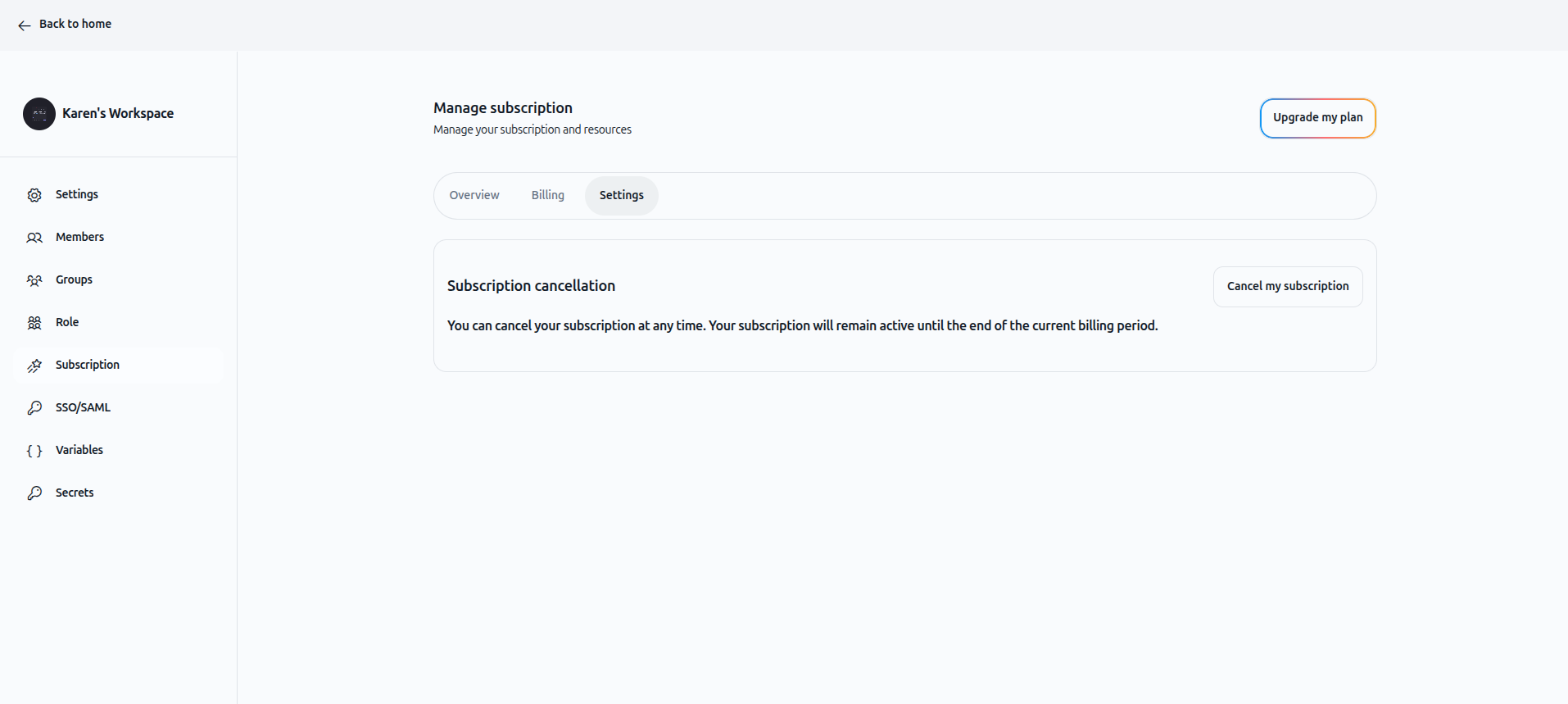
The Settings tab provides options for subscription cancellation.
How to cancel
Navigate to Subscription → Settings tab
Locate the Subscription cancellation section
Read the cancellation policy: "You can cancel your subscription at any time. Your subscription will remain active until the end of the current billing period."
Click Cancel my subscription
Confirm your cancellation
What happens when you cancel:
Your subscription remains active until the end of the current billing period
You retain full access to all features until the billing period ends
No further charges will be made
Your data is preserved (you can reactivate later)
Important: Cancellation is immediate from a billing perspective, but you keep access until your paid period expires.
Purchasing additional credits
If you need more credits without upgrading your plan:
Navigate to Subscription → Billing tab
Look for the option to purchase additional credits
Select the amount of credits you want to add (5M-1B available)
Complete the purchase
Credit purchase details:
Purchases appear in the Credit purchase history section
Credits are added immediately to your account
One-time purchases (not recurring)
Understanding your invoice
Each invoice includes:
Invoice number: Unique identifier for the invoice
Issue date: When the invoice was generated
Amount: Total charged for the billing period
Plan details: Which subscription tier you're paying for
Billing period: Dates covered by the invoice
Payment method: How the invoice was paid
Status: Whether payment was successful
Practical use cases
Finance team managing multiple workspaces
A finance manager with Billing Partner access reviews invoices monthly for budget tracking. They download all invoices at the end of each quarter for accounting records and expense reporting.
Startup upgrading as they grow
A startup on Team starter reaches 80% user capacity. They upgrade to Team Growth through the subscription dashboard, and the additional user slots become available immediately.
Agency managing seasonal credit needs
A marketing agency purchases additional credits during busy campaign seasons instead of upgrading their entire plan. They track these purchases in the credit purchase history for client billing.
Company canceling before renewal
A company decides to switch providers. They cancel their subscription 2 weeks before renewal, ensuring they won't be charged again while maintaining access for the remainder of their paid period.
Tips & best practices
Download invoices regularly
Download and archive your invoices monthly for easier accounting and tax preparation. Don't wait until year-end to collect all invoices.
Update payment methods before expiration
Check your payment method expiration date regularly. Update your card information before it expires to avoid service interruptions.
Review invoices for accuracy
Check each invoice when it's issued to ensure the charges match your expected costs. Report any discrepancies to support immediately.
Plan upgrades strategically
If you're close to needing an upgrade, consider your billing cycle. Upgrading early in your billing period maximizes the value of prorated credits.
Use auto-renewal wisely
Keep auto-renewal enabled if you plan to continue using Swiftask. Disable it only if you're certain you want to stop at the end of your current period.
Track credit purchases
Monitor your credit purchase history to identify patterns. If you're frequently buying additional credits, upgrading to a higher plan may be more cost-effective.
Troubleshooting
Issue: Can't access subscription page
Cause: Insufficient permissions.
Solution:
Only Admins, Owners, and Billing Partners can access subscription management. If you need access:
Contact your workspace owner or admin
Request Admin or Billing Partner role
Billing Partner role provides billing access without technical permissions
Issue: Payment method update fails
Cause: Invalid card information, expired card, or insufficient funds.
Solution:
Double-check all card details (number, expiration, CVC)
Ensure your card is not expired
Verify your card has sufficient credit limit
Try a different card if the issue persists
Contact your bank if the card should work but doesn't
Issue: Invoice download not working
Cause: Browser issue or temporary connection problem.
Solution:
Refresh the page and try again
Try a different browser
Clear your browser cache
Check your download folder—the file may have downloaded without notification
Contact support if the issue persists
Issue: Upgrade shows unexpected price
Cause: Prorated billing or additional users.
Solution:
Review the pricing breakdown on the upgrade page
Check if you have additional users beyond your plan's included amount (1$/month per extra user)
Verify whether you're seeing annual or monthly pricing
Remember that upgrades are prorated—you receive credit for unused time on your current plan