Project automations
Written By Stanislas
Last updated 6 days ago
Set up intelligent workflows that run automatically when specific events happen in your project. This guide shows you how to create automations, choose triggers and bots, and automate your team's workflow.
Overview
Project automations are your team's behind-the-scenes assistants. When something happens in your projectβa task is created, moved to a new section, or assigned to someoneβyou can automatically trigger an AI agent to respond. This eliminates repetitive manual work and keeps your project running smoothly.
Think of automations as if-then rules: If a task moves to "Done", then notify the team. If a new task is created, then assign it a default label. If an assignee changes, then log the change. The possibilities depend on what your agents can do.
What are project automations?
Project automations connect a trigger event (something that happens in your project) to a bot (an AI agent). When the event occurs, the bot runs automatically with full context about what triggered it.
Key concepts
Trigger event β An action in your project that starts the automation. Examples: task created, task moved to a different section, assignee changed.
Bot β An AI agent configured to perform actions. The bot receives information about the trigger event and responds according to its instructions.
Automation β The pairing of a trigger event and a bot. One automation = one trigger + one bot.
Who can use automations
Only Owners and Admins of a project can create, edit, or delete automations. Members and Viewers cannot manage them.
Why use automations
Save time β Stop manually notifying people or updating task details. Let bots handle it.
Consistency β Automations run the same way every time, reducing human error.
Scalability β As your project grows, automations scale with it. One automation handles hundreds of events.
Integration β Bots can connect your project to external systems (email, Slack, databases, etc.) depending on their configuration.
Prerequisites
Before you set up automations:
You are an Owner or Admin of the project
Your workspace has at least one bot available for automations (bots must be configured to support this)
The project exists and you can access its dashboard
You understand what you want to automate β Know the trigger event and what the bot should do
Accessing project automations
Open your project dashboard.
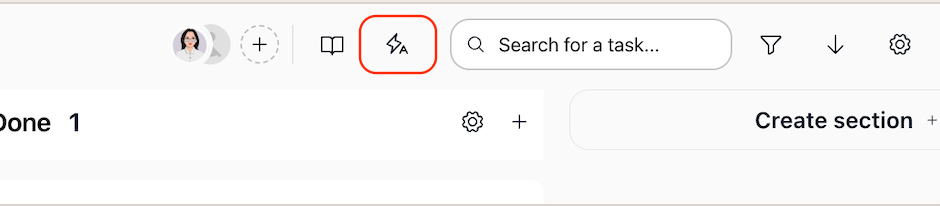
Look for a lightning icon or "Manage Automations" button in the project header (top of the page).
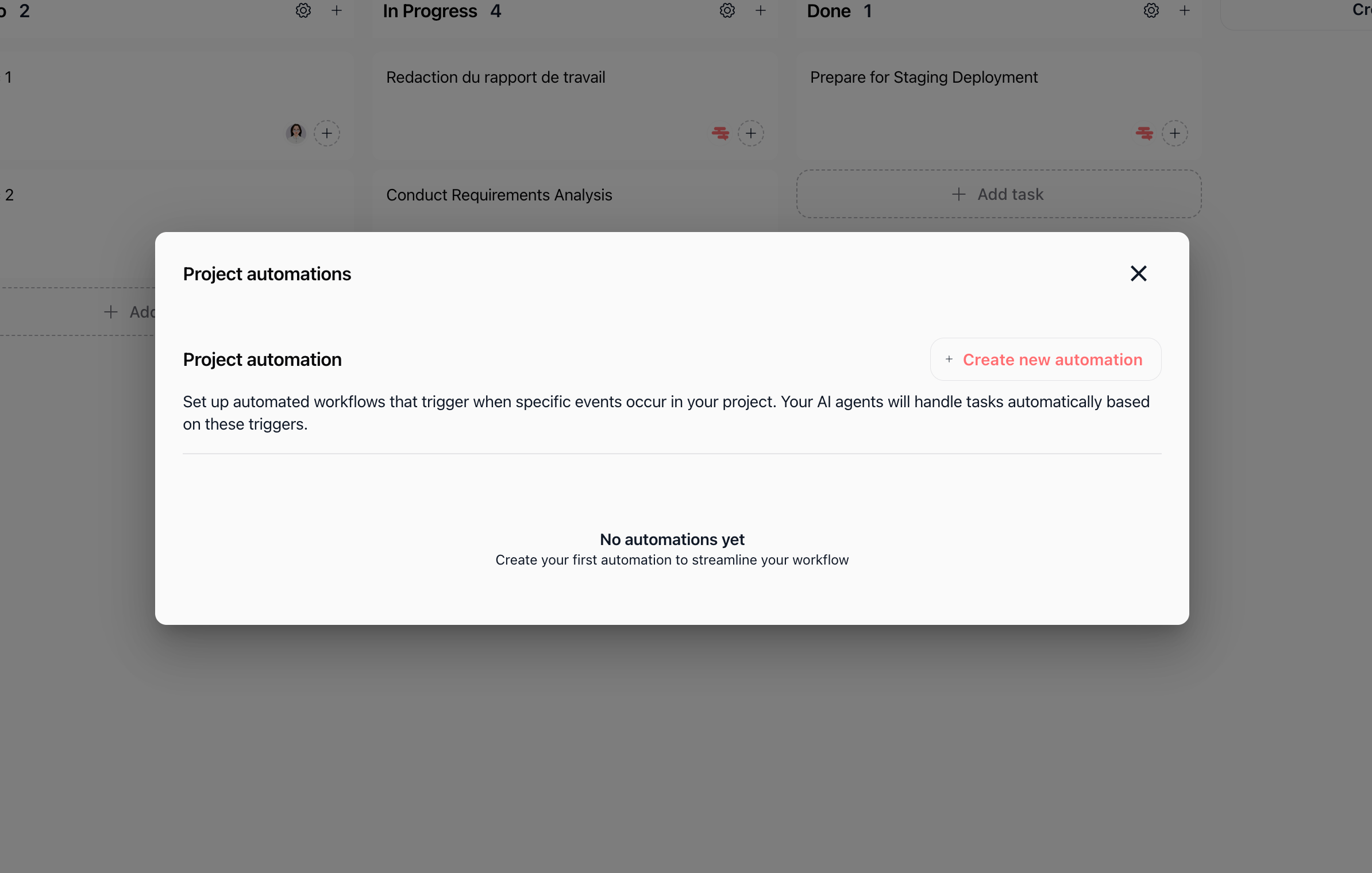
Click it. The Project Automations dialog opens.

The dialog shows:
Title: "Project Automations"
Description: "Set up automated workflows that trigger when specific events occur in your project. Your AI agents will handle tasks automatically based on these triggers."
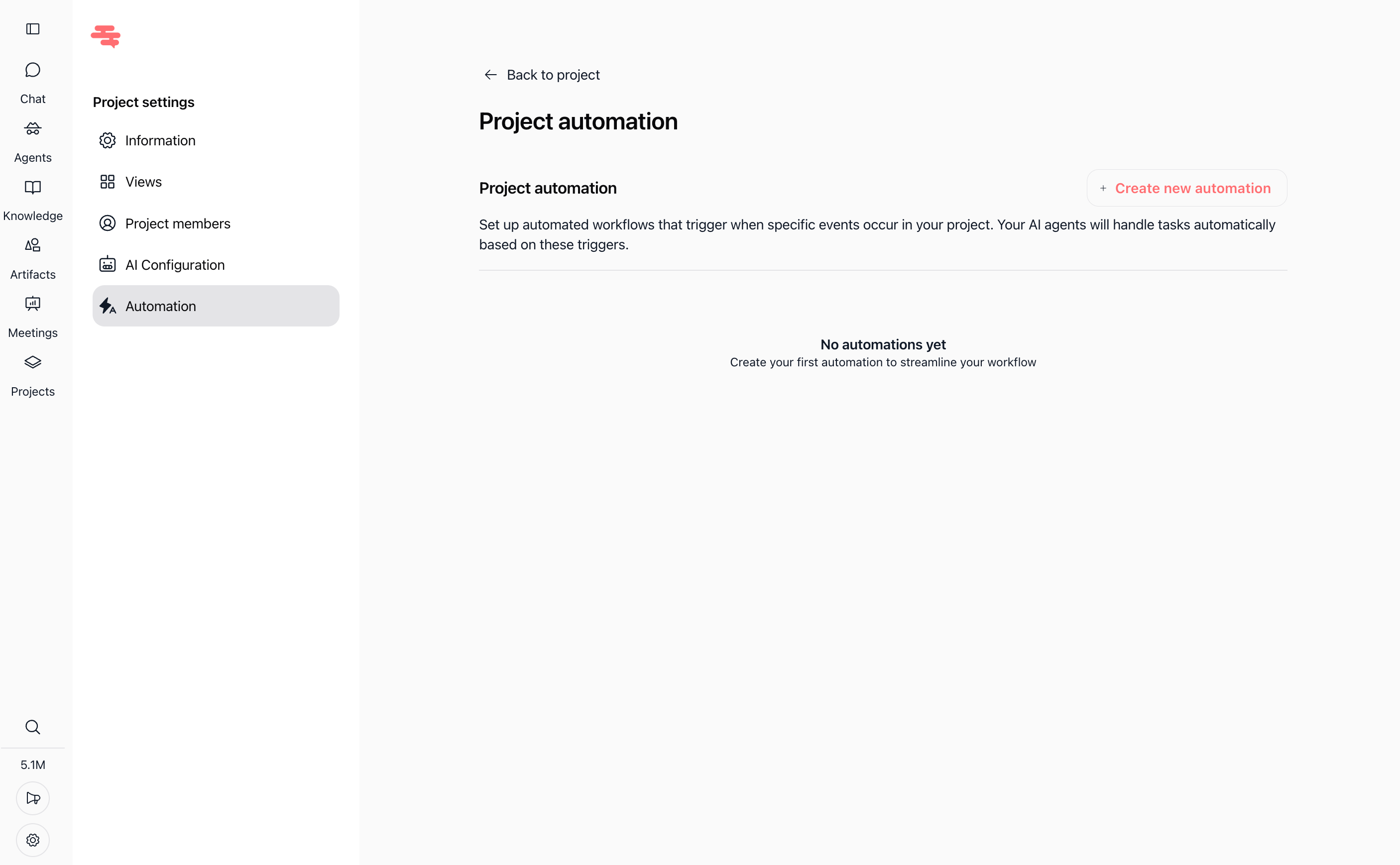
List of automations (if any exist) or an empty state: "No automations yet. Create your first automation to streamline your workflow."
Create New Automation button (or + icon)
Setting up an automation
Step 1: Open the create form
In the Project Automations dialog, click Create New Automation or the + button.
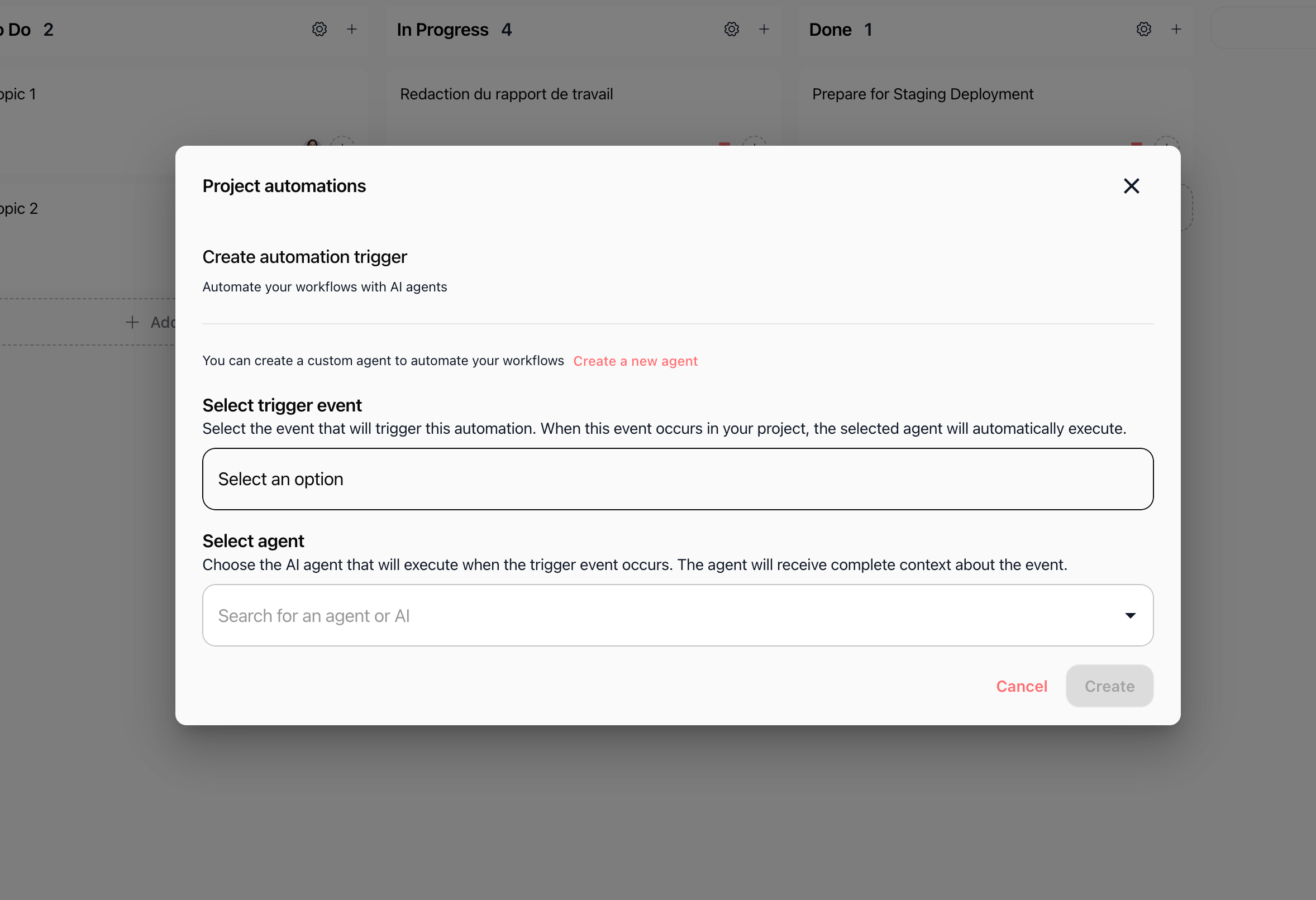
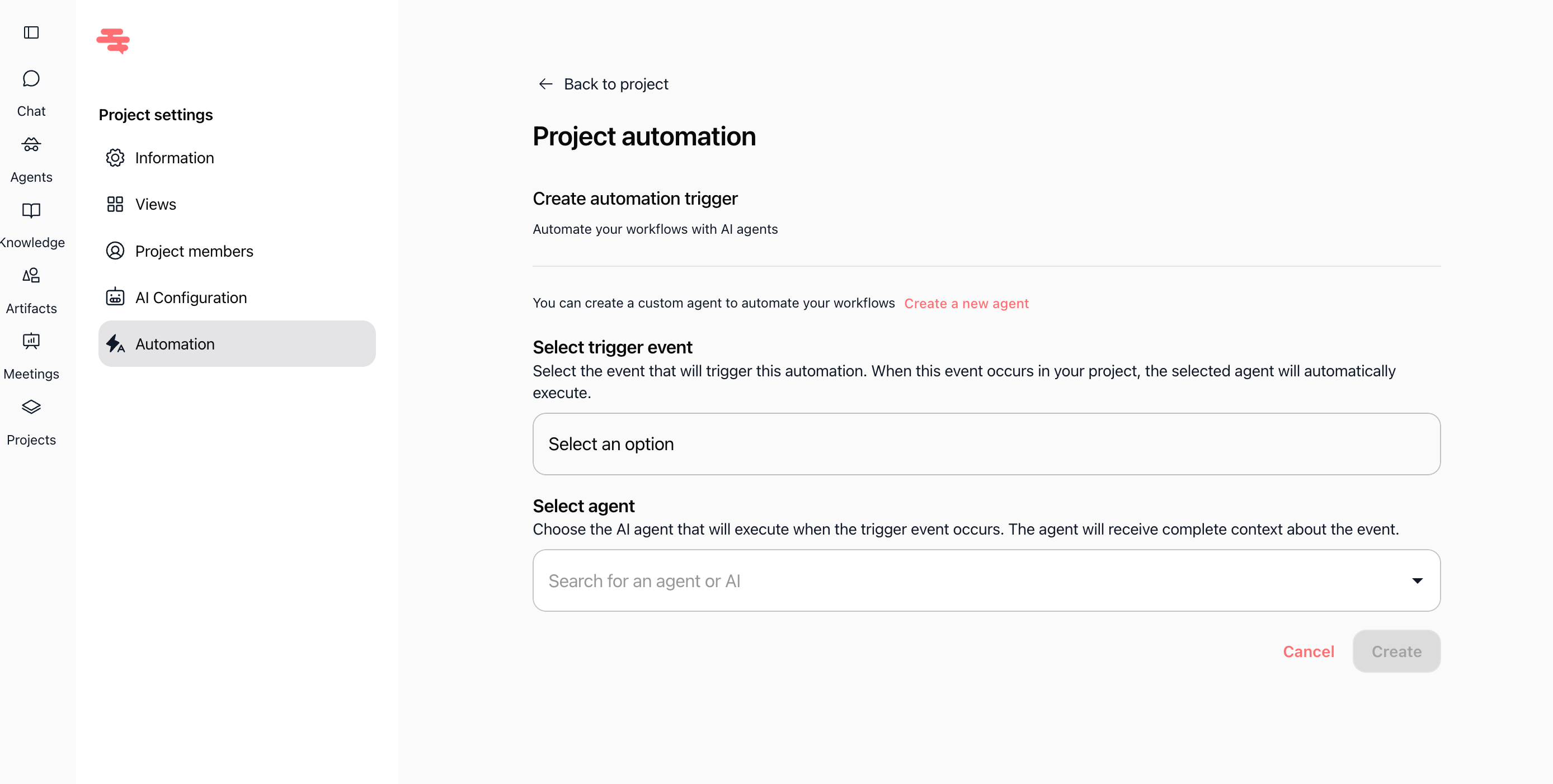
The form appears with the title "Create Automation Trigger" and subtitle "Automate your workflows with AI agents."

Step 2: Select the trigger event
Field: "Select Trigger Event" (required)
What it means: Choose the event that will start your automation. When this event happens in your project, the bot will run.
Available trigger events:
Click the dropdown and select the event that fits your automation goal.
Step 3: Select the bot
Field: "Select Bot" (required)
What it means: Choose the AI agent that will execute when the trigger event occurs. The bot receives full context about the event and acts on it.
Note: Only bots that support automations appear in this list. If you don't see a suitable bot, you may need to create or configure one in your workspace's Agents area.
Step 4: Save the automation
Click Create. The button is disabled until both trigger event and bot are selected.
On success: "Automation trigger created successfully." The automation is now active and will run whenever the trigger event occurs in this project.
On error: "Error creating automation trigger." Check that both fields are filled, your permissions are correct, and the bot still exists. Then try again.
How triggers work
When automations run
Automations run automatically when their trigger event happens in the project. Here's what happens:
Event occurs β Someone creates a task, moves a task, changes an assignee, etc.
System checks β The system looks for all active automations with that trigger event in this project.
Bot executes β Each matching bot runs in the background with full context about the event (task details, project name, what changed, etc.).
Action completes β The bot performs its configured action (sends a message, updates a field, notifies someone, etc.).
All of this happens automatically. There's no "Run now" button or manual step.
Scope
Automations are per project. They only run for events in that specific project.
All project members can trigger automations. If a Member moves a task, the "Task Section Changed" automation runs for everyone.
Paused automations do not run. If you need to temporarily stop an automation, pause it instead of deleting it.
What automations can do
The actions an automation performs depend on how the bot is configured. The automation UI only sets the trigger; the bot's instructions and tools determine the action.
Common bot actions
Send messages β Post a summary or notification in task chat
Update fields β Change a task's status, label, or other details
Notify team members β Send alerts to specific people
Log changes β Record what happened (for audit trails)
Integrate with external systems β Sync data to Slack, email, databases, etc.
Example: Task moved to Done
Trigger: Task Section Changed (to "Done")
Bot: A bot configured to post summaries
Action: When a task moves to Done, the bot posts a summary in task chat: "Task 'Design mockups' is now complete. Next: Review with stakeholders."
Common automation patterns
Pattern 1: Notify when work is done
Trigger: Task Section Changed
Bot: Notification bot
Setup: Configure the bot to detect when a task moves to "Done" and notify the team
Benefit: Everyone knows immediately when milestones are reached
Pattern 2: Process new tasks
Trigger: Task Created
Bot: Triage or routing bot
Setup: Configure the bot to assign a default label, add a comment, or route to the right person
Benefit: New tasks are immediately categorized and assigned
Pattern 3: Track assignee changes
Trigger: Task Assignee Changed
Bot: Logging or notification bot
Setup: Configure the bot to log the change or notify the new assignee
Benefit: You have a record of who's responsible and the new assignee is aware
Pattern 4: Sync with external systems
Trigger: Task Updated
Bot: Integration bot (e.g., Slack, email, CRM)
Setup: Configure the bot to send task updates to an external system
Benefit: Your project stays in sync with other tools your team uses
Editing and deleting automations
Edit an automation
In the Project Automations list, find the automation you want to change.
Click the Edit button or action next to it.
The form reopens. Change the trigger event and/or bot as needed.
Click Update.
On success: "Automation trigger updated successfully."
[Capture: Project Automations list with Edit and Delete actions visible]
Delete an automation
In the Project Automations list, find the automation to remove.
Click the Delete button or action next to it.
A confirmation dialog appears: "Are you sure you want to delete this automation trigger?"
Click Confirm to delete.
On success: "Automation trigger deleted successfully." The automation is removed and will no longer run.
Pause (if available)
Some workspaces allow you to pause an automation instead of deleting it. A paused automation doesn't run, but you can resume it later without recreating it. Look for a pause/resume button or toggle in the automation list.
Testing and debugging
Verify the automation exists
Open Manage Automations in your project.
Check that your automation is listed with the correct trigger event and bot.
Confirm it's not paused (if pause/resume is available).
Test the trigger
Perform the action in your project (e.g., create a task, move a task to another section).
The automation runs in the background. There's no visible "Test" button.
Check if the bot's action occurred (e.g., look for a message in task chat, check if a field was updated).
If nothing happens
Possible causes:
The automation is paused
The trigger event doesn't match the action you performed (e.g., you moved a task but the trigger is "Task Created")
The bot is misconfigured or doesn't have the right permissions
The bot failed silently (no visible error, but the action didn't execute)
What to do:
Double-check the trigger event matches your action
Review the bot's configuration and instructions
Temporarily pause or delete the automation if it's causing issues
Adjust the bot's instructions and recreate the automation
Contact support if the issue persists
Best practices
Start small
Create one automation (e.g., "Task Section Changed" β one bot), test it thoroughly, then add more. This makes it easier to debug if something goes wrong.
Use clear bot instructions
The bot receives event context (task details, what changed, etc.). Write clear instructions so the bot knows exactly what to do. For example: "When a task moves to the 'Done' section, post a brief summary in the task chat."
Avoid duplicate actions
If you create two automations for the same trigger event, both will run. This can be useful (e.g., notify one team and log the change), but avoid accidentally configuring the same action twice.
Review periodically
Remove automations that are no longer needed. A project with too many automations becomes harder to manage and troubleshoot.
Document your automations
Keep a simple list of what each automation does. This helps you and your team understand the project's workflows.
Real-world example: Content production workflow
Goal: When a content task moves to "Done", automatically post a summary in task chat and notify the team.
Your setup:
Create the bot (or use an existing one) β Configure a bot that can post to task chat and send notifications.
Open Manage Automations β Click the lightning icon in your project header.
Create New Automation
Trigger Event: Task Section Changed
Bot: The notification/summary bot
Click Create
Message: "Automation trigger created successfully."
Configure the bot's instructions (in the Agents area, not in the automation form):
"When a task moves to the 'Done' section, post a summary in the task chat that includes the task title and a brief note like 'This task is complete.'"
Test the automation:
In your project, move a content task to the "Done" section
The bot runs automatically and posts the summary in the task chat
Result:
Your team sees content completions in real time without manual notifications. The workflow is consistent and scalable.
Troubleshooting
I don't see "Manage Automations" in the project header
Cause: You are not an Owner or Admin of the project.
Solution: Only Owners and Admins can manage automations. Ask a project Owner or Admin to give you the Admin role if you need to set up automations.
The bot list is empty or I can't find a suitable bot
Cause: No bots in your workspace are configured to support automations, or they're filtered out.
Solution: Create or configure a bot that supports automations. Go to your workspace's Agents area and set up a new bot, or ask your workspace administrator to enable an existing bot for automations. Some workspaces have a link in the form (e.g., "Create a new agent") that takes you directly there.
The automation doesn't run when the trigger event happens
Possible causes:
The automation is paused
The automation was deleted
The trigger event doesn't match the action (e.g., you created a task but the trigger is "Task Section Changed")
The bot is misconfigured or failing silently
Solutions:
In Manage Automations, verify the automation exists and is not paused
Perform the exact action that matches the trigger (e.g., move a task for "Task Section Changed")
Check the bot's configuration in the Agents area
Look for any error messages or logs in the bot's details
If still stuck, delete and recreate the automation with clearer instructions
I created an automation but don't see it in the list
Cause: The list didn't refresh, or there's a temporary UI issue.
Solution: Close and reopen the Project Automations dialog. Refresh the page if needed.
"Error creating automation trigger" appears
Possible causes:
One or both fields (trigger event, bot) are empty
The bot no longer exists or is no longer available
You don't have Owner or Admin permissions
Network or server issue
Solutions:
Ensure both Trigger Event and Bot are selected
Verify the bot still exists in your workspace's Agents area
Confirm you are Owner or Admin of the project
Check your internet connection
Refresh and try again
Contact support if the issue persists
Frequently asked questions
Can I have multiple automations for the same trigger event?
Yes. You can create several automations with the same trigger event but different bots. All of them will run when the event occurs. This is useful if you want multiple actions (e.g., notify the team AND log the change).
What's the difference between project automations and workspace automations?
Project automations (what this guide covers) are tied to a specific project and run when events happen in that project. Workspace automations are configured at the workspace level and may be scheduled, webhook-based, or triggered by events outside projects. This guide covers only project automations.
Can I pause an automation without deleting it?
If your workspace supports it, yes. Look for a Pause or Status control in the automation list or detail view. Paused automations don't run but can be resumed later without recreating them.
Does the bot receive the full task details?
The bot receives context about the trigger event, including task id, task title, description, assignees, labels, project name, and details about what changed (e.g., which section the task moved to). The exact payload depends on the event type and your workspace setup.
Who can create automations?
Only Owners and Admins of the project. Members and Viewers cannot create, edit, or delete automations.
Where do I create or configure the bots used in automations?
Create and configure bots in your workspace's Agents area (or Bots section, depending on your workspace). The automation form may have a link (e.g., "Create a new agent") that takes you there. Only bots configured to support automations will appear in the Select Bot field.
Can automations trigger other automations?
That depends on your workspace and how bots are configured. In most cases, automations trigger bots, and bots perform actions. Bots can update tasks (which might trigger other automations), but this isn't guaranteed. Check with your administrator if you need to create chains of automations.
What if an automation runs and causes an error?
The bot will fail silently or log an error (depending on the bot's configuration). Check the bot's error logs or history in the Agents area. If an automation is causing problems, pause or delete it, fix the bot, and recreate the automation.
What's next
You've learned how to automate your project workflows. To continue mastering Swiftask:
Collaborate in task chat β See Group chat & collaboration to discuss work with your team and agents
Manage your team β See Managing project members & permissions to control access and roles
Create and organize tasks β See Task management to structure your work
Automations are most powerful when combined with clear instructions and regular reviews. Start with one simple automation, test it, and expand from there.