Creating a project
Written By Stanislas
Last updated 8 months ago
Set up your first project in minutes. This guide walks you through the creation process, from naming your project to inviting your first team members.
Overview
Creating a project is straightforward. You'll provide a name, optionally describe what the project is for, and decide whether you want Swiftask to generate starter tasks. Within moments, you'll have a working project ready for your team.
Prerequisites
Before you create a project, make sure:
You have access to Swiftask — You're logged into your workspace
Your workspace supports Projects — Check with your administrator if you're unsure
You have permission to create projects — Most workspace members can create projects, but this depends on your workspace settings
You have a clear project goal — Know roughly what you're organizing (a campaign, product work, team initiative, etc.)
Step-by-step: Creating your first project
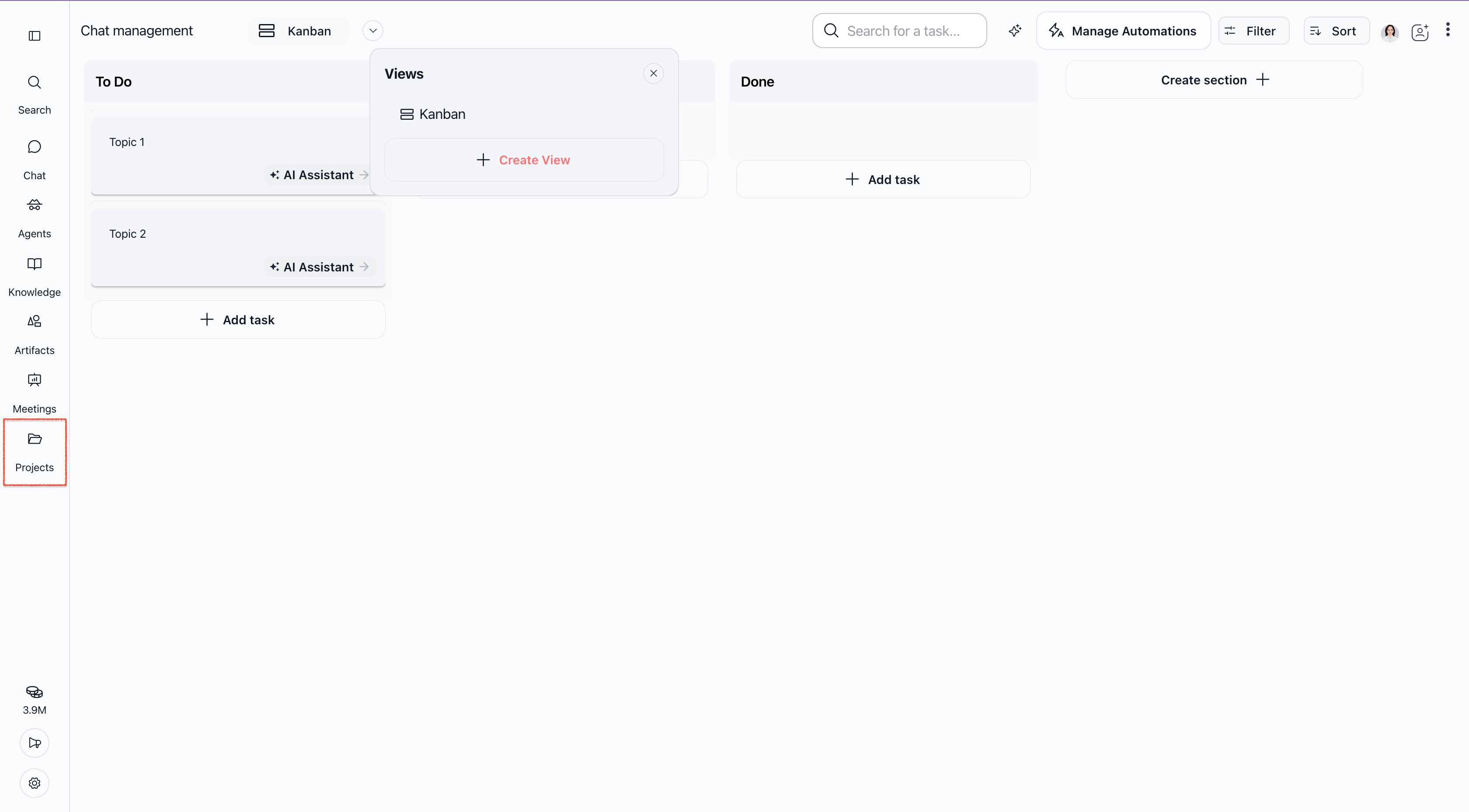
Step 1: Navigate to Projects
Open Swiftask and look at the left sidebar
Click the Projects icon (folder icon)
You'll land on your project list
Step 2: Start the creation flow
On the project list, look for a button labeled Create project or + New project (location may vary by workspace).
Click it. A dialog or form appears.
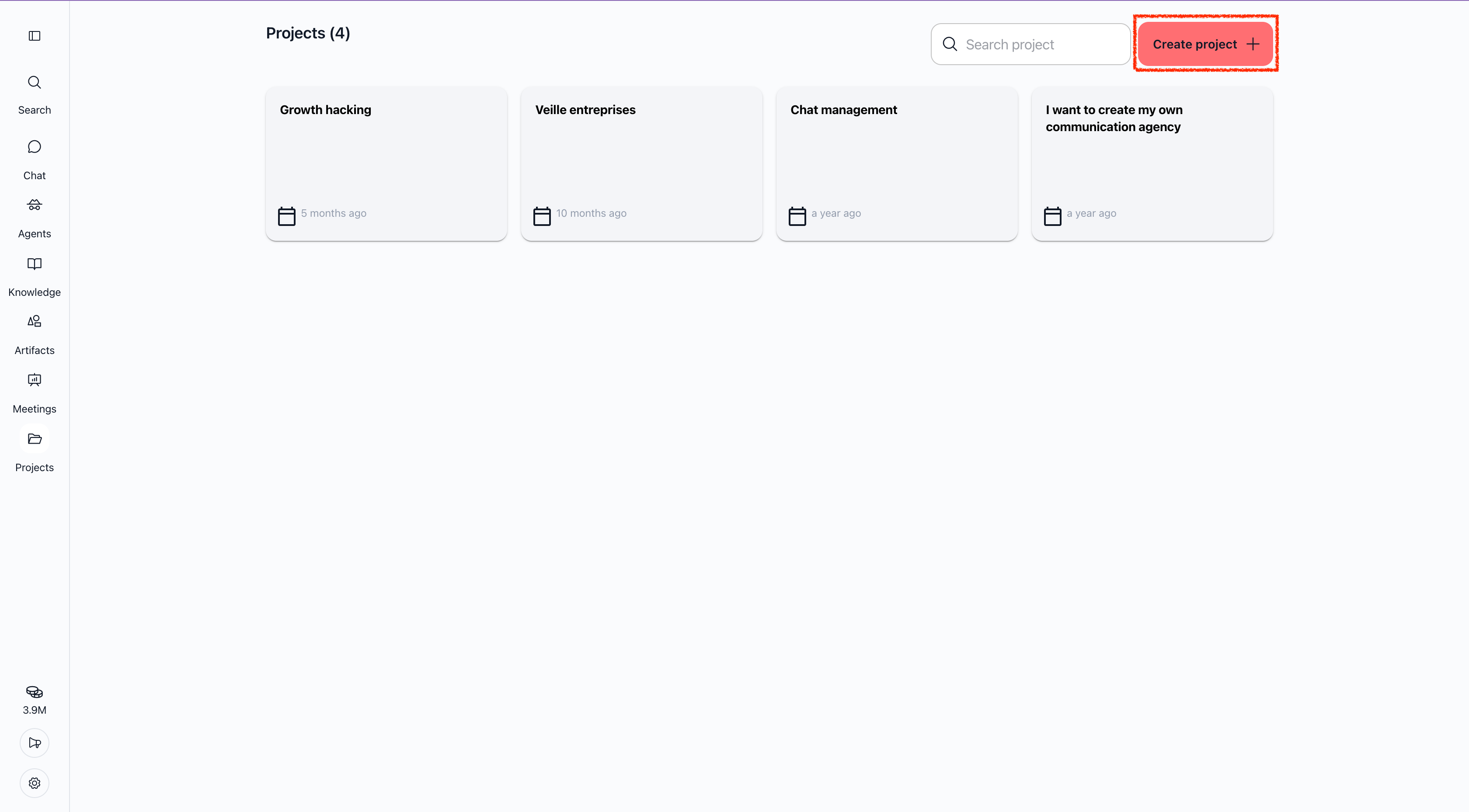
Step 3: Enter project details
The creation form has these fields:
Project name tips:
Use a name you can find easily in a long list
Include a timeframe or version if relevant (e.g., "Q1 2025 – Chat management")
Avoid generic names like "Project" or "Work"
Keep it under 50 characters for readability
Description tips:
If you check "Generate initial tasks", a detailed description helps the AI create better starter tasks
Example: "Organize the redesign of our help center. Includes: audit current docs, plan new structure, write new content, test with users."
You can leave it blank and add tasks manually later
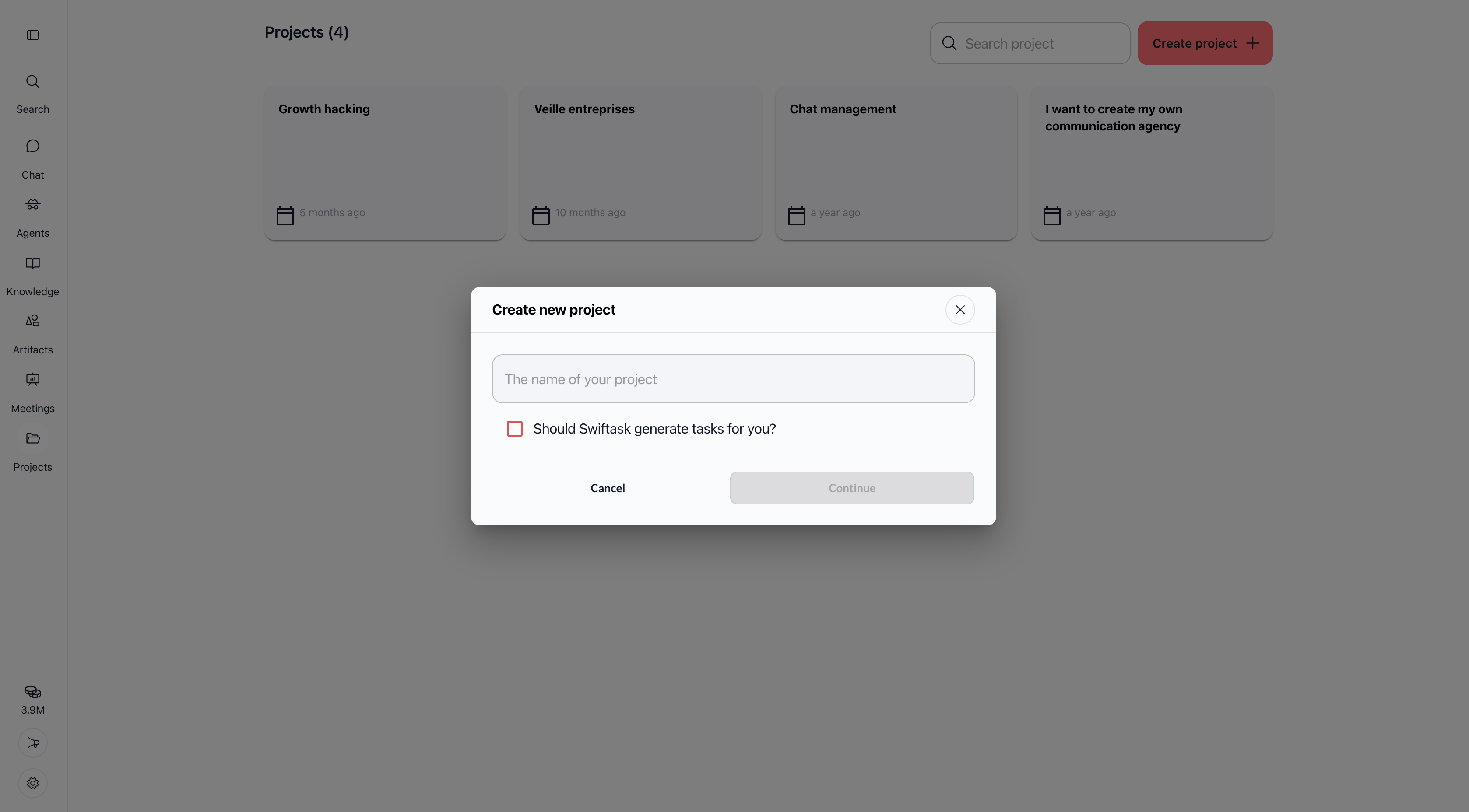
Step 4: Decide on task generation
Check the Generate initial tasks box if:
You want Swiftask to suggest starter tasks based on your description
You prefer to refine auto-generated tasks rather than create from scratch
Your description clearly outlines the project scope
Leave it unchecked if:
You prefer to create tasks manually
Your project is simple and doesn't need many tasks
You want to set up the project structure first
Note: You can always add, edit, or delete tasks after creation, so this choice is not permanent.
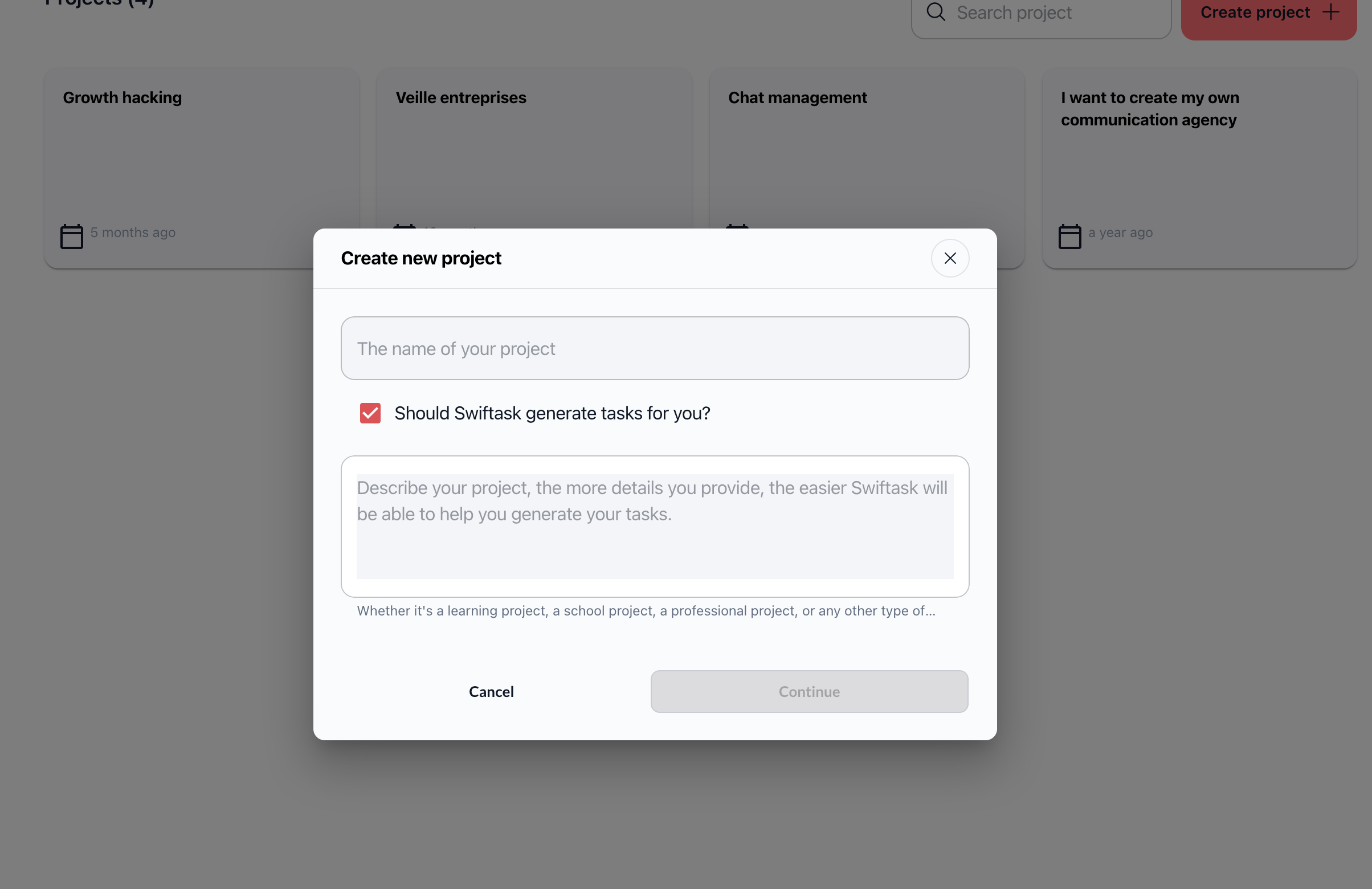
Step 5: Create the project
Click the Create button (or Continue if the flow has multiple steps).
If you checked "Generate initial tasks", wait 2–5 seconds while Swiftask processes your description and creates tasks. You'll see a loading indicator.
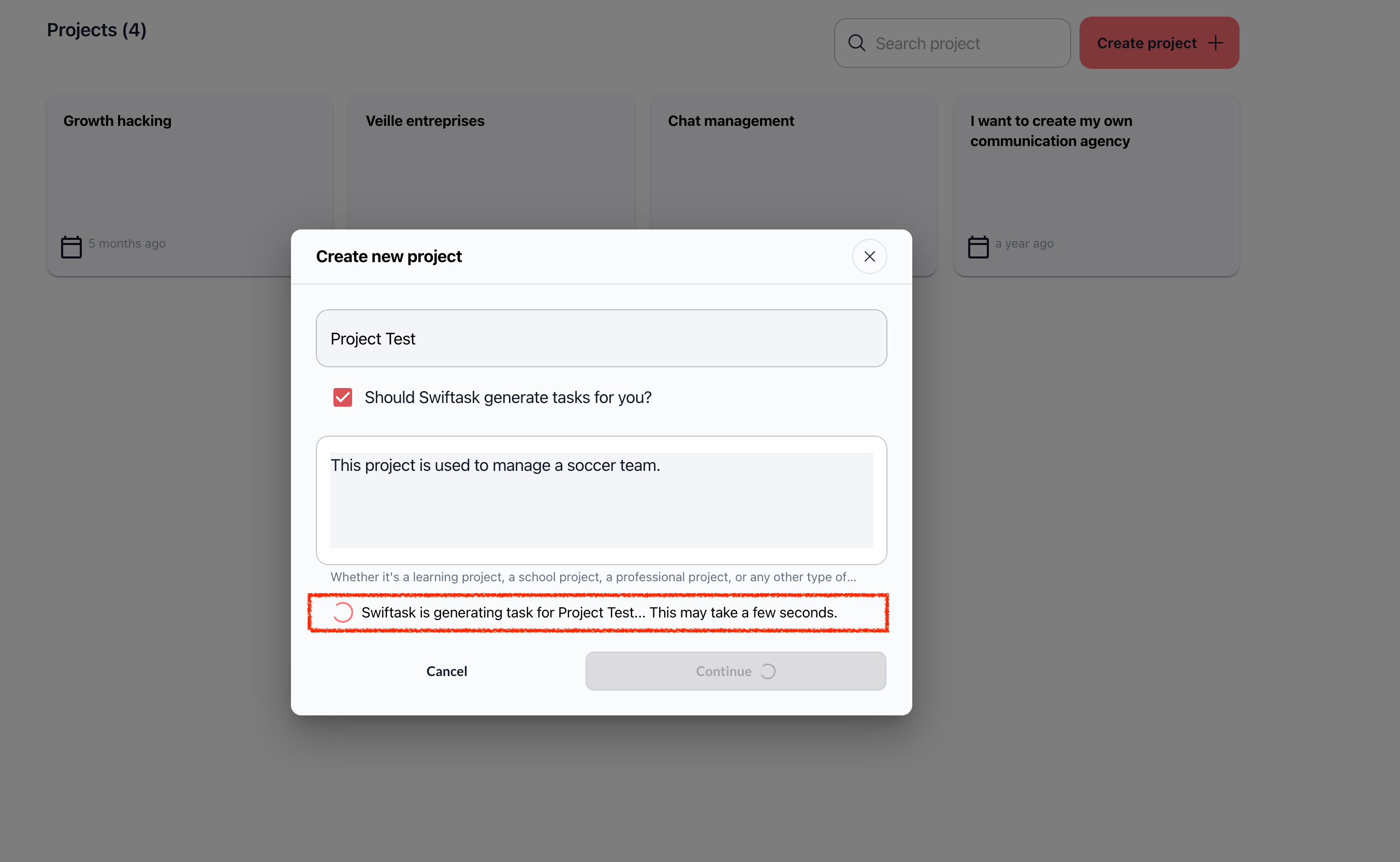
Step 6: You're in your new project
Once creation completes, you're automatically redirected to your new project dashboard. You'll see:
Project name at the top
Kanban view by default (columns: To Do, In Progress, Done)
Starter tasks (if you chose to generate them)
Invite Collaborator button or prompt to add team members
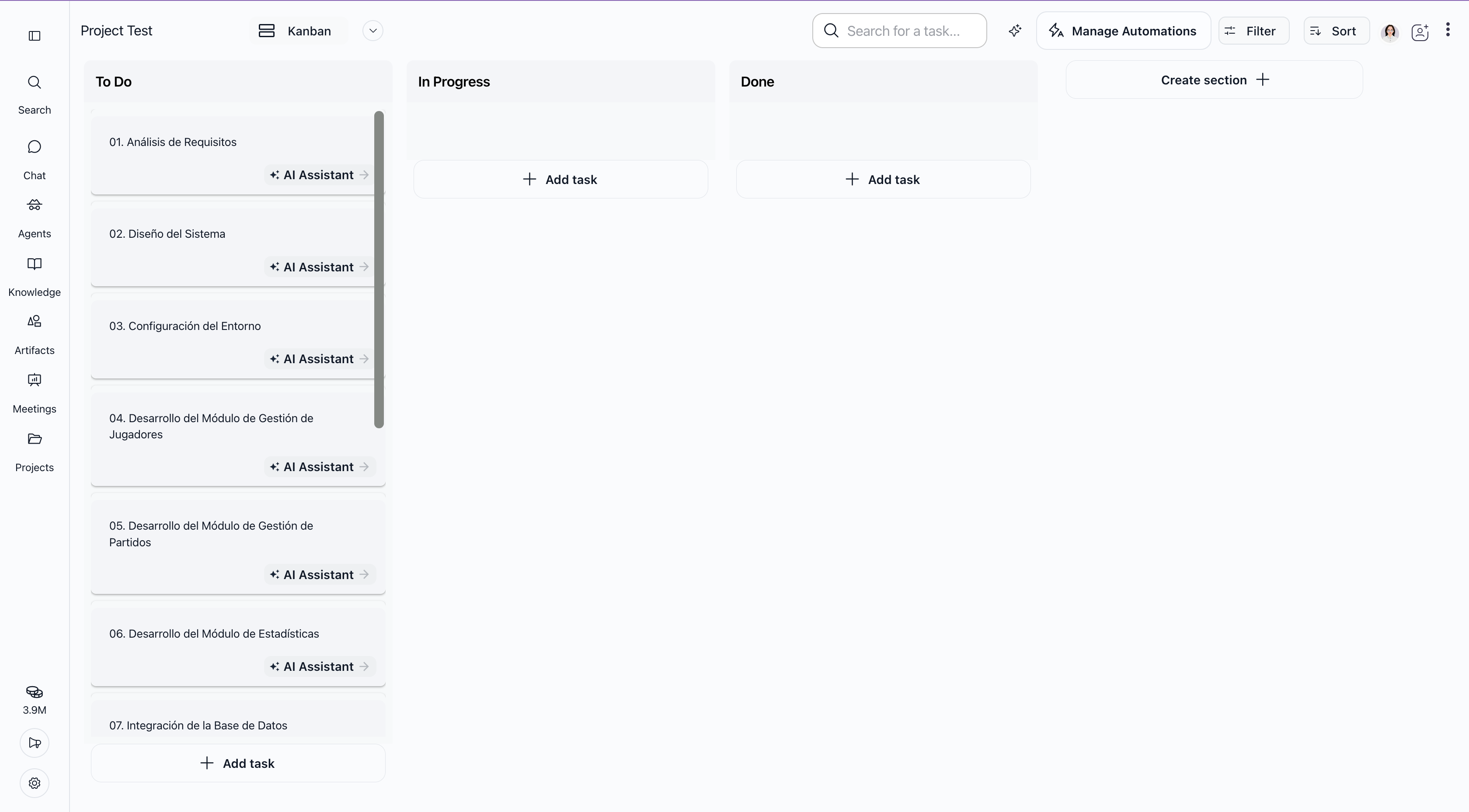
After creation: Next steps
Option 1: Invite your team (recommended first step)
Look for Invite or Invite Collaborator in the project header or a menu
Enter team members' email addresses
Assign roles (Owner, Admin, Member, Viewer)
Send invitations
See Managing project members & permissions for detailed steps.
Option 2: Review and refine starter tasks (if generated)
If you used task generation:
Review the auto-generated tasks in each section
Delete or rename tasks that don't fit your workflow
Add any missing tasks manually
Reorder tasks by dragging them
Option 3: Customize your project structure
Rename sections (e.g., change "To Do" to "Backlog")
Create additional sections (e.g., "In Review", "Blocked")
Switch to List or Gantt view if that better fits your workflow
Set up automations (optional; see Project automations)
Option 4: Create your first tasks (if not auto-generated)
In the "To Do" section, click + Add task
Enter a task title (e.g., "Draft email copy")
Click Create or press Enter
Click the task to open details and add description, due date, or assignee
Real-world example: Creating a campaign project
Scenario: You're launching a product feature and need to coordinate marketing, design, and engineering sign-off.
What you do:
Navigate to Projects → Click Create project
Fill in the form:
Name: "Product Launch – Feature X – Q1 2025"
Description: "Coordinate launch of new AI features. Marketing: copy and social posts. Design: graphics and banners. Engineering: feature documentation. Approval: leadership review."
Generate tasks: ✓ Checked
Click Create → Wait for task generation
Review the generated tasks:
Swiftask creates tasks like "Draft social media copy", "Design launch graphics", "Write feature documentation", "Get leadership approval"
You see they're in the "To Do" section
Refine:
Rename a task from "Draft social media copy" to "Draft 5 social posts for LinkedIn"
Add a custom section "Legal Review" for compliance check
Delete a task that doesn't apply
Invite team:
Invite @marketing-lead (Admin role)
Invite @designer (Member role)
Invite @engineering-lead (Member role)
Start working:
Team members see the project and can start claiming tasks
You use the AI assistant on each task to help with drafting or feedback
Tips & best practices
Naming conventions
Good project names:
"Q1 2025 – Marketing Campaign"
"Website Redesign – Phase 2"
"Product Launch – Feature X"
"Customer Support Process Improvement"
Poor project names:
"Project 1"
"Work"
"TODO"
"Stuff"
Why it matters: In a long list of projects, clear names help you find the right one instantly.
When to use task generation
Use auto-generation if:
Your description is detailed and specific
You want a quick starting point
You're comfortable refining tasks afterward
Skip auto-generation if:
Your project is very simple (2–3 tasks)
You want to set up structure first, then add tasks
Your project structure is non-standard
Project scope
One project per: Campaign, initiative, product feature, or major work stream.
Not one project per: Individual task, single meeting, or temporary discussion.
Why: Projects are meant to organize related work over days or weeks. Use Chat for quick conversations.
Starting small
Create your first project with just a name and no description. Add tasks manually. Once you're comfortable, try auto-generation on your next project.
Advanced options & edge cases
What if I want to generate tasks but keep my description short?
You can. Swiftask will generate tasks based on whatever detail you provide. For better results, include:
What the project achieves (goal)
Who's involved (roles)
Main stages (workflow)
Example: "Organize Q1 marketing: research, planning, execution, review."
Can I change the project name after creation?
Yes. Click the project name in the header and edit it (if you have Owner or Admin role).
What if task generation fails or creates irrelevant tasks?
Don't panic. You can delete all generated tasks and create them manually.
Or, keep the useful ones and delete the rest.
The project itself is fine; only the tasks are affected.
Can I create a project without inviting anyone?
Yes. You can work on a project solo or invite people later.
What if I delete a project by accident?
Projects have a confirmation dialog: "Are you sure you want to delete this project? All tasks will be deleted." There is no undo. Contact your administrator if you need help recovering.
Can I import tasks from another tool?
Not directly through the UI. You'd need to create tasks manually or contact your administrator about integration options.
Troubleshooting
I don't see the "Create project" button
Possible reasons:
You don't have permission to create projects
Your workspace plan doesn't include Projects
You're in a filtered or archived view
Solutions:
Check with your workspace administrator
Verify your workspace plan includes Projects
Clear any filters on the project list (look for a Filter button)
Task generation is taking too long
Possible reasons:
Your description is very long or complex
The system is busy
Network issue
Solutions:
Wait up to 10 seconds
Refresh the page
If it times out, create the project without task generation and add tasks manually
I got an error: "Project name is required"
Cause: You tried to create a project without entering a name.
Solution: Go back and enter a project name in the form.
I got an error: "Error creating project"
Possible reasons:
Network connectivity issue
Server error
Permission issue
Solutions:
Refresh the page and try again
Check your internet connection
Wait a moment and retry
Contact support if it persists
Generated tasks don't match what I wanted
Cause: The AI interpreted your description differently than you intended.
Solution:
Delete irrelevant tasks
Edit task names to match your vision
Add missing tasks manually
Next time, be more specific in your description
I can't edit the project name or delete the project
Cause: You don't have Owner or Admin role.
Solution: Ask the project Owner or Admin to make the change, or ask them to promote you to Admin.
Frequently asked questions
How many projects can I create?
It depends on your workspace plan. Check with your administrator for limits.
Can I duplicate a project?
Not directly. You'd need to create a new project and manually copy tasks, or contact your administrator about workarounds.
What's the difference between project name and description?
Name: Appears in the project list and project header; must be unique in your workspace
Description: Shown in project details; helps you remember what the project is for; used for task generation
Can I create a project from a template?
Not built-in, but you can create a "template project" and duplicate it manually by recreating tasks.
What happens if I generate tasks but I'm not happy with them?
You can delete all of them and create new ones. The project itself is unaffected.
Can I change my mind about task generation after creation?
Yes. If you didn't generate tasks, you can add them manually. If you did generate them but don't like them, delete them and create new ones.
Is there a maximum number of tasks per project?
Not practically. Projects can handle hundreds or thousands of tasks, though performance may vary.
Can I set a project as private or public?
Projects are private by default. Only members you invite can see them. There's no "public" option; sharing is via invitation only.
What's next?
Your project is created and ready. Now:
Invite your team — Add members with appropriate roles
Create or refine tasks — Add the work you need to track
Open the AI assistant on a task — Try the task chat feature
Set up automations (optional) — Create rules for your workflow
For detailed guidance on these topics, see:
Managing project members & permissions
Task management
Group chat & collaboration
Project automations
Ready to create your first project? Head to Projects in your sidebar and click Create project.
Was this helpful?
Still need help? Ask the team