Meeting transcription features
Written By Stanislas
Last updated 8 months ago
After you record a meeting in Swiftask, you get a complete transcript with AI-powered analysis tools. Chat with your transcript, extract key insights, generate reports, and customize AI models—all in one place.
Use meeting transcription when you want to analyze, search, and interact with your recorded conversations using AI assistance.
Overview
Meeting transcription converts your recorded audio into searchable text and unlocks powerful analysis features. Once your meeting is transcribed, you can chat with the transcript to ask questions, extract action items, generate professional reports, and even change the AI model used for analysis. The transcription interface provides both a detailed text view and an interactive chat panel where you can discuss meeting content with AI.
Prerequisites
To use meeting transcription, you need:
A Swiftask account (sign up at swiftask.ai)
A recorded meeting in your Meetings section (see Record meeting guide)
Transcription completed (automatic after recording ends)
Step-by-step guide
1. Open your meeting transcript
Navigate to the Meetings section in the left sidebar and select the meeting you want to review.
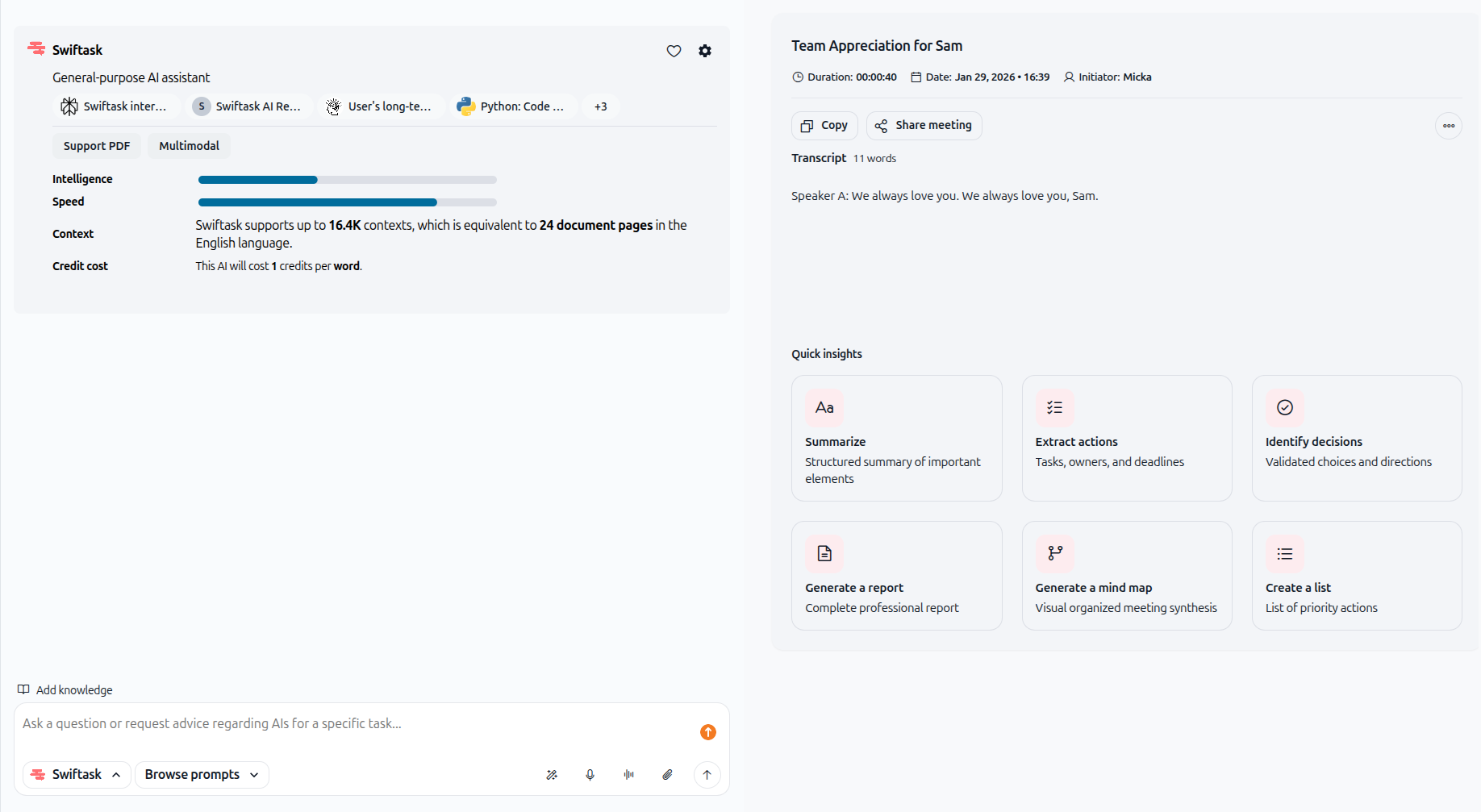
Once you select a meeting, the transcript view opens with the full text of your recording displayed on the left side of the screen and interactive features on the right.
2. Review the transcript
The transcript shows:
Meeting title at the top
Duration (e.g., 00:42:12)
Date and time of the recording
Initiator name (who started the recording)
Full transcript text with speaker identification (Speaker A, Speaker B, etc.)
Word count (e.g., "5474 words")
You can scroll through the entire transcript or use your browser's search function (Ctrl+F or Cmd+F) to find specific words or topics.
3. Access quick insights and chat features
On the right side of the screen, you'll find the interactive panel with quick insights and chat functionality.
The right panel includes:
Quick insights cards (top section):
Summarize – Structured summary of important elements
Extract actions – Tasks, owners, and deadlines identified from the meeting
Identify decisions – Validated choices and directions made during discussion
Generate a report – Complete professional report (PDF export)
Generate a mind map – Visual organized meeting synthesis
Create a list – List of priority actions
Click any card to generate that analysis instantly.
Chat panel (bottom section):
Message input field – Type questions about your meeting
Record meeting – Record again in the same meeting
4. Chat with your transcript
The chat panel lets you ask questions about your meeting in natural language.
To ask a question:
Click in the message input field at the bottom of the right panel
Type your question (e.g., "What were the main decisions?" or "Who is responsible for the budget review?")
Press Enter or click the send button
The AI analyzes your transcript and responds with relevant information
The chat remembers context from your entire conversation, so you can ask follow-up questions naturally.
Example questions to ask:
"What were the key takeaways from this meeting?"
"Who owns the action items and what are their deadlines?"
"What budget was discussed?"
"Summarize the client's concerns"
"What are the next steps?"
5. Generate a report
To create a professional PDF report from your meeting:
In the Quick insights section, click the Generate a report card
The AI creates a structured document with key sections that you can directly download
6. Copy or share the transcript
To copy the transcript:
Select the text you want to copy from the left panel
Use Ctrl+C (Windows) or Cmd+C (Mac) to copy
Alternatively, click the Copy button (top left) to copy the entire transcript
To share the meeting:
Click the Share meeting button (top left)
Search for the email you want to share
Choose their role: User, Admin, or Owner
Practical use cases
Client meeting follow-up
A sales manager records a client discovery call. After the meeting, she opens the transcript and uses the chat feature to ask: "What are the client's top three priorities?" The AI extracts this from the conversation and provides a clear list. She then generates a report to share with the product team.
Project kickoff documentation
During a project kickoff meeting, key decisions about timeline, budget, and team roles are discussed. The project manager uses the Extract actions card to automatically identify who owns each task and when it's due. She shares this list with the team immediately after the meeting.
Compliance and audit trail
A compliance officer records quarterly reviews with department heads. She generates a professional report from each meeting and stores it in her knowledge base as official documentation. The searchable transcript makes it easy to find specific discussions during audits.
Training and knowledge capture
An HR manager records a training session on new company processes. New hires can search the transcript for specific topics (e.g., "expense reporting") and read the relevant section. The manager also generates a summary document to distribute to all participants.
Tips & best practices
Position your microphone properly
If using an external microphone, position it 6–12 inches from your mouth. Ensure the microphone is not blocked and has a clear path to your voice.
Minimize background noise
While Swiftask handles some background noise, you'll get better transcripts if you record in a relatively quiet environment. Close windows, silence notifications, and ask others to minimize disruptions.
Review transcripts for accuracy
Always review the transcribed text after your meeting. While transcription is highly accurate, you may want to correct technical terms, proper nouns, or industry-specific language that the AI might not recognize perfectly.
Use collections to organize meetings
Organize your meetings by project, client, or team using collections. This makes it easier to find meetings later and share them with the right people.
Ask specific questions in chat
Instead of vague questions, ask specific ones: "What were the budget constraints mentioned?" rather than "Tell me about the meeting." Specific questions get more accurate answers.
Export reports regularly
Generate and download reports while the meeting is fresh in your mind. Store important reports in your knowledge base for future reference.
Troubleshooting
Transcription is incomplete or inaccurate
Cause: Poor audio quality, heavy background noise, or unclear speech.
Solution:
Record in a quieter environment
Speak more clearly and at a natural pace
Use a higher-quality microphone if available
Manually edit the transcript to correct any errors
For technical terms or names, you can add them manually after transcription
Chat is not responding to questions
Cause: The transcription may still be processing, or the AI model may be overloaded.
Solution:
Wait a few moments for transcription to complete fully
Refresh the page and try again
Try asking a simpler or more specific question
Check that your workspace has available AI credits
Report generation fails
Cause: The meeting transcript may be too long, or the AI service may be temporarily unavailable.
Solution:
Try generating the report again after a few minutes
If the meeting is very long (over 2 hours), try generating a summary instead
contact Swiftask support if the issue persists
Cannot find specific information in transcript
Cause: The information may be phrased differently than you expect.
Solution:
Use the chat feature to ask about the topic instead of searching text
Try searching for keywords related to the topic
Use the Extract actions or Summarize cards to get an overview
Additional resources
Record meeting – Step-by-step guide to starting your first meeting recording
AI-assisted meetings – Overview of all meeting features and capabilities
Chat – Learn how to use Chat for analyzing documents and transcripts
Quick interface tour – Navigate the Meetings section
Ready to analyze your meetings? Open a recorded meeting now and click "Summarize" to see instant AI-powered insights.
Was this helpful?
Still need help? Ask the team