Tracking your consumption
Written By Stanislas
Last updated 8 months ago
Learn how to monitor your personal and workspace credit usage in real-time, understand consumption patterns, and manage your credit balance effectively.
Overview
Swiftask provides detailed credit tracking tools that help you monitor your consumption in real-time. You can track your personal credit usage, view detailed breakdowns by AI model and agent, and identify spending patterns over time.
Workspace administrators can also access workspace-wide consumption data to monitor team usage, track active users, and optimize credit allocation across the organization.
Prerequisites
To track your credit consumption, you need:
An active Swiftask account
Access to account settings (for personal usage)
Admin role (for workspace-wide usage tracking)
Tracking personal credit usage
Accessing your credit usage dashboard
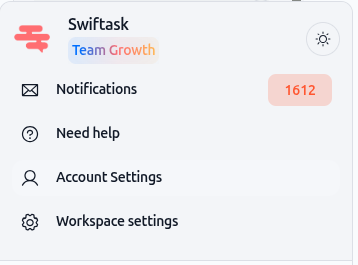
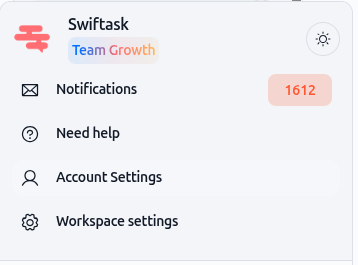
Click your profile icon or account menu in the interface
Select Account settings
Click Credit usage in the left navigation menu
You'll see your personal credit usage dashboard with real-time consumption data.
Understanding your credit summary
At the top of the dashboard, you'll see your current credit status:
Remaining credits on your personal account (current month)
This section displays:
Credits remaining out of your total monthly allocation
A progress bar showing consumption percentage
A Details link for quick access to your usage breakdown
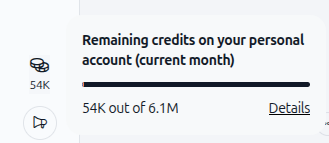
The progress bar changes color as you approach your credit limit, helping you monitor consumption at a glance.
Credit usage by day
The Credit usage by day chart shows your daily credit consumption over time. Each bar represents one day, and you can hover over any bar to see detailed information for that specific date.
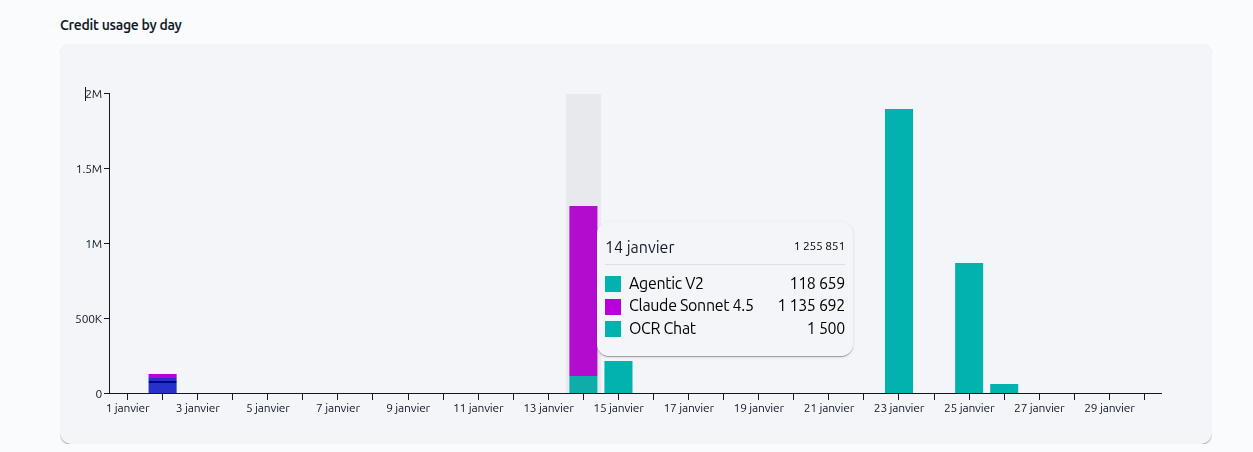
What the chart shows:
Daily credit consumption patterns
Color-coded breakdown by AI model (e.g., Agentic V2, Claude Sonnet 4.5, OCR Chat)
Exact credit amounts when you hover over a specific day
This helps you identify high-usage days and understand which AI models consumed the most credits.
Spend per agent (current month)
The Spend per agent section displays all AI agents and models you've used during the current month, sorted by consumption.
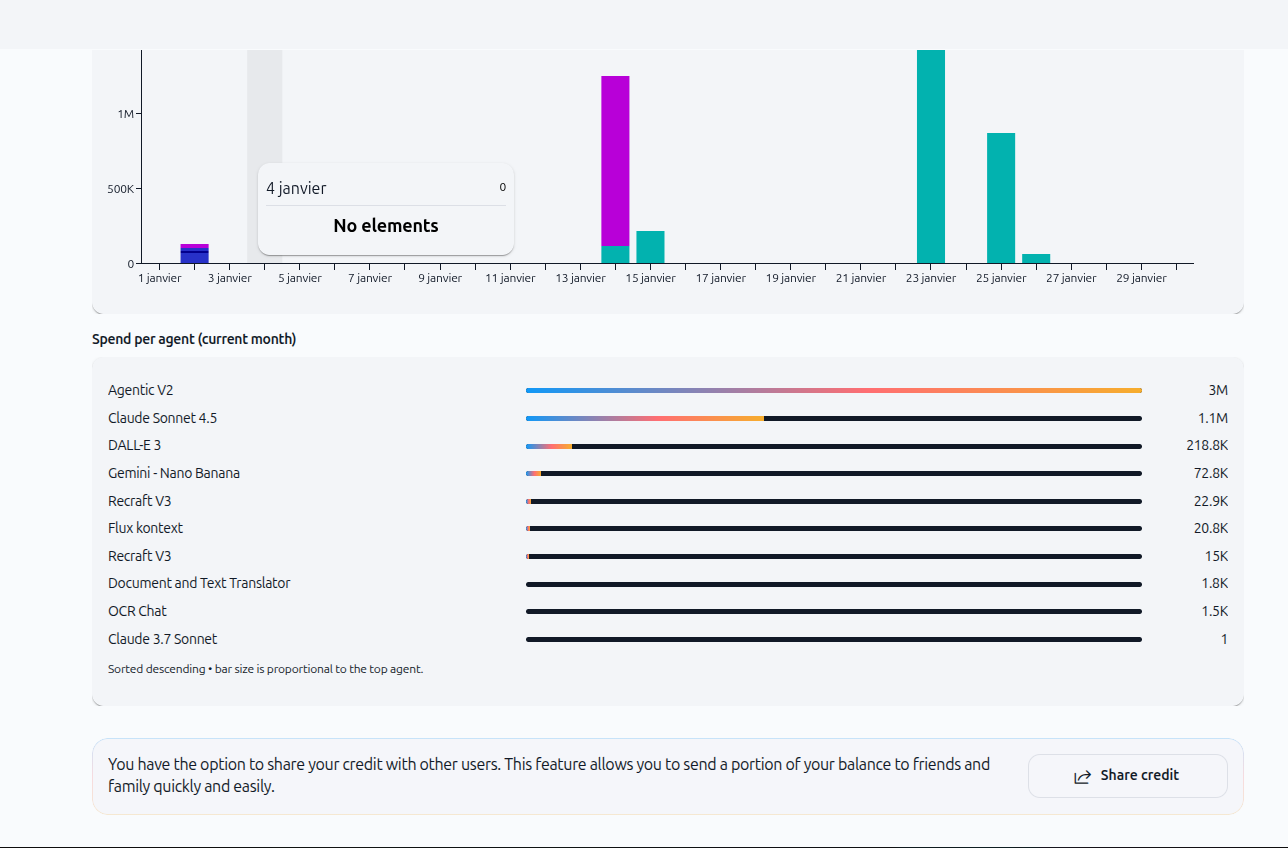
Key information:
Each agent is listed with its total credit consumption
Horizontal bars are proportional to usage (longer bars = higher consumption)
Sorted in descending order (highest consumers at the top)
Shows all agents used, not just top consumers
This breakdown helps you understand which AI models or agents are consuming the most credits, allowing you to optimize your usage.
Sharing credits
At the bottom of the credit usage page, you can share credits with other users.
To share credits:
Scroll to the bottom of the credit usage page
Click the Share credit button
Follow the prompts to transfer credits to another user
This feature allows you to send a portion of your balance to friends or family quickly and easily.
Tracking workspace credit usage (admin only)
Accessing the workspace dashboard
Workspace administrators can monitor organization-wide credit consumption.
Click your profile icon or account menu
Select Workspace settings
Click Dashboard in the left navigation menu
Understanding the workspace dashboard
The workspace dashboard provides comprehensive insights into your organization's credit consumption and activity.
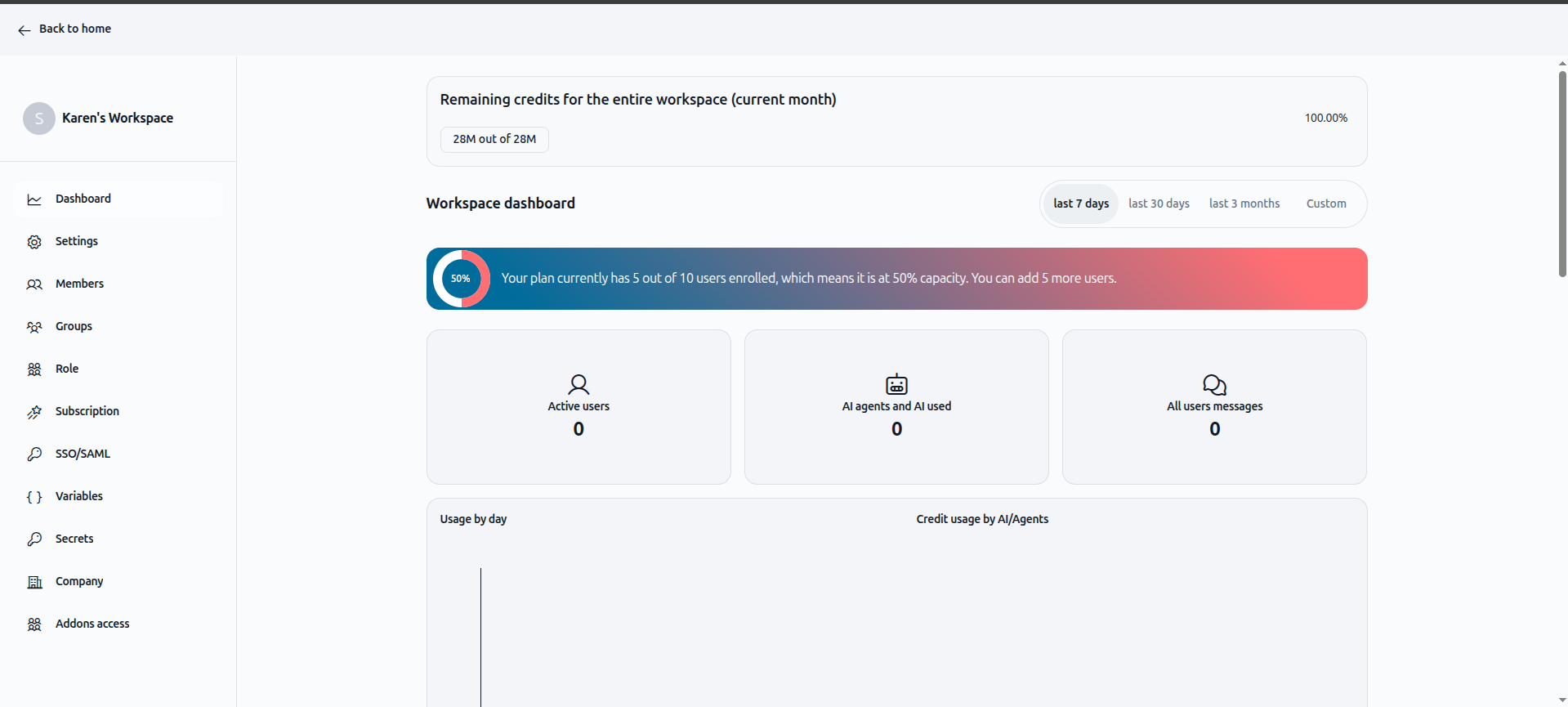
Remaining credits for the entire workspace (current month)
At the top, you'll see:
Total credits remaining out of your workspace allocation
Percentage of credits remaining
Current month's consumption progress
Time period filters
Use the filter buttons to adjust the data view:
Last 7 days
Last 30 days
Last 3 months
Custom (select specific date range)
Workspace capacity indicator
A visual indicator shows your plan's user enrollment:
Current number of enrolled users
Total user slots available
Percentage of capacity used
Number of additional users you can add
Key metrics cards
Three metric cards provide quick insights:
Active users – Number of users who have used credits in the selected period
AI agents and AI used – Count of unique agents or AI models utilized
All users messages – Total message sessions across all users
Usage by day
A line chart shows daily credit consumption trends over the selected time period, helping you identify usage patterns and spikes.
Credit usage by AI/Agents
A pie chart breaks down consumption by AI model or agent, showing which tools are consuming the most workspace credits.
Viewing individual member consumption
Workspace administrators can see credit consumption broken down by individual members.
To view member-specific usage:
Go to Workspace settings
Select Members in the left navigation menu
View the credit usage column for each team member
This allows you to identify high-usage members and adjust credit limits accordingly.
Understanding credit consumption
What consumes credits:
AI chat responses (varies by model)
Agent operations and tool usage
Knowledge base queries
Data update frequency:
Credit usage data is updated in real-time. After you send a message or complete an AI operation, the consumption appears immediately in your dashboard.
When credits run out:
If you run out of credits, you'll see this message:
"You don't have enough credits to perform this action. Please recharge your credits to continue using AI features."
You'll need to purchase additional credits or wait until your monthly allocation resets to continue using AI-powered features.
Practical use cases
Monitor daily spending patterns
Check your credit usage by day chart regularly to identify consumption trends. If you notice unexpected spikes, review which AI models you used on those days to optimize future usage.
Optimize AI model selection
Use the spend per agent breakdown to see which models consume the most credits. Consider switching to more cost-effective models for routine tasks while reserving premium models for complex work.
Set budget expectations
Workspace admins can use the dashboard's time filters to analyze usage over 7 days, 30 days, or 3 months. This helps forecast future credit needs and adjust plans accordingly.
Allocate credits strategically
Admins can review individual member consumption in the members section and adjust credit limits based on each person's role and needs.
Tips & best practices
Check your credit balance regularly
Make it a habit to review your remaining credits at the start of each week. This prevents unexpected service interruptions.
Share credits with team members
If you have unused credits and a colleague is running low, use the share credit feature to help them continue working without interruption.
Use time filters for better insights
Workspace admins should regularly switch between 7-day, 30-day, and 3-month views to spot both short-term anomalies and long-term trends.
Review agent consumption monthly
At the end of each month, review your spend per agent breakdown. Identify high-cost models and evaluate whether they're necessary for your workflows.
Troubleshooting
Issue: Credit usage data not updating
Cause: Browser cache or temporary connection issue.
Solution:
Refresh the page
Clear your browser cache
Log out and log back in
If the issue persists, contact support
Issue: Unexpected high credit consumption
Cause: Large file processing, complex AI operations, or frequent use of premium models.
Solution:
Check the credit usage by day chart to identify the spike date
Review the spend per agent breakdown to see which model consumed credits
Consider using simpler models for routine tasks
Process large files in batches during off-peak times
Issue: Can't access workspace dashboard
Cause: Insufficient permissions.
Solution:
Only workspace administrators can access the workspace dashboard. If you need access, contact your workspace owner or admin to request an admin role.
Was this helpful?
Still need help? Ask the team