Group chat & collaboration

Written By Stanislas

Last updated 7 days ago

Connect with your team and AI agents in task-focused conversations. This guide shows you how to message, mention colleagues, manage notifications, and keep discussions organized within your project tasks.


Overview

Every task in your project has its own conversation space. Rather than discussing work across scattered chats, task chat keeps all relevant discussion tied to the specific work being done. When you open a task chat, both your team members and AI agents understand the exact contextβ€”no need to repeat the background.

Task chat combines three key elements: direct messaging with your team, the ability to mention people for quick attention, and notifications that keep everyone aware of important updates. Together, these features transform how teams coordinate work within projects.


Opening task chat

Starting a conversation on a task

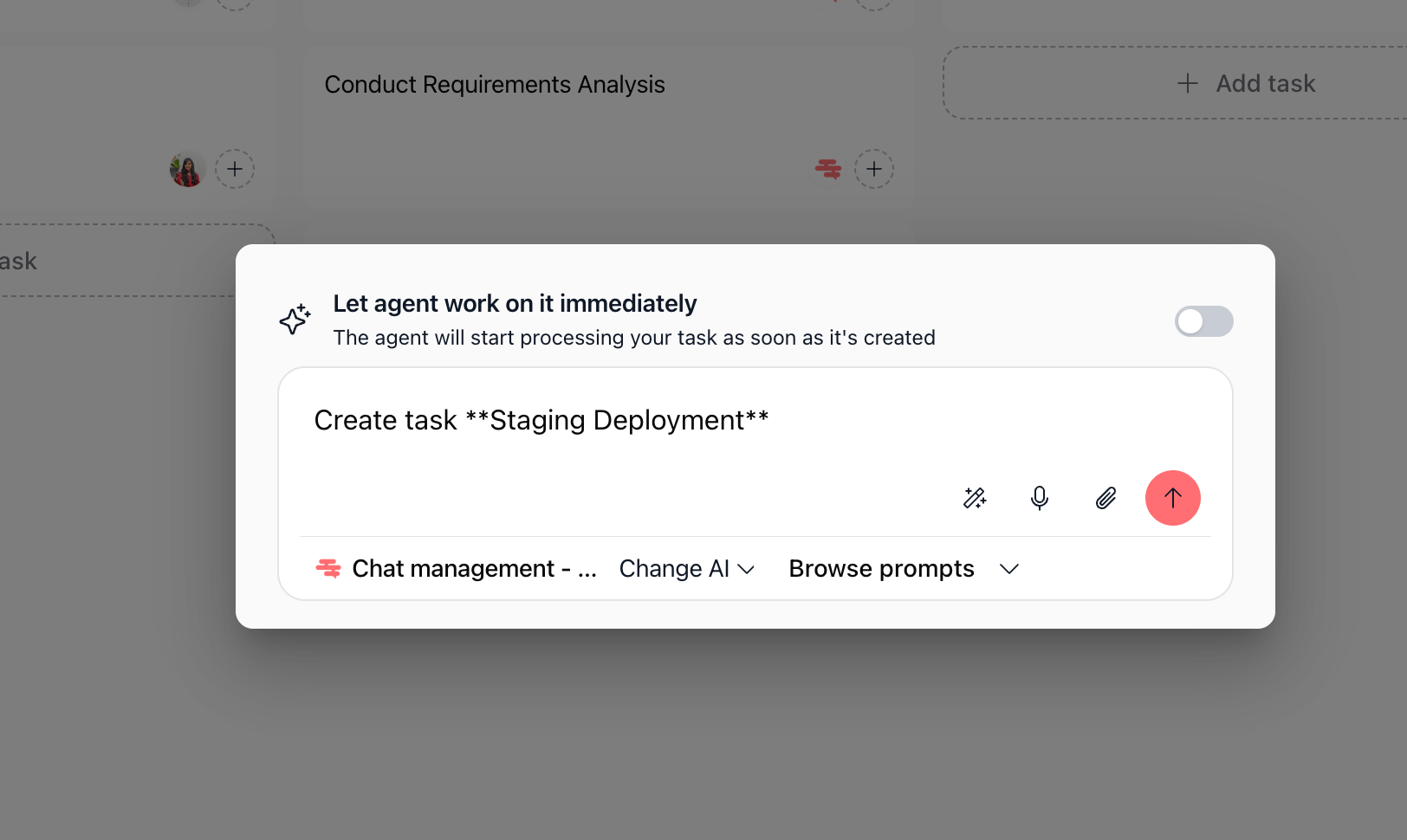
Every task card displays a button to open its chat. The exact label varies by interface, but you'll see something like + AI Assistant, Chat, or Open chat.

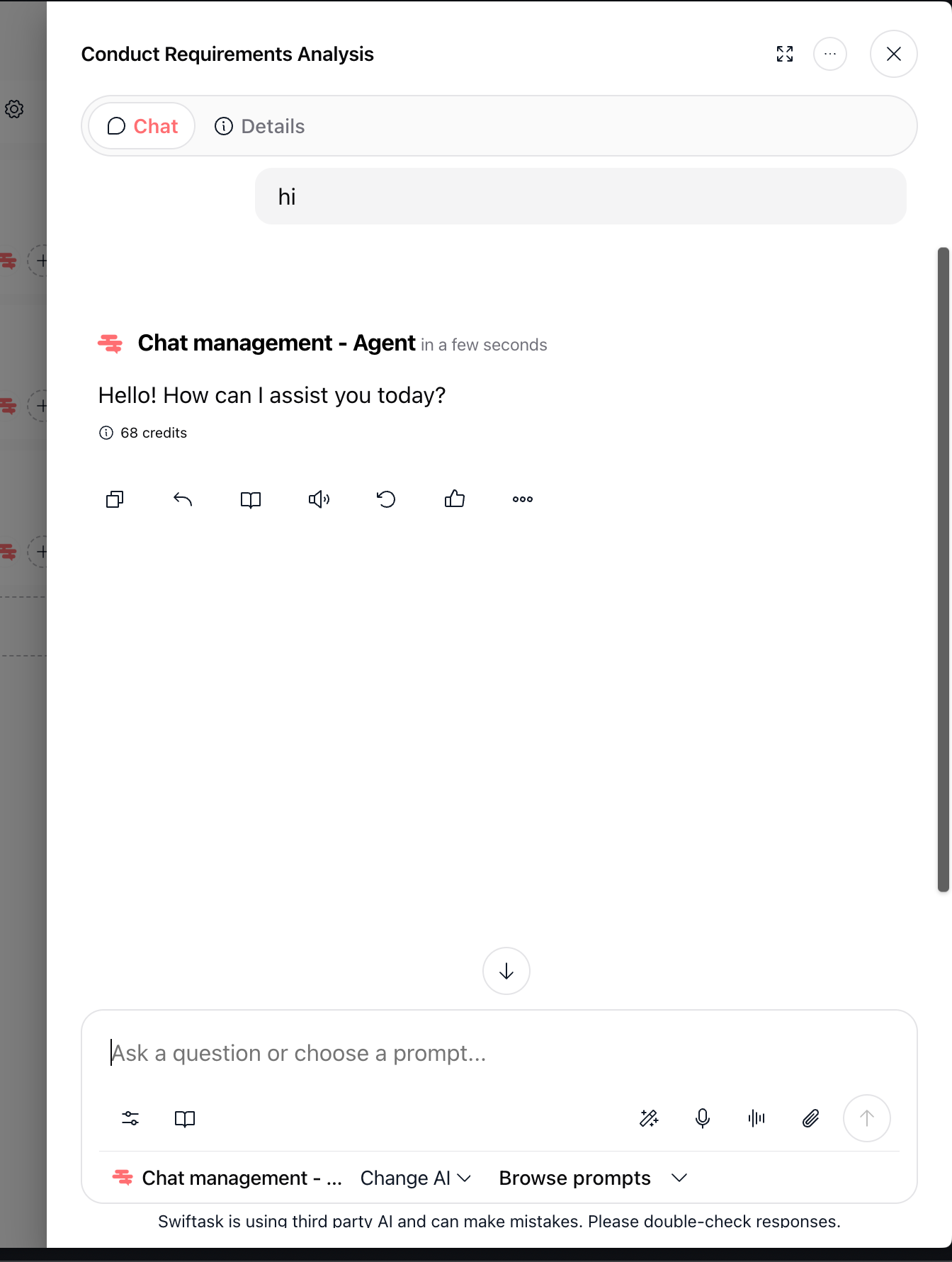
Click this button. A chat panel or window appears, showing the task title and any previous messages in that conversation.

Where task chat lives

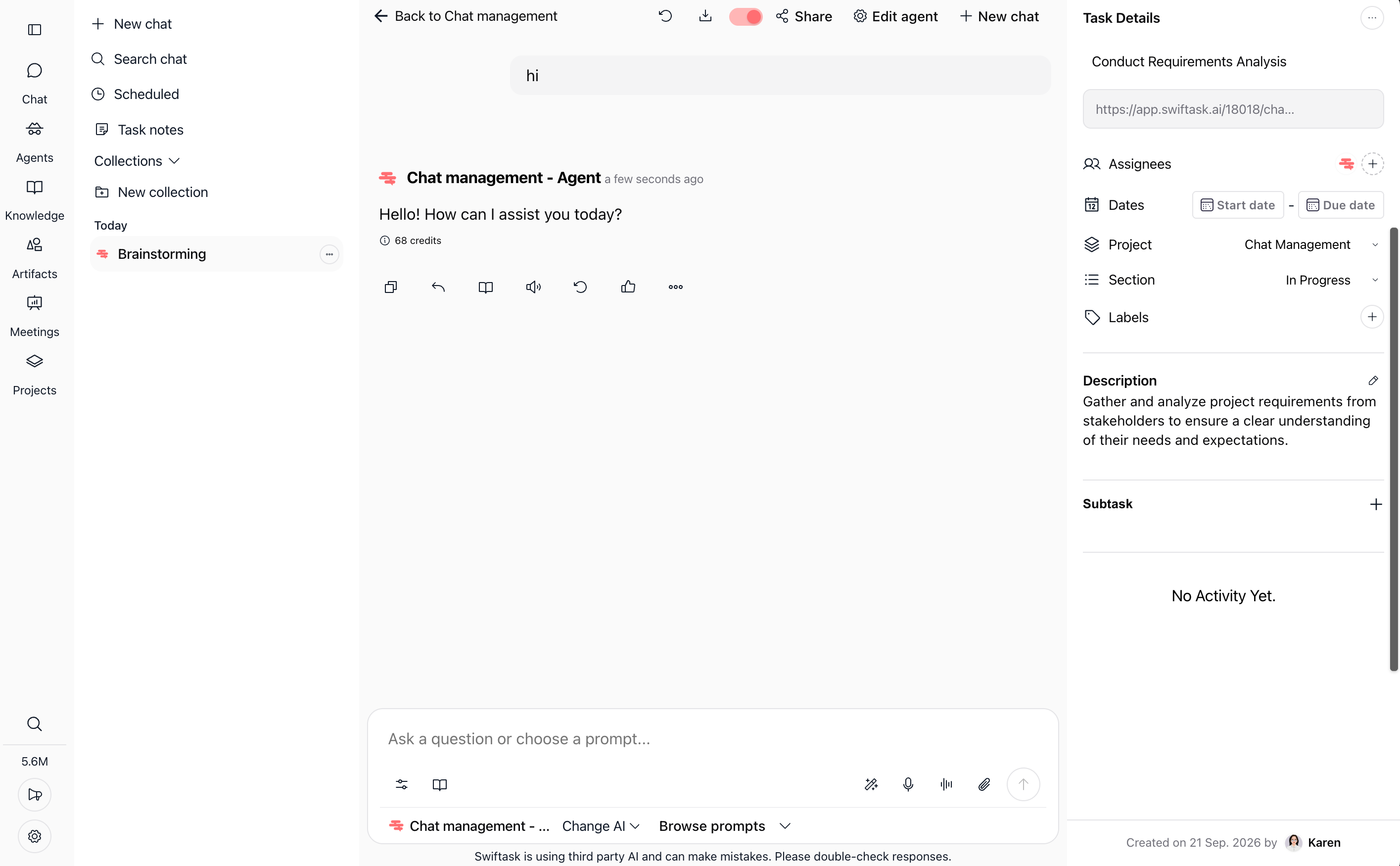
Task chat appears in different ways depending on your workspace setup:

  • Side panel β€” Chat opens on the right side of the screen, leaving the task list visible

  • Full-screen view β€” Chat opens in its own window or tab

  • Inline β€” Chat appears directly below or within the task details

Whichever layout you use, the conversation is always tied to that specific task.

Accessing chat from task details

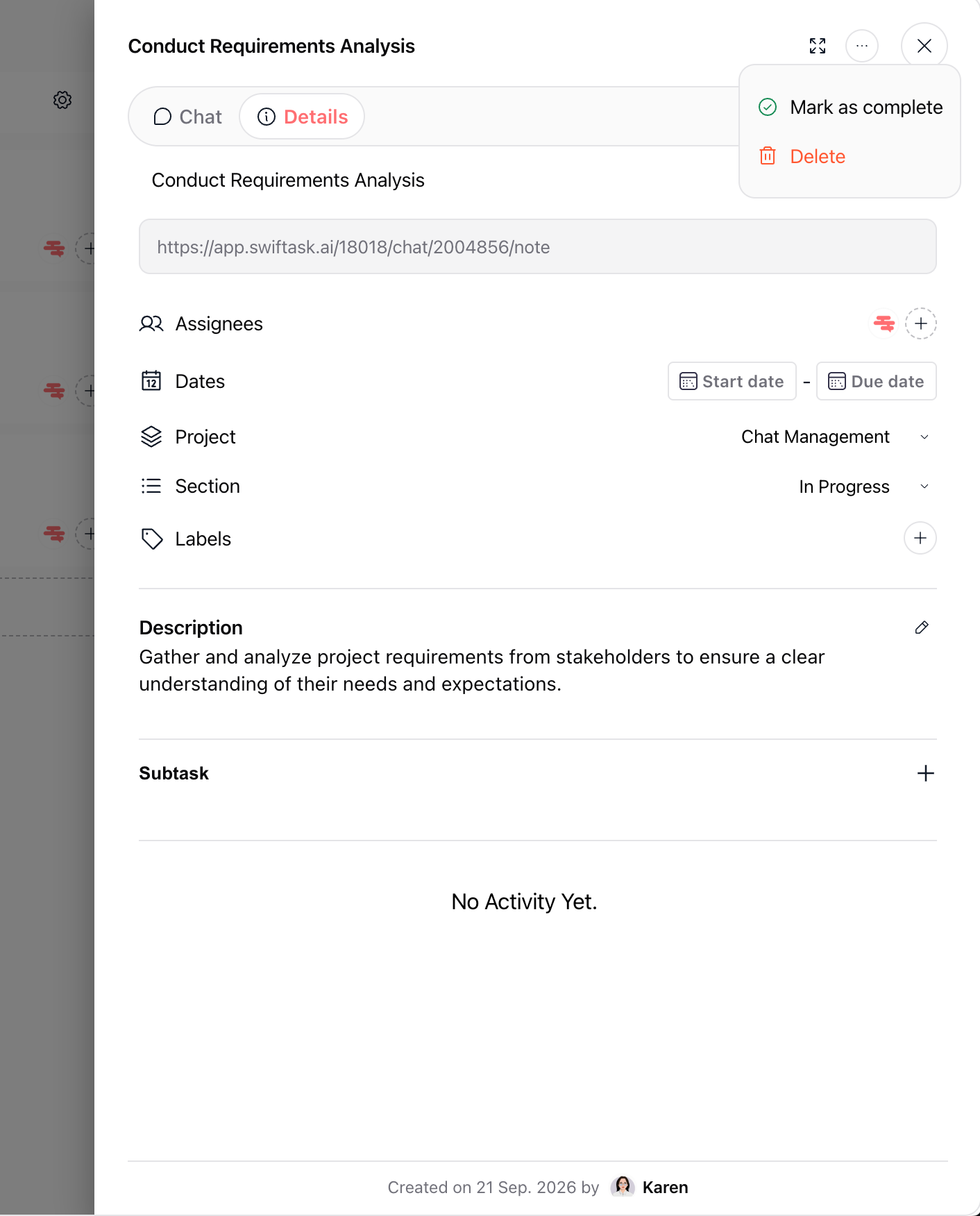
You can also reach task chat through the task details view:

  1. Click a task to open its full details

  2. Look for a Chat tab, Messages section, or Conversation link

  3. Click to open the chat interface

This method is useful when you want to review the full task information while chatting.


Sending messages

Writing and sending a message

  1. Click in the message input field at the bottom of the chat

  2. Type your message (no character limit)

  3. Press Enter or click Send

Your message appears immediately in the chat thread. If an AI agent is configured for the task, it may respond automatically. Your team members see the message in real time (or when they next open the task).

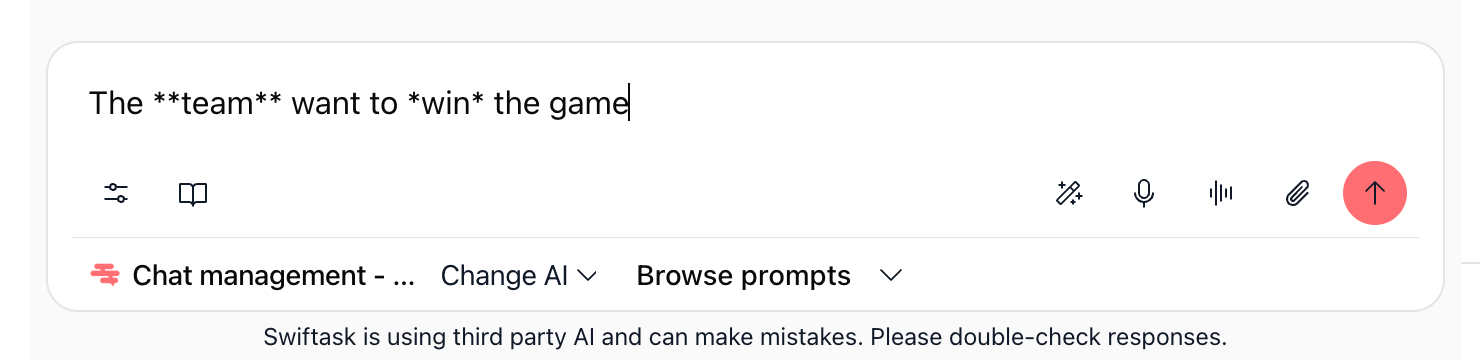
[Capture: Message input field with typed message, Send button]

Message formatting

Most task chats support basic text formatting:

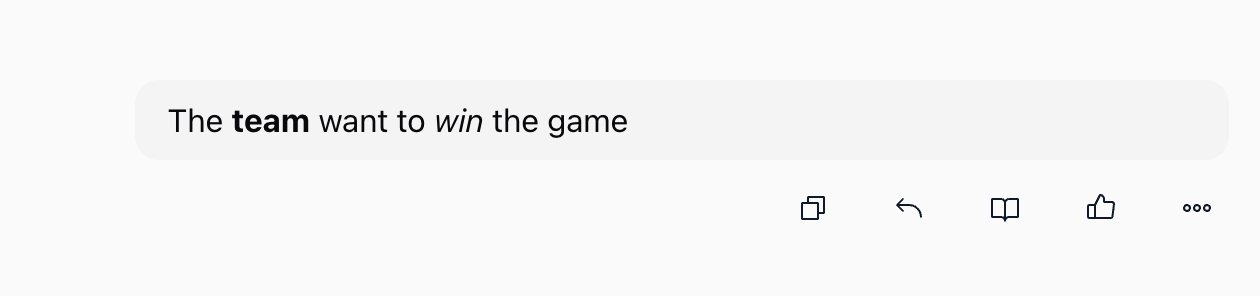
  • Bold β€” Use **text** or select text and click bold

  • Italic β€” Use *text* or select text and click italic

  • Code β€” Use backticks or select and click code

  • Links β€” Paste a URL; it becomes clickable

  • Lists β€” Type - item on separate lines, or use the formatting toolbar

Formatting helps emphasize important information or make code more readable.

Example:

Result:


Sharing files and attachments

You can attach files to your messages:

  1. Look for a +, Attachment, or Paperclip icon in the message input area

  2. Click it and select a file from your computer

  3. The file uploads and appears in the chat

Supported file types include documents, images, PDFs, and spreadsheets. File size limits depend on your workspace (typically 10–50 MB per file).

Deleting messages

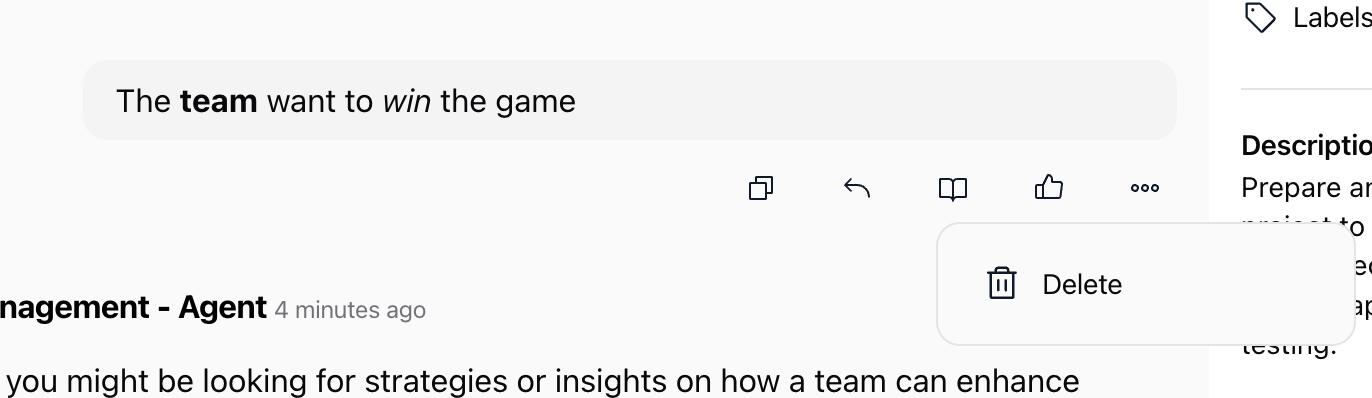
After sending a message, you may see an Delete option (usually a menu icon on the message itself):

  • Delete β€” Remove the message permanently (other users see "[deleted]" or the message disappears)

You can typically only edit or delete your own messages, not others'.


Mentioning team members

Using @mentions to get attention

When you need a specific person's input, use an @mention. Type @ in your message followed by their name:

  1. Type @ in the message input

  2. A dropdown list appears showing available people and bots

  3. Start typing a name (e.g., "@sarah" or "@design-team")

  4. Select the person from the list

  5. Complete your message and send

The mentioned person receives a notification (depending on their settings) and knows you're asking for their attention.

When to use @mentions

Use @mentions when you need:

  • Quick feedback from a specific person

  • Someone to take action on a task

  • To pull someone into a conversation they might miss otherwise

  • To ask a question directed at one person

Example messages:

  • "@sarah, can you review the copy in this task?"

  • "@design-team, we're ready for the final mockups"

  • "@engineering-lead, does this timeline work?"

Mentioning multiple people

You can mention several people in one message:

"@sarah and @mike, I've updated the brief. Can you both review by EOD?"

Each person receives a notification. This is useful for group decisions or when multiple people need to see the same update.

Bot mentions

If your workspace has AI agents or bots available in task chat, you can mention them too:

"@ai-assistant, can you summarize the feedback we've received so far?"

Mentioning a bot may trigger it to respond or perform an action, depending on how it's configured.


Conversation threading and history

Viewing message history

All messages in a task chat are stored permanently. You can scroll up to see previous conversations, even from weeks ago.

  1. Open the task chat

  2. Scroll up to see older messages

  3. Messages display with timestamps and the sender's name

This history helps you understand the context of a task and track decisions over time.

Search within task chat

If a task chat has many messages, use search to find specific information:

  1. Look for a Search icon or field in the chat

  2. Type a keyword or phrase

  3. Results highlight matching messages

This is useful for finding past decisions or links shared in the conversation.


Real-world example: Collaborating on a design task

Scenario: Your team is reviewing website mockups. The designer posted initial designs, and feedback is coming in from multiple people.

What happens in the chat:

  1. Designer posts: "Initial mockups are ready. Check the links below. Looking for feedback on layout and color scheme."

    • Files/links attached showing the designs

  2. You respond: "@sarah, what do you think of the color palette? Does it match our brand guidelines?"

    • Sarah receives a notification that you mentioned her

  3. Sarah replies: "The colors look good. One note: the header spacing feels tight. Can we increase it by 10px?"

    • The conversation flows naturally, with replies building on each other

  4. Designer responds: "Got it. Increasing header spacing now. Should have an updated version in 30 min."

    • Everyone sees the update and knows what's happening next

  5. You mention the AI: "@ai-assistant, can you summarize the feedback we've received so far?"

    • The AI reads the conversation and provides a bulleted summary

    • You pin this summary to the top for easy reference

  6. Next day: Designer posts updated mockups with the spacing changes

    • The full conversation history is visible, so everyone understands the changes made

Throughout this exchange, the entire conversation stays in one place, tied to the task. No one has to search through email or Slack to find the context.


Tips & best practices

Keep conversations task-focused

Task chat works best when discussions directly relate to the task. Use it for:

  • Questions about the work

  • Feedback and reviews

  • Status updates

  • Decisions specific to this task

Use your main Chat or email for general team discussions.

Use clear, concise messages

Write messages that are easy to scan:

  • One idea per message (or use lists for multiple points)

  • Ask specific questions rather than vague ones

  • Include relevant details (dates, numbers, links)

Good: "@sarah, can you review the copy by Friday? I've highlighted the sections needing work."

Less clear: "Hey, need your thoughts when you get a chance."

Mention people strategically

Don't @mention everyone for every message. Use mentions when:

  • You need a specific person's input

  • You're asking someone to take action

  • You're pulling someone into a conversation they'd otherwise miss

Overusing mentions causes notification fatigue.

Reference previous messages

When responding to something said earlier, quote or reference it:

"Following up on your point about the timelineβ€”I think we can compress the review phase by a day."

This helps context when people skim the chat later.

Use formatting for readability

Break up long messages with formatting:

Instead of: "First we need to confirm the timeline, then we need to assign tasks, then we need to set up the review process."

Better:

  1. Confirm the timeline

  2. Assign tasks

  3. Set up the review process


Threaded replies

Some task chats support threaded conversations, where replies to a specific message stay grouped:

  1. Hover over a message

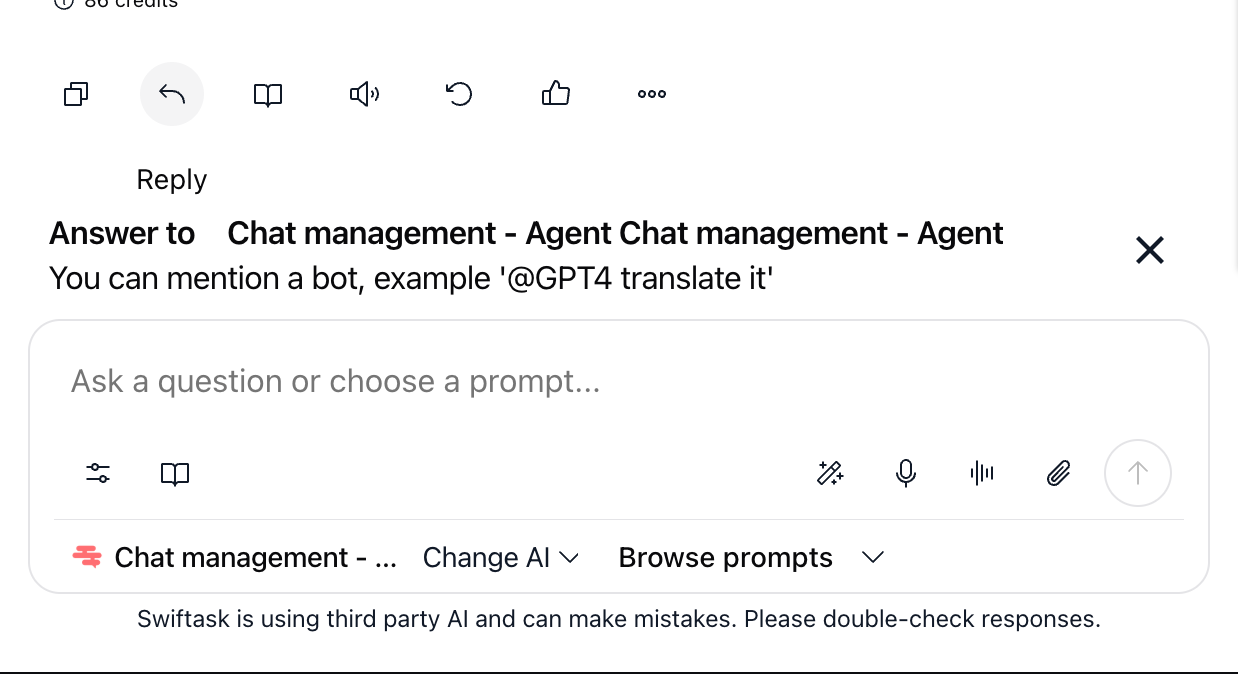
  2. Click Reply in thread (if available)

  3. Your reply appears as part of that message's thread, not the main chat

Threads keep related conversations together, making long chats easier to follow.

Integrations with other tools

Depending on your workspace, task chat might integrate with:

  • Calendar β€” Share meeting links or schedule follow-ups

  • Agents β€” Trigger agent actions from chat

  • Knowledge Base β€” Reference or link to docs

  • External tools β€” Embed previews of links, documents, or data

These integrations bring relevant information directly into the chat.


Troubleshooting

I'm not receiving notifications

Possible reasons:

  • Notifications are disabled in your settings

  • You've muted the task

  • Your notification preferences are set to "Mentions only" but you weren't mentioned

  • Email notifications are filtered to spam

Solutions:

  • Check your notification settings (see "Managing notifications" above)

  • Unmute the task

  • Ask someone to @mention you to test

  • Check your email spam folder

  • Contact your administrator if notifications aren't working at all

A message I sent disappeared

Possible reasons:

  • You deleted it

  • Someone with admin permissions deleted it

  • Network issue caused it not to send

Solutions:

  • Check if you accidentally deleted it

  • Look at the message history to confirm

  • Resend the message if needed

  • Refresh the page and check again

I can't mention someone

Possible reasons:

  • The person isn't in your workspace

  • You misspelled their name

  • The @mention feature isn't enabled in your workspace

Solutions:

  • Verify the person's name and spelling

  • Check that they're a member of your workspace

  • Try mentioning them without @; some workspaces use different syntax

  • Contact your administrator if @mentions aren't working

Messages are loading slowly

Possible reasons:

  • Network connectivity issue

  • Large number of messages in the task chat

  • Browser or app performance issue

Solutions:

  • Check your internet connection

  • Refresh the page

  • Try a different browser

  • Close other tabs or apps to free up memory

  • Contact support if the issue persists

I see a message from someone, but they say they didn't send it

Possible reason:

  • Account security issue or unauthorized access

Solution:

  • Report this to your administrator immediately

  • The person should change their password

  • Check your workspace security settings


Frequently asked questions

Can I edit a message after sending?

Yes, in most cases. Look for an Edit option on your message. You can change the text; the message shows "(edited)" to indicate it was changed.

Are task chat messages permanent?

Yes. Messages are stored indefinitely (unless your workspace has a retention policy). You can scroll back to see old conversations.

What happens to task chat if I delete the task?

The task and its entire chat history are deleted. There's no undo, so be careful when deleting tasks.

Can I search across all task chats?

That depends on your workspace. Some allow workspace-wide search; others only search within individual task chats. Check your search options.

Can I export task chat conversations?

This depends on your workspace setup. Some allow exporting to PDF or other formats. Check with your administrator.

What if someone sends a message by mistake?

They can delete it immediately. If it's been a while, they can ask an administrator to help, but deletion isn't guaranteed.

Can I use task chat for one-on-one conversations?

Task chat is designed for task-focused collaboration. For private conversations, use direct messages in your main Chat or email.

Do AI agents always respond in task chat?

Not necessarily. It depends on how the agent is configured. Some respond automatically; others only respond when mentioned. Check your agent's settings.

Can I disable task chat for a project?

That's a workspace-level setting. Contact your administrator if you want to disable chat for certain projects.

What's the difference between task chat and project chat?

Task chat is specific to one task. Project chat (if available) might be for discussing the entire project. Use task chat for work-specific discussions.


What's next

You're now ready to collaborate effectively within your tasks. To build on these skills:

Effective task chat keeps your team aligned and your conversations organized. Start using mentions and notifications to streamline your project collaboration.