Plans & limits
Written By Stanislas
Last updated 6 months ago
Learn about Swiftask subscription plans, credit allocations, member limits, and how to choose the right plan for your needs.
Overview
Swiftask offers multiple subscription plans designed to fit different team sizes and usage needs. Each plan includes a specific number of credits per month and a set number of user slots for your workspace.
Understanding your plan's limits helps you manage your team size, budget your credit usage, and know when it's time to upgrade. This guide explains what's included in each plan and how limits affect your workspace.
Prerequisites
To view and manage your subscription plan, you need:
A Swiftask account
Admin or Owner role (to upgrade plans or manage subscription)
Access to workspace administration (for workspace plans)
Available subscription plans
Swiftask offers four main subscription tiers. All AI features are available on all plans.
For complete pricing details, feature comparisons, and the latest plan offerings, visit: https://swiftask.ai/pricing
Understanding plan limits
User capacity limits
Each plan includes a specific number of user slots. This determines how many team members you can invite to your workspace.
User limits by plan:
Pro: 1 user
Team starter: 10 users included
Team Growth: 50 users included
Tailored offer: Customizable for 100 to +10k users
Checking your capacity:
Your workspace displays your current enrollment status at the top of the Members section:

As shown in the image above, the capacity indicator displays:
A circular progress indicator showing the percentage of capacity used
Total user slots available in your plan
Number of slots currently used
Number of additional users you can add
A warning that inviting additional users will increase your subscription billing
Example:
Your plan currently has 4 out of 50 users enrolled, which means it is at 8% capacity. You can add 46 more users. What happens when you reach the limit:
If you try to invite more users than your plan allows, you'll need to:
Purchase additional users
Remove inactive users to free up slots, or customize subscription
Upgrade your plan to a higher tier
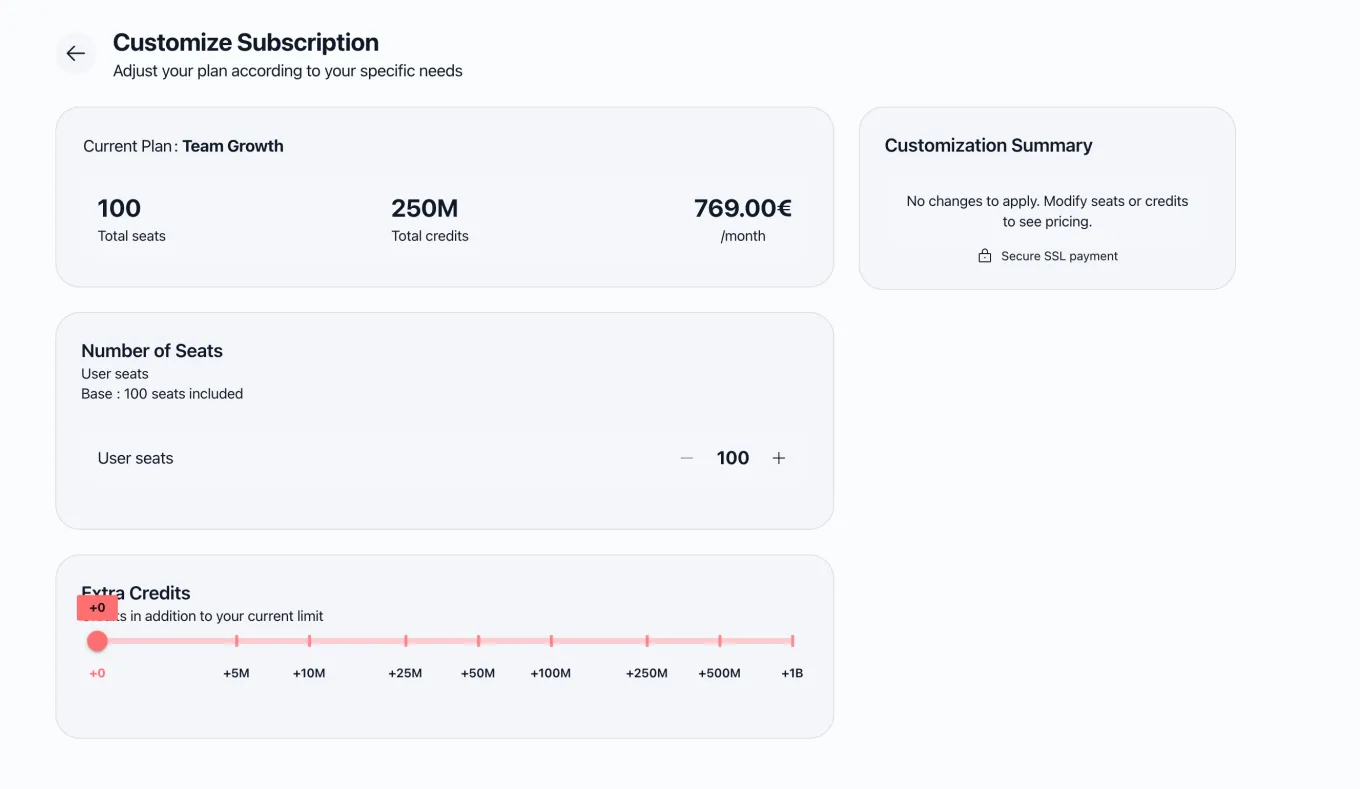
Credit pricing
How much do additional credits cost?
Swiftask charges €20 for 5 million credits ( 4 euros per 1M credits )
You can purchase additional credits anytime from Workspace settings → Subscription → Billing tab.
Extra credits don't expire and carry over month-to-month.
Billing options
Annual vs. monthly billing
All plans offer both annual and monthly billing options:
Annual billing (recommended):
Lower monthly cost
Pro: €12/month (vs €24 monthly)
Team starter: €129/month (vs €159 monthly)
Team Growth: €649/month (vs €769 monthly)
Pay upfront for the full year
Monthly billing:
Higher monthly cost
More flexibility to change plans
Pay month-to-month
Savings with annual billing:
Pro: Save 50% (€12 vs €24/month)
Team starter: Save 19% (€129 vs €159/month)
Team Growth: Save 16% (€649 vs €769/month)
Viewing your current plan
For personal accounts
Click your profile icon or account menu
Select Account settings
View your plan details and credit allocation
For workspaces
Click the Settings icon at the bottom of the sidebar
Select Workspace administration
Click Subscription in the left navigation menu
View your current plan, user capacity, and credit allocation
Upgrading your plan
When to upgrade
Consider upgrading when:
You're at 80% or higher user capacity
You consistently exhaust monthly credits before the billing cycle ends
You need advanced features available in higher tiers
Your team is growing and needs better collaboration tools
How to upgrade
Navigate to Workspace administration → Subscription
Click Manage subscription or Upgrade now
Review available plan options
Select the plan that fits your needs
Complete the upgrade process
Billing impact:
When you upgrade:
Your new credit allocation takes effect immediately
Additional user slots become available
New features are unlocked
Billing is adjusted based on your new plan
You may receive a prorated credit for your previous plan
Use cases
Freelance consultant using Pro
A freelance AI consultant uses Swiftask Pro for client work. The 5M monthly credits cover their chat interactions, document analysis, and agent creation. They appreciate the unlimited AI agents and API access for custom integrations.
Startup with 8 team members using Team starter
A tech startup with 8 employees uses Team starter. The 28M credits support their daily operations, and the basic permission management helps them control access. They use agent sharing to collaborate on customer support automation.
Marketing agency with 35 team members using Team Growth
A marketing agency with 35 team members uses Team Growth. The 150M credits support intensive content creation, and advanced analytics help them track team productivity. White-label branding allows them to customize the interface with their logo.
Enterprise with 500+ employees using Tailored offer
A financial services company with 500+ employees uses a Tailored offer with on-premise deployment. Self-hosted infrastructure ensures compliance with data governance requirements, and dedicated support provides immediate assistance.
Tips & best practices
Start with annual billing for cost savings
Annual billing offers significant savings (up to 50% on Pro). If you're committed to using Swiftask long-term, annual billing is the most cost-effective option.
Monitor your capacity regularly
Check your user capacity and credit usage weekly. This helps you identify when you're approaching limits and need to plan for an upgrade or purchase additional resources.
Use credit limits to control costs
Workspace admins should set monthly credit limits for individual users to prevent a single user from consuming the entire workspace budget.
Plan upgrades proactively
Don't wait until you're at 100% capacity to upgrade. Start planning when you reach 75% to avoid service interruptions.
Leverage additional credits for peak periods
If you have seasonal spikes in usage, purchase additional credits temporarily instead of upgrading your entire plan.
Troubleshooting
Issue: Can't invite new users
Cause: You've reached your plan's user limit.
Solution:
Check your capacity in Workspace administration → Members
Remove inactive users to free up slots
Upgrade your plan via Workspace administration → Subscription
Issue: Credits exhausted mid-month
Cause: Usage exceeded monthly allocation.
Solution:
Review credit usage in Account settings → Credit usage
Identify high-consumption activities and optimize workflows
Purchase additional credits (5M-1B available)
Consider upgrading to a plan with higher credit allocation
Issue: Unsure which plan to choose
Cause: Difficulty estimating future usage needs.
Solution:
Review your current usage in the credit usage dashboard
Estimate your team growth over the next 6-12 months
Visit swiftask.ai/pricing for detailed comparisons
Start with a lower plan and upgrade as needed—it's easy to scale up
Contact sales for personalized recommendations (especially for Tailored offer)
Issue: Billing increased after inviting users
Cause: Additional users increase subscription costs.
Solution:
This is expected behavior. Swiftask displays a warning before you invite new users:
⚠️ Inviting additional users will increase your subscription billing. Each new user adds a charge to your monthly subscription. Each additional user costs 1$/month and includes 2M bonus credits. Review the cost impact before sending invitations.
Ready to choose or upgrade your plan? Visit swiftask.ai/pricing to explore all available options, or navigate to Workspace administration → Subscription to manage your current plan.