Editing and Iteracting with AI
Written By Stanislas
Last updated 8 months ago
Refine and improve your artifacts through conversational AI editing or manual adjustments. Whether you need to change colors, add content, or redesign entire sections, you can iterate on your presentations and web pages until they're exactly what you need.
Overview
Once you create an artifact in Swiftask, you can edit and improve it in two ways: by asking AI to make changes through chat, or by manually editing elements directly. This flexibility lets you quickly refine your work without starting from scratch.
AI-powered iteration means you can describe what you want to change in plain language. AI understands your intent and updates the artifact accordingly. Manual editing gives you precise control over text, colors, layouts, and other visual elements.
Prerequisites
To edit artifacts, you need:
A Swiftask account (sign up at swiftask.ai)
Access to a workspace (you can create your own or join an existing one)
An existing artifact (presentation or web page) that you want to edit
Step-by-step guide
Method 1: Editing via chat (AI iteration)
This method uses conversational AI to modify your artifact based on your instructions.
1. Open your artifact
Navigate to Artifacts in the left sidebar. Find the artifact you want to edit and click on it. Or click the more options menu (⋮) and select Update . The chat interface appears on the left side, with your artifact preview on the right.
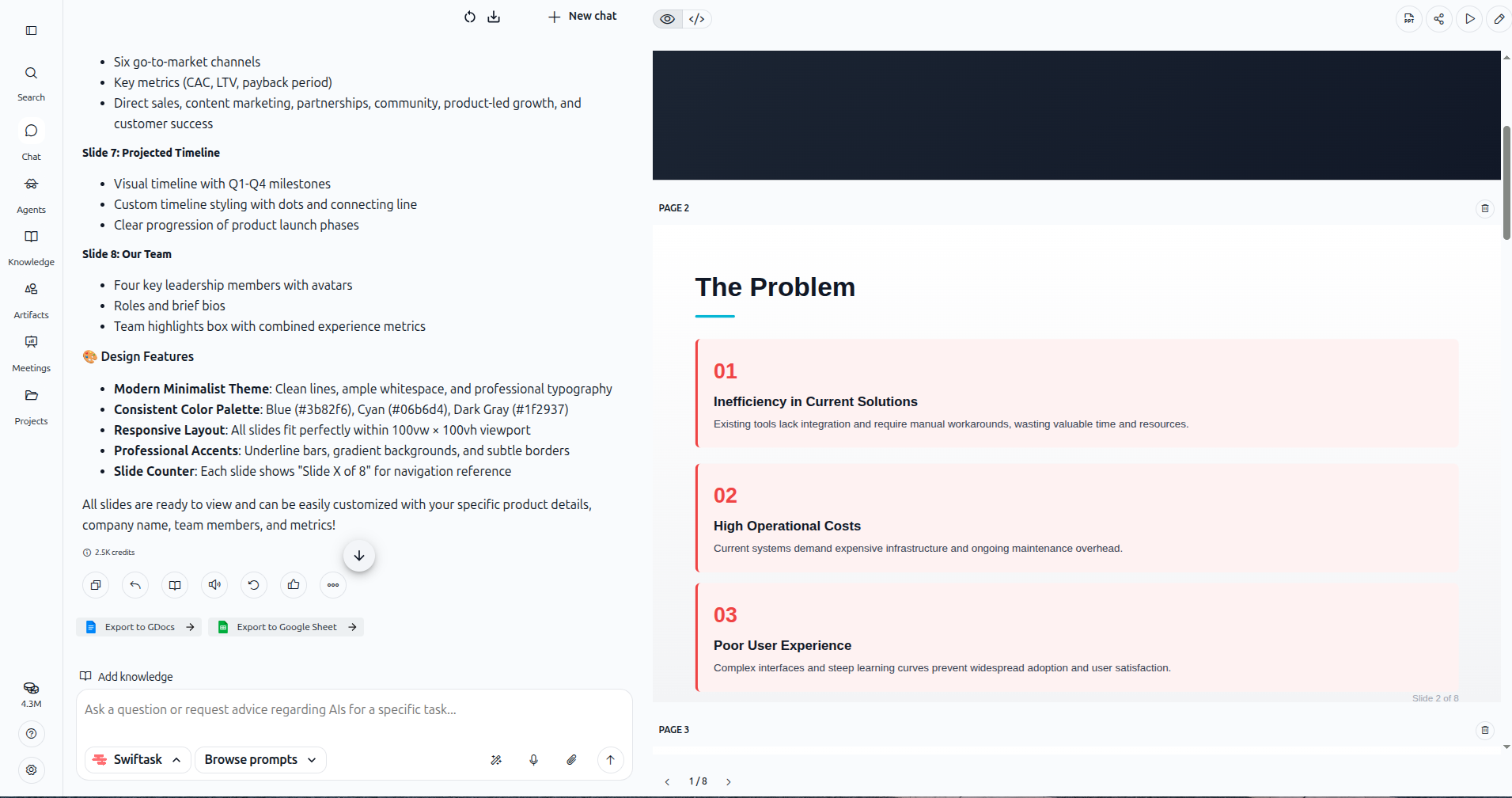
2. Describe your changes
In the chat input field, describe what you want to change. Be specific about:
What to modify – Which slide, section, or element
What changes to make – Color, text, layout, content
Why (optional) – This helps AI understand your intent
3. AI processes your request
AI reads your current artifact, understands your request, and makes the changes. You'll see a confirmation message in the chat describing what was updated.
Example prompt:
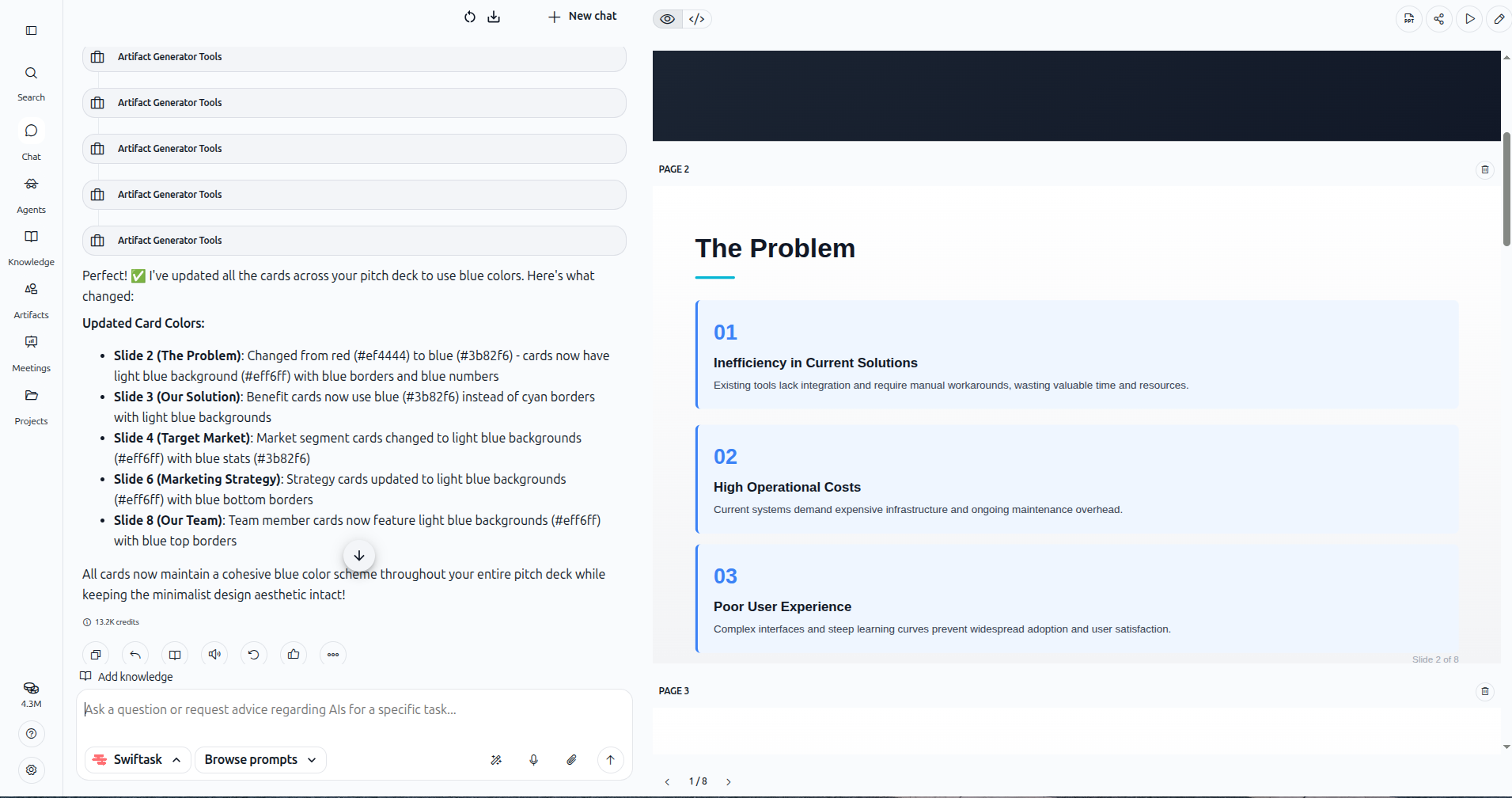
"Can you change the color of each card to blue?"
See the result in the image below.
Another example prompt:
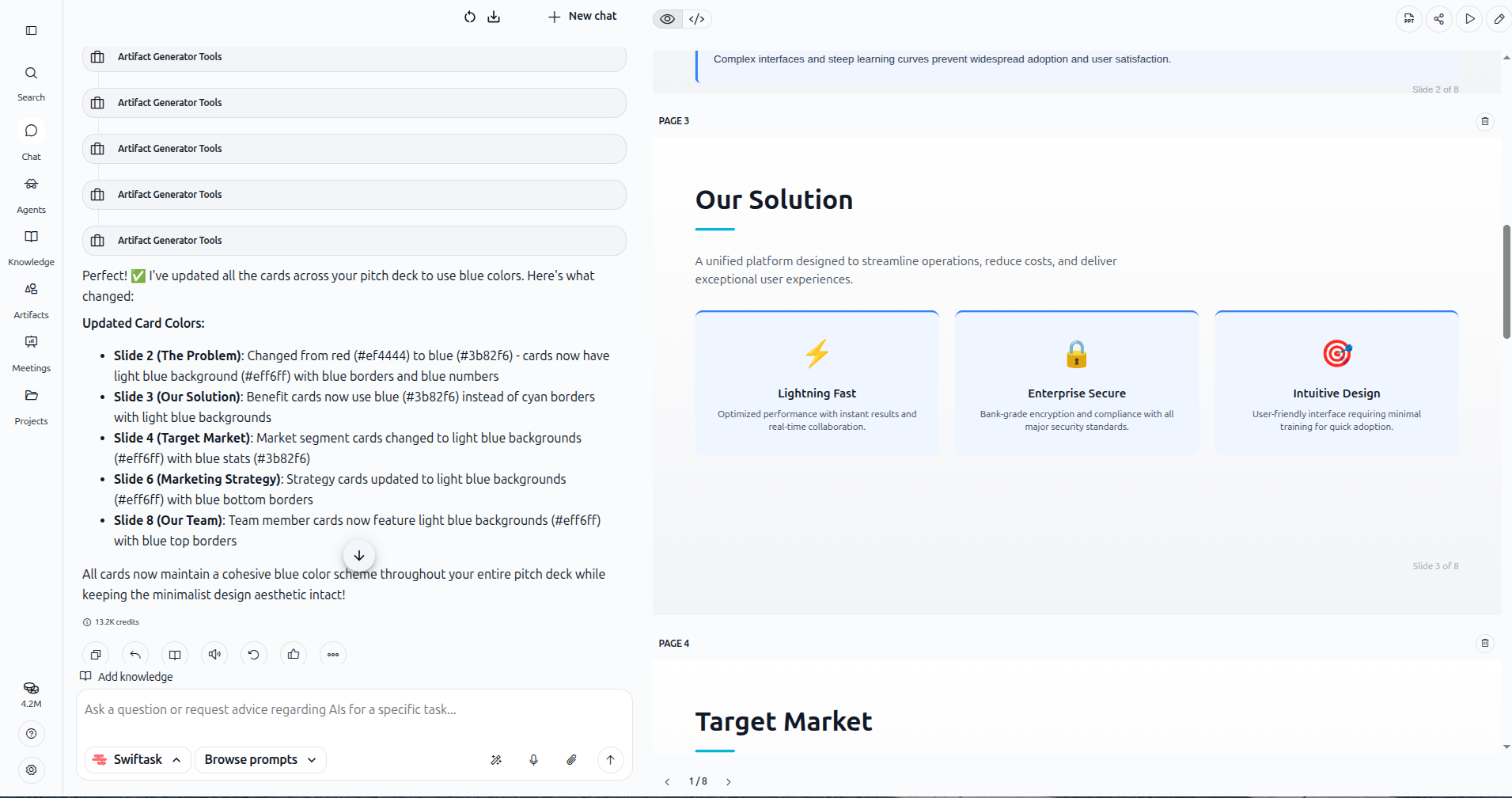
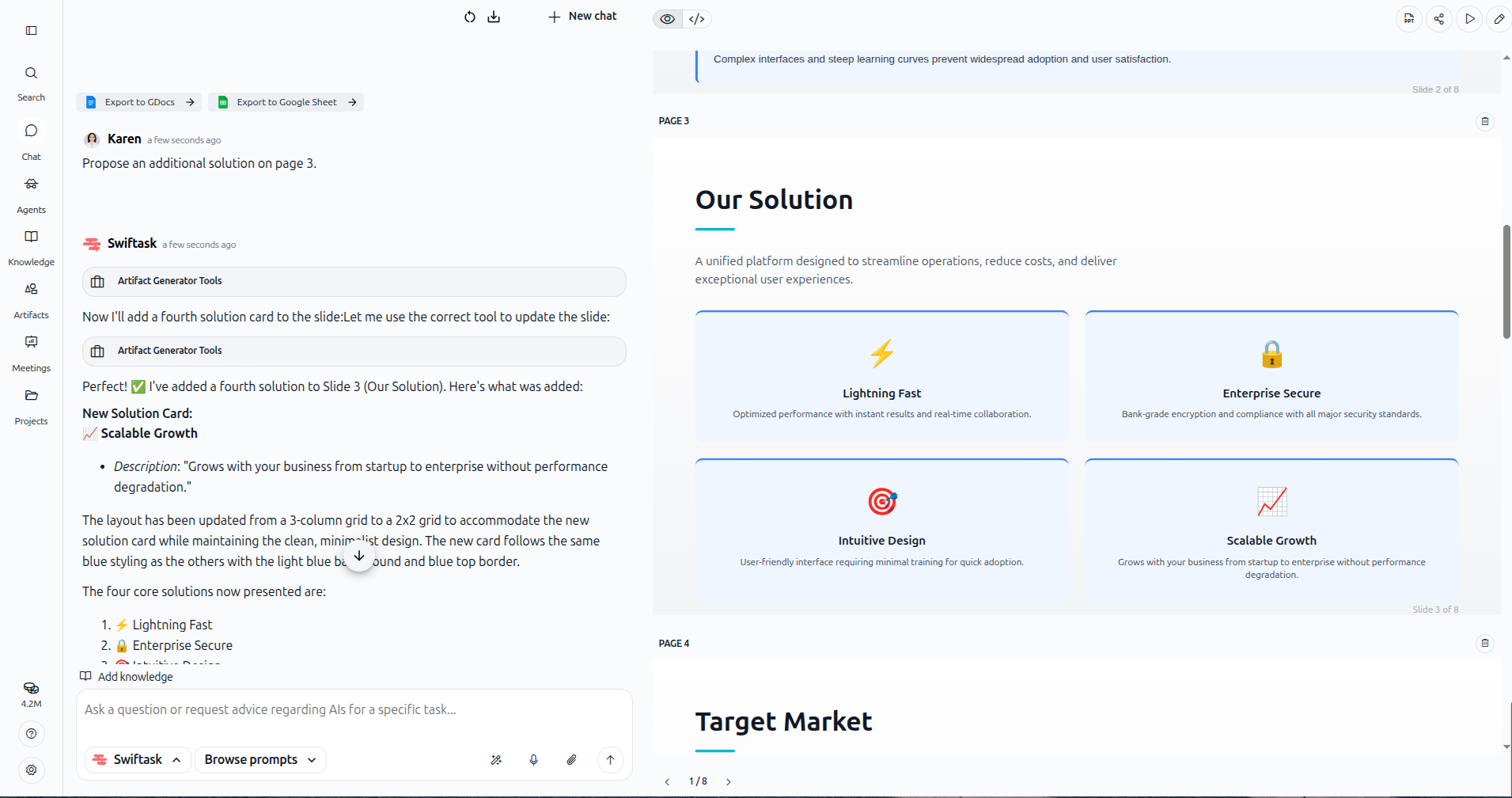
“Propose an additionnal solution on page 3.”
Slide 3 before editing:
Slide 3 after editing:
4. Review the updated artifact
The artifact preview on the right updates automatically. Review the changes to confirm they match your expectations.
5. Iterate further (optional)
If you want additional changes, simply continue the conversation. You can ask for refinements, adjustments, completely new modifications, or to insert new slides anywhere—between existing ones or at the end.
Example for web pages:
Here is the web page before editing:
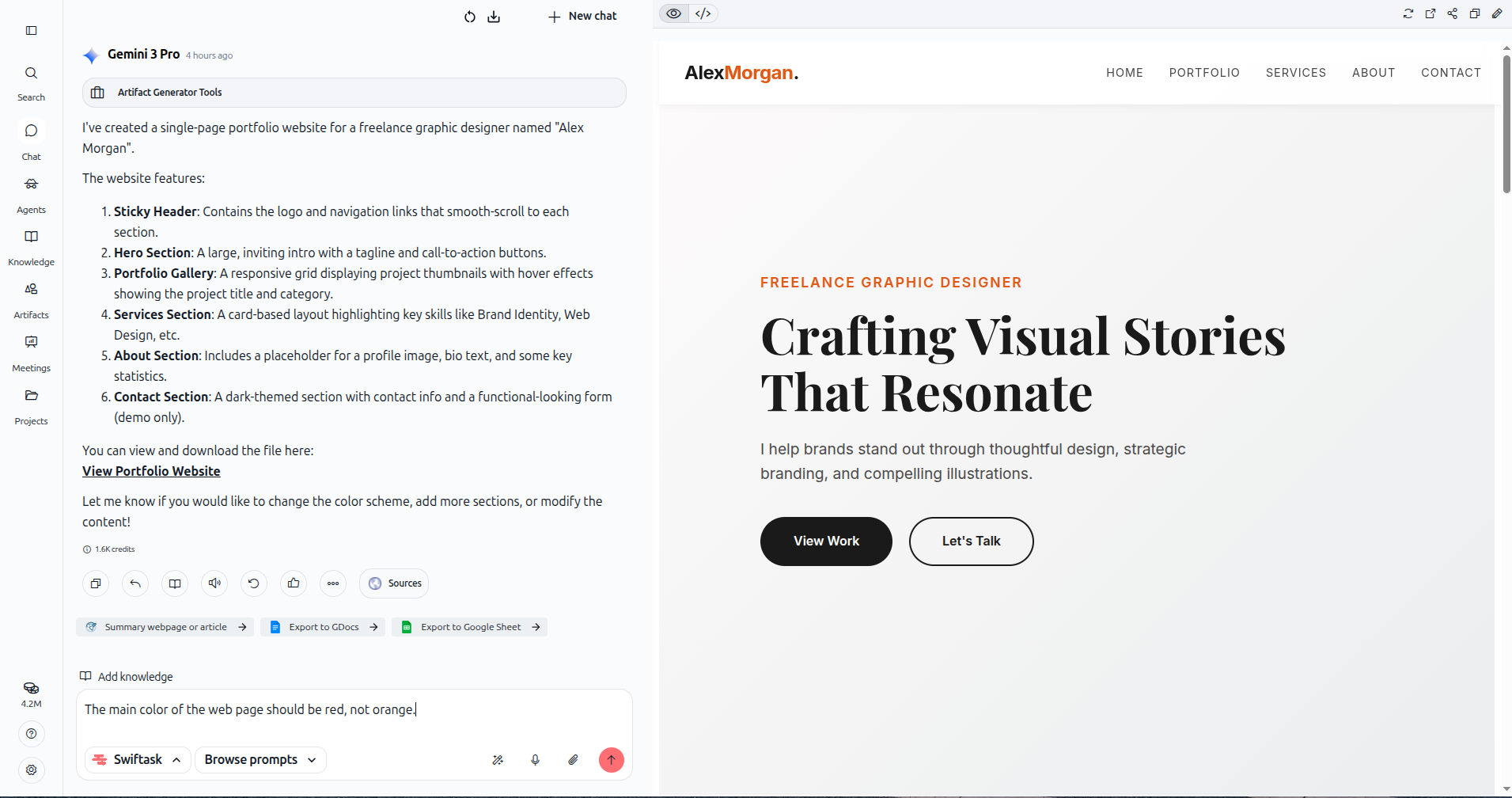
Prompt:
“The main color of the web page should be red, not orange”
The AI processes your request and updates the webpage accordingly:
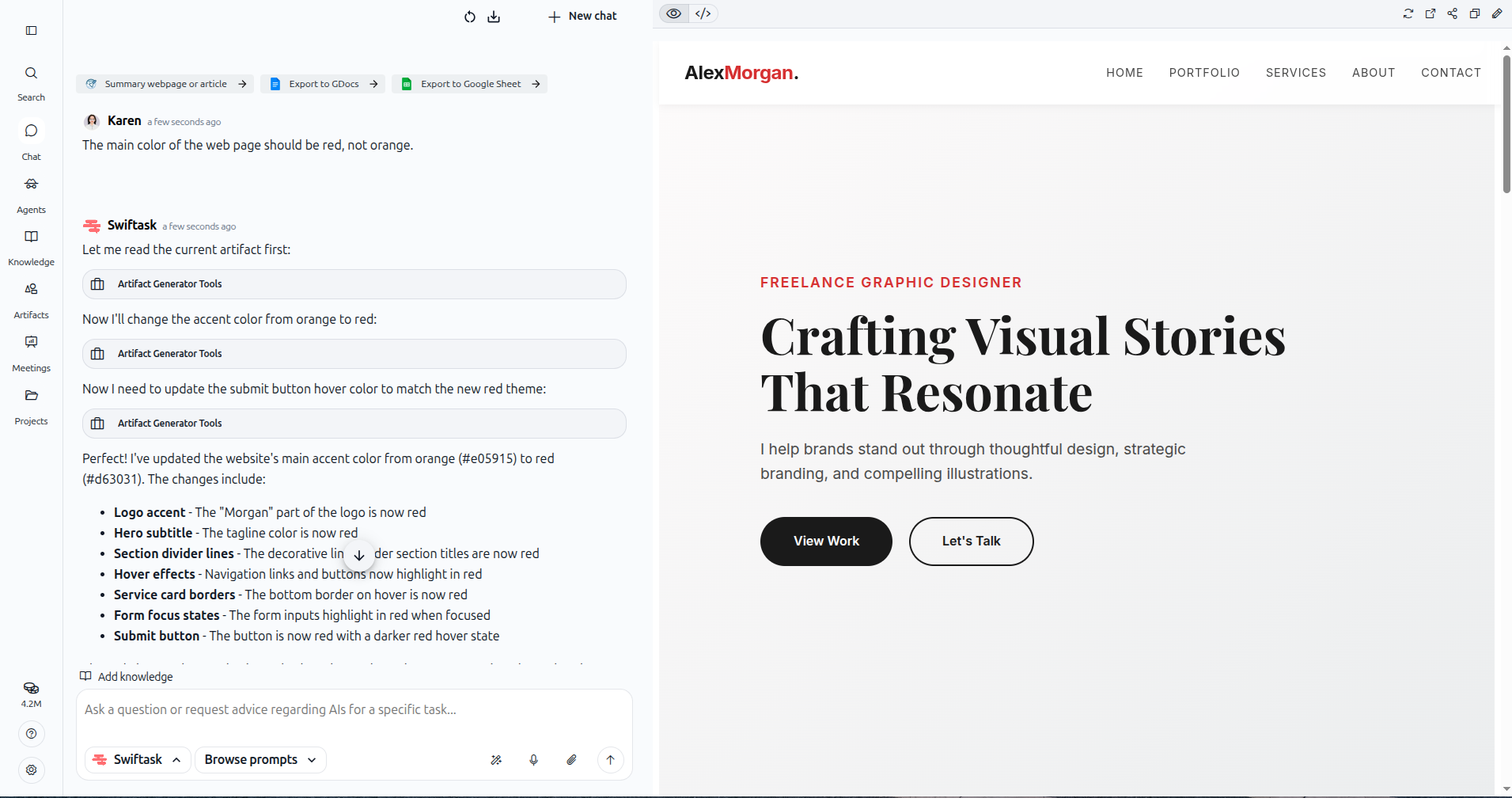
Method 2: Manual editing
This method gives you direct control over individual elements without AI assistance.
1. Open your artifact
Navigate to Artifacts in the left sidebar. Find the artifact you want to edit and click on it.
2. Enter edit mode
Click the edit icon (pencil) in the toolbar at the top right of your artifact. This activates edit mode.
3. Edit elements directly for Artifact Slides
Click on any element you want to modify:
Text – Click to edit, type new content, and format as needed
Layouts – Drag elements to reposition them
Size – Adjust element size as needed.
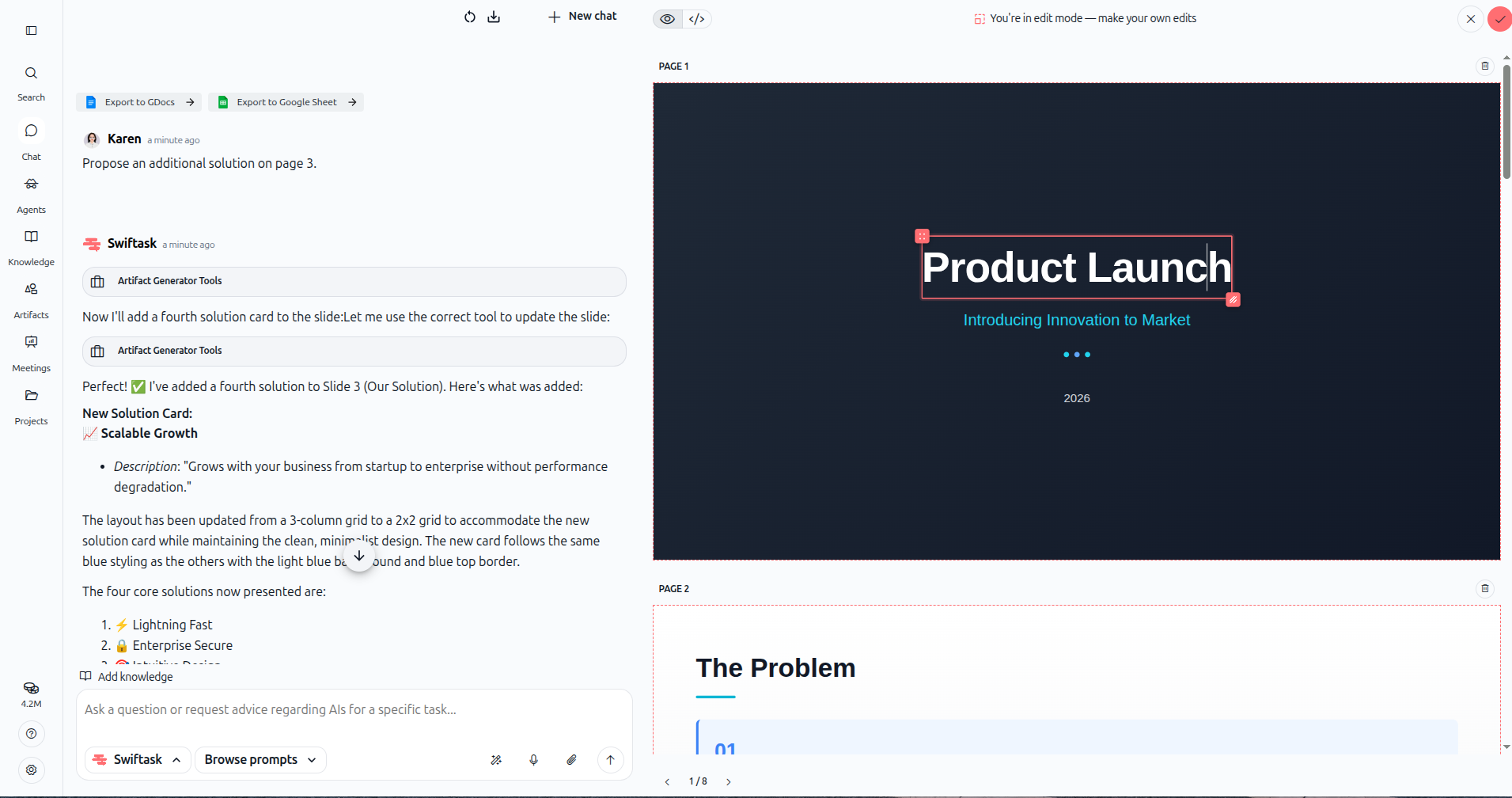
For web pages:
The edit interface for a web page is represented in the following image.
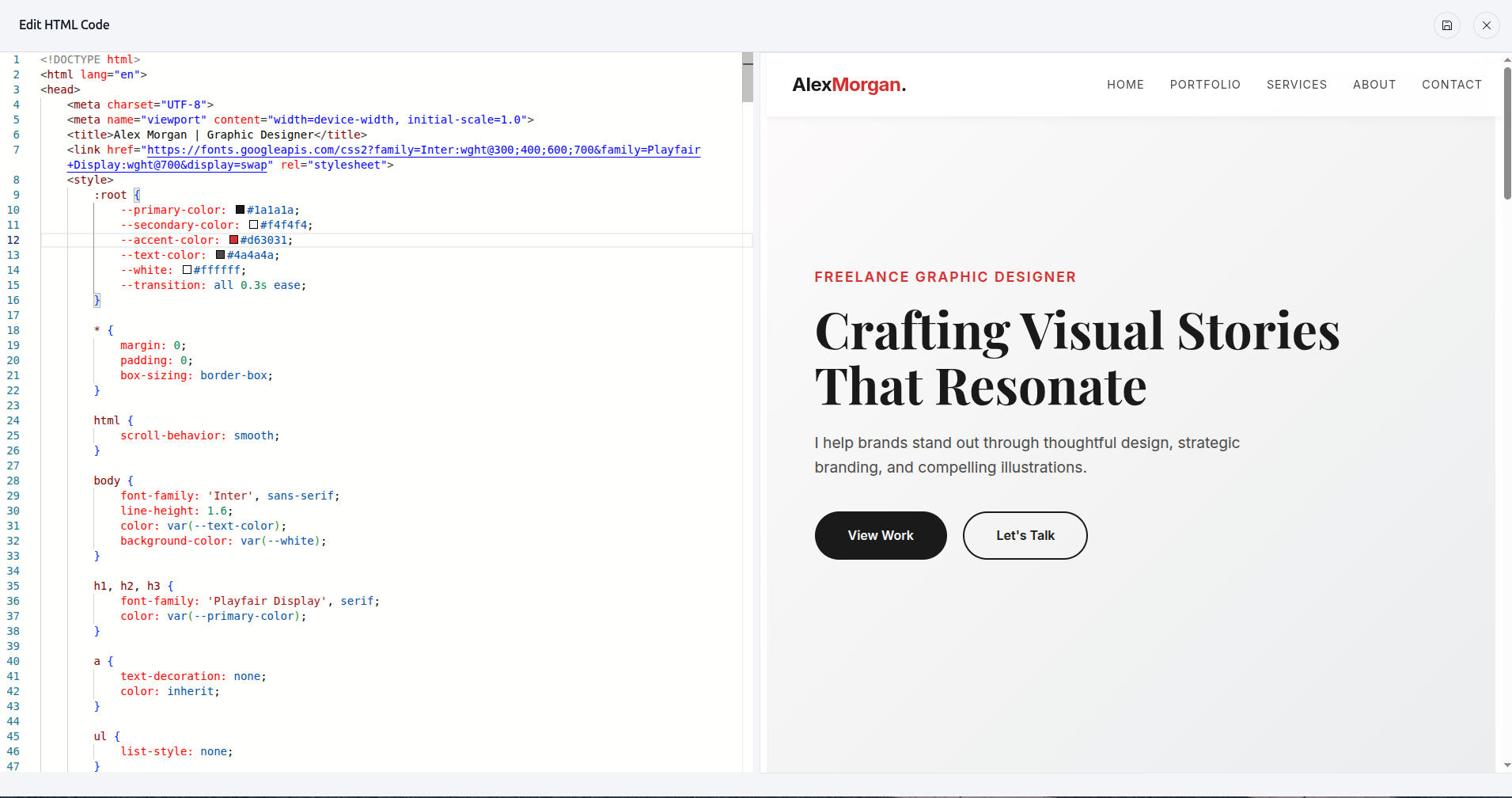
4. Save your changes
Save your changes by clicking the checkmark (✔) icon button for slides, and the save (💾) icon for web pages.
Practical use cases
Refining a pitch deck after feedback
After presenting to stakeholders, you receive feedback to emphasize ROI. Open the chat and say: "Add a new slide after the solution section focused on ROI with metrics and charts." AI adds the slide and you can iterate on the content until it's perfect.
Updating a landing page color scheme
Your brand colors changed from orange to red. Open the chat and say: "The main color of the web page should be red, not orange." AI updates all accent colors, buttons, and highlights to match your new brand.
Quick text corrections
You spot a typo on slide 3. Instead of asking AI, enter edit mode, click the text, fix the typo, and exit. This takes seconds and doesn't require a conversation.
Adding content to a presentation
You need to expand a section with more detail. Ask AI: "Propose an additional solution on page 3." AI adds a new solution card with relevant content, maintaining the design consistency.
Tips and best practices
Be specific with AI requests
The more detail you provide, the better the result. Instead of "make it better," say "change the background color to light blue and increase the font size of the title."
Use manual editing for quick fixes
For small changes like typos, color tweaks, or repositioning elements, manual editing is faster than asking AI.
Iterate gradually
Make one or two changes at a time, review the result, then continue. This gives you better control than requesting many changes at once.
Combine both methods
Use AI for major redesigns or content additions, then use manual editing to fine-tune details like spacing or alignment.
Review after each iteration
Always check the artifact preview after AI makes changes. If something isn't right, ask AI to adjust it or fix it manually.
Troubleshooting
AI doesn't understand my request
Be more specific. Instead of "fix the slide," say "change the title text on slide 2 to 'Our Solution' and make it bold."
Changes don't appear
Refresh the artifact preview. If changes still don't show, check the chat for error messages or confirmation that AI completed the update.
Next steps
Now that you know how to edit and iterate on artifacts, explore these related guides:
Sharing and exporting artifacts – Share with your team or download for use elsewhere
Creating slides (artifact) – Detailed guide for presentations
Creating web pages and dashboards (artifact) – Detailed guide for interactive pages
Ready to refine your artifacts? Open an existing artifact, describe what you want to change, and let AI update it—or enter edit mode and make changes yourself.