Managing Groups
Written By Stanislas
Last updated 16 days ago
Overview
Groups organize workspace members into structured teams that share common roles, permissions, and objectives. Instead of configuring access rights individually for each team member, permissions are established once at the group level and inherited automatically by all group members.
Use groups to streamline team management, automate member onboarding, and collectively control access to workspace resources such as agents, knowledge bases, and projects.
Key capabilities
Team organization: Group members by department (such as Marketing, Sales, or Support) or by project.
Collective access control: Grant permissions to entire groups across workspace resources in one action.
Automated onboarding: Assign a default group to automatically grant baseline access to every new member joining your workspace.
Identity provider synchronization: Connect Swiftask groups to Microsoft Azure Active Directory (Entra ID) for automated directory sync.
Key concepts
Single role per group: Each group has one role that defines permissions for all of its members.
Multiple group memberships: Workspace members can belong to multiple groups simultaneously, with permissions combining across groups.
Resource sharing: Groups can be granted direct access to agents, data sources, and workspaces.
Protected Owner role: The Owner role is reserved for the workspace creator and cannot be assigned to any group.
Soft deletion: Deleting a group removes the group and its resource associations, but never removes members from the workspace.
Prerequisites
Before managing groups in your workspace, ensure you meet the following requirements:
Role: Admin or Owner role in the workspace (with the "Manage groups" permission).
Workspace membership: Users must be active members of your workspace before they can be added to a group. Pending invitations cannot be assigned to groups.
SSO/SAML configuration: Synchronizing groups with Microsoft Azure Active Directory (Entra ID) requires SSO/SAML integration configured on your workspace.
Step-by-step guide
1. Access the groups page
To navigate to group management:
Click Groups under Identity in the left sidebar (three people icon).
The main groups page displays the search bar, the Create a group + button, and existing group cards in a grid layout.
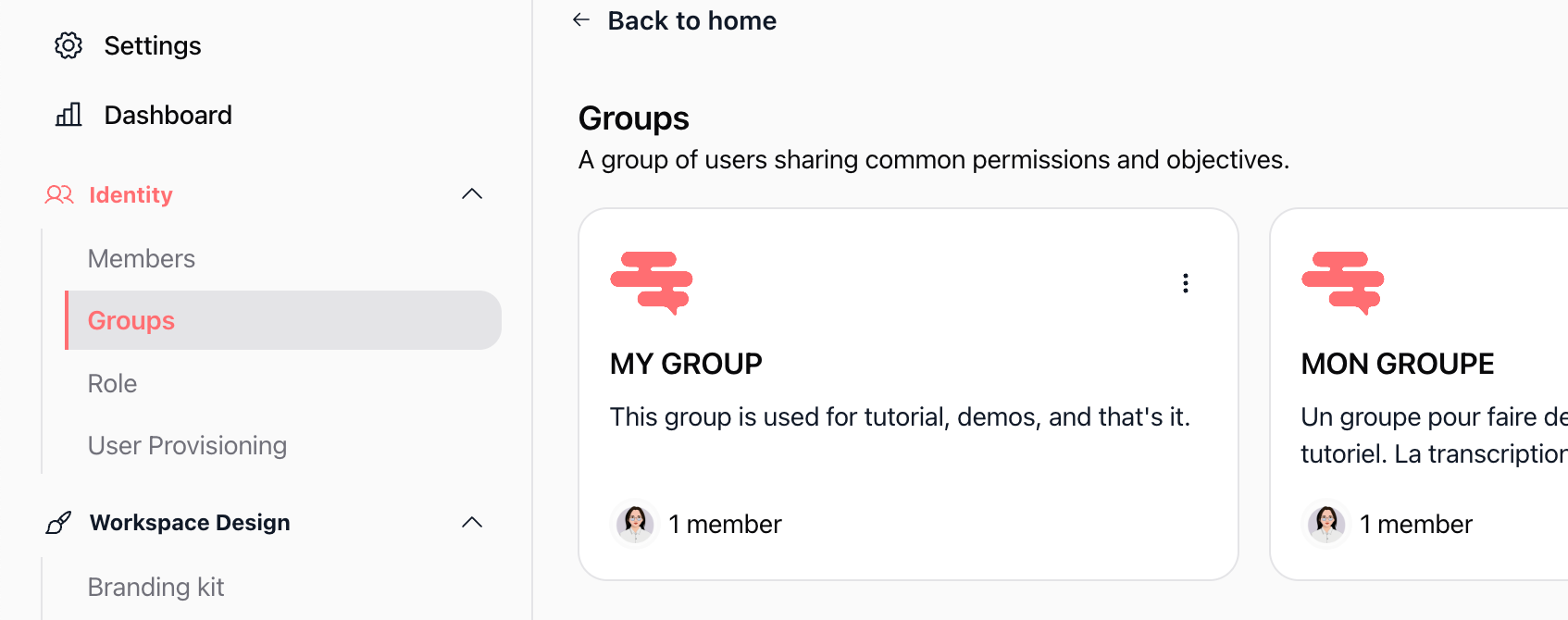
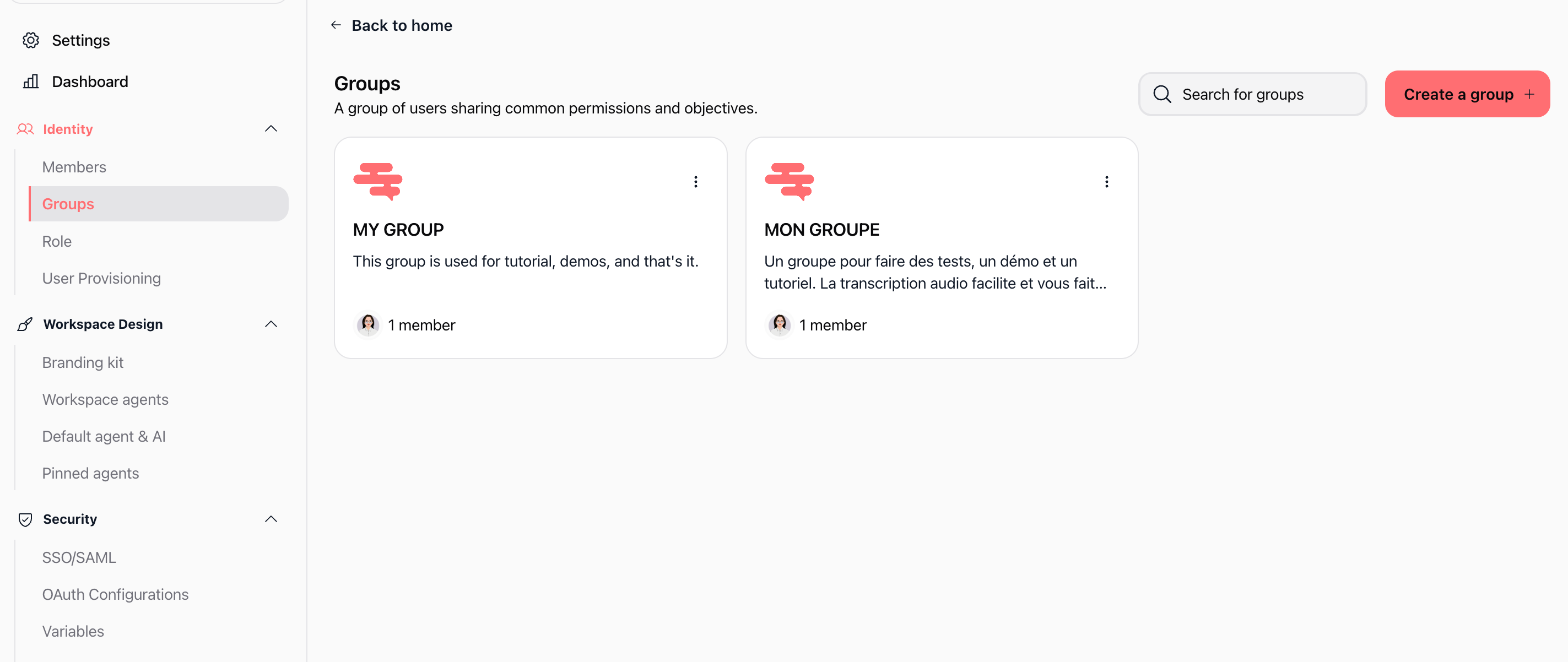
Expected result: You see all existing groups formatted as cards, showing the group photo, name, description, member avatars, and action menu.
2. Create a new group
On the groups page, click Create a group + (red button in the top-right corner).
Fill out the Create your group modal:
Note: The Owner role cannot be assigned to a group. We recommend selecting Member for standard operational teams.
Verify that the required fields are filled, then click Save.
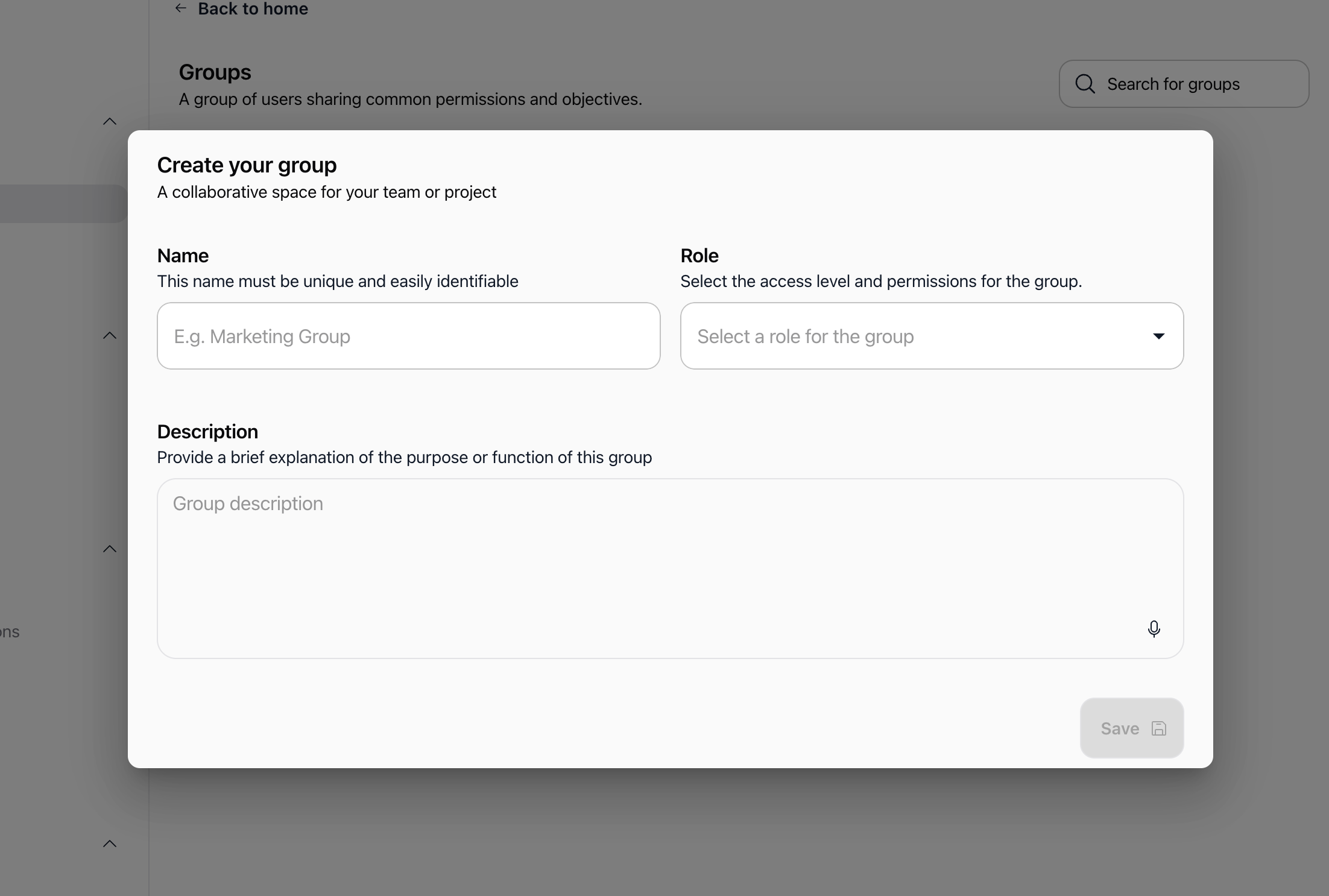
Expected result: The group is created immediately. You are automatically added as the first member and redirected to the group details page.
3. View and edit group details
To open group details, click directly on a group card or select ⋮ > Edit group. The details page is divided into two sections:
Section 1: Group information
Name: Editable text field. Auto-saves after modifications.
Description: Editable text area for team purpose and guidelines. Auto-saves automatically.
Edit photo: Click Edit photo to upload a group avatar (max 4.9 MB; JPG, PNG, GIF formats supported).
Role: Dropdown menu to change the group permission level. Modifying this role updates permissions for all members immediately.
Microsoft Azure Group ID (Optional): Read-only field displaying the mapped Azure AD object ID with a copy button.
4. Add and remove group members
Adding members
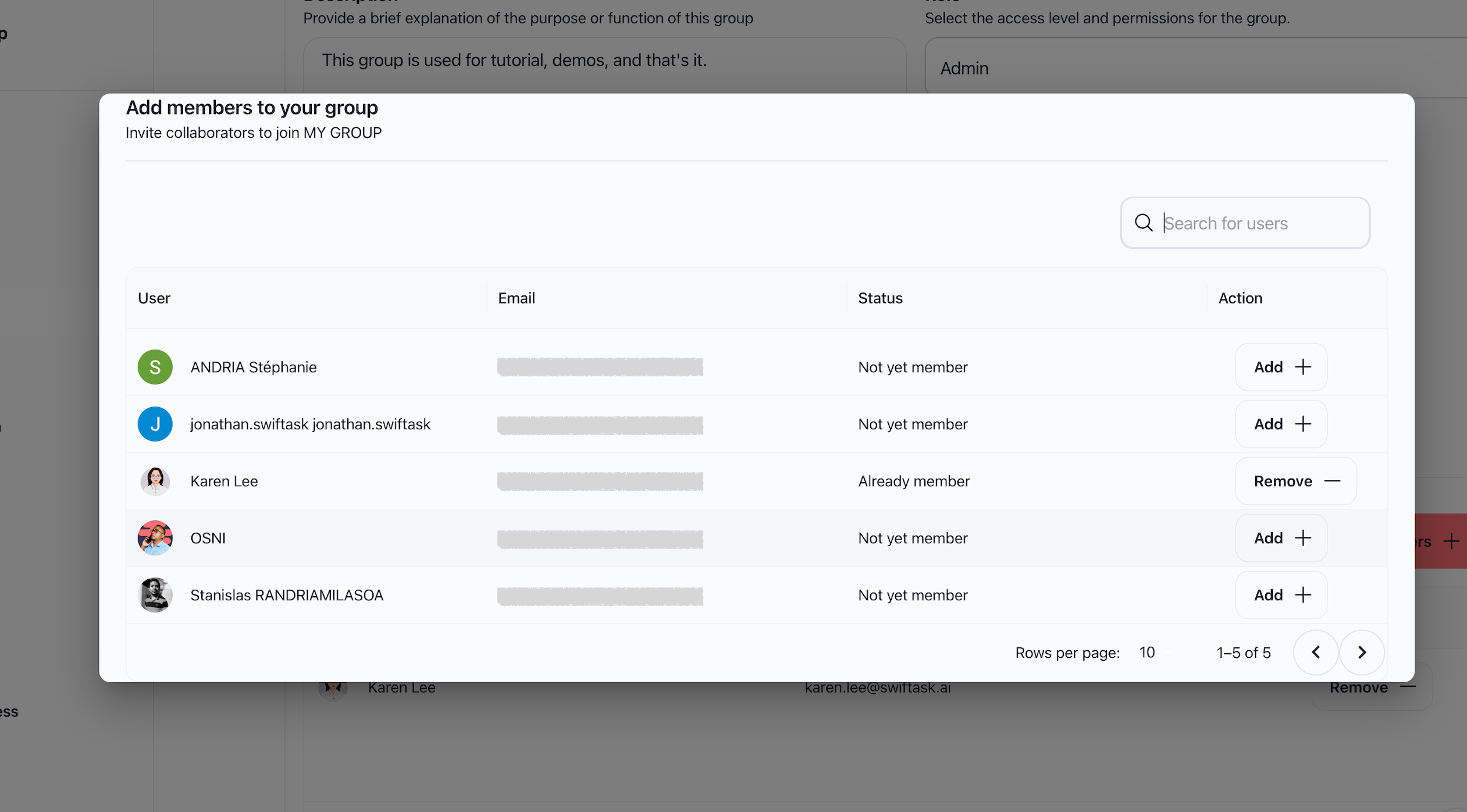
On the group details page, scroll to the Members section and click Add members + (or click ⋮ > Add members directly on any group card).
In the Add members to your group modal, search for users by full name or email address.
Click Add + next to each user you wish to include.
Added members instantly appear in the group table with their name, email, and avatar.
Removing members
On the group details page, locate the member in the Members table.
Click Remove — in the Action column.
The member is removed from the group immediately.
Important: Removing a member from a group only revokes group-level access. The user remains an active member of your workspace.
5. Configure a default group for new members
You can assign a default group so every newly invited member joining the workspace receives baseline permissions automatically:
Navigate to Settings > Advanced settings (under workspace profile settings).
Scroll down to the Default group for new members setting.
Click the field (or the edit pencil icon) and select your target onboarding group from the dropdown list.
The setting saves automatically.

Expected result: Any new user who accepts an invitation or joins via SSO is added to this group on their first workspace login.
6. Synchronize with Microsoft Azure AD (Entra ID)
If your organization centrally manages directory groups in Microsoft Azure Active Directory:
In the Microsoft Azure Portal, open the group and copy its Object ID (found in the group URL or group Properties).
In Swiftask, navigate to Settings > User Provisioning > IdP Groups.
Map the Azure group to your desired Swiftask group and activate synchronization.
Once linked, the group details page in Swiftask displays the synced ID under Microsoft Azure Group ID.
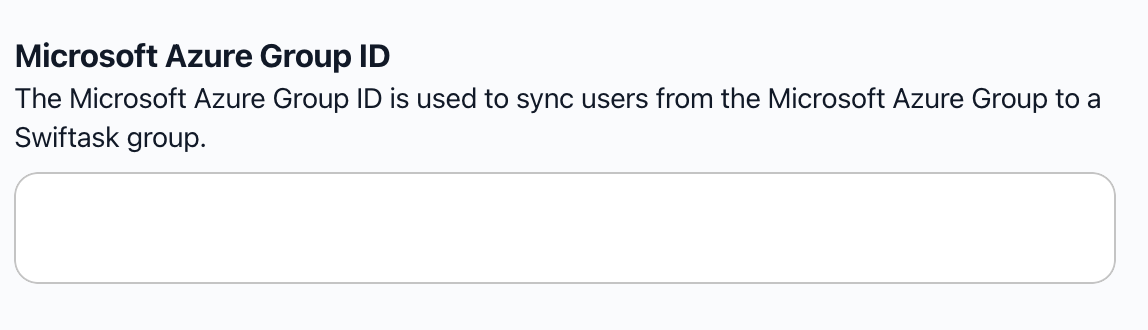
Note: Synced groups operate in read-only mode within Swiftask. Membership additions and removals occur automatically whenever users authenticate via SSO/SAML.
7. Delete a group
On the main groups page, locate the group card.
Click the actions menu (⋮) in the top-right corner of the card.
Select Delete group (trash icon).
Confirm the prompt: "Are you sure you want to delete this group? This action cannot be undone."
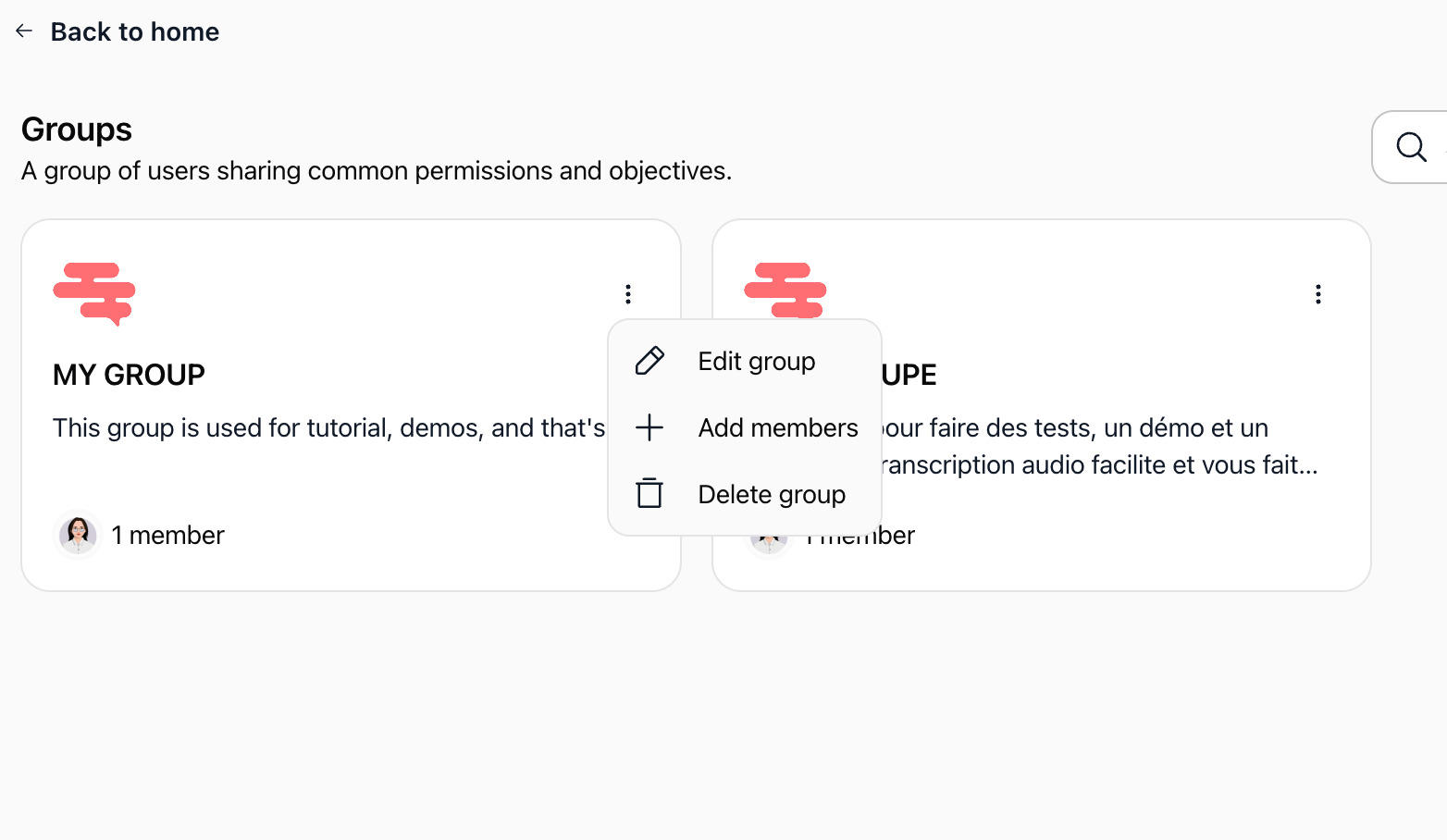
Expected result: The group is soft-deleted. Workspace members who were in the group are not removed from the workspace, but lose any access rights granted exclusively through that group.
Practical use cases
Department-based access for marketing teams
Goal: Provide all marketing staff with shared access to marketing agents and data sources.
Setup: Create a group named "Marketing Team", set the role to Member, and add all marketing personnel. Share departmental agents and analytics knowledge bases with the group.
Outcome: Team members automatically access all shared tools without individual configuration. When a new marketer joins, adding them to the group provides complete tool access instantly.
Automated employee onboarding
Goal: Ensure new employees immediately receive documentation, introductory agents, and standard permissions.
Setup: Create an "Onboarding" group with the Member role. Configure this group as the default group under Advanced settings. Share welcome agents, company policies, and starter templates with the group.
Outcome: Every new workspace hire is added to the onboarding group upon account creation, getting immediate access to essentials without administrative intervention.
Controlled read-only access for external consultants
Goal: Allow external auditors or consultants to review project data without edit or deletion rights.
Setup: Create an "External Consultants" group assigned the Viewer role. Add external collaborators to this group and share project folders and agents in read-only mode.
Outcome: Consultants review materials securely without the risk of accidental configuration changes or content deletion.
Directory-driven group synchronization with Azure AD
Goal: Mirror existing corporate security groups from Azure AD in Swiftask.
Setup: Map corporate Azure security groups (such as "Sales-EMEA") to Swiftask groups via User Provisioning > IdP Groups.
Outcome: Employee group assignments managed in corporate IT directories propagate automatically to Swiftask during SSO login, eliminating duplicate user administration.
Tips & best practices
Group roles reference
Operational recommendations
Establish naming conventions: Use clear, consistent names such as "Dept - Marketing" or "Project - Alpha" rather than generic titles like "Team 1".
Maintain descriptive summaries: Use the description field to clearly state the group's purpose, scope, and criteria for membership.
Audit group membership regularly: Periodically review the member list of critical groups to remove inactive personnel or employees who have changed roles.
Apply the principle of least privilege: Assign the Member role for general collaboration and reserve Admin strictly for workspace supervisors.
Troubleshooting
"Create a group +" button is not visible
Cause: Your user account does not have Admin or Owner privileges in the workspace.
Fix: Contact your workspace administrator to request Admin permissions or have them create the group on your behalf.
Cannot add a user to a group
Cause: The user has not joined the workspace yet (their invitation is pending), they are already in the group, or you lack edit rights.
Fix: Confirm the user has accepted their workspace invitation and completed their first sign-in. Check the current member list to verify they are not already listed.
Azure AD group synchronization does not update members
Cause: The Azure Group Object ID is incorrectly configured, SSO/SAML is inactive, or users have not signed in since the directory change.
Fix: Verify the Object ID in Azure AD properties. Confirm that SSO/SAML is active in Swiftask settings, and ensure the affected users log in via SSO to trigger token synchronization.
Group modifications are not saving
Cause: Unstable network connection, or active autosave is still processing.
Fix: Wait a few seconds for the autosave status to complete. Check your internet connection and refresh the browser if the field does not reflect your change.
Additional resources
Sync Azure AD & SCIM – Configure enterprise identity directory integration.
Advanced settings – Manage workspace-wide default roles and onboarding rules.
Branding kit – Customize workspace visual identity.
Dashboard – Monitor workspace activity and member engagement.
Was this helpful?
Still need help? Ask the team