Managing members
Written By Stanislas
Last updated 7 months ago
Managing members allows workspace admins to control who has access to your Swiftask workspace and what they can do. You can invite new team members, assign roles, update permissions, monitor credit usage, and remove users when needed.
Effective member management ensures your team has the right access levels, helps you track resource consumption, and keeps your workspace secure. By managing members properly, you maintain control over costs and ensure team members can collaborate efficiently.
Overview
The Members section in workspace administration provides a centralized dashboard where you can view all workspace members, track their activity, manage roles, and control access.
What you can do:
Invite new members – Add team members to your workspace and assign roles
View member details – See member information, roles, credit usage, and activity
Update roles – Change member permissions by assigning different roles
Monitor usage – Track individual credit consumption across your team
Remove members – Revoke access when team members leave or no longer need access
Search and filter – Quickly find specific members in large workspaces
Prerequisites
To manage members, you need:
Admin or Owner role in your workspace
Access to Workspace administration
Available member slots in your current plan
Only Owners and Admins can invite, update, or remove members. Members, Viewers, and Billing Partners can view the member list but cannot make changes.
Accessing the members section
To access member management:
Click the Settings icon at the bottom of the left sidebar
Select Workspace administration
Click Members in the left navigation menu
Understanding the members dashboard
The members dashboard displays comprehensive information about each team member:
Member information columns:
User – Profile picture, name, and email address
Role – Current workspace role (Owner, Admin, Member, Viewer, Billing Partner)
Credit Limit – Monthly credit limit assigned to that user
Groups – Group memberships (if applicable)
Current Month Usage – Real-time credit consumption tracker
Action – Quick actions (view details, remove member)
Created – Date the user joined the workspace
Workspace capacity indicator:
At the top of the dashboard, you'll see your plan's enrollment capacity:
Your plan currently has 5 out of 10 users enrolled, which means it is at 50% capacity. You can add 5 more users. This progress bar shows how many member slots you've used and how many remain available in your plan.
Search functionality:
Use the search bar at the top to quickly find members by name or email address.
Inviting new members
Step 1: Open the invite dialog
Navigate to Workspace administration → Members
Click the Invite member button
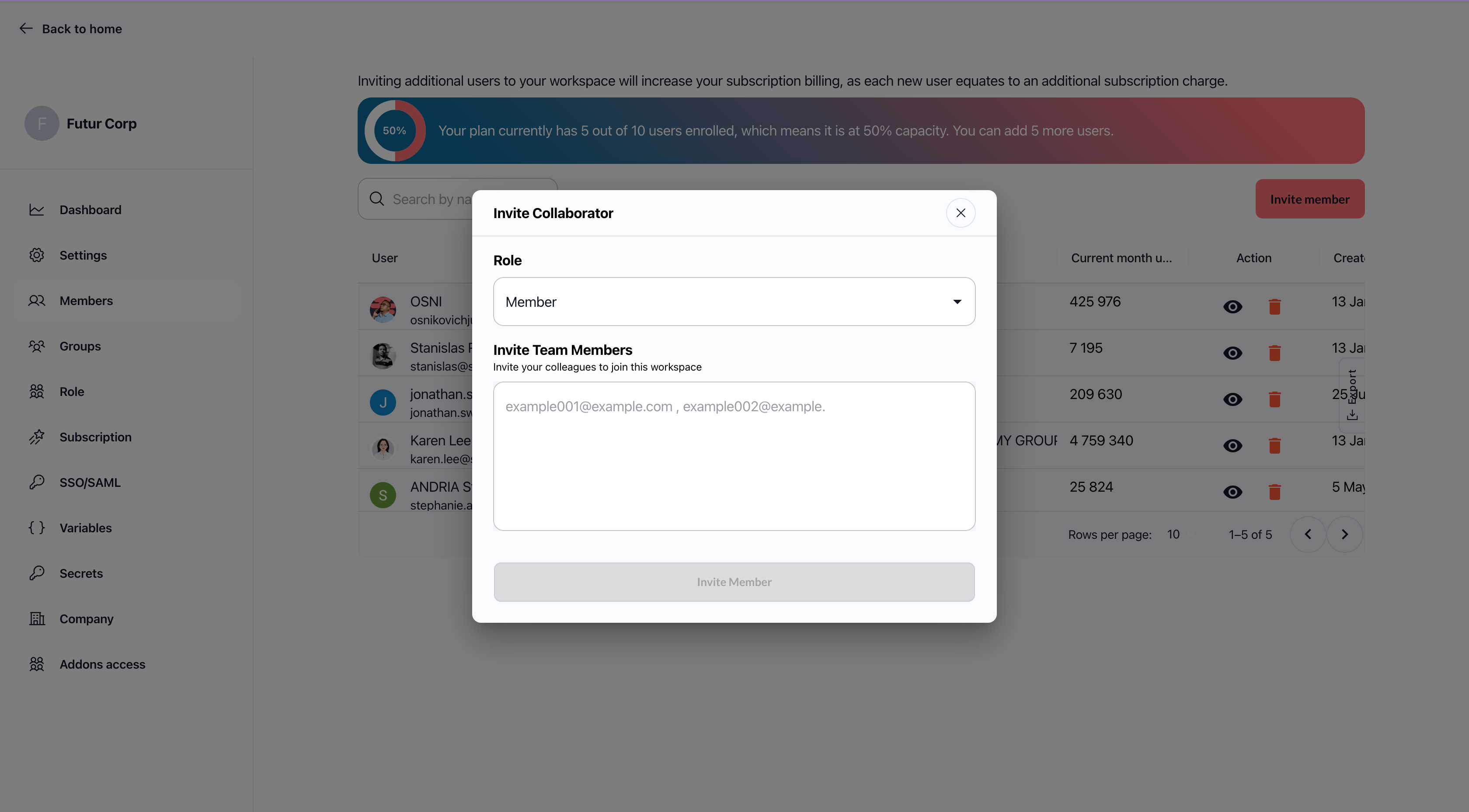
A pop-up titled "Invite Collaborator" appears.
Step 2: Select a role
Click the Role dropdown and select the appropriate role for the new member:
Owner – Full workspace control (rarely assigned)
Admin – Full workspace management
Member – Standard operational access
Viewer – Read-only access
Billing Partner – Billing and subscription management only
Choose the role that matches the person's responsibilities and required access level.
Step 3: Enter email addresses
In the Email field, enter the email addresses of the people you want to invite.
To invite multiple members at once:
Separate email addresses with commas:
john@company.com, sarah@company.com, mike@company.com Step 4: Review billing impact
The interface displays a warning:
⚠️ Inviting additional users will increase your subscription billing. Each new user adds a charge to your monthly subscription. Make sure you understand the cost impact before proceeding.
Step 5: Send invitations
Click Send Invitations to invite the members.
What happens next:
Invited members receive an email invitation
They appear in your members list with a pending status
Once they accept, their status changes to "ACCEPTED"
They gain immediate access based on their assigned role
Viewing member details
To view detailed information about a specific member:
Navigate to Workspace administration → Members
Find the member in the list
Click the eye icon in the Action column
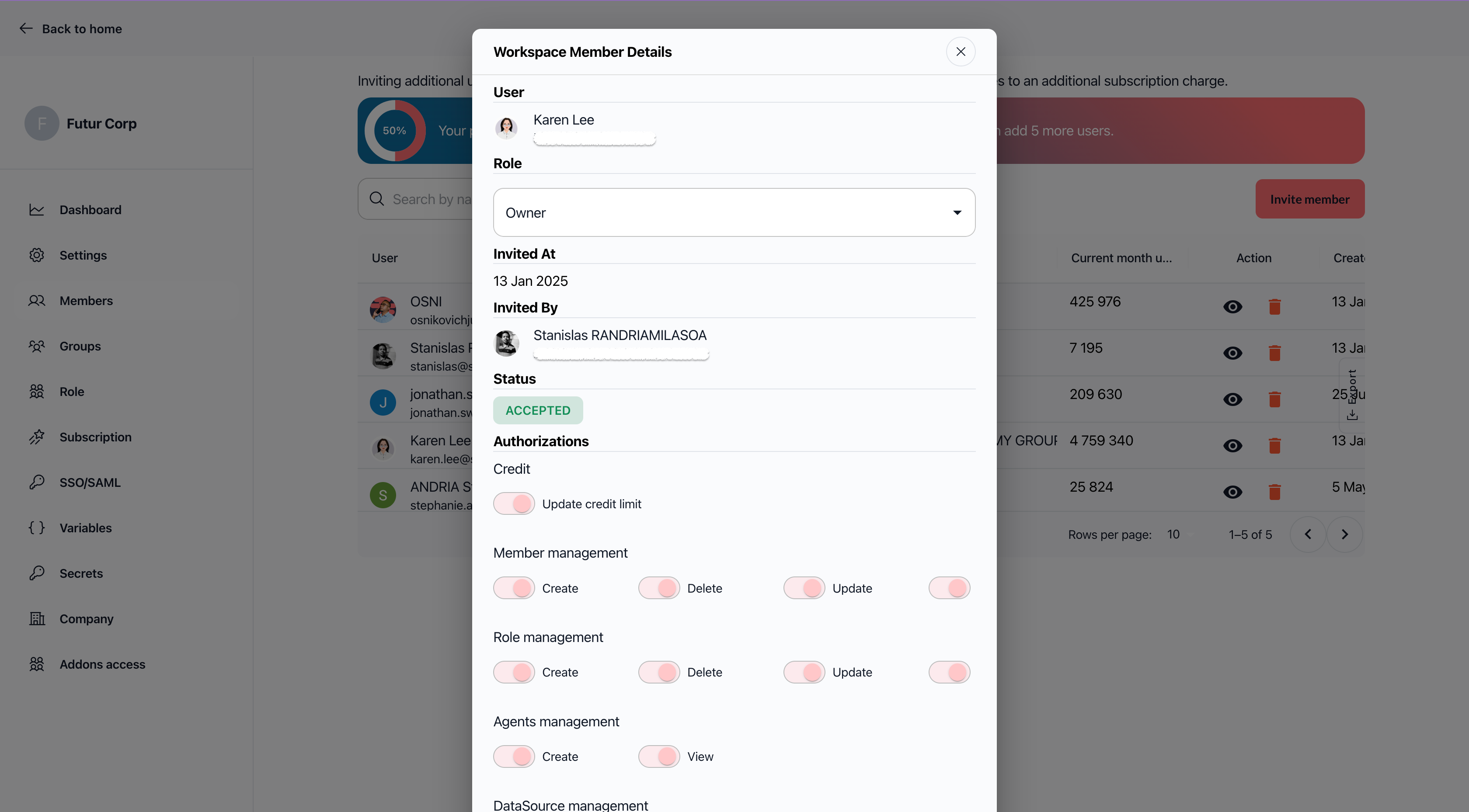
The Workspace Member Details view opens, showing:
Full name and email address
Current role
Assigned credit limit
Group memberships
Granular authorizations (specific permissions based on role)
Account creation date
Usage statistics
Updating member roles
Step 1: Open member details
Navigate to Workspace administration → Members
Find the member whose role you want to change
Click the eye icon in the Action column
Step 2: Select a new role
In the Workspace Member Details view:
Click the Role dropdown
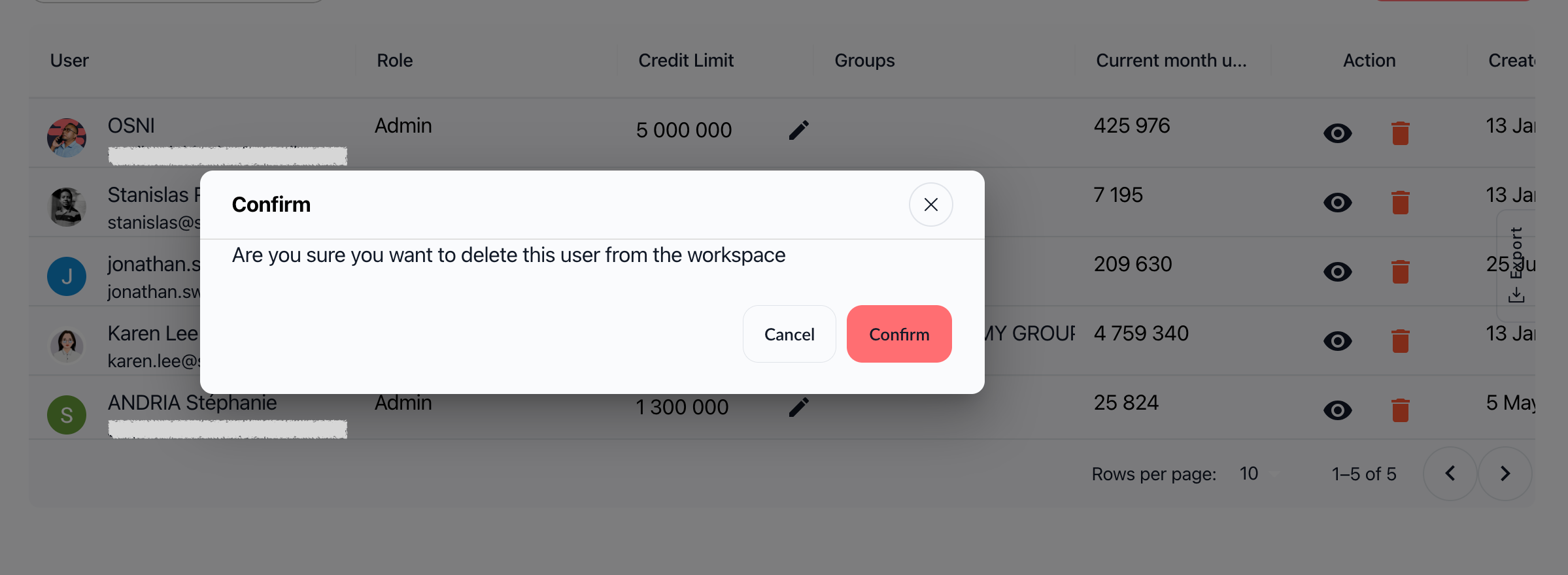
Select the new role from the list
Available roles:
Owner
Admin
Member
Viewer
Billing Partner
Step 3: Review authorizations
Below the role dropdown, you'll see the Authorizations section showing specific permissions for the selected role:
Credit management
Member management
Project access
Agent creation
Billing access
And more
These permissions update automatically based on the role you select.
Step 4: Save changes
Click the Save Change button at the bottom of the view.
What happens next:
The role change takes effect immediately
The member's permissions update across the workspace
The member can now access features based on their new role
Previous role restrictions are removed or applied
Removing members
Method 1: Quick remove from members list
Navigate to Workspace administration → Members
Find the member you want to remove
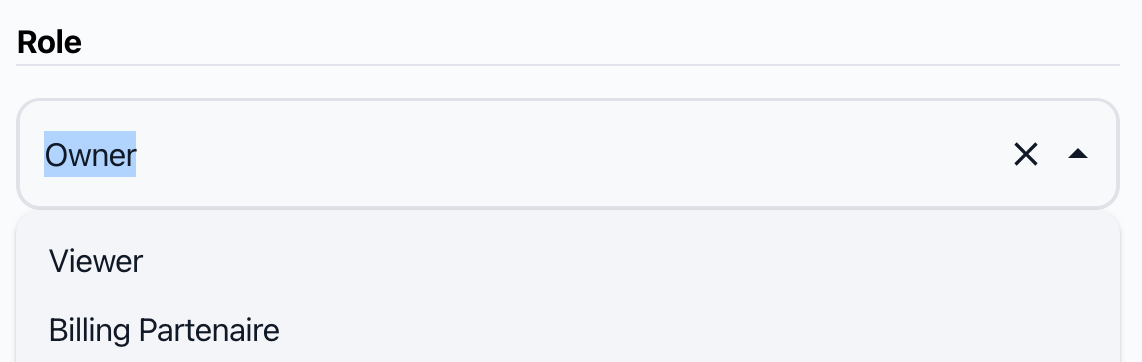
Click the red trash icon in the Action column
Confirm the removal when prompted
Method 2: Remove from member details
Navigate to Workspace administration → Members
Click the eye icon next to the member
In the Workspace Member Details view, locate the remove option
Confirm the removal
What happens when you remove a member:
The member loses access to the workspace immediately
They can no longer log in or view workspace content
Their member slot becomes available for new invitations
Your subscription billing adjusts based on active member count
Important considerations:
Removed members can be re-invited later if needed
Consider changing their role to Viewer instead of removing them if they may need access again
Review any shared agents, projects, or data sources owned by the member before removal
Searching and filtering members
To search for a specific member:
Navigate to Workspace administration → Members
Use the Search by name or email bar at the top
Type the member's name or email address
Results filter automatically as you type
This is especially useful in workspaces with many team members.
Monitoring member usage
The members dashboard provides real-time visibility into credit consumption:
Current Month Usage column:
Shows how many credits each member has consumed in the current billing period. This helps you:
Identify high-usage team members
Track credit consumption patterns
Plan credit allocation and limits
Optimize workspace costs
Credit Limit column:
Shows the monthly credit limit assigned to each member. Admins can adjust these limits based on team member needs and budget constraints.
Managing member capacity
Understanding plan limits:
Each Swiftask plan includes a specific number of member slots:
Starter – Up to 5 members
Professional – Up to 20 members
Enterprise – Unlimited members
Checking available slots:
The members dashboard displays your current capacity:
Your plan currently has 5 out of 10 users enrolled, which means it is at 50% capacity. You can add 5 more users. What happens when you reach the limit:
If you try to invite more members than your plan allows, you'll need to:
Remove inactive members to free up slots, or
Upgrade your plan to a higher tier
For plan upgrades, navigate to Workspace administration → Subscription.
Practical use cases
Onboarding a new team member
When a new employee joins your team, invite them with the Member role. They can immediately start creating agents, managing projects, and collaborating with the team.
Granting temporary access to a consultant
Invite external consultants with the Viewer role. They can review workspace activity and provide feedback without modifying any content.
Promoting a team lead to admin
When a team member becomes a department lead, update their role from Member to Admin. They gain the ability to manage other team members and configure workspace settings.
Offboarding a departing employee
When someone leaves the organization, remove them from the workspace immediately. Their access is revoked, and their member slot becomes available for a replacement.
Adding a finance partner
Invite your accountant or finance team member with the Billing Partner role. They can manage invoices and subscriptions without accessing your technical projects.
Tips & best practices
Assign roles based on responsibilities
Match roles to actual job functions. Don't give Admin access to team members who only need to create agents and projects.
Review member list regularly
Audit your members quarterly. Remove inactive users and ensure everyone has the appropriate role for their current responsibilities.
Monitor credit usage
Check the Current Month Usage column weekly to identify unusual consumption patterns and optimize credit allocation.
Maintain multiple admins
Have at least two Admins or Owners to prevent workspace lockout if one admin leaves or loses access.
Use descriptive naming
Encourage team members to use clear profile names so you can easily identify them in the members list.
Plan for growth
Monitor your capacity usage. If you're approaching your plan limit, consider upgrading before you need to add new members urgently.
Document role assignments
Keep a record of why specific members have certain roles, especially for Admins and Billing Partners. This helps with audits and role reviews.
Troubleshooting
Issue: Can't invite new members
Cause: You've reached your plan's member limit.
Solution:
Check your capacity in the members dashboard
Remove inactive members to free up slots, or
Upgrade your plan via Workspace administration → Subscription
Issue: Invited member didn't receive the invitation
Possible causes and solutions:
Email went to spam – Ask them to check their spam folder
Wrong email address – Verify the email address and resend
Email delay – Wait a few minutes and ask them to check again
Issue: Can't change a member's role
Cause: You may not have permission to change that specific role.
Solution:
Only Owners and Admins can change roles
You cannot change the Owner role (only one Owner exists per workspace)
Verify you have Admin or Owner permissions
Issue: Member still has access after removal
Cause: The member may still have an active session.
Solution:
Wait a few minutes for the session to expire
Ask the member to log out and try logging back in
If the issue persists, contact Swiftask support
Additional resources
Roles & permissions – Understand what each role can do
Workspace administration overview – Learn about other admin features
Plans & limits – View member limits for each plan
Billing & subscription – Manage your workspace subscription
Ready to manage your team? Navigate to Workspace administration → Members to invite, update, or remove team members..