Chat - Generate / export files
Written By Stanislas
Last updated 7 months ago
Generate and export AI-created content as professional documents. Whether you need to save a chat response as a PDF, extract information from an image and create a DOCX file, generate a complete document template from a simple prompt, or export an entire conversation to Google Docs or Sheets, Swiftask makes it easy to download and share your work in multiple formats.
Export files directly from Chat responses, generate new documents from uploaded files and text instructions, or export entire conversations for collaboration and record-keeping. All generated files come with direct download links or seamless integration with Google services.
Overview
The generate and export files feature lets you transform chat responses, uploaded content, and entire conversations into downloadable documents or cloud-based formats. You can export AI-generated text, create new documents from file analysis, generate templates and documents based on your prompts, or export full conversations to Google Docs and Sheets—all without leaving Chat.
This feature is useful for saving important conversations, creating professional documents, extracting and organizing information from files, sharing AI-generated content with your team, and collaborating on exported conversations in real time.
How it works
Generate files from prompts: Describe what you need in text, and AI creates a complete document (like a resume template, proposal, or report).
Generate files from uploaded content: Upload a file (image, PDF, document), ask AI to extract or process information, and generate a new file with the results.
Export entire conversations: Save your full chat history to Google Docs, Google Sheets, or as Markdown for easy sharing, collaboration, and archiving.
Step-by-step guide
Generating files from uploaded files
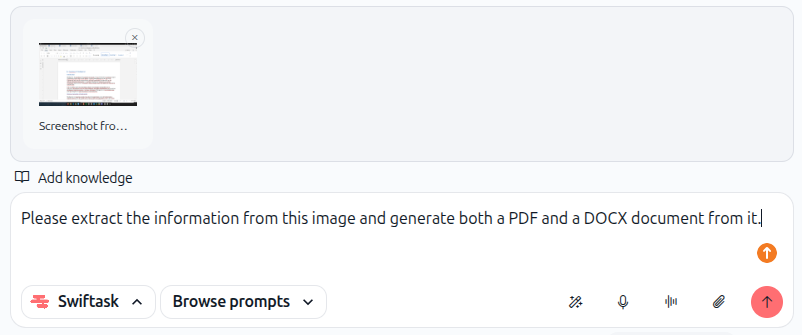
1. Open Chat and attach a file
In the input area, click the Files icon to attach a document, image, or other file you want to process.
Select your file and confirm. The file appears in your input area.
2. Describe what you want to generate
In the input field, type your request. Be specific about:
What information to extract or process
What format you want the output in
Any specific structure or style preferences
Example prompts:
"Extract all the contact information from this image and create a DOCX file with a formatted list"
"Analyze this PDF invoice and generate a summary document in PDF format"
"Create a professional resume in DOCX format based on the information in this image"
3. Send your request
Press Enter or click the send button (up arrow icon). Swiftask processes your file and generates the requested document.
4. Download the generated file
Once complete, the AI response includes a download link to your generated file. Click the link to download it immediately.
As shown in the image below, you can generate multiple file formats from the same source file and download them.
Generating documents from prompts
1. Open Chat and describe what you need
Navigate to Chat. In the input field, describe the document you want to create.
Be specific about:
Document type (resume, proposal, report, template, etc.)
Key content and structure
Style and formatting preferences
Any specific details to include
Example prompts:
"Create a professional resume template in DOCX format with sections for contact info, summary, experience, skills, and education"
"Generate a PDF project proposal template with executive summary, scope, timeline, and budget sections"
"Create a professional cover letter in DOCX format for a software engineer position"
2. Send your request
Press Enter or click the send button. AI generates your document based on your description.
3. Download and use your document
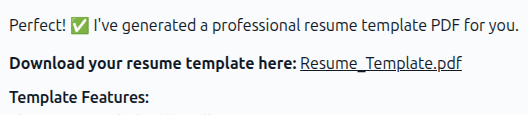
The response includes a download link. Click it to save the generated document to your device.
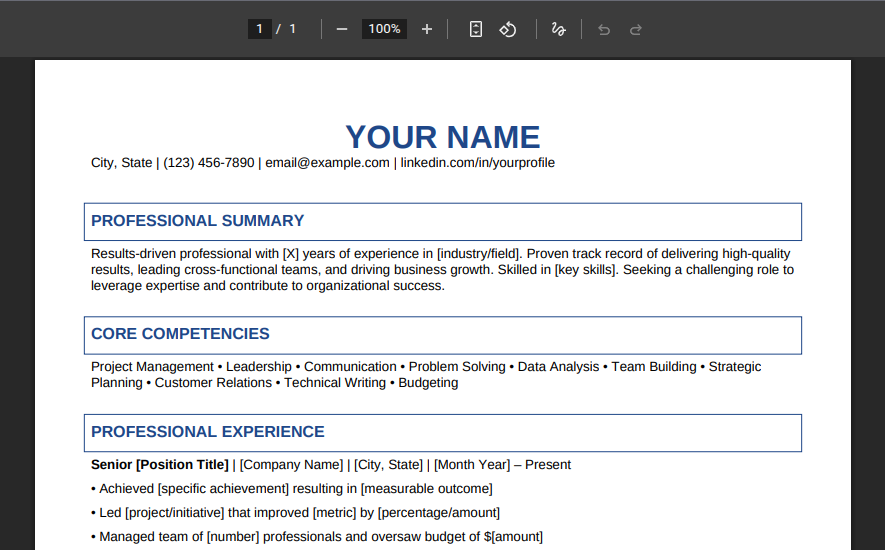
As shown in the image below, the generated document appears with a download link ready for immediate use.
Exporting entire conversations
Export your complete chat history to Google Docs, Google Sheets, or Markdown format for easy sharing, collaboration, and archiving.
1. Open your conversation in Chat
Navigate to the conversation you want to export.
2. Export the conversation as Markdown
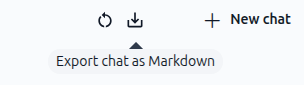
In the top, click the export button to export conversation as Markdown.
3. Export the conversation as "Google Sheets" or "Google Docs"
At the bottom of the AI response, click the 'Export to Google Sheets' or 'Export to Google Docs' button.

Supported file formats
Swiftask supports generation and export in the following formats:
Documents:
PDF – Universal, professional format for sharing and archiving
DOCX – Microsoft Word format for editing and collaboration
Markdown – Plain text format ideal for documentation and version control
Cloud collaboration:
Google Docs – Export entire conversations for collaborative editing and real-time sharing
Google Sheets – Export conversations in structured table format for analysis and filtering
Images:
PNG – High-quality images with transparency
JPG – Compressed images for web and email
Other formats:
Additional formats may be supported depending on content type and use case
Practical use cases
Create professional templates
Request AI to generate templates for resumes, proposals, contracts, or reports. Download as DOCX to edit and customize, or as PDF to share with others.
Example: "Generate a professional project proposal template in DOCX format with sections for objectives, timeline, budget, and success metrics."
Extract and organize information
Upload an image, PDF, or document. Ask AI to extract specific information and create a formatted document with the results.
Example: "Extract all names, emails, and phone numbers from this contact list image and create a CSV-formatted DOCX file with a table."
Save and share conversations with your team
Export important chat conversations to Google Docs or Sheets to collaborate with teammates, add comments, and maintain a shared record of decisions and insights.
Example: "Export this conversation to Google Docs so my team can review our AI-generated project plan and add their feedback."
Archive conversations as Markdown
Export conversations as Markdown to store in your documentation system, GitHub repository, or knowledge base for future reference and version control.
Example: "Export this technical discussion as Markdown so we can add it to our project documentation."
Generate reports from files
Upload raw data or documents. Ask AI to analyze and create a formatted report in PDF or DOCX.
Example: "Analyze this sales data spreadsheet and generate a professional quarterly report in PDF format with charts and insights."
Create visual content
Generate images from prompts or export chat responses as images for social media, presentations, or documentation.
Additional resources
Chat – Getting started – Learn how to start conversations and use Chat effectively
Chat – Attaching files & documents – Understand how to upload and process files in Chat
Chat – Managing conversation history – Organize and find past conversations
Quick Interface Tour – Familiarize yourself with Chat's toolbar and controls
Ready to generate and export your first file? Start a Chat conversation, request a document or export, and download your file or share it with your team. It's that simple!