Addons access
Written By Stanislas
Last updated 8 months ago
Addons access allows workspace admins to manage which members can access addon-based features. Addons are additional functionalities that can be added to your subscription to extend your workspace's capabilities beyond the standard features.
Managing addon access ensures you control who uses premium features while monitoring associated costs. By carefully assigning addon access, you can optimize your subscription spending and ensure only the right team members have access to specialized tools.
Overview
Addons are supplementary features that enhance your workspace with specialized capabilities beyond the core Swiftask platform.
What you can do:
Grant addon access – Assign specific members access to addon features
Monitor usage – Track which members have access to which addons
Control costs – Manage free seats and additional charges
Remove access – Revoke addon access when no longer needed
Export data – Download a list of all addon assignments
Key concepts:
Addons – Premium features added to your subscription (e.g., Agent Builder)
Free seats – Included addon access slots in your subscription plan
Additional charges – Costs incurred when exceeding free seats
Slug – Technical identifier for each addon
Prerequisites
To manage addon access, you need:
Admin or Owner role in your workspace
Access to Workspace administration
Understanding of your subscription plan and available addons
Only Admins and Owners can add or remove addon access. Other users can view the table but cannot modify assignments.
Accessing addons access
To manage addon access:
Click Addons access in the left sidebar
You'll see the addons access management page
Route: /{workspaceId}/workspace/addons
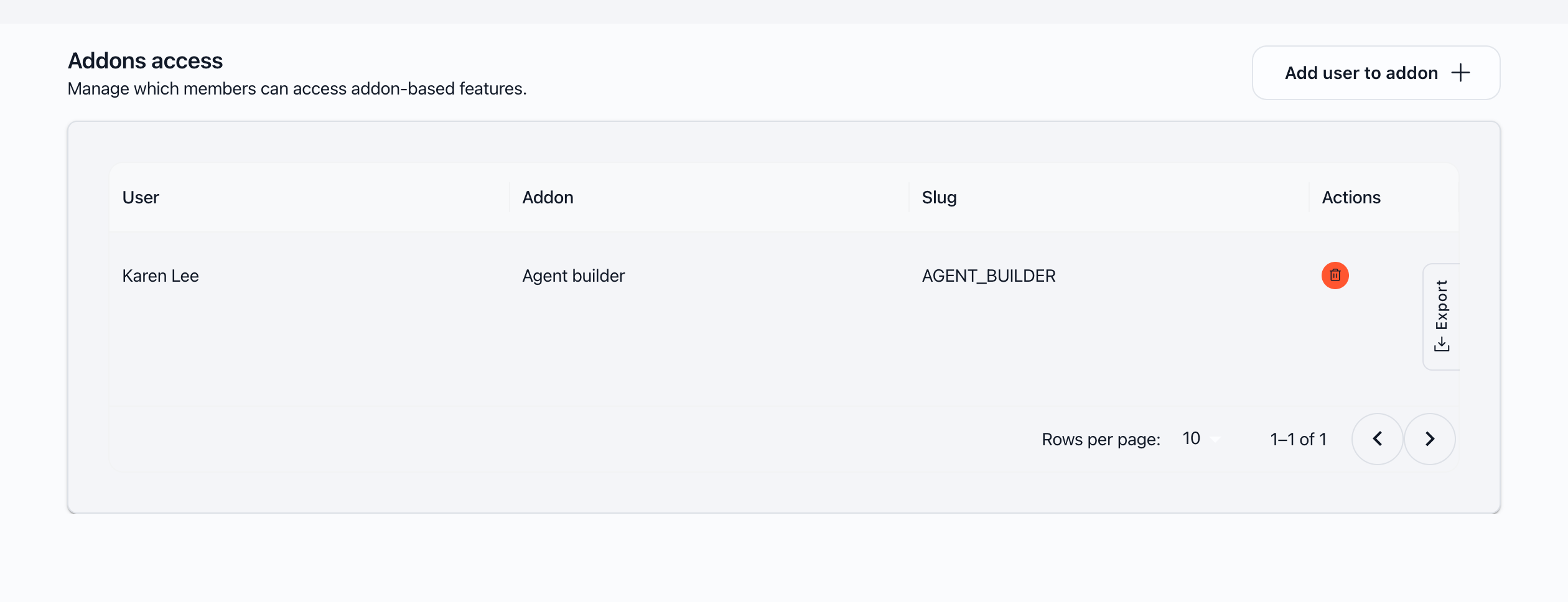
Understanding the interface
Page header
Title: "Addons access"
Description: "Manage which members can access addon-based features."
Add user to addon button: Top right, opens the assignment modal
Access table
The table displays all currently assigned addon access with the following columns:
User – Name of the user with access
Addon – Name of the addon (e.g., "Agent builder")
Slug – Technical identifier of the addon (e.g., "AGENT_BUILDER")
Actions – Red trash icon to remove access
Table features
Pagination: 10 entries per page by default
Export button: Export the list to CSV/Excel format
Search/Filter: Filter entries in the table
Adding addon access
Step 1: Open the assignment modal
Click the "Add user to addon" button in the top right.
Step 2: Select addon and member
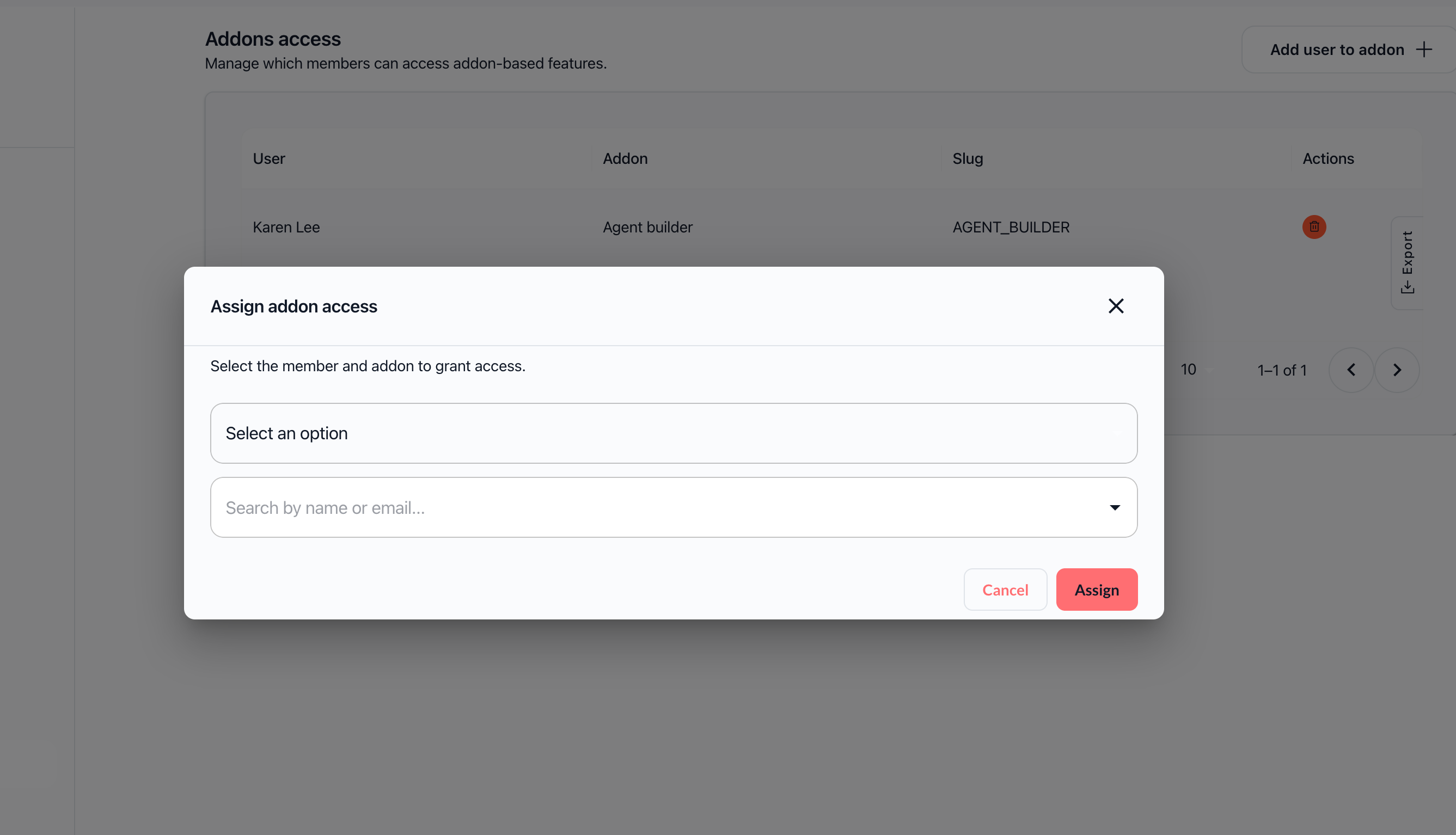
The "Assign addon access" modal opens with:
Instructions: "Select the member and addon to grant access."
Fields to fill:
1. Addon (required)
Dropdown menu listing all available addons
Select the addon you want to grant access to
Example: "Agent Builder"
2. Member (required)
Search field: "Search by name or email..."
Search and select the workspace member
Displays name and email for each member
Step 3: Review cost information
The modal displays important cost information:
Free seats remaining:
If free seats are available:
"You have X free seat(s) left for this addon (max Y)." No free seats:
If all free seats are used:
"No free seats remaining for this addon. Additional members may incur extra charges." Additional cost:
If adding the member will incur charges:
"Adding a member to this addon will incur an additional charge of $X per user per month." Step 4: Confirm assignment
Verify both fields are filled
Review the cost information carefully
Click "Assign" to confirm
A confirmation message appears: "User successfully added to addon"
Important: Always verify costs before confirming, especially when exceeding free seats.
Removing addon access
How to remove access
In the table, find the row for the user and addon
Click the red trash icon in the "Actions" column
Access is removed immediately
A confirmation message appears: "User successfully removed from addon"
Note: Removing addon access doesn't delete the user from the workspace, only their access to the specific addon.
Exporting addon data
How to export
Click the "Export" button to the right of the table
Data is exported in CSV/Excel format
The file contains columns: User, Addon, Slug
File name: workspace-user-addons
Usage:
Keep records of addon assignments
Audit addon usage across your workspace
Generate reports for billing or compliance
Managing costs and free seats
Understanding free seats
Your subscription may include a certain number of free seats for each addon:
Free seats are displayed when adding a member
Format: "You have X free seat(s) left for this addon (max Y)."
Use free seats first to avoid additional charges
Example:
Your plan includes: 5 free seats for Agent Builder Currently used: 3 seats Remaining: 2 free seats Additional charges
When all free seats are used, adding new members may incur fees:
Cost per user per month is displayed before confirmation
Format: "Adding a member to this addon will incur an additional charge of $X per user per month."
Charges are added to your monthly subscription bill
Cost calculation example:
Addon: Agent Builder Cost per additional user: $10/month Current additional users: 2 Additional monthly cost: $20 Important: Always verify costs before adding members to addons.
Practical use cases
Case 1: Grant access to Agent Builder
Objective: Allow a team member to use the Agent Builder addon
Steps:
Click "Add user to addon"
Select "Agent Builder" from the Addon dropdown
Search and select the member (e.g., "Karen Lee")
Review free seat information or costs
Click "Assign"
The member now appears in the table with "Agent Builder" access
Result: Karen can now create and manage AI agents using the Agent Builder addon.
Case 2: Remove addon access when no longer needed
Objective: Remove addon access for a member who changed roles
Steps:
In the table, find the member's row
Click the trash icon in the "Actions" column
Access is removed immediately
Result: The member no longer has access to the addon, freeing up a seat and potentially reducing costs.
Case 3: Audit addon usage
Objective: Review which members have access to which addons
Steps:
Navigate to Addons access
Review the table of all assignments
Click "Export" to download the full list
Use the export for auditing or reporting
Result: You have a complete record of addon assignments for compliance or cost analysis.
Best practices
Cost management
Verify costs first – Always check cost information before adding members
Use free seats – Prioritize free seats before incurring additional charges
Remove unused access – Regularly review and remove access for members who no longer need it
Document assignments – Keep track of which members have access to which addons and why
Regular audits
Monthly review – Check addon assignments monthly to ensure they're still necessary
Export regularly – Download the list for record-keeping and audits
Remove departing members – Immediately remove addon access for members leaving the organization
Strategic allocation
Assign based on need – Only give addon access to members who actively use the features
Start small – Begin with free seats and expand only when necessary
Monitor usage – Track whether members are actually using their addon access
Limitations and important notes
Permissions
Only Admins and Owners can manage addon access
Other users can view the table but cannot modify assignments
If you don't see the "Add user to addon" button, you don't have necessary permissions
Free seats
Free seats are limited by your subscription plan
Once free seats are exhausted, additional charges apply
Free seat allocation varies by addon and plan tier
Costs
Costs are calculated per user per month
Always verify costs before confirming additions
Charges are added to your monthly subscription bill
Duplication prevention
A user cannot be added twice to the same addon
The system detects and prevents duplicate assignments
Troubleshooting
Issue: I can't add a member to an addon
Possible causes:
You don't have Admin or Owner permissions
Not all fields are filled
Connection problem
Solutions:
Verify your permissions with an administrator
Ensure both addon and member are selected
Check your internet connection
Issue: "Add user to addon" button doesn't appear
Cause: You don't have the necessary permissions.
Solution: Contact a workspace administrator to request Admin or Owner permissions.
Issue: Costs don't display
Cause: The selected addon may not have associated costs, or information isn't loaded.
Solution: Wait a few seconds or refresh the page. If the problem persists, contact support.
Issue: Export doesn't work
Cause: Connection problem or browser issue.
Solution:
Check your internet connection
Try a different browser
Ensure pop-ups are not blocked
Try again
Issue: Can't remove addon access
Possible causes:
You don't have Admin or Owner permissions
Connection problem
The assignment was already removed
Solutions:
Verify your permissions
Refresh the page to see current assignments
Check your internet connection
Frequently asked questions
What is an addon?
An addon is a supplementary feature that can be added to your subscription to extend the platform's capabilities beyond standard features. Examples include Agent Builder, advanced analytics, or premium integrations.
Can I add the same user to multiple addons?
Yes, a user can have access to multiple different addons simultaneously. Each addon is managed separately.
What happens when I remove addon access?
The user immediately loses access to the addon but remains a member of the workspace. Their work created with the addon (e.g., agents) may remain accessible depending on the addon type.
Are costs billed immediately?
Costs depend on your billing cycle. Additional charges are typically added to your next monthly invoice. Check your subscription details for specifics.
Can I see the history of additions/removals?
This feature is not currently available in the interface. Use the export function regularly to maintain your own records.
What happens if a member with addon access leaves the workspace?
When a member is removed from the workspace, their addon access is automatically removed as well. This frees up the seat and stops associated charges.
Can I set a budget limit for addon costs?
Budget limits are not currently configurable in the interface. Monitor costs through regular exports and remove unused access to control spending.
How do I know which addons are available?
Available addons are shown in the dropdown when adding access. The list depends on your subscription plan and any addons purchased.
Additional resources
Managing members – Learn how to add and remove workspace members
Governance & oversight – Monitor workspace costs and usage
Subscription management – Manage your subscription plan and billing
Plans & limits – View what's included in your subscription
Ready to manage addon access? Navigate to Addons access in the left sidebar to assign or remove addon access for your team members.
Was this helpful?
Still need help? Ask the team