Testing & interacting with the agent
Written By Stanislas
Last updated 8 months ago
Test your agent with real requests and refine it based on results. Testing and iteration transform a basic agent configuration into a reliable, production-ready AI assistant. By testing your agent gradually as you build it, you identify issues early and ensure your agent behaves exactly as intended.
Testing is not a final step—it's an ongoing process that happens throughout agent creation and continues after deployment. The better you test, the more reliable and valuable your agent becomes.
Overview
After configuring your agent's objectives, knowledge base, and skills, you need to verify that everything works together correctly. Testing lets you see how your agent responds to real questions, uses its knowledge sources, and executes skills.
Continuing from the TalentScout HR agent example, we'll test the agent by asking it to generate recruitment documents, verify that it uses the HR handbook correctly, and confirm that export skills work as expected.
Swiftask provides three ways to test your agent:
Test panel in agent configuration – Test directly while building your agent, with instant feedback
"Use this agent" button – Open a dedicated chat session from the configuration page
Discuss button in agent library – Test your agent from the main Agents section
Each method opens a chat interface where you can interact with your agent and evaluate its responses.
Prerequisites
To test your agent, you need:
A Swiftask account (sign up at swiftask.ai)
An agent with configured objectives and instructions
Knowledge base sources connected to your agent (optional but recommended)
Skills added to your agent (optional but recommended)
Step-by-step guide
1. Test directly in the agent configuration page
While building your agent, you can test it immediately using the built-in test panel.
Look at the right side of the configuration page, you'll see a chat interface where you can test your agent in real time.
Type a test message in the input field and press Enter. The agent responds using its current configuration.
For our TalentScout HR agent, test with a realistic request:
"Generate a PDF for an HR Assistant job announcement."
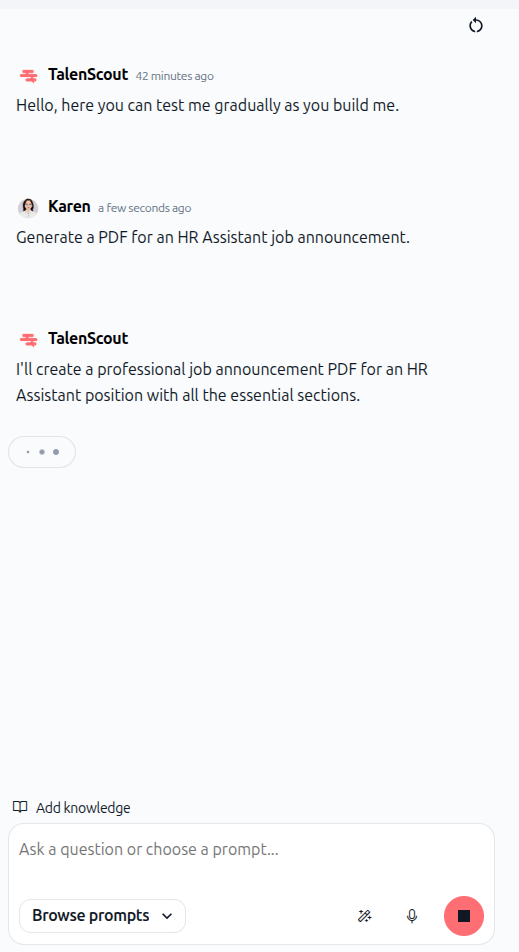
As shown in the image above, the agent displays its thought process and actions as it works through your request.
Once complete, the agent provides a detailed response, showing exactly what it created and which skills it used.
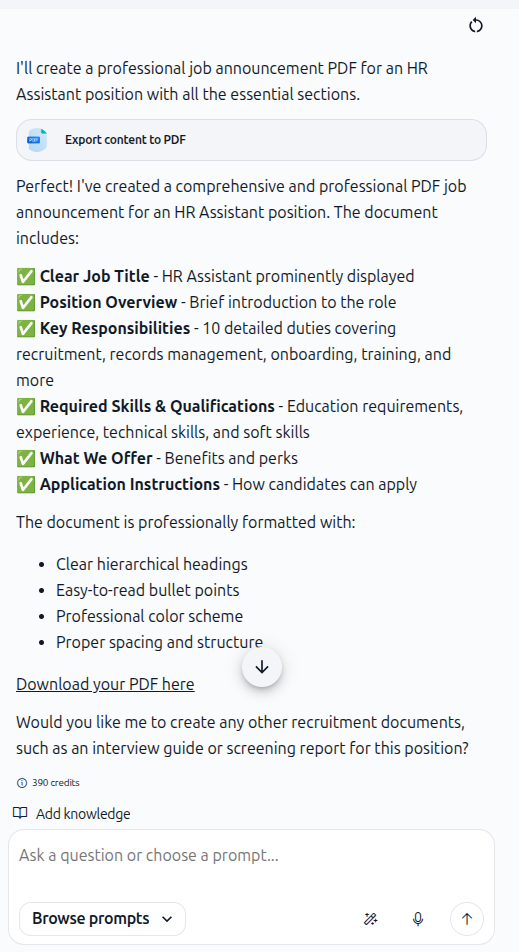
As shown in the image above, the agent confirms it created the document, explains what it includes, and provides a download link using the export skill.
2. Use the "Use this agent" button
From the agent configuration page, you can open a full chat session dedicated to testing your agent.
Click the "Use this agent" button at the top of the configuration page. This opens a new chat window where you can have an extended conversation with your agent and test multiple scenarios.
This method is ideal when you want to test complex workflows or multiple requests in sequence without switching between configuration and testing.
3. Test from the agent library
After saving your agent, you can test it from the main Agents section.
Navigate to Agents in the left sidebar
Find your agent in the list (check "Personal" or "All agents")
Click the Discuss button on the agent card
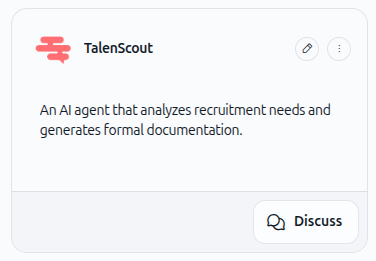
A chat window opens, and you can start testing your agent immediately.
4. Evaluate agent responses
As you test, evaluate these key areas:
Does the agent follow its role and instructions?
Check that the agent behaves according to the system prompt you defined. If it deviates, refine your instructions to be more specific.
Does the agent use knowledge base sources correctly?
Ask questions that require information from your connected documents. Verify that the agent references the right sources and provides accurate answers.
Do skills work as expected?
Test each skill you added. For our HR agent, verify that PDF export works, documents are formatted correctly, and file downloads function properly.
Are responses consistent?
Ask the same question multiple times or rephrase it. The agent should provide consistent, reliable answers every time.
Is the tone and format appropriate?
Check that the agent's language, professionalism, and output format match your requirements.
5. Refine based on results
After testing, you'll likely identify areas for improvement. Return to the agent configuration and make adjustments:
If the agent doesn't follow instructions:
Edit the system prompt to be more explicit. Add specific rules or constraints. Use numbered steps to clarify the workflow.
If the agent doesn't use knowledge base correctly:
Check that your documents are indexed and accessible. Verify that document names are clear and descriptive. Consider adding more focused, smaller documents instead of one large file.
If skills aren't working:
Verify that skills are configured correctly with required parameters. Add explicit instructions in your system prompt about when and how to use each skill. Example: "After creating the document, use the export_to_pdf tool to generate a downloadable PDF file."
If responses are inconsistent:
Add more specific rules to your system prompt. Define exact output formats. Include examples of expected behavior.
6. Test again and iterate
After making changes, test your agent again with the same questions. Verify that your refinements improved the results.
Repeat this cycle—test, identify issues, refine, test again—until your agent performs reliably and consistently.
Practical use cases
Testing a document generation agent
You built an agent that creates job announcements. Test it by requesting different types of documents: "Generate a job description for a Marketing Manager" and "Create a screening report for a Software Engineer candidate." Verify that the agent adapts its output to different roles while maintaining consistent quality.
Testing knowledge base integration
Your agent has access to company policies and handbooks. Ask specific questions that require information from these sources: "What is our parental leave policy?" or "What are the salary ranges for mid-level positions?" Verify that the agent cites the correct documents and provides accurate information.
Testing multi-step workflows
Your agent should perform a sequence of actions. Test the full workflow: "Analyze this job description, identify required skills, and generate a candidate screening checklist as a PDF." Verify that the agent completes all steps in the correct order and produces the expected final output.
Tips & best practices
Test early and often
Don't wait until your agent is fully configured. Test after adding each major component (instructions, knowledge base, skills). This helps you catch issues early and understand how each piece affects agent behavior.
Use realistic test cases
Test with actual questions and requests your users will ask. Don't just test with simple queries. Use complex, real-world scenarios to ensure your agent handles them correctly.
Test edge cases
Ask questions the agent might not be able to answer. Request tasks outside its scope. Verify that the agent handles these gracefully and responds appropriately instead of making up information.
Document what works
Keep notes on successful test cases and effective prompts. This helps you understand what your agent does well and provides examples for users.
Iterate gradually
Make one or two changes at a time, then test again. This makes it easier to identify which changes improved performance and which didn't.
Test with different users
If possible, have teammates or potential users test your agent. They'll ask questions you didn't think of and reveal issues you might have missed.
What happens next
Once you've tested your agent and refined it based on results, you're ready to move to the next steps:
Sharing your agent – Make your agent available to teammates or deploy it for external use
Evaluation & improvement – Monitor agent performance over time and continue refining based on real-world usage
Agent governance – Implement best practices for managing agent access, costs, and quality
Your agent is now tested and ready for real-world use. Continue monitoring its performance and iterating based on user feedback.
Additional resources
Introduction to Agents – Learn what agents are and how they work
Setting objectives & instructions – Define your agent's role and behavior
Sources (Knowledge base) – Connect documents to your agent
Skills (AI Tools) – Add capabilities like file export and email
Evaluate/improve agent – Monitor and optimize agent performance over time
Ready to test your agent? Use the test panel in the configuration page, ask realistic questions, and refine based on results. Your agent will improve with each iteration.