Creating an automation with agents
Written By Stanislas
Last updated 7 months ago
Create an automated workflow in minutes by configuring an agent to run on a schedule or trigger. This guide walks you through the Swiftask interface step-by-step to set up your first automation.
Overview
Creating an automation is straightforward: you select an agent, define what it should do, set when it should run, and save. The automation then executes automatically according to your schedule.
This guide focuses on the interface and exact steps—where to click, what to fill in, and what each field means.
Prerequisites
Before you create an automation, your agent must have:
Clear objectives and instructions – The agent must know exactly what task to perform
Necessary skills – If the agent needs to send emails, export files, or query databases, those skills must be configured
Knowledge base (if needed) – If the agent references documents or data, add those to the agent's knowledge base first
If your agent isn't ready yet, go back to the agent configuration and add these elements before creating the automation.
Step-by-step guide
Step 1: Open your agent
Navigate to the agent you want to automate.
Click Agents in the left sidebar
Find your agent in the list (use search if needed)
Click the agent to open its detail page
You'll see the agent's profile page with configuration options on the left sidebar.
Step 2: Navigate to the Automations section
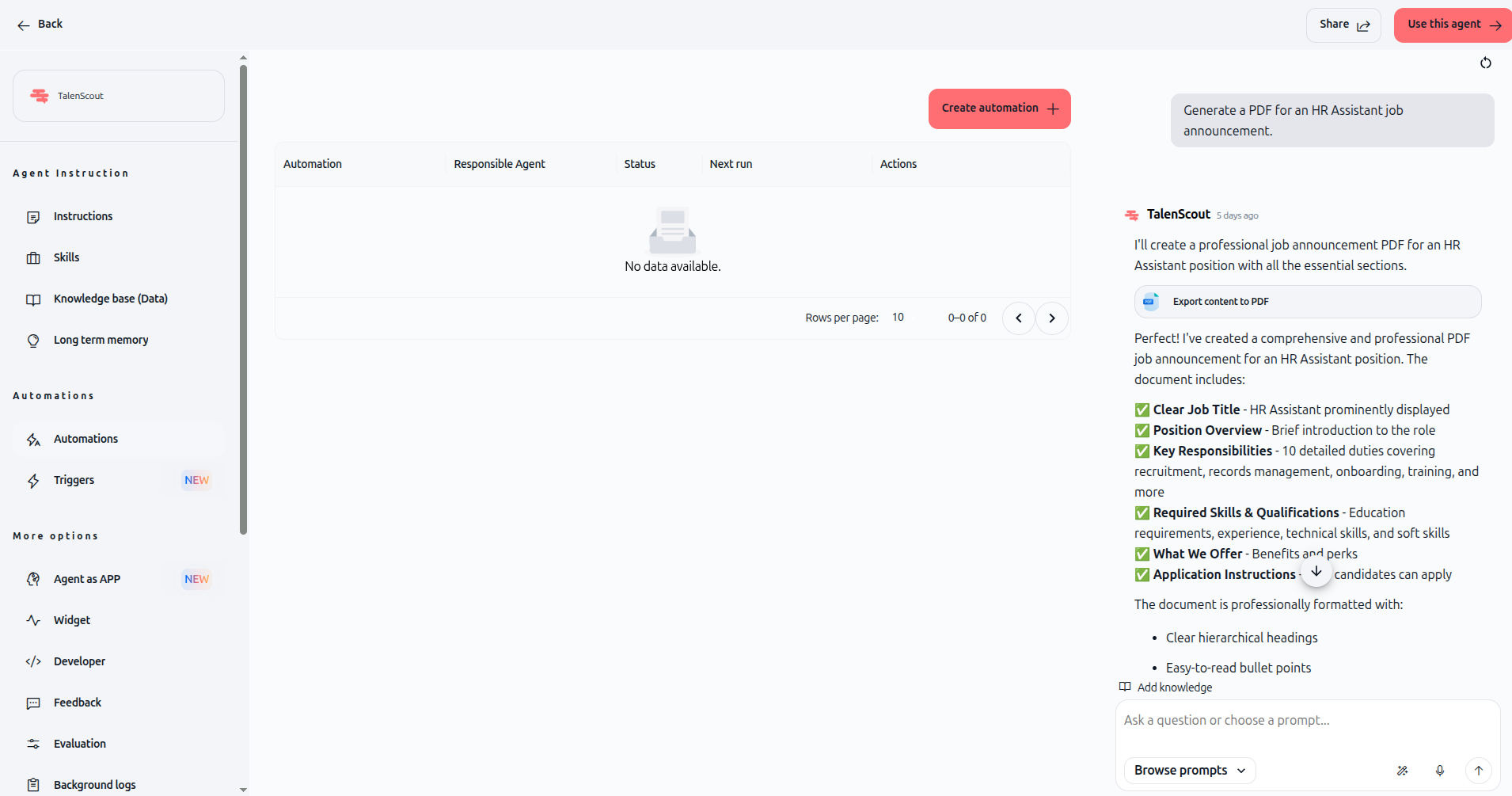
On the agent's profile page, look at the left sidebar under Automations.
Click Automations in the left sidebar
You'll see a list of any existing automations for this agent
Click Create automation (the red button with a + icon)
The automation creation dialog opens immediately.
Step 3: Fill in the Title
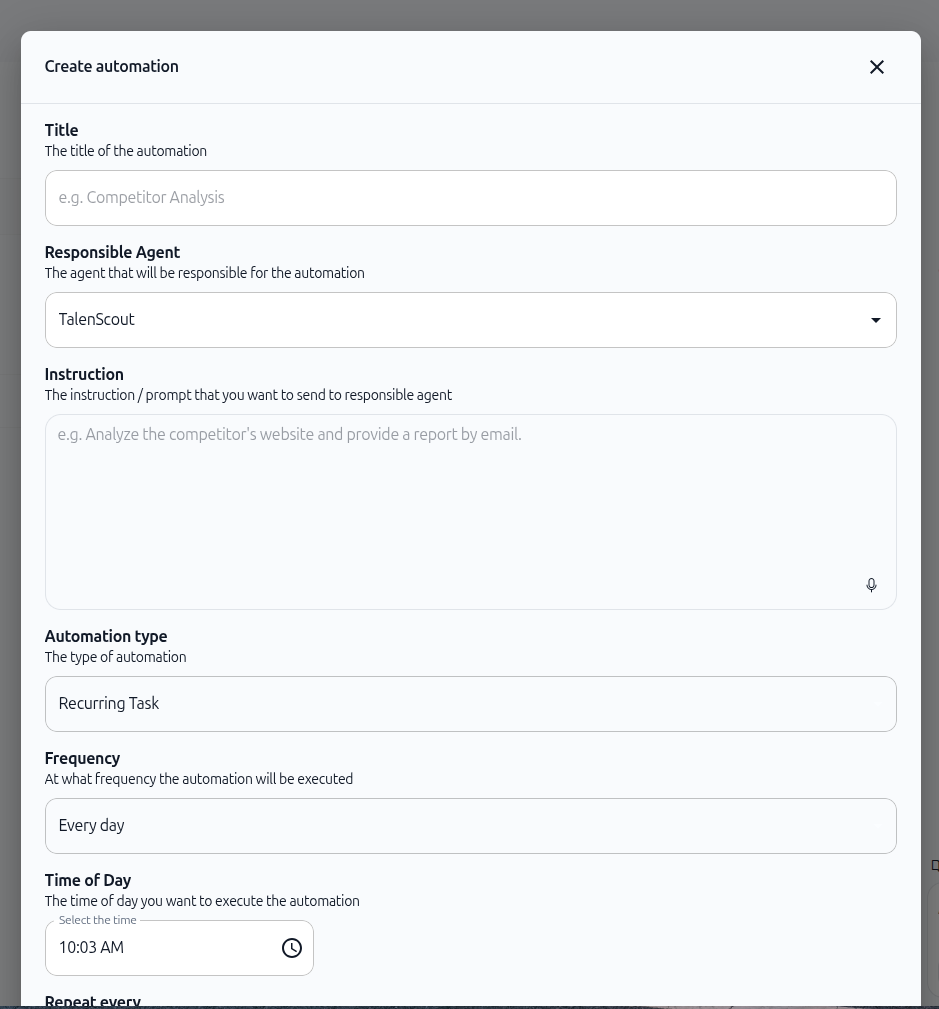
In the Create automation dialog, the first field is Title.
What to do:
Click the title input field
Enter a clear, descriptive name for your automation
Examples: "Daily Sales Report", "Customer Email Responder", "Weekly Team Status"
Why it matters: The title appears in your automations list and in logs. Make it specific so you know what this automation does at a glance.
Step 4: Select the Responsible Agent
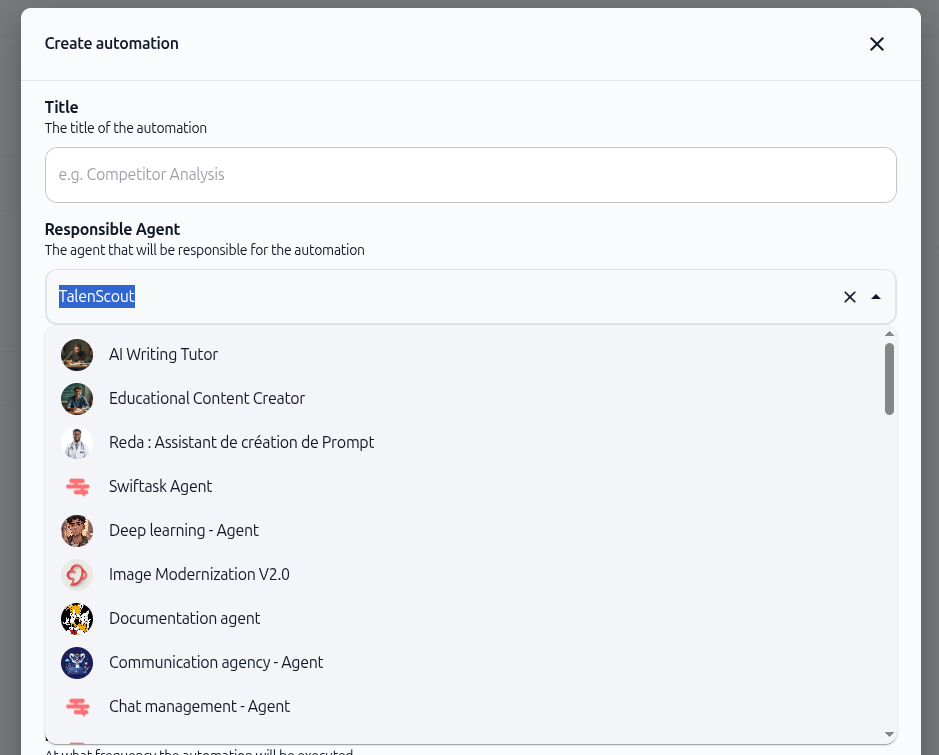
Below the title, you'll see Responsible Agent.
What to do:
Click the agent dropdown (it shows the current agent by default)
A list of all available agents appears
Select the agent that will execute this automation
Usually this is the agent you're already viewing, but you can choose a different one
What it means: This is the agent that will actually run the automation. It must have all the skills and knowledge it needs to complete the task.
Step 5: Write the Instruction
Below the agent selector, you'll see Instruction.
What to do:
Click the instruction text area
Write a clear prompt or instruction for the agent
Be specific about what the agent should do
Example: "Analyze the competitor's website daily and send a summary email to marketing@company.com"
What it means: This is the prompt that tells the agent what task to perform each time the automation runs. The more specific you are, the better the results.
Tips:
Start with an action verb: "Analyze...", "Generate...", "Send...", "Review..."
Include the source of data if applicable: "from the support inbox", "from the spreadsheet", "from the webhook"
Specify the output: "send an email", "export a PDF", "log to the database"
As shown in the image above, the instruction field accepts free text. You can write multiple sentences if needed.
Step 6: Choose the Automation Type
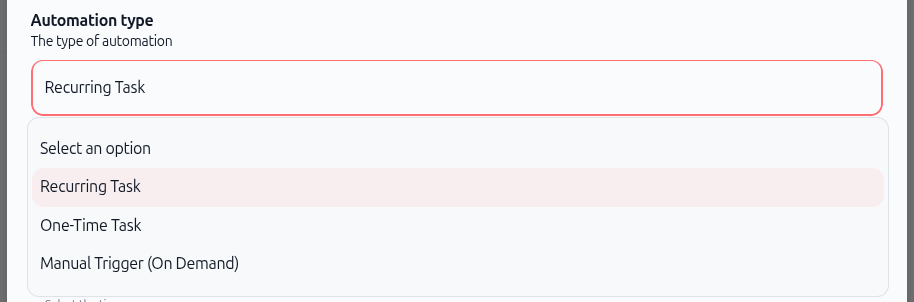
Scroll down to find Automation type.
Options:
Recurring Task – Runs on a schedule (daily, weekly, monthly, hourly)
One-Time Task – Runs once at a specific date and time
Manual Trigger (On Demand) – Runs only when you manually trigger it
What to do:
Click the automation type dropdown
Select one of the three options
For this guide, we'll select Recurring Task
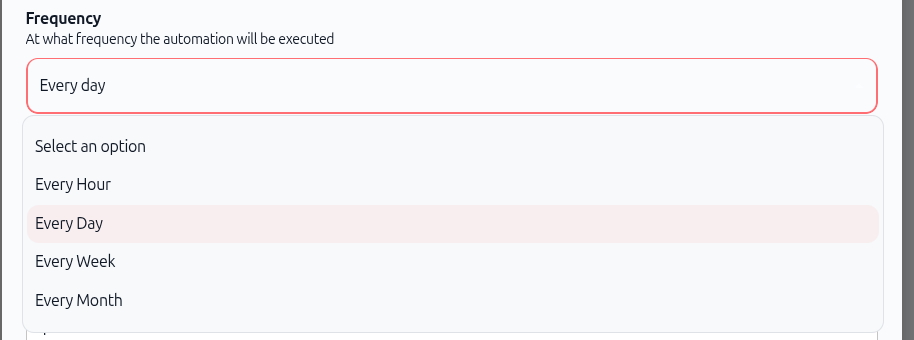
Step 7: Set the Frequency
Below automation type, you'll see Frequency (only appears if you selected "Recurring Task").
Options:
Every Hour – Runs every 60 minutes
Every Day – Runs once per day
Every Week – Runs once per week
Every Month – Runs once per month
What to do:
Click the frequency dropdown
Select how often you want the automation to run
For this example, we'll select Every day
Step 8: Set the Time of Day
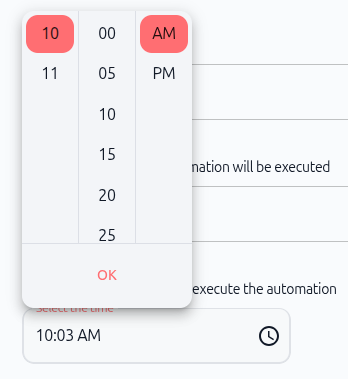
Below frequency, you'll see Time of Day (appears when frequency is set).
What to do:
Click the time picker field
A time picker popup appears with three sections: hour, minute, AM/PM
Click the hour field and enter or select the hour (e.g., 10)
Click the minute field and select the minutes (e.g., 00)
Select AM or PM
Click OK to confirm
What it means: This is the time (in your timezone) when the automation will run each day. If you select "Every Day" and set the time to 10:00 AM, the automation runs at 10 AM every day.
Step 9: Set the Timezone
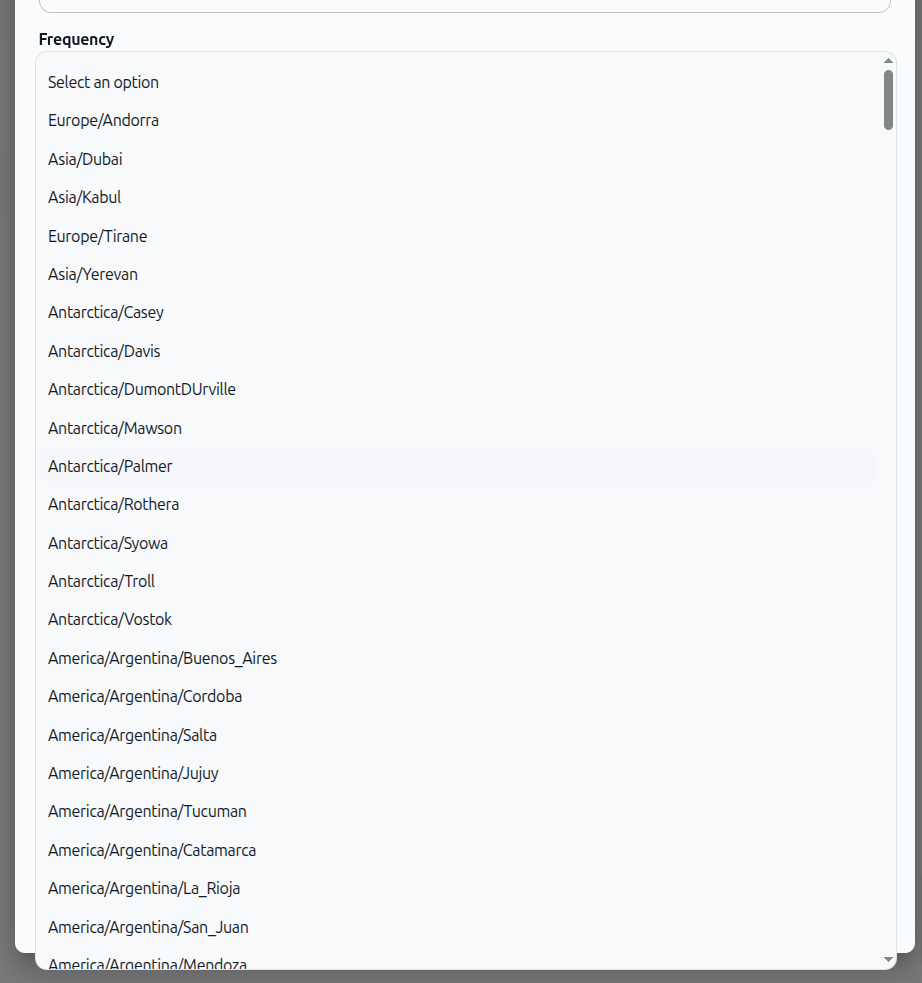
Below time of day, you'll see Timezone.
What to do:
Click the timezone dropdown
A searchable list of timezones appears
Search for your timezone (e.g., "London", "New York", "Dubai") or scroll to find it
Click to select it
Examples:
Europe/London
America/New_York
Asia/Dubai
Australia/Sydney
What it means: The timezone ensures that "10:00 AM" means 10 AM in your location, not UTC. This is critical for scheduled automations to run at the right time.
Step 10: Configure Optional Settings (if needed)
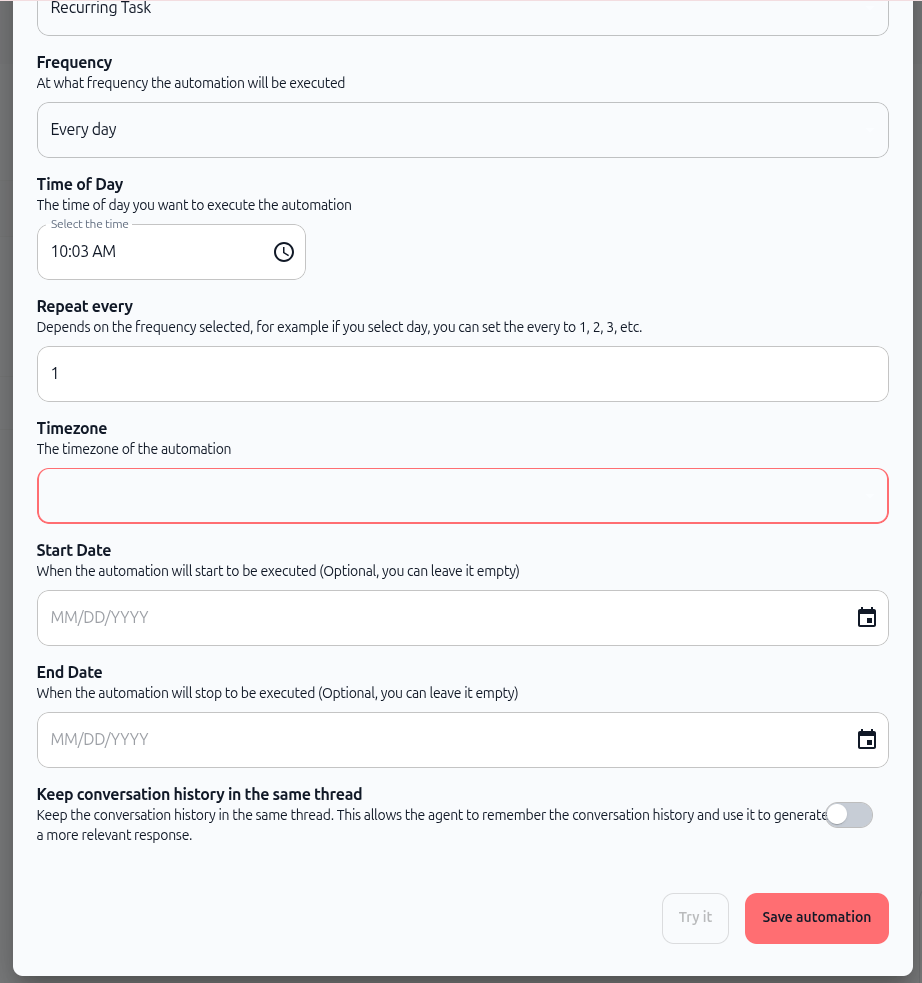
Scroll down to see additional optional fields:
Repeat every
If you selected "Every Day", you can set it to repeat every 1, 2, 3, etc. days. Leave at 1 for daily execution.
Start Date (optional)
When should the automation start running? Leave blank to start immediately, or pick a future date.
End Date (optional)
When should the automation stop running? Leave blank to run indefinitely, or pick an end date.
Keep conversation history in the same thread
Toggle this on if you want the agent to remember previous automation runs and use that context for better responses. Useful for workflows where context matters.
As shown in the image below, these fields appear together in the complete form.
Step 11: Save the Automation
Once all required fields are filled:
Scroll to the bottom of the form
Click the red Save automation button
The dialog closes
You're returned to the agent's Automations list
Your new automation now appears in the list with status "Active"
The automation is now live and will execute according to your schedule.
Form field reference
Here's a quick reference for all fields in the create automation dialog:
What happens after you save
After clicking Save automation:
Automation is created – It appears in your Automations list with status "Active"
First run is scheduled – The automation is scheduled to run at your specified time
Execution begins – At the scheduled time, the agent wakes up and executes the automation
Logs are created – Each run is logged so you can see what happened
You can view execution logs and see the results of each automation run in the Automations section.
Common UI issues & quick fixes
"Save automation" button is grayed out
Check that all required fields are filled: Title, Agent, Instruction, Automation type, Frequency (if recurring), Time, and Timezone
Make sure the instruction field is not empty
Agent dropdown is empty
Make sure you have at least one agent created in your workspace
If the agent list is empty, go to Agents and create an agent first
Next steps
Once your automation is created:
Review the results – Look at what the agent did (emails sent, files exported, etc.)
Adjust if needed – If the results aren't right, edit the automation's instruction or agent configuration
Create more automations – Once you see one working, set up additional automations for other tasks
To learn about monitoring execution history and debugging issues, see the related guides in the Automations & Triggers section.