Managing project members & permissions
Written By Stanislas
Last updated 16 days ago
Control who accesses your project and what they can do. This guide walks you through inviting members, assigning roles, managing permissions, and maintaining project access control.
Overview
Your project is only as strong as your team. Managing who has access and what they can do ensures smooth collaboration while protecting your project's integrity. Swiftask offers a flexible role system that lets you give people exactly the level of access they need—nothing more, nothing less.
Whether you're inviting a team member to contribute tasks, bringing in a stakeholder to observe progress, or making someone an admin to help manage the project, this guide shows you how to do it efficiently and securely.
Prerequisites
Before you start managing members:
You must be an Owner or Admin — Only these roles can invite, remove, or change member permissions
You have access to the project dashboard — You can see the project and its settings
You know where to find the invite area — Look for an "Invite Collaborator" button, a profile icon with a "+", or similar in the project header
You understand the basics of your project — You know who needs access and what they'll be doing
Inviting members
When you can invite
Right after creating a project — Many projects show an "Invite Collaborator" prompt immediately after creation. This is the quickest time to add your first team members.
From the project dashboard — At any time, open the collaborators area (usually in the project header) to invite new members.
Step-by-step: Adding a team member
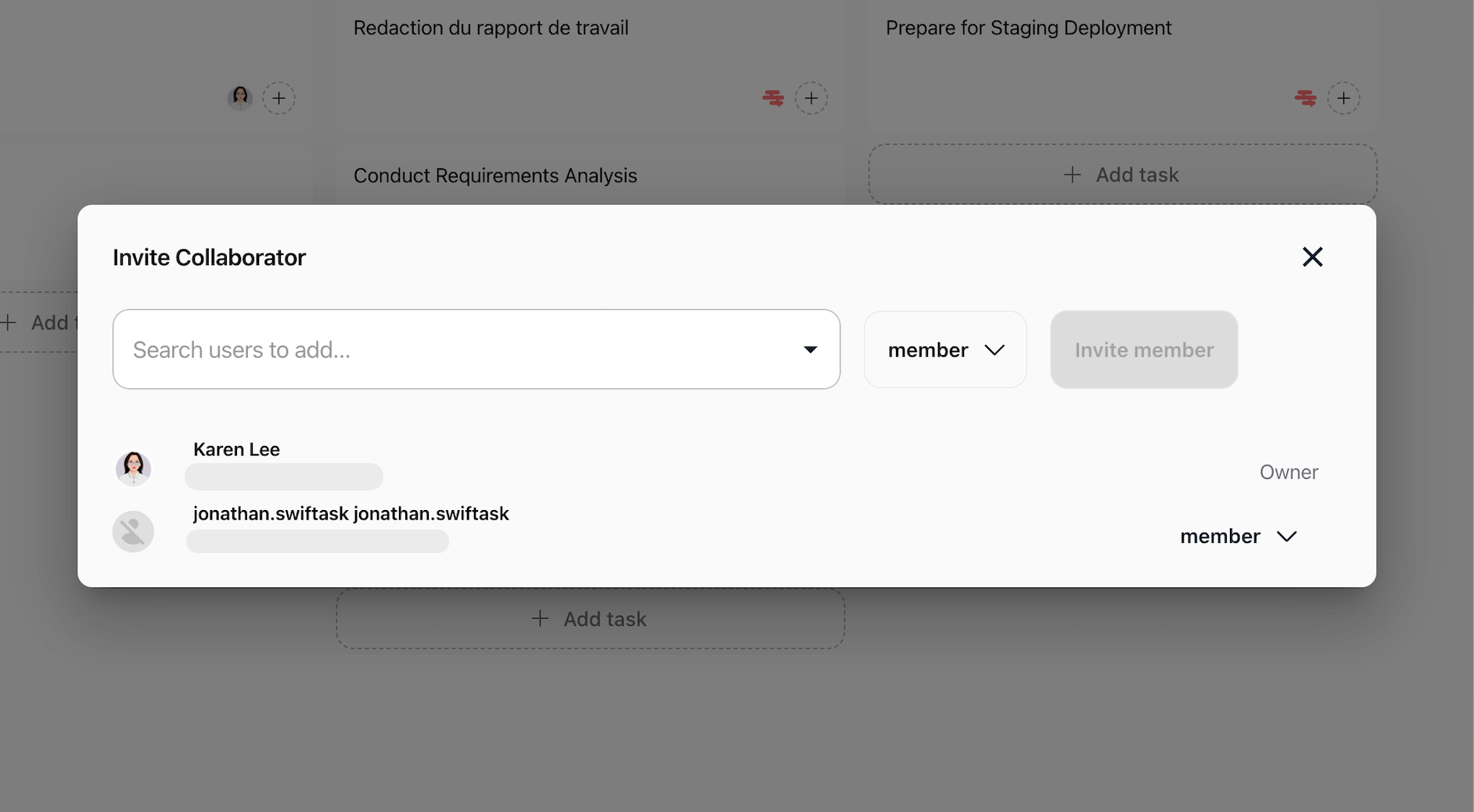
Open the invite interface — Click "Invite Collaborator", the profile icon with "+", or a similar button in your project header.
Search for the person — In the search field, type their name or email. The system shows matching workspace members as you type.
Select a user — Click the person you want to invite. They appear in the selection area.
Choose their role — From the role dropdown, select one of four options: Owner, Admin, Member, or Viewer. (The default is often Member.)
Send the invitation — Click "Invite member" or "Invite collaborator". The system processes the invitation.
Confirmation — You'll see either:
Success message: "Collaborator invited successfully." The person now appears in the project members list.
Error message: "Error inviting collaborator." Check the email format, ensure the person isn't already in the project, and try again.
Understanding workspace charges
Important: Inviting someone who is not yet a member of your workspace may trigger additional charges on your subscription.
When you invite someone outside your workspace, Swiftask displays a warning:
"Inviting a user who is not already a member of the workspace will result in additional charges on your subscription bill."
Best practice: Add people to your workspace first (via workspace administration) before inviting them to projects. This avoids surprise charges. Invite people directly to projects only when necessary.
Understanding roles
Every project member has one of four roles. Each role defines what that person can see and do.
Owner
Full control. Owners manage everything: they can edit the project, delete it entirely, invite or remove members, and change anyone's role. Every project should have at least one Owner. You become Owner when you create a project.
Use this role for: Project leads, team leads, or anyone responsible for the project's success.
Admin
Project and member management. Admins can invite members, remove members, and change their roles (though they usually cannot remove the last Owner). Admins can also edit project settings and manage tasks.
Use this role for: Co-leads, senior team members, or anyone who helps run the project day-to-day.
Member
Task execution. Members can create and edit tasks, use task chat with AI agents, and collaborate with @mentions. They cannot invite or remove people, change roles, or modify project settings.
Use this role for: Team members doing the actual work—designers, writers, developers, analysts, etc.
Viewer
Read-only access. Viewers can see the project and all tasks. Depending on your workspace setup, they may be able to comment or view task chat, but they cannot create or edit tasks, and they cannot manage members.
Use this role for: Stakeholders, executives, clients, or anyone who needs to monitor progress without making changes.
Permissions matrix
This table shows which role can perform which actions. Your workspace configuration may vary slightly.
Viewer may have comment-only or no chat access depending on workspace configuration.
*Admin may or may not be allowed to delete the project; check your workspace rules.
Changing member roles
Sometimes a team member's responsibilities change. You can update their role anytime.
Open the members list — Go to the same area where you invite (Invite Collaborator or collaborators panel).
Find the member — Locate the person whose role you want to change.
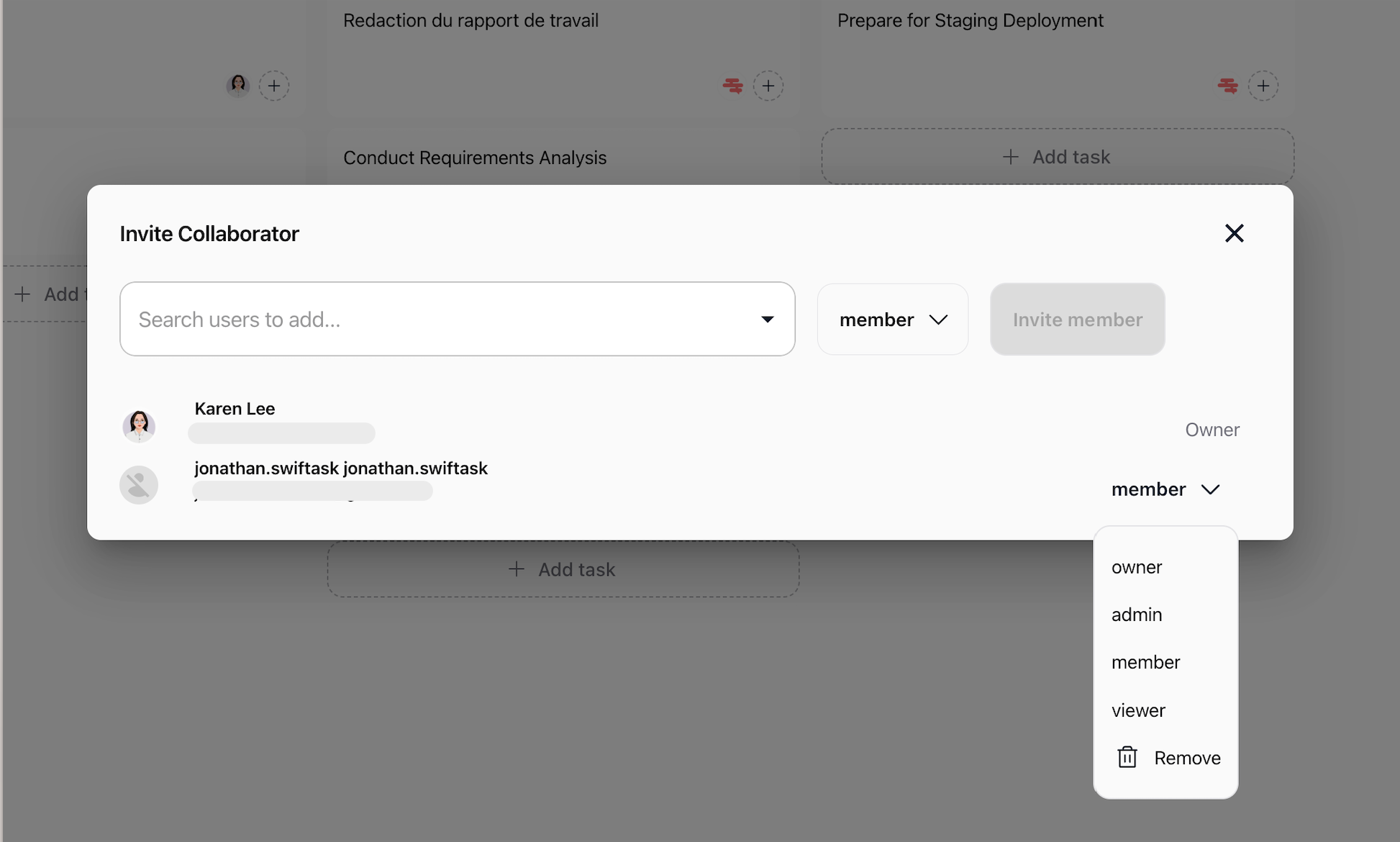
Click the role dropdown — Next to their name, you'll see their current role. Click it to open the dropdown menu.
Select the new role — Choose from Owner, Admin, Member, or Viewer.
Confirm the change — The system updates immediately or asks for confirmation. You'll see:
Success: "Collaborator role updated successfully."
Error: "Error updating collaborator role." Check your permissions and retry.
Important note on Owners
If you are the last Owner and want to step down, you must first assign another member to be Owner. You cannot remove yourself as the only Owner—the system prevents this to ensure the project always has at least one Owner.
Removing members
When someone no longer needs access to the project, you can remove them.
Open the members list — Navigate to the collaborators area.
Find the member to remove — Look through the list for the person.
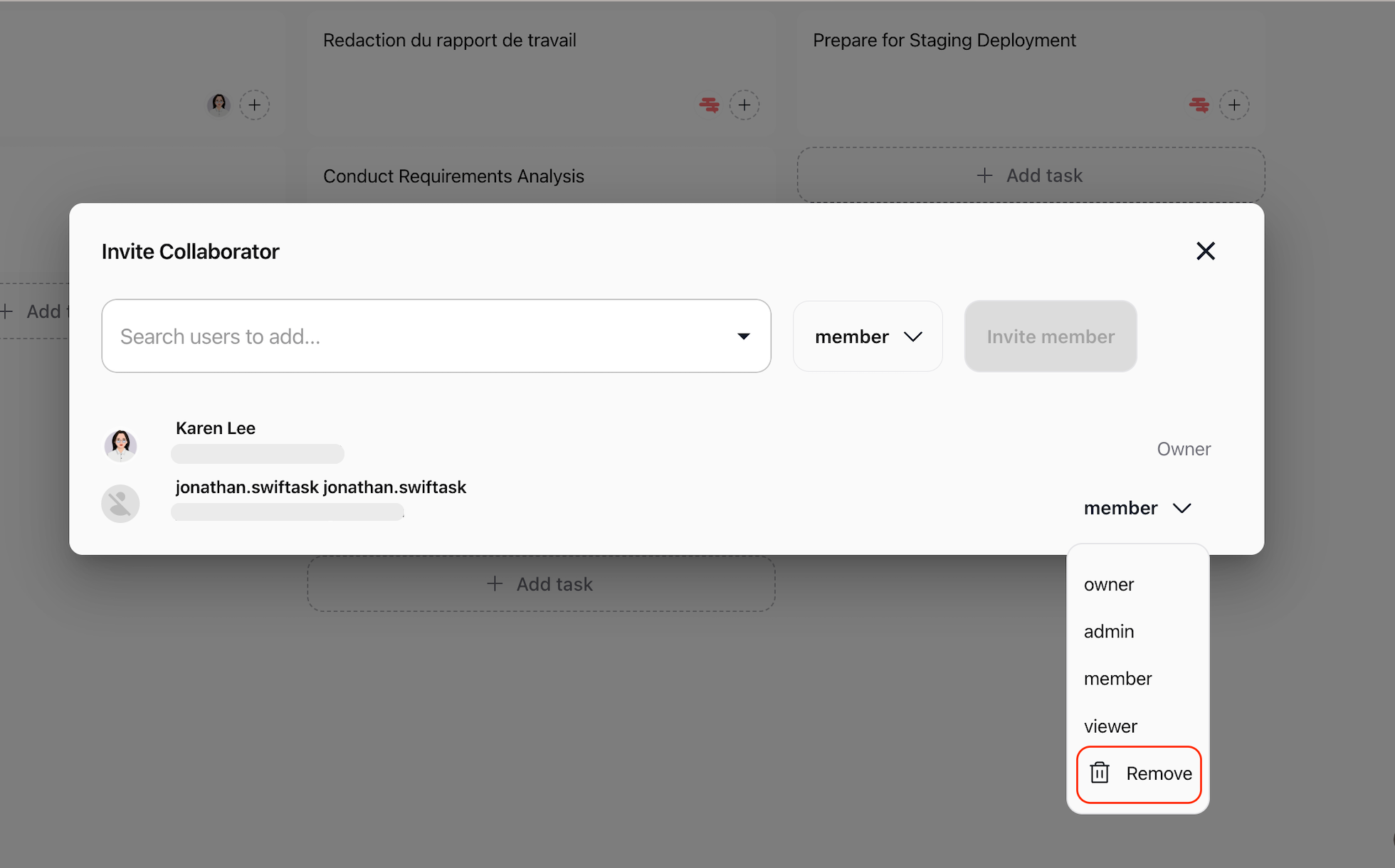
Click Remove — Next to their name, you'll see a Remove button, trash icon, or similar action.
Confirm if prompted — Some workspaces ask you to confirm the removal. Confirm to proceed.
Result — You'll see:
Success: "Collaborator removed successfully." The person disappears from the list.
Error: "Error removing collaborator." Retry or check your permissions.
What happens when you remove someone
They lose access to this project immediately. They can no longer open it or see its tasks.
Their workspace account is not affected. They still have access to other projects and the workspace.
Their messages and contributions remain in task chats and task histories (the content is not deleted).
Access control best practices
Apply the principle of least privilege
Give each person only the access they need. If someone only needs to view progress, don't make them a Member. If they only need to comment, Viewer is enough. This reduces confusion and risk.
Limit Owners and Admins
Owner and Admin roles carry significant power. Reserve these for people who genuinely need to invite, remove, or modify roles. Most team members should be Members.
Be mindful of workspace charges
Before inviting someone from outside your workspace, confirm that the cost is acceptable. If possible, have your workspace administrator add them to the workspace first, then invite them to the project. This is cleaner and often cheaper.
Review members periodically
As projects wrap up or team members move on, remove their access. A project with too many members becomes harder to manage. A quarterly review is a good habit.
Communicate role expectations
When inviting someone, briefly explain what their role means. "You're a Member, so you can create and edit tasks" is clearer than just sending an invite.
Real-world example: Setting up a campaign project team
Scenario: You're launching a Q1 marketing campaign. You need:
Yourself as Owner (managing the project)
Two content creators as Members (writing and designing)
One marketing manager as Admin (helping coordinate)
One executive stakeholder as Viewer (monitoring progress)
Your steps:
Create the project — Name it "Q1 Marketing Campaign". You become Owner automatically.
Open the invite interface — Click "Invite Collaborator" in the project header.
Invite the first content creator
Search: "sarah"
Select Sarah
Role: Member
Click "Invite member"
Wait for success message
Invite the second content creator
Search: "mike"
Select Mike
Role: Member
Click "Invite member"
Invite the marketing manager
Search: "jessica"
Select Jessica
Role: Admin
Click "Invite member"
Invite the executive
Search: "david"
Select David
Role: Viewer
Click "Invite member"
Result:
You (Owner) can manage the project, invite/remove members, and change roles
Sarah & Mike (Members) can create tasks, write content, and collaborate in task chat
Jessica (Admin) can help manage the project and members if needed
David (Viewer) can see all tasks and progress but cannot make changes
Troubleshooting
I don't see "Invite Collaborator" or the invite button
Cause: You are not an Owner or Admin of the project.
Solution: Only Owners and Admins can invite members. Ask a project Owner or Admin to give you the Admin role if you need to manage members.
"Error inviting collaborator" appears
Possible causes:
Invalid or incorrectly formatted email
User is already a member of the project
Network connectivity issue
You don't have Owner or Admin permissions
Solutions:
Double-check the email format (should be: name@company.com)
Verify the person isn't already in the members list
Check your internet connection
Ensure you are Owner or Admin
Refresh the page and try again
If it persists, contact support
I can't change a member's role
Cause: Either you're not Owner/Admin, or you're trying to change the last Owner's role.
Solution:
Confirm you are Owner or Admin
If changing the last Owner, first assign another member to be Owner
Try again
"Error removing collaborator" or "Error updating collaborator role"
Possible causes:
Network issue
You are not Owner or Admin
System error
Solutions:
Check your internet connection
Verify you are Owner or Admin
Refresh and retry
Contact support if the issue continues
I was removed from the project and can't get back in
Cause: A project Owner or Admin removed you.
Solution: Ask an Owner or Admin of that project to invite you again. You cannot re-add yourself to a project.
Frequently asked questions
Can I invite someone who isn't in the workspace?
Yes, but the system will warn you that inviting a non-workspace member may incur additional charges. Prefer adding them to the workspace first (through workspace administration) when possible.
How many Owners can a project have?
As many as you need. There's no limit, and you don't need a single "primary" Owner. However, ensure the project always has at least one Owner. Avoid leaving a project with zero Owners.
Can a Member invite other people?
In the standard setup, no. Only Owners and Admins can invite. If your workspace allows Members to invite, the UI will show the option. Check your workspace configuration.
What happens when I remove a member?
They lose access to this project immediately. They can no longer open it or see its tasks. Their workspace account and access to other projects remain unchanged. Their messages and task history stay in the project.
Can I transfer ownership of the project to someone else?
Yes. First, assign another member to be Owner. Then change your own role to Admin or Member. This ensures there's always at least one Owner.
Where do I find the list of project members?
In the same place you invite: open "Invite Collaborator" or the collaborators panel from the project header. The member list appears below or beside the invite form.
What's the difference between removing someone and deleting the project?
Removing a member revokes their access to this one project. Deleting the project removes it entirely (and only Owners can do this). Removing a member doesn't affect their workspace account.
Can I see who invited whom?
That depends on your workspace. Some show invitation history; others don't. Check the members list or ask your administrator.
What if I accidentally remove someone?
Simply invite them again. There's no permanent deletion—you can re-add them anytime.
Was this helpful?
Still need help? Ask the team