Advanced settings
Written By Stanislas
Last updated 16 days ago
Overview
Advanced settings give workspace administrators comprehensive control over organization-wide defaults, agent fleet management, and AI configurations. These controls establish standard behaviors so members start with the right roles, assistants, and budget allocations.
Instead of configuring each user or tool individually, admins define global parameters in one place. This ensures uniform onboarding, predictable AI credit costs, automatic service failover, and streamlined sidebar navigation.
Prerequisites
To access and configure advanced settings, you need:
An active Swiftask workspace account.
The Admin or Owner role in your workspace.
Pre-configured agents shared workspace-wide if you want to assign them as defaults or pin them.
Step-by-step guide
1. General workspace settings & defaults
The primary Settings page houses core workspace profile data, onboarding defaults, embedding models, and budget alert toggles.
Click the settings icon (gear icon) in the bottom-left corner of the sidebar, then select Settings.
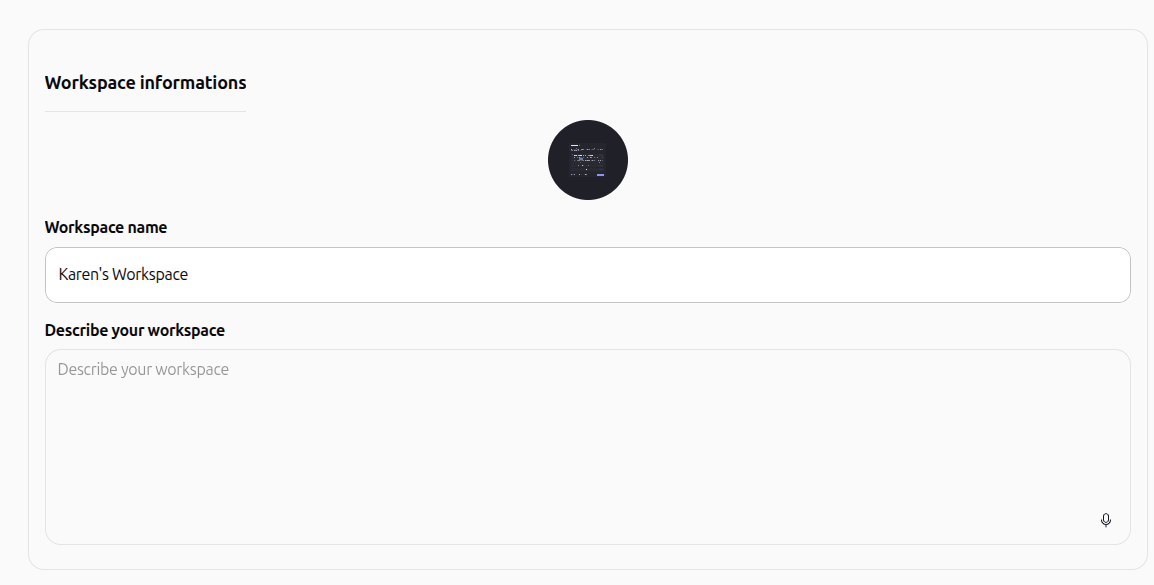
Under Workspace informations, update your workspace avatar, enter your Workspace name, and add a short summary in Describe your workspace.
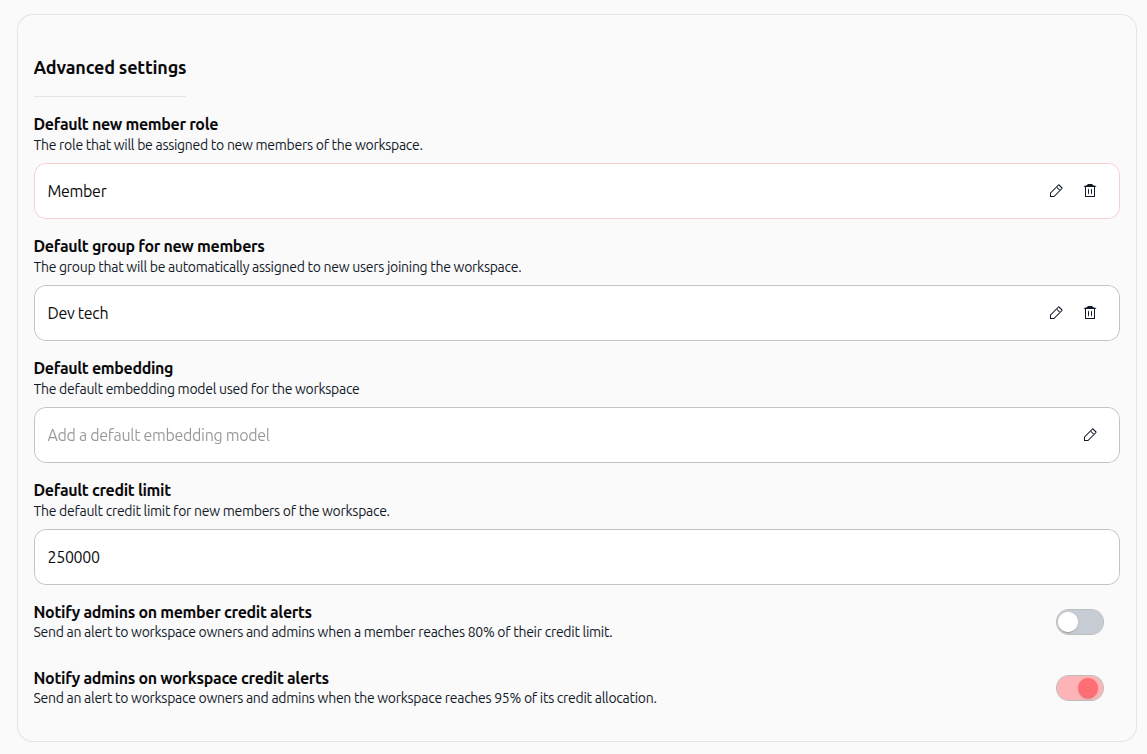
Under Advanced settings, set the workspace-wide defaults:
Default new member role: Choose the role automatically assigned to newly invited members (such as Member).
Default group for new members: Select the user group new members join automatically upon arrival (such as Dev tech).
Default embedding: Click the edit icon to define the standard text embedding model used across the workspace.
Default credit limit: Enter the standard monthly AI credit budget allocated to each new member (e.g.,
250000).Notify admins on member credit alerts: Enable the toggle to alert owners and admins when any member reaches 80% of their individual credit limit.
Notify admins on workspace credit alerts: Enable the toggle to alert owners and admins when the workspace reaches 95% of its total credit allocation.
Scroll down to review the Danger zone. Deleting a workspace is irreversible and permanently erases all associated data, agents, knowledge bases, and projects.

Expected result: Core workspace identity, member onboarding parameters, embedding models, and budget safety alerts are active.
2. Managing workspace agents
The Workspace agents menu centralizes fleet administration, health monitoring, and data exports.
In the left navigation menu, expand Workspace Design and select Workspace agents.
View the table listing every agent created in the workspace with its Agent name, LLM model, LLM Status (Active or Deprecated), Creator, and Creation date.
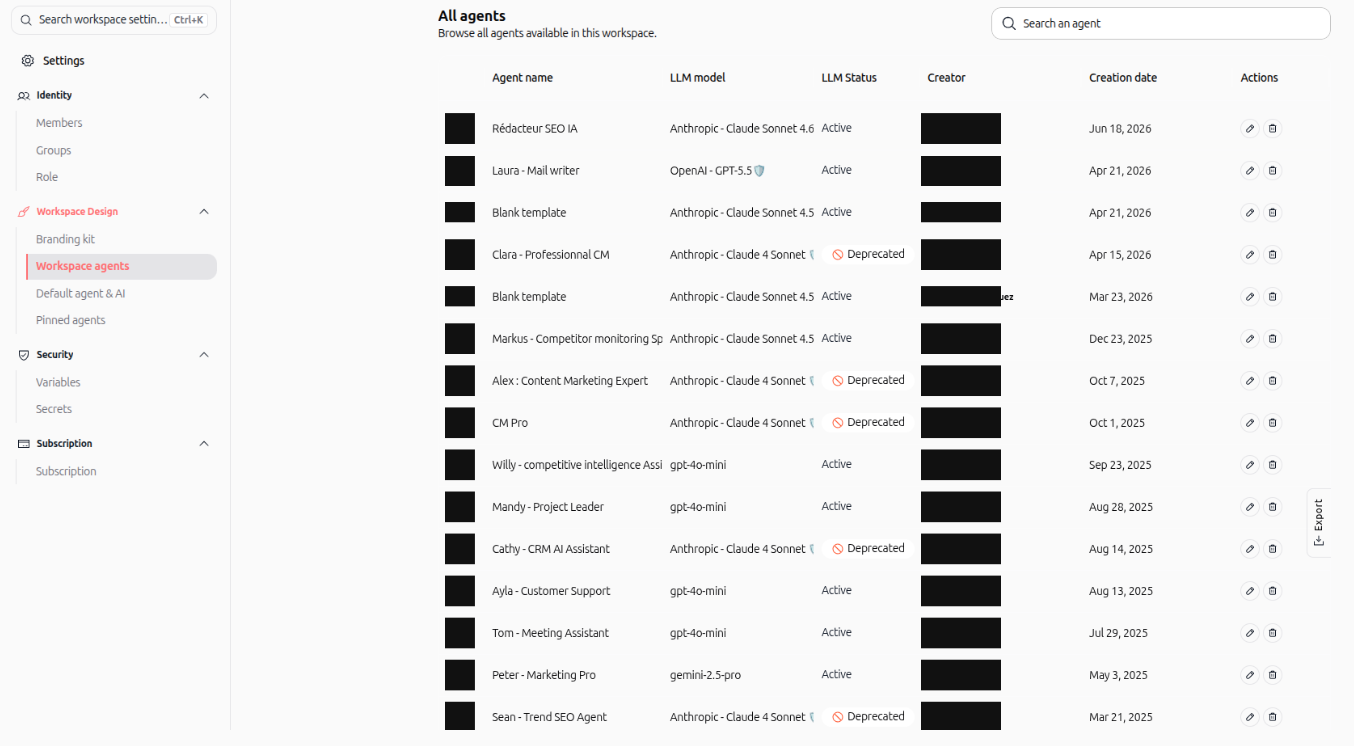
Use the Search an agent bar in the top-right corner to locate specific agents by name.
Under the Actions column, click the pencil icon to edit an agent's configuration, or the trash can icon to delete it.
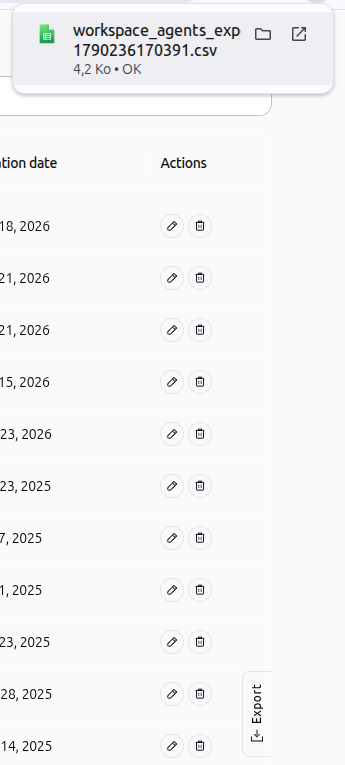
Click the vertical [↓ Export] tab on the right edge of the table to download the full agent catalog as a CSV spreadsheet.
Expected result: Admins can monitor model health across all agents, clean up deprecated tools, and export fleet inventories for audits.
3. Configuring default agent & AI settings
The Default agent & AI menu configures preselected chat assistants, transcription engines, fallback models, and specialized artifact builders.
Under Workspace Design, select Default agent & AI.
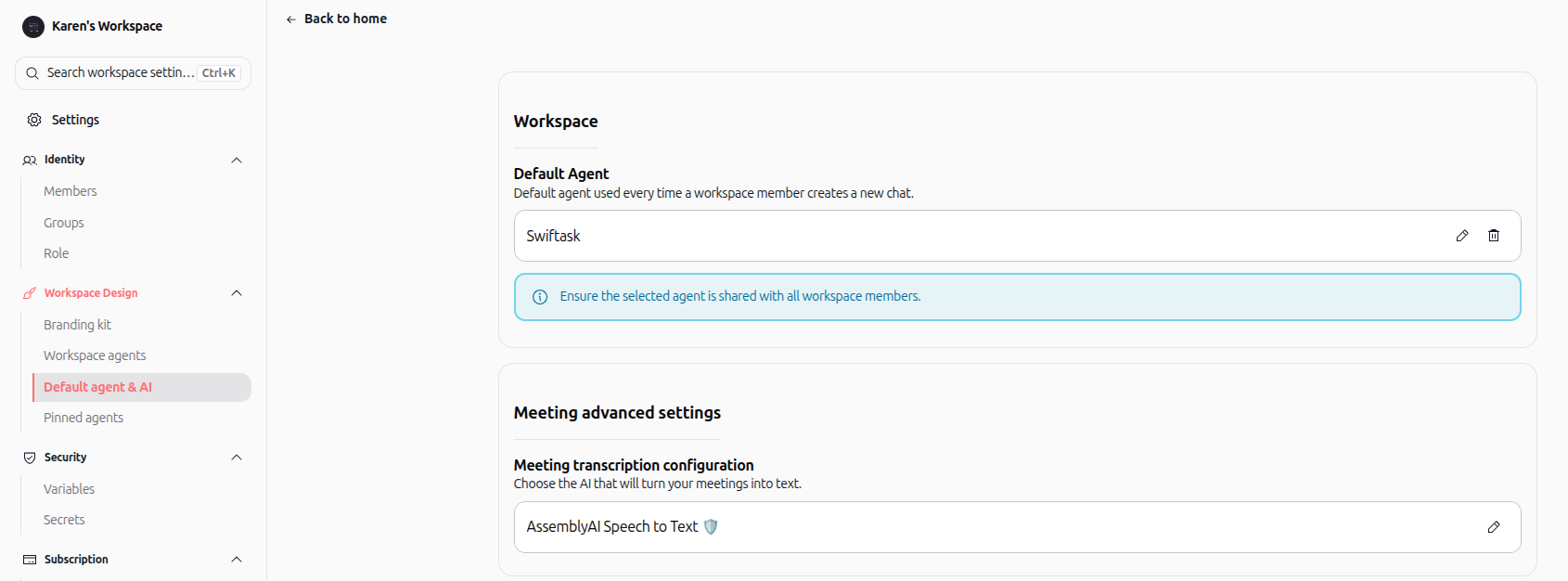
In the Workspace section, click the edit icon under Default Agent to choose the assistant automatically selected when a member opens a new chat. Make sure the agent is shared with all workspace members.
In the Meeting advanced settings section, click the edit icon under Meeting transcription configuration to choose the AI model that transcribes recorded meetings into text (e.g., AssemblyAI Speech to Text).
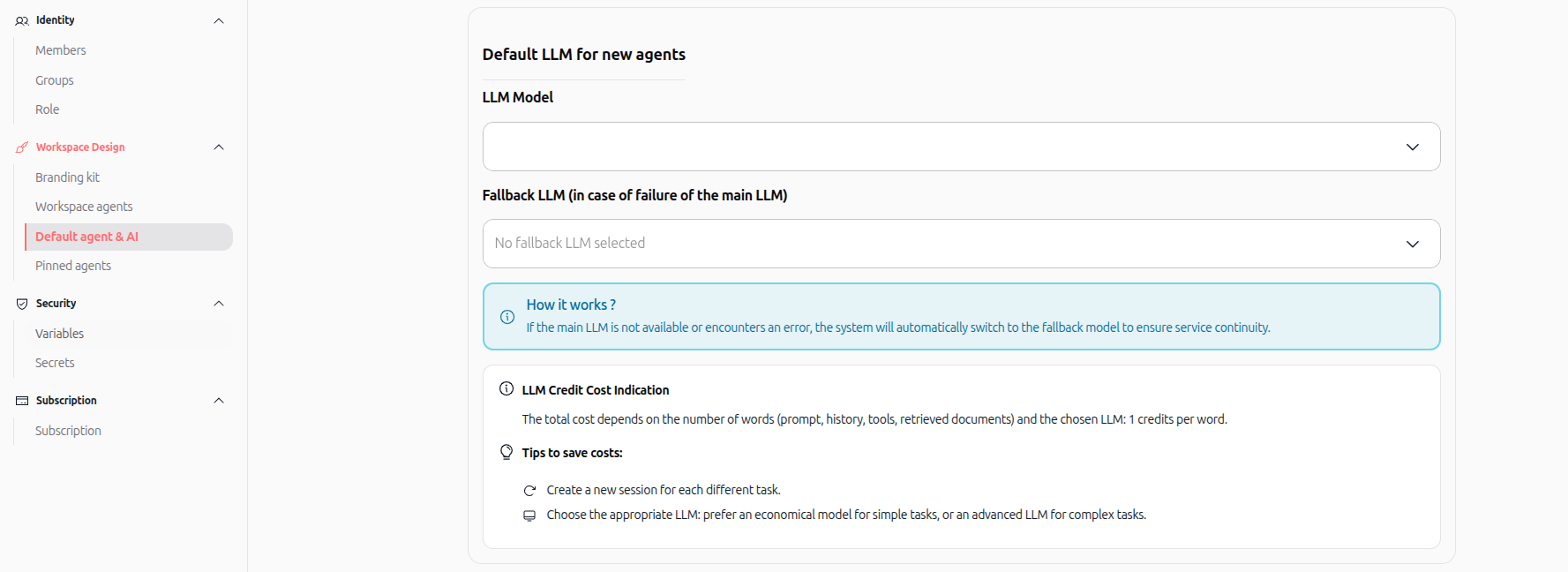
Under Default LLM for new agents, configure your default model architecture:
LLM Model: Choose the primary language model assigned by default to newly created agents.
Fallback LLM (in case of failure of the main LLM): Select a backup model that automatically takes over if the primary model fails or becomes unavailable.
Review the credit cost notes: AI usage costs 1 credit per word processed across prompts, history, tools, and retrieved documents.
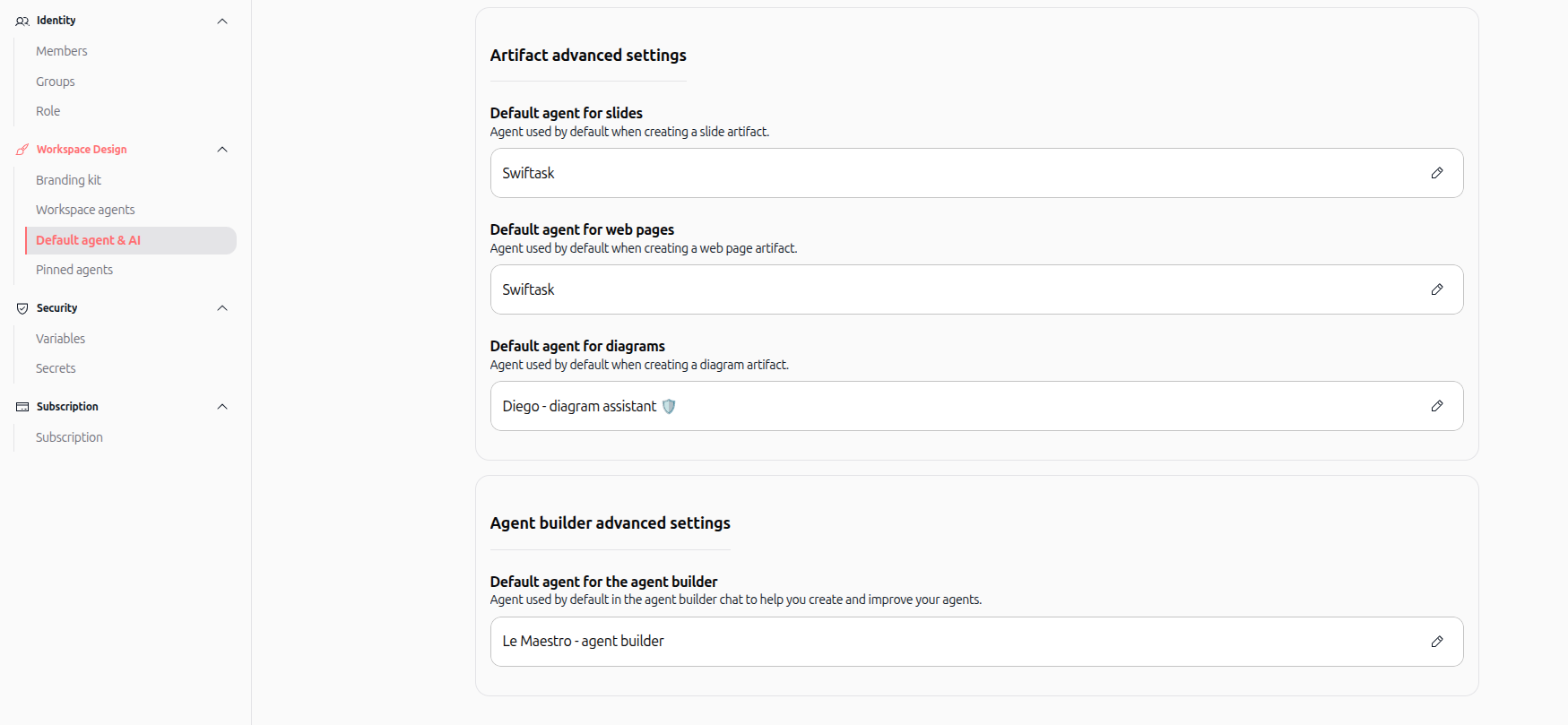
In the Artifact advanced settings section, designate default assistants for content generation:
Default agent for slides: The agent used by default when generating presentations.
Default agent for web pages: The agent used by default when building web layouts.
Default agent for diagrams: The agent used by default when generating diagrams (e.g., Diego - diagram assistant).
In the Agent builder advanced settings section, set the Default agent for the agent builder (e.g., Le Maestro - agent builder) to assist users when creating new agents.
Expected result: All new chat conversations, transcriptions, artifact requests, and agent-building sessions automatically use your configured standards.
4. Managing pinned agents
Pinned agents appear directly in the left sidebar for every member in the workspace, ensuring immediate access to high-priority workflows.
Under Workspace Design, select Pinned agents.
Review the list of agents currently pinned across the workspace.
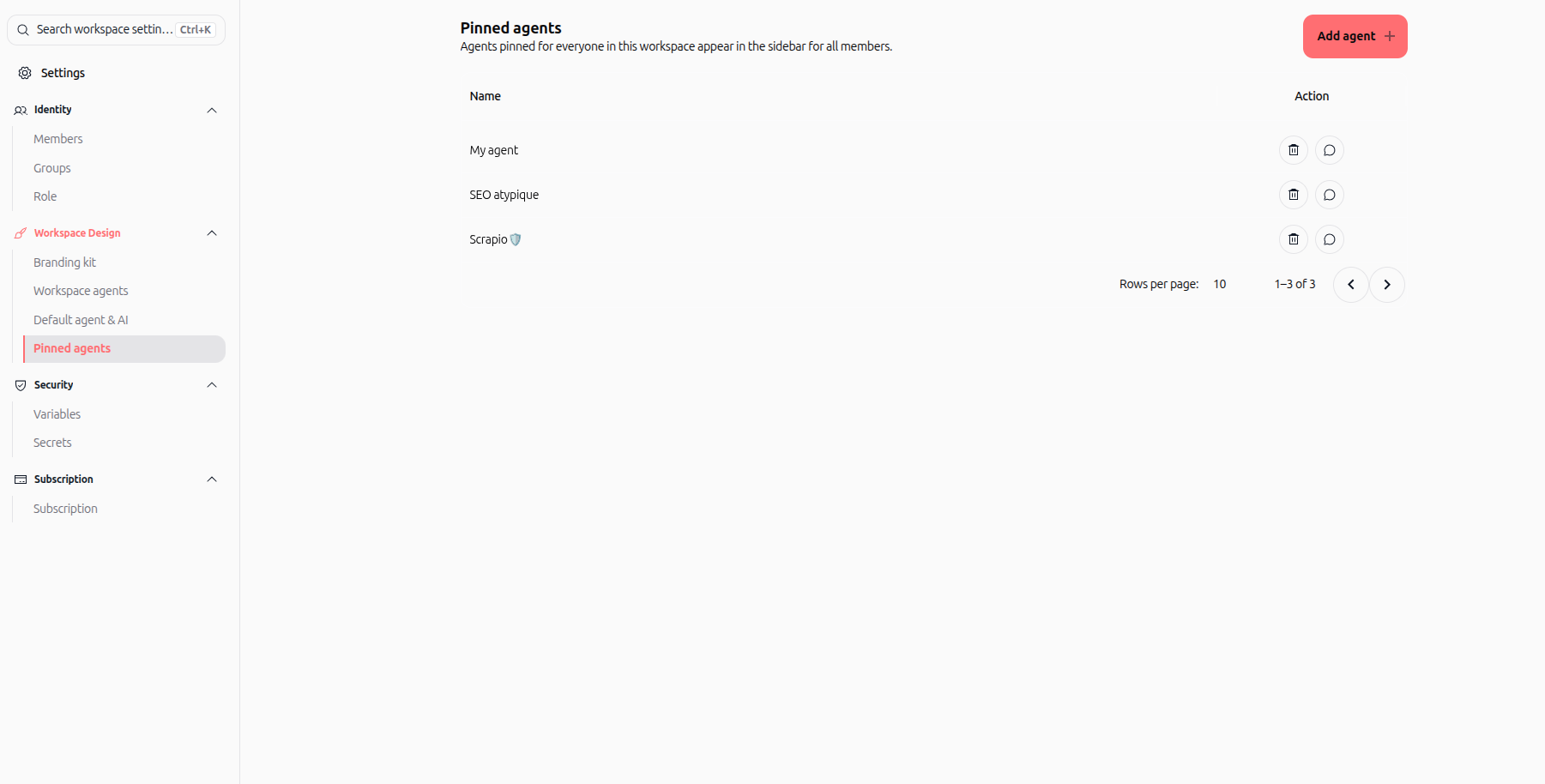
Click the red Add agent + button in the top-right corner.
In the Choose an agent to pin modal, search for or click the agent you want to pin.
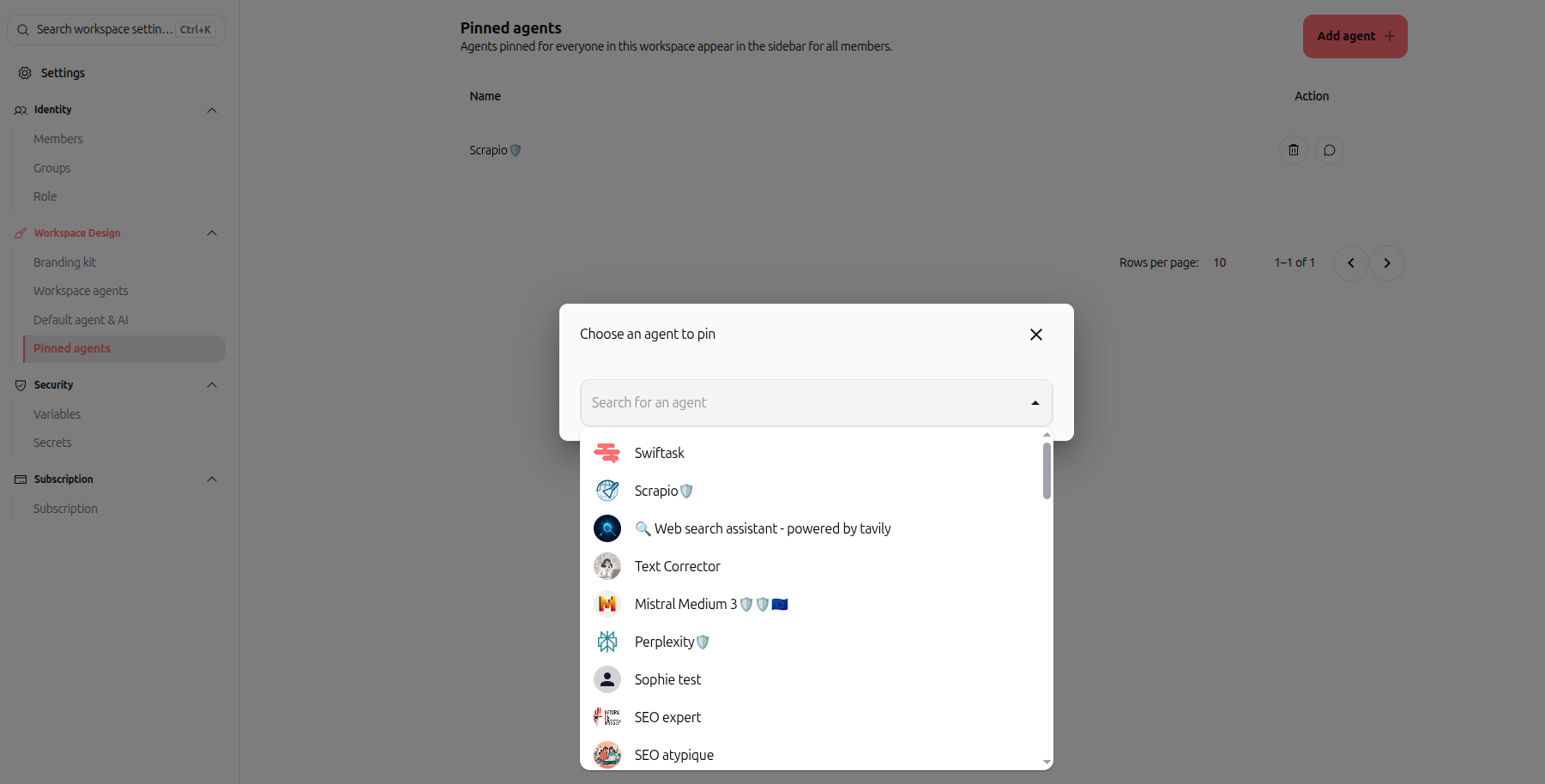
In the table, click the chat bubble icon under Action to launch an immediate chat, or click the trash can icon to unpin the agent for everyone.
Expected result: Pinned agents appear in the sidebar for all workspace members.
Practical use cases
Automated onboarding governance: Set Member as the default role, assign newcomers to a New Hires group, and grant an initial 250,000 credit limit with automated 80% consumption warnings.
Failover-safe production agents: Pair a top-tier primary LLM with an economical fallback model so critical business agents keep functioning during API outages.
Brand consistency in artifacts: Assign a tailored company agent as the default for slides, web pages, and diagrams so all generated collateral follows identical brand rules.
Workspace agent lifecycle auditing: Search the workspace agents list to spot agents with Deprecated LLMs, and export the fleet to CSV for quarterly reviews.
Tips & best practices
Share before defaulting: Always share an agent with the whole workspace before selecting it as the workspace default or pinning it.
Enable credit alerts: Keep both member (80%) and workspace (95%) credit notifications turned on to avoid unexpected budget cutoffs.
Clean up deprecated agents: Filter or search the agents table periodically to reassign agents running on discontinued LLMs.
Limit pinned agents: Pin 3 to 5 vital assistants to prevent sidebar clutter for team members.
Troubleshooting
Issue: Default agent is missing from member chat selectors
Cause: The agent was set as default but is not shared with all workspace members.
Fix: Go to Agents, edit the agent, and share it workspace-wide.
Issue: Fallback LLM triggers frequently
Cause: The primary model is hitting rate limits or provider outages.
Fix: Verify your workspace credits and check provider status.
Issue: Pinned agent does not appear in member sidebars
Cause: The pinned agent has been deleted or its permissions no longer include all members.
Fix: Confirm the agent exists in Workspace agents and verify its sharing settings.
Additional resources
Managing members – Assign roles, manage permissions, and set user credit limits.
Managing Groups – Organize workspace users into functional teams.
Introduction to Agents – Learn how to build and configure custom AI agents.
Branding kit – Customize workspace appearance and visual identity.
Was this helpful?
Still need help? Ask the team