Agent voices
Written By Stanislas
Last updated 3 months ago
Overview
Agent voices transform your interaction with Swiftask agents by adding voice capabilities. Instead of typing questions, you can speak directly to the agent, and it will respond with synthesized speech. The feature combines speech-to-text (STT) to understand your words and text-to-speech (TTS) to deliver spoken answers.
This is useful for accessibility, multitasking, or simply preferring verbal communication with your AI assistant.
Prerequisites
An active Swiftask workspace with at least one configured agent.
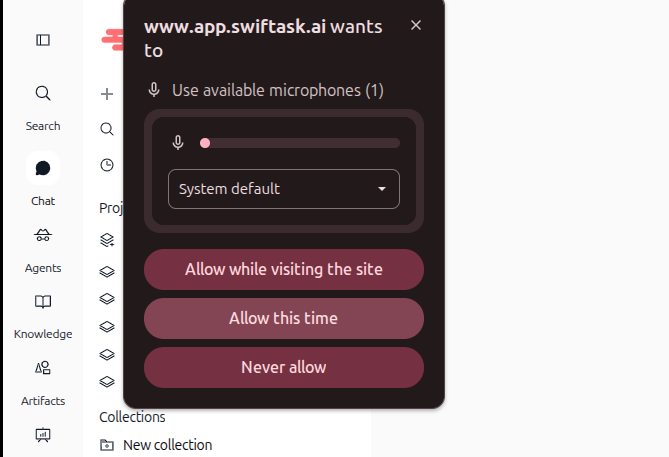
Microphone access granted in your browser. If you haven't granted permission yet, a browser popup will appear asking you to allow microphone access when you first click the wave icon.
Supported browser with Web Audio API support (Chrome, Firefox, Safari, Edge).
Step-by-step guide
Accessing voice chat
Open your agent in the chat interface.
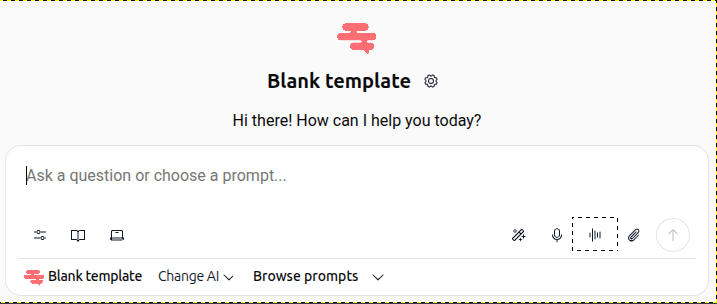
Locate the wave icon in the message input area at the bottom right of the chat box.
Click the wave icon to activate voice mode.
If you haven't granted microphone permission yet, your browser will display a popup asking for access. Select "Allow while visiting the site" or "Allow this time" to proceed.
The voice conversation flow
Connecting phase:
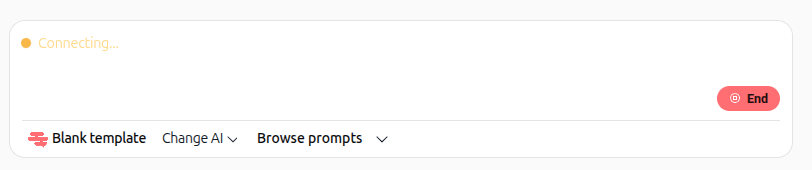
When you click the wave icon, the agent initiates a connection. You'll see an orange "Connecting…" indicator. This phase lasts only a few milliseconds.
Speak now (ready to listen):
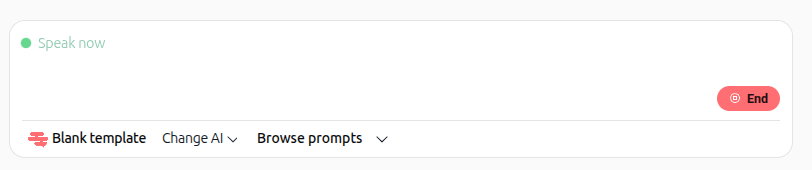
A brief beep sound plays, and the status changes to green "Speak now." This means the agent is ready to receive your voice input. The beep confirms the connection is active.
Listening phase:
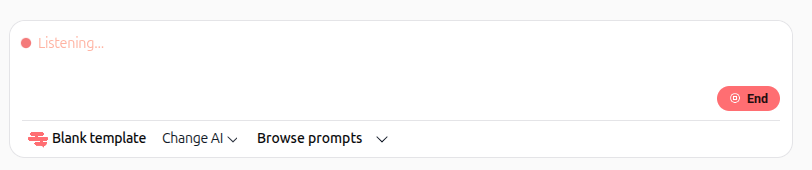
Begin speaking your question or request. The status displays red "Listening…" while the agent captures your audio. Speak naturally and clearly; the agent will transcribe your words in real time.
Thinking phase:
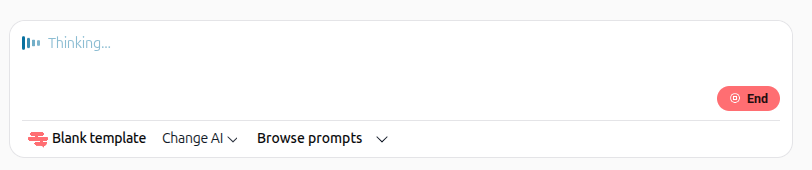
Once you stop talking, the status changes to blue "Thinking…" The agent transcribes your speech and prepares a response.
Transcription display:
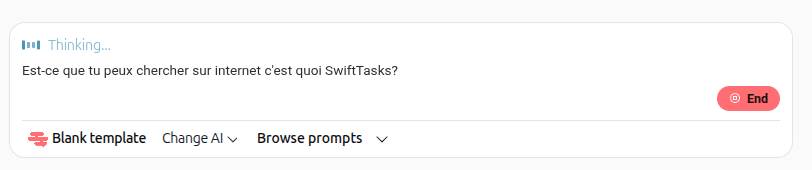
Below the status, you'll see your question transcribed as text. This confirms the agent understood your input correctly.
Response phase:
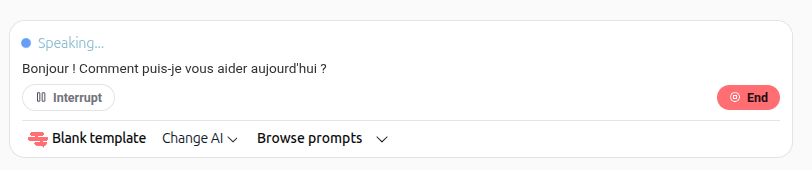
The agent responds with both text and voice. The status shows blue "Speaking…" as the agent delivers its answer aloud. You can read the response text while listening.
Interrupting the agent
You can also interrupt naturally by speaking while the agent is talking. The agent will detect your voice, stop its current response, and switch back to listening so you can continue the conversation without needing to click the button.
If you need to stop the agent mid-response (for example, to clarify or ask a follow-up question), click the "Interrupt" button that appears during the response phase. This immediately stops the voice output and returns the agent to the listening state.
Configuring agent voice
Access the voice configuration
Open your agent's settings.
In the "More options" menu on the left, select "Voice agent" (marked as NEW).
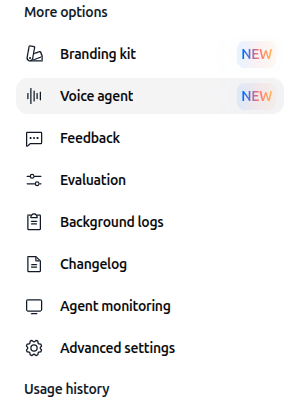
You'll be taken to the Voice Configuration page.
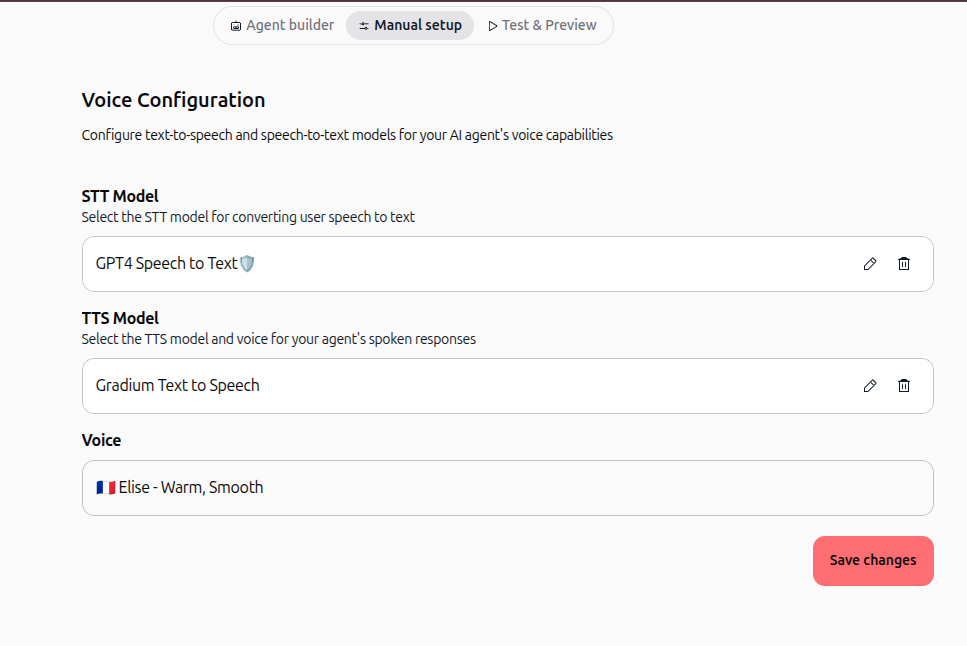
Configure the STT model (speech-to-text)
In the "STT Model" section, click the dropdown menu.
Select your preferred speech-to-text model from the available options:
Gradium Speech to Text
WhisperX Speech to Text (supports multiple languages)
Mistral - Voxtral Transcription
AssemblyAI Speech to Text
GPT4 Speech to Text
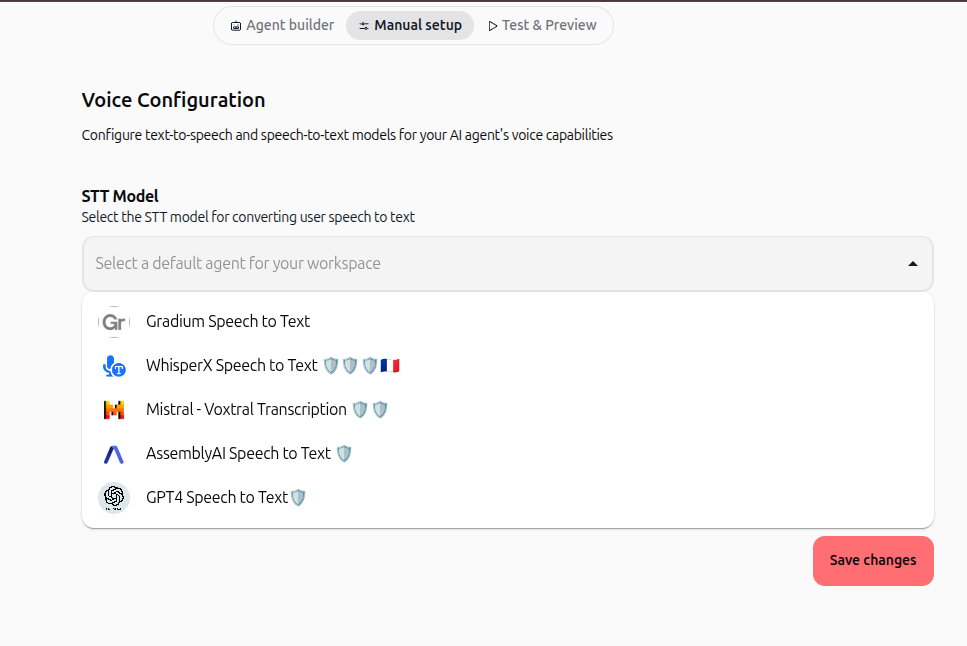
Choose based on accuracy needs and language support. WhisperX and GPT4 models offer broader language support.
Configure the TTS model (text-to-speech)
In the "TTS Model" section, click the dropdown menu.
Select your preferred text-to-speech model:
ElevenLabs Text to Speech
Gradium Text to Speech
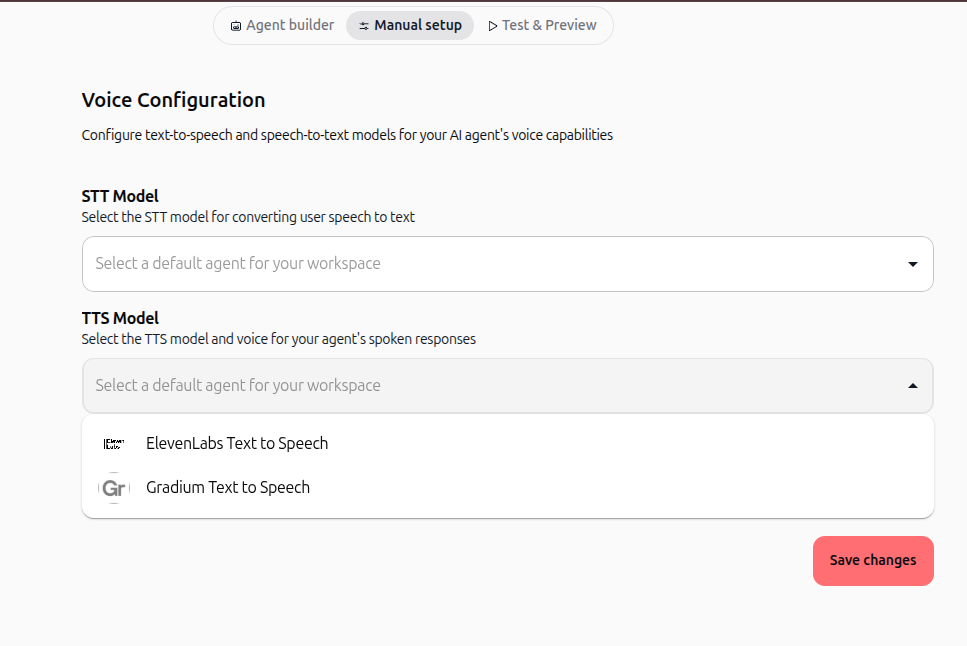
Select a voice
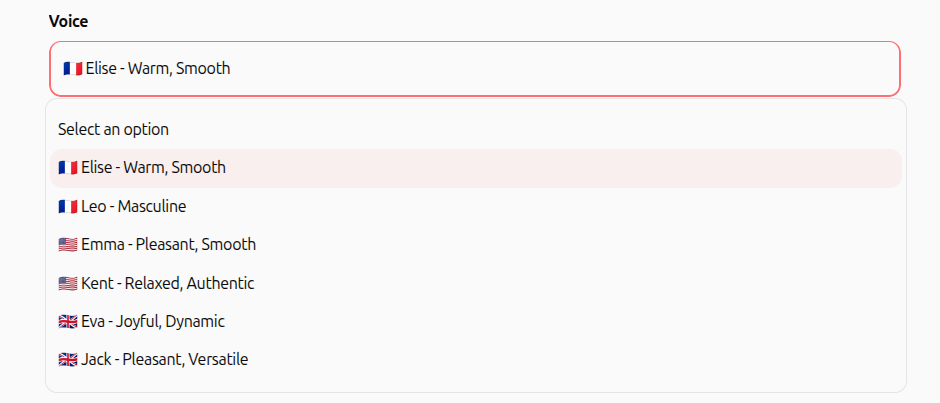
In the "Voice" section, click the dropdown to view available voices for your chosen TTS model.
Select a voice. Options vary by TTS model. For example, ElevenLabs offers voices like:
Elise - Warm, Smooth
Leo - Masculine
Emma - Pleasant, Smooth
Kent - Relaxed, Authentic
Eva - Joyful, Dynamic
Jack - Pleasant, Versatile
Click "Save changes" to apply your configuration.
Practical use cases
Customer support agent:
A support agent configured with voice can greet customers, answer common questions, and provide troubleshooting steps entirely through voice. Users can call or chat and receive spoken guidance without typing.
Accessibility:
Users with visual impairments or mobility challenges benefit from voice-only interaction. They can ask questions and receive answers without relying on text or manual input.
Multitasking:
While working on other tasks, you can speak to your agent hands-free. Ask for information, request calculations, or get summaries without switching focus or typing.
Language learning:
A language tutor agent with voice capabilities can speak phrases, correct pronunciation, and have natural conversations. Learners hear native pronunciation and can practice speaking in real time.
Tips & best practices
Speak clearly: Use a normal conversational tone. The STT model works best with clear, natural speech.
Use short requests: Break complex questions into smaller parts for better transcription accuracy.
Choose voices that match your use case: Select a professional voice for business agents and a friendly voice for casual assistants.
Test your microphone: Ensure your browser has microphone permissions and your device's mic is working before starting.
Interrupt strategically: Use the interrupt button if the agent misunderstood your question, saving time versus waiting for a full response.
Select language-aware STT models: If your users speak multiple languages, choose WhisperX or GPT4 Speech to Text for better multilingual support.
Troubleshooting
Issue: "Connecting…" state hangs or takes too long.
Cause: Network latency or browser connection issue.
Fix: Refresh the page and try again. Check your internet connection.
Issue: Microphone not detected or "Microphone access denied" error.
Cause: Browser permissions not granted or microphone not connected.
Fix: Check your browser's microphone permissions (usually in the address bar). Ensure your device's microphone is plugged in and functional.
Issue: Agent doesn't understand my speech (poor transcription).
Cause: Background noise, unclear speech, or STT model mismatch.
Fix: Reduce background noise, speak more clearly, or switch to a more advanced STT model (e.g., GPT4 or WhisperX).
Issue: Voice output sounds robotic or unnatural.
Cause: TTS model or voice selection doesn't match your preference.
Fix: Try a different TTS model or select a different voice from the configuration page.
Issue: Agent response is very slow.
Cause: STT transcription or TTS generation taking longer than expected.
Fix: Check your internet connection. Consider switching to faster STT/TTS models if available.
Additional resources
Agent configuration guide – Learn how to set up your agent's core settings.
Chat interface overview – Explore other features available in the chat window.