🔐 Enforce SAML Authentication in Your Workspace — Update June 16, 2026
Take control of enterprise security, one login at a time.
We're excited to introduce a new security setting that lets workspace admins enforce SAML authentication across their organization. If your team relies on corporate identity providers like Azure AD or Okta, you can now require all new users to sign in through your enterprise SSO, eliminating password-based access for those accounts.
Enforce SAML authentication
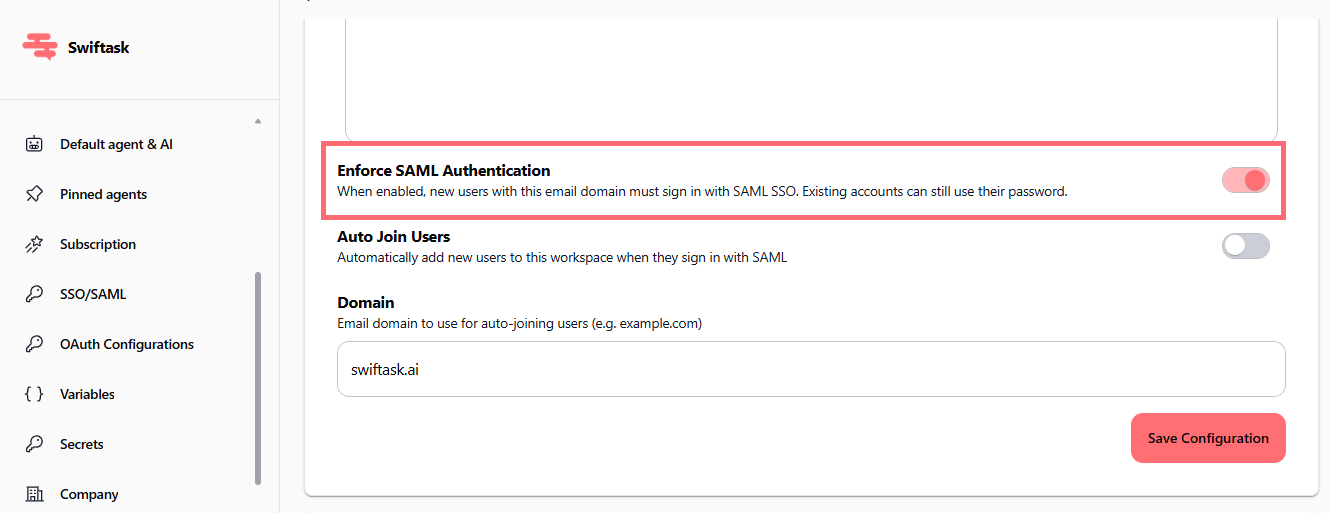
Admins can now toggle on "Enforce SAML Authentication" to mandate that all new users with your configured email domain sign in exclusively through your identity provider. This prevents password-based logins for those accounts and keeps your enterprise access tightly controlled.
How it works:
When enabled, new users with email addresses matching your configured domain must authenticate via SAML SSO
Existing users can continue using their current password (no forced migration)
All users, new or existing, must authenticate to access Swiftask (no session persistence without login)
Works seamlessly with your existing SAML configuration
Where to find it:
Navigate to Workspace settings → SSO/SAML and toggle "Enforce SAML Authentication" on. You'll see a clear red banner confirming the setting is active.
Plan availability:
Available on Team Growth, Team Starter, and Custom plans (same as SSO/SAML configuration)
How to test it
Enable the setting:
Go to Workspace settings → SSO/SAML
Toggle "Enforce SAML Authentication" on
Confirm your email domain is set (e.g.,
company.com)Click "Save Configuration"
Test with a new user:
Invite a team member with an email matching your configured domain
Have them attempt to log in with their email and password
They should see a SAML SSO login option instead
Confirm they can authenticate through your identity provider
Verify existing users:
Log in with an existing account that has a password
Confirm access still works (backward compatible)
Note that they'll still need to authenticate each session
Check the Auto Join setting (optional):
If "Auto Join Users" is enabled, new SSO users are automatically added to your workspace
If disabled, admins must manually invite users
Why this matters
Enforcing SAML authentication gives your organization:
Stronger security: Corporate identity provider controls authentication, not individual passwords
Centralized access control: Manage user access through your identity provider
Compliance ready: Meets enterprise security requirements for regulated industries
Backward compatible: Existing users can keep using their passwords; new users follow the new rule
No disruption: Roll out gradually without forcing immediate changes
Ready to secure your workspace?
Navigate to Workspace settings → SSO/SAML and enable "Enforce SAML Authentication" today.