April 21st, 2026
We've shipped five powerful improvements that give your agents more intelligence, more control, and better efficiency. From thinking deeper to routing smarter, here's what's new.
Reasoning effort configuration lets you control how much analysis your agent performs before responding. Set the thinking level to Low, Medium, or High to balance speed, quality, and credit usage.
Low: Fast responses, minimal analysis, perfect for simple questions and quick replies
Medium: Balanced analysis, ideal for most tasks
High: Deep reasoning, best for complex problems, detailed analysis, and nuanced decisions
Higher thinking levels increase token consumption per message, so your credits are used faster. This is particularly useful for advanced reasoning tasks where depth matters more than speed.
Find it at: Agent settings → Agent Instruction → LLM → Reasoning effort
Compatible with: Anthropic Claude models (4.5, 4.7 series) and equivalent advanced reasoning models
Available on: All plans
How to test it: Open an agent, set reasoning effort to High, ask a complex analytical question, and observe the deeper reasoning in the response. Then compare with Low setting to see the difference.

Improved chat welcome interface is now centered and more immersive, making it easier to navigate between agents and access pinned agents at a glance. Perfect for admins who want to pin their most-used agents while changing the default agent to something other than Swiftask.
The centered layout eliminates sidebar clutter and puts your agents front and center, so switching between specialized agents (content writer, data analyst, customer support) is faster and more intuitive.
Available on: All plans
How to test it: Go to Chat, pin 2–3 of your favorite agents, then change the default agent. Notice how the pinned agents are now more visible and easier to access.

Auto mode (beta) is intelligent LLM routing that lets you define multiple models and automatically routes each user question to the best model for the task. Save credits by using economical models for simple questions and advanced models only when needed.
How it works:
Define multiple LLM options in your agent configuration
Set routing criteria based on question complexity and type (e.g., "Use Gemini Flash for simple questions, Claude for analysis")
The system analyzes each user query and automatically selects the most cost-effective model
Users can pin a specific model for the session if they prefer consistency
The routing is transparent and automatic, no special prompts needed. But you can influence behavior by specifying task priorities in your agent instructions.
Find it at: Agent settings → Agent Instruction → LLM auto mode settings
Example: Route simple FAQ questions to a fast, economical model (saving credits), while routing complex analysis to a powerful model only when needed.
Available on: All plans
How to test it: Enable Auto mode, define 2–3 models with different rules, then ask your agent a simple question and a complex one. Watch as it routes each to the appropriate model.

Diagram creation in Artifacts lets your agent generate flowcharts, sequence diagrams, mind maps, and other visual structures directly in your artifacts. All diagrams are fully editable : modify colors, text, layout, and connections right in the artifact after generation.
Perfect for:
Visualizing processes and workflows
Creating org charts and hierarchies
Mapping out project timelines and dependencies
Documenting system architecture
Your agent detects visualization requests in your prompts and automatically generates structured diagrams. The diagrams render in an interactive, editable format (Mermaid-style), so you can tweak them without regenerating.
Find it at: Artifacts → Create new diagram → Choose an AI agent
Available on: All plans
How to test it: Ask an agent "Create a flowchart of our customer onboarding process" and watch it generate an editable diagram. Then click on the diagram to modify colors, add steps, or reorganize the flow.

Enhanced IMAP/SMTP email handling improves how your agents manage email workflows. Sent folders are now synchronized bidirectionally, and threading keeps conversation context intact throughout long email exchanges.
What's improved:
Sent folder sync: Your sent emails are automatically synchronized between Swiftask and your email client
Threading: Long email conversations stay grouped together, preserving context and preventing lost information
Seamless integration: Works with Gmail, Outlook, and other IMAP/SMTP providers
No impact on triggers: Agent email triggers (Trigger from Outlook, Trigger from IMAP) continue to work exactly as before
This is especially useful for agents handling customer support, sales follow-ups, or any workflow where email context matters.
Available on: All plans
How to test it: Set up an agent with email skills, send a series of emails back and forth, and verify that the conversation thread stays intact and sent emails appear in both Swiftask and your email client.
For reasoning effort: Start with Medium for most tasks. Use High only for complex analytical work where depth matters more than speed, since it consumes more credits.
For Auto mode: Define clear, simple rules (e.g., "Use Gemini Flash for questions under 50 words, Claude for longer analysis"). Test with real questions to ensure routing matches your expectations.
For chat navigation: Pin your 3–5 most-used agents. This keeps your workspace focused and makes switching between specialized agents instant.
For diagram creation: Use specific language in your prompts ("Create a flowchart of...", "Show me the sequence diagram for..."). The more structured your request, the better the diagram.
For email workflows: Always enable threading in your email skills to preserve conversation context. This prevents miscommunication and keeps your audit trail clean.
Ready to upgrade your agents? Start with Auto mode to optimize credit usage, then use reasoning effort for your most complex tasks. Your agents are now smarter and more efficient.
April 16th, 2026

As a reminder, Swiftask lets you integrate your agents with over 3,000 external tools and services, everything from CRM systems like Salesforce and HubSpot to communication platforms like Slack, email services, databases, and custom APIs. Today, we're making that integration process faster and more reliable.
We've added a "Test connection" button that lets you validate your integrations are properly configured before saving them to your agents. No more failed deployments due to connection issues.
When you test a connection, you'll see either a success confirmation with a complete list of available tools the integration can perform, or a detailed error message telling you exactly what went wrong, so you can fix it right away.
Where to find it:
Adding a new skill: Skills → Add Skills → Search and configure your tool (e.g., Odoo, LinkedIn) → Click "Test connection" button before saving

Editing an existing skill in an agent: Open the agent → Scroll to the skill → Open its details and scroll down → Click "Test connection" button next to Save

What you'll see:
✅ Connection successful: Green confirmation badge + list of available tools (e.g., "21 tools" for LinkedIn with specific actions like retrieve comments, create posts, etc.)
❌ Connection failed: Red error banner with the exact reason (e.g., "Could not connect to Odoo server — check your credentials")
Availability: All plans (Team, Pro, Team Starter, Team Growth, Custom)
Go to Skills → Click Add Skills
Search for and select an integration (e.g., Odoo, LinkedIn)
Fill in the required configuration fields (Base URL, Database Name, Username, Password, etc.)
Click "Test connection" button at the bottom
See the result: either a success message with available tools, or an error you can fix
Once confirmed, click Save to add the skill to your agent
Ready to explore the full library of 3,000+ integrations? Log in to your workspace, navigate to Skills, and browse the catalog. Every integration can now be tested before deployment, giving you confidence that your agents will work exactly as expected.
April 15th, 2026

We have enhanced the agent testing experience by making the chat panel resizable directly from the admin screen.
You can now adjust the width of the test chat panel by dragging the divider between the agent configuration and the chat interface. Give yourself more space to test your agents or keep a full view of the configuration, you decide.
What You Can Do:
Drag the divider to widen or narrow the chat panel
Test your agents with more space to read complete responses
Keep the configuration visible while having a better view of the test
Access this feature directly from the agent editing screen
Where to Find It: Agents → Select an agent → Click the pencil icon to edit → The resizable divider appears between the left panel (configuration) and the right panel (chat test)
How to Test:
Go to the Agents section in the sidebar
Open an existing agent or create a new one
Click the pencil icon to access the configuration screen
Look for the vertical gray divider between the configuration panel and the chat panel
Hover your mouse over the divider, the cursor changes to indicate it’s resizable
Click and drag left or right to adjust the chat panel width
Test your agent with more (or less) space based on your needs
✅ More Flexibility: Adapt the testing space to your workflow
✅ Better Readability: Read complete responses without excessive scrolling
✅ Immediate Access: No configuration needed, it’s ready to use
✅ Available for Everyone: All Swiftask access plans included
April 13th, 2026
Three focused improvements that cut through the noise: better visibility into what your agents are doing, smarter knowledge organization, and faster agent discovery. Everything you need to work with confidence.
Interpretability in Chat shows you exactly what your agent is doing as it happens. See the workflow, skill chains, API calls, and how inputs flow through each step. No more waiting for the agent to finish, you watch the progress unfold.
View agent workflow and skill execution step-by-step
See how inputs are processed and used
Watch API calls and data flow in real-time
Understand what your agent is doing at each moment
This gives you better visibility and confidence in your agents' decisions, without waiting for completion.

You can now attach knowledge sources directly to projects. Every chat within that project automatically has access to the same centralized knowledge, giving everyone context without duplication.
Attach knowledge sources to projects
All project chats access shared knowledge automatically
Better context for team collaboration
No need to manually add knowledge to each chat
Find it at: Project settings → Knowledge → Add knowledge sources

Workspace admins can now pin agents to the Chat home screen. Your team sees your most-used agents right away : no searching, no hunting.
Pin agents to Chat home for easy discovery
Help your team find the right agent instantly
Organize your enterprise agent shelf
Available to all workspace members
Find it at: Admin settings → Pin agents to Chat home

LLM configuration now has its own dedicated menu. No more digging through mixed settings, everything related to your model is in one place.
Find it at: Agent configuration → LLM settings

Start by pinning your most-used agents, then explore the Chat selector to see how fast you can switch between AI models. Watch the interpretability panel next time you run a complex task, you'll see exactly how your agent thinks.
April 10th, 2026

We've shipped five powerful tools to help you scale AI safely. Whether you're managing a fleet of agents across your organization, keeping your brand consistent, or making sure nothing breaks in production—this update gives you the control you need.
Branding kit lets you define your brand once and apply it automatically to every agent. Upload your logo, colors, fonts, tone guidelines, and brand rules to your workspace, then attach or remove them per agent with a single click. When you update a brand resource, it updates everywhere—no manual reconfiguration needed.
Create brand resources once at the workspace level (logos, colors, fonts, voice guidelines, photos, rules)
Attach or remove resources per agent instantly
Changes propagate to agent system prompts within 5 minutes
Requires WORKSPACE_MANAGE_BRANDING_KIT permission
Available on all plans
Find it at: Workspace settings → Brand identity
How to test it: Create a workspace branding resource (e.g., add your company logo), attach it to an agent, and ask the agent to create a slide or document. You'll see your brand applied automatically.

Admin workspace – 360° user usage view gives you complete visibility into every team member's activity, agents, and credit consumption in one place. No more hunting through logs or asking "who created that agent?" or "which LLMs is this person using?"—it's all there.
For each member, you can instantly see:
Join date, last login, credit limit, group memberships, and all permissions
Every agent they've created and the LLMs they're using
Real-time credit consumption and activity history
Associated projects and roles
Find it at: Workspace settings → Members → click the eye icon on any member
Availability: Team Starter, Team Growth, and Tailored/Enterprise plans (admins only)
How to test it: Go to your Members section and click the eye icon next to a team member's name. Explore their profile, agent list, and usage data.

Agent credit monitoring lets you set a custom credit threshold for each agent and get notified in-app when usage approaches that limit. Perfect for production agents, public widgets, or any agent you want to keep under control.
Set any credit limit per agent
Get in-app alerts as usage approaches your threshold
Monitor each agent independently
Available on all plans
How to test it: Open an agent, go to its monitoring settings, set a credit limit, and simulate usage to trigger an alert.

Lock agent is a one-click way to protect production agents from accidental changes. When locked, only owners and admins can modify the agent's prompt, skills, data sources, sharing, or any other configuration—but everyone can still use the agent in chat.
Toggle lock on or off at the top of any agent page
Only owners and admins can unlock
All settings are protected: prompt, skills, data sources, sharing, duplication, and more
No impact on usage, credits, or performance
Available on all plans
Find it at: Agent page → top section → "Lock agent" toggle (next to Share and "Use this agent")
How to test it: Open an agent you own, turn on the Lock agent toggle, then try to edit it as a regular user—you'll see a message asking you to contact the owner.

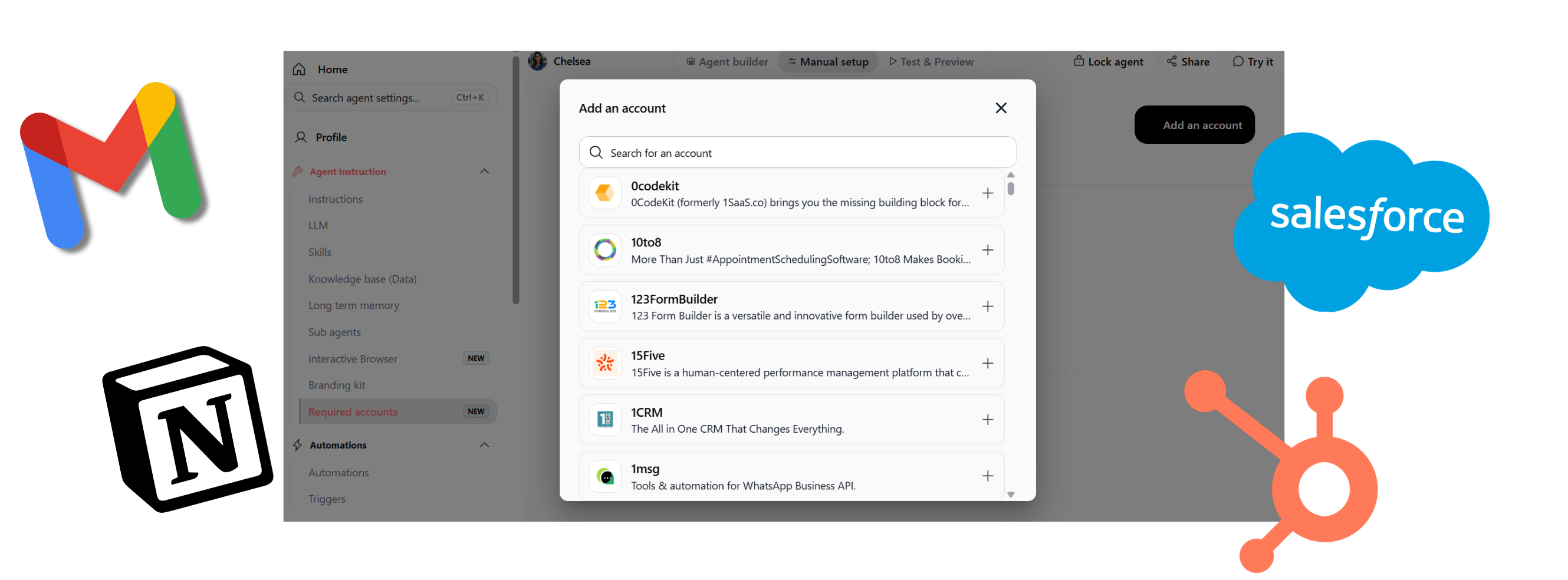
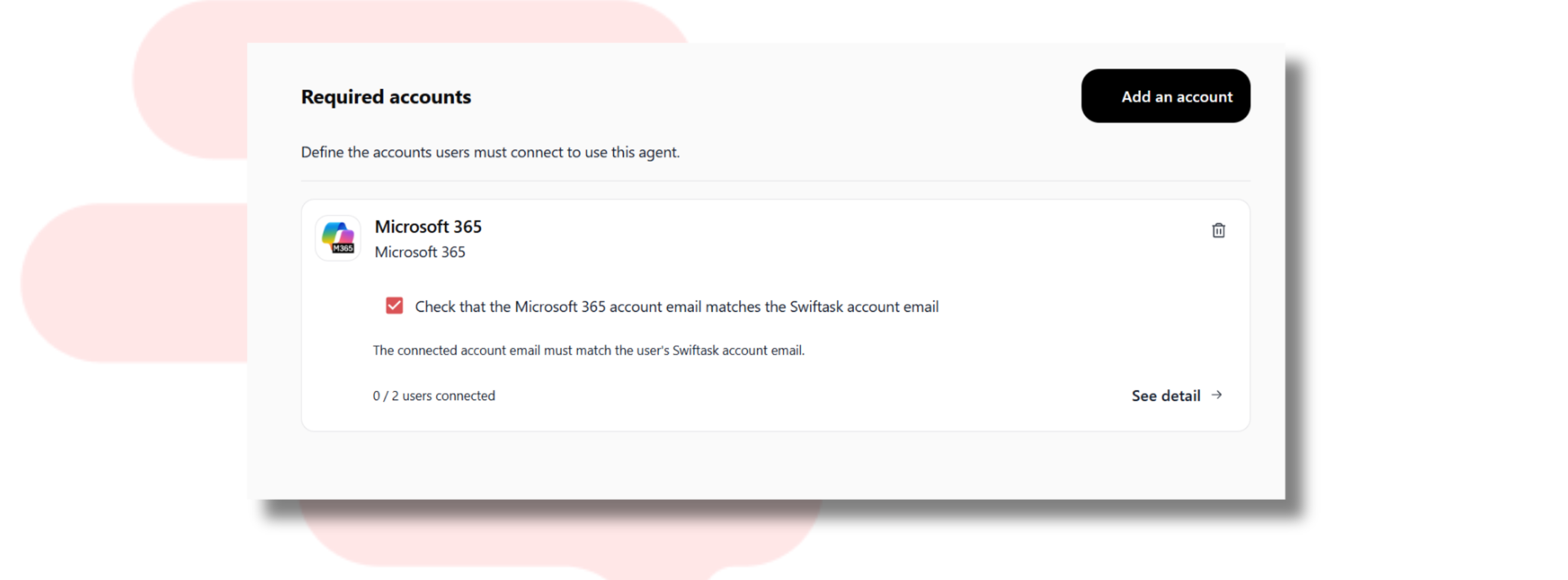
Require user's own account is a toggle on external agent skills that ensures each person uses their own Gmail, Slack, Google Drive, or calendar account instead of sharing yours. No more credential sharing, full audit trails, and complete privacy.
When you enable this toggle:
Each user authenticates with their own account the first time they use the agent
Personal data (emails, files, calendar events) stays on their account
Every action is traceable to the person who performed it
Users can only access what their own account permissions allow
Find it at: Agent → Skills → Edit any external skill → "Require user's own account" toggle
Works with: Gmail, Google Drive, Slack, Outlook, Microsoft Teams, Google Calendar, Outlook Calendar, and all external service integrations. Available on all plans.
How to test it: Create an agent with a Gmail skill, enable the toggle, share it with a colleague, and have them authenticate with their own Gmail account. Send a test email through the agent and verify it came from their account, not yours.

These five features work together to give you governance, visibility, and control at scale:
Use branding kit to keep all agents consistent
Use admin visibility to monitor who's building what
Use credit alerts to prevent runaway costs
Use agent lock to protect production configurations
Use per-user auth to maintain security and accountability
All available on all plans. No surprises, no lock-in.
For brand consistency: Start with a core set of resources (1 logo, 2–3 colors, 1 voice description, 1 key guideline). You can always add more. Remember to name resources clearly ("Main logo," "Brand blue #0066CC") so they're easy to find.
For admin oversight: Review your members list quarterly. Check credit usage weekly to spot unusual patterns. Keep at least two admins to prevent lockout.
For production safety: Lock agents after major updates. Communicate with your team that locked agents require owner approval for changes. Unlock temporarily when broad edits are needed, then re-lock when stable.
For security: Always require user's own account when sharing agents with external integrations. This prevents credential sprawl and keeps your audit trail clean.
Branding kit changes to agent system prompts are cached for up to 5 minutes. After attaching or removing a resource, allow this delay before fully testing the agent's response.
The "Require user's own account" toggle applies uniformly to all recipients. If you need different behaviors, create separate agent versions.
Agent locking can be triggered programmatically via the setBotLocked mutation (API). Only owners and admins should call it.
Admin 360° view is available only on Team plans and above; Free and Pro plan workspaces have basic member management only.
Ready to lock down your governance? Start with branding kit to unify your agents, then use admin visibility to track activity, credit alerts to manage costs, agent lock to protect production, and per-user auth to keep security tight. Your fleet is now under control.
April 3rd, 2026

Your SSO credentials now work on mobile.
We're excited to announce that enterprise teams can now authenticate using SSO directly from the Swiftask mobile app. If your organization uses Single Sign-On (SAML via Azure AD, Okta, or other identity providers), you can now sign in from iOS with your corporate credentials—no workarounds, no separate passwords.
Enterprise users with SSO-enabled workspaces can authenticate using their organization's identity provider directly from the mobile app. The mobile app now respects your workspace's SSO configuration, giving you the same seamless, secure login experience you have on the web.
Supported identity providers: Azure AD, Okta, and any SAML 2.0-compliant identity provider
Seamless integration: Uses your existing workspace SSO setup—no additional configuration needed
Available on: All Swiftask plans
Find it: Login screen → Sign in with SSO option (appears automatically if your workspace has SSO enabled)
We've redesigned the entire login experience to be quicker and more intuitive. Whether you're signing in with email, OAuth (Google/Microsoft), or SSO, the process is now streamlined for speed and reliability.
Improved stability and performance across the mobile app
Fixed minor issues affecting login reliability
Enhanced overall app responsiveness on iOS
Update to iOS v1.0.24 from the App Store
Open Swiftask on your iPhone
At the login screen, if your workspace has SSO enabled, you'll see a "Sign in with SSO" option
Tap it and authenticate with your corporate credentials
You're in — no additional setup required
SSO configuration is managed at the workspace level. If your organization isn't using SSO yet and you'd like to enable it, visit Workspace administration → SAML Configuration to get started. Once configured, all team members can authenticate via SSO on both web and mobile.
For detailed setup instructions, see the SSO/SAML documentation.
Available on: All Swiftask plans (Pro, Team Starter, Team Growth, and Custom)
April 1st, 2026

Good news: analyzing your Excel, CSV, or JSON files now costs a lot less. We've optimized the Python skill to use fewer credits while keeping all its power. More analyses, fewer expenses.
Every time you upload a file and request an analysis, the AI uses fewer credits. It's straightforward: you get more analyses with the same budget.
Reduced consumption across all data analyses
No limits: analyze as many files as you want
Same results: charts, stats, insights — nothing changes except the price
You can now ask the AI to create Excel files right away — perfect for exporting analyses, building reports, or sharing processed data.
Just say: "Create an Excel file with a summary by region and a chart"
Grab the file instantly in the chat with a download link
No more copy-pasting or manual data wrangling
If something goes wrong, the AI fixes the issue without regenerating the whole code. Result: fewer wasted credits, more speed.
Open a chat with an agent
Click the + icon to add the Python: Code + Upload + Visualization skill
Upload your file (Excel, CSV, JSON, etc.)
Request an analysis: "Analyze this file and give me the key figures"
Or ask for an export: "Create an Excel with the summary by category"
The generated file shows up right away — download it in one click.
Analyze sales data → get a chart + an Excel with totals by region
Process a contact list → generate a cleaned and sorted Excel file
Summarize results → create a report with tables and charts
Compare periods → get visualizations and ready-to-share export files
Tip: With this optimization, now's the perfect time to automate your regular data analyses. Save time and cut costs on credits.
April 1st, 2026

We're excited to announce two powerful new tools for working with PDFs: a dedicated PDF Search & Replace skill and a ready-to-use Brad - PDF anonymization agent template. Together, they make it easy to find and replace text while protecting sensitive data.
Find and replace text in PDF files while keeping your original formatting intact. Whether you're updating placeholders, correcting information, or preparing documents for distribution, this skill handles the work automatically.
Provide the PDF URL, specify the strings to search for and their replacements, and the processed PDF is uploaded to cloud storage with a download link returned instantly.
Available on all plans
No file size limits
Processed PDFs uploaded to S3 with instant download links
Preserves original PDF formatting during replacements
Where to find it: Skills → Search "pdf" → PDF Search & Replace
How to test it: Add the skill to any agent, then ask it to search and replace text in a sample PDF. For example: "Search for [PLACEHOLDER] in this PDF and replace it with [ACTUAL_VALUE], then give me the download link."
Protect sensitive information automatically. Brad is a pre-configured agent template that detects and removes all personally identifiable information (PII) from PDF documents in seconds.
Upload a PDF containing names, contact details, financial information, or any other sensitive data. Brad analyzes the document, identifies all PII, removes it, and returns a clean, anonymized PDF ready to share or archive.
Detects all types of PII (names, emails, phone numbers, addresses, financial data, and more)
Available on all plans
No file size limits
Returns anonymized PDF as a downloadable file
Ready-to-use template — no configuration needed
Where to find it: Agents → Create Agent → From Template → Brad - PDF Anonymization

How to test it:
Go to Agents and click "Create Agent"
Select "From Template"
Search for and select "Brad - PDF Anonymization"
Choose "Clone and test" to use it immediately
Upload a PDF with sensitive information
Brad will process it and return the anonymized version as a download
These tools solve a real problem: managing sensitive documents at scale. Whether you're preparing contracts for external review, sharing reports while protecting privacy, or automating document workflows, you now have enterprise-grade PDF handling built into your agent fleet.
Available now on all Swiftask plans. No additional setup or configuration required.
Ready to try it? Create a new agent from the Brad template or add the PDF Search & Replace skill to your existing agents. Both are available immediately in your workspace.
April 1st, 2026

Looking for the perfect model for your AI agents? We've just added two new Claude models via AWS Bedrock: a champion of value for money, and a beast of raw power.
You get near-Opus power at the same price as Sonnet 4.5. Perfect for agents that demand serious reasoning without breaking the bank.
Pricing: 3/3 /3/15 per million tokens (input / output)
Capabilities: Extended thinking, web automation (computer use), image analysis, up to 1M token context
Ideal for: Complex autonomous agents, full code generation, strategic analysis of large documents
Key benefit: Cut your AI infrastructure costs by 40% compared to Opus, without sacrificing quality
Anthropic's most powerful model. Use it when reasoning quality is non-negotiable and you're tackling critical or highly complex tasks.
Capabilities: Maximum reasoning, ultra-precise instruction following, handling complex edge cases
Ideal for: Critical tasks, multi-step problems, analyses where precision makes the difference
Key benefit: Zero compromise on quality — Anthropic's most capable model

In your agents:
Go to Agents → Select your agent → Edit
Open the Objectives & Instructions section (or Model selection)
Click the LLM Model dropdown
Search for and select Bedrock – Claude Sonnet 4.6 or Bedrock – Claude Opus 4.6
Save
In Chat:
Open Chat
Click the model selector (top left of the input field)
Search for the model by name
Start chatting
✅ Available on all Swiftask plans (Pro, Team Starter, Team Growth, Tailored)
✅ No upgrade required
✅ All your existing agents, skills, and automations work immediately
Start with Sonnet 4.6 for your standard agent workflows — it's the best balance of power and cost. Reserve Opus 4.6 for your critical tasks where maximum reasoning precision makes the difference. This way, you optimize your budget while keeping the power where it matters most.
Claude Sonnet 4.6:
Create an agent with a complex task: code analysis, strategic synthesis, or architecture generation
Example: "Analyze this full financial report and extract the 10 most important insights"
Test multimodal capabilities: Upload an image and request a detailed analysis
Claude Opus 4.6:
Use it on a critical task where reasoning quality is essential
Example: "Identify all edge cases and error scenarios in this process flow"
Compare results with Sonnet 4.6 to see the difference in precision
Ready to deploy your agents with the best models? Open your agents now, select Claude Sonnet 4.6 or Opus 4.6, and test the power. 🎯
March 31st, 2026

We've added a powerful new way to keep data private and accountability clear when sharing agents with your team. Meet the "Require user's own account" toggle—a simple but important security feature for external integrations.
When you share an agent that uses external integrations (Gmail, Google Drive, Slack, Outlook, Microsoft Teams, or any calendar service), you can now require users to authenticate with their own accounts instead of using yours.
Here's what changes:
Each user's data stays on their account – When someone uses a Gmail skill, they use their Gmail account, not yours. Their emails, files, and actions are completely separate.
Clear accountability – Every action is traceable to the person who performed it, not to the agent owner.
Automatic permission respect – Users can only access what their own account permissions allow. No surprises, no over-sharing.
One-time setup – Users configure their account once when they first access the agent, then everything works seamlessly.
Navigate to Agents → select your agent → click the edit icon (✏️)
Go to Skills in the left panel
Click Add a skill or edit an existing external skill (Gmail, Google Drive, Slack, Outlook, Calendar, etc.)
Fill in the skill configuration form
At the bottom of the form, toggle "Require user's own account" on
Save and share your agent normally
That's it. When recipients access the agent, they'll see a "Configuration required" banner and can authenticate with one click.
Available on: All Swiftask plans
Works with: Gmail, Google Drive, Slack, Outlook, Microsoft Teams, Google Calendar, Outlook Calendar, and all external service integrations
Does not apply to: Internal Swiftask skills (only external integrations)
They open a shared agent that has this toggle enabled
A blue "Configuration required" banner appears
They click "Configure" and authenticate with their own account
They're done—the agent now uses their credentials for all external actions
Privacy first – Personal data (emails, files, calendar events) stays on the user's account
Compliance ready – Perfect for regulated industries where audit trails and individual accountability are essential
No credential sharing – You never have to share your Gmail, Slack, or calendar access with teammates
Respects existing access – If someone doesn't have permission to a resource in their own account, they can't access it through the agent either
Create or edit an agent with an external skill (try Gmail or Google Drive)
Enable the "Require user's own account" toggle
Share the agent with a test user (different account)
Log in as the test user and open the shared agent
Look for the "Configuration required" banner
Click "Configure" and authenticate
Send a test message that triggers the skill
Verify the action used the test user's credentials, not yours
Ready to share securely? Open any agent, add an external skill, enable the toggle, and share with confidence. Your team's data stays where it belongs—with them. 🔒