Smarter agents, smarter routing, smarter workflows — Mid-April 2026 Update
We've shipped five powerful improvements that give your agents more intelligence, more control, and better efficiency. From thinking deeper to routing smarter, here's what's new.
Your agents can now think deeper
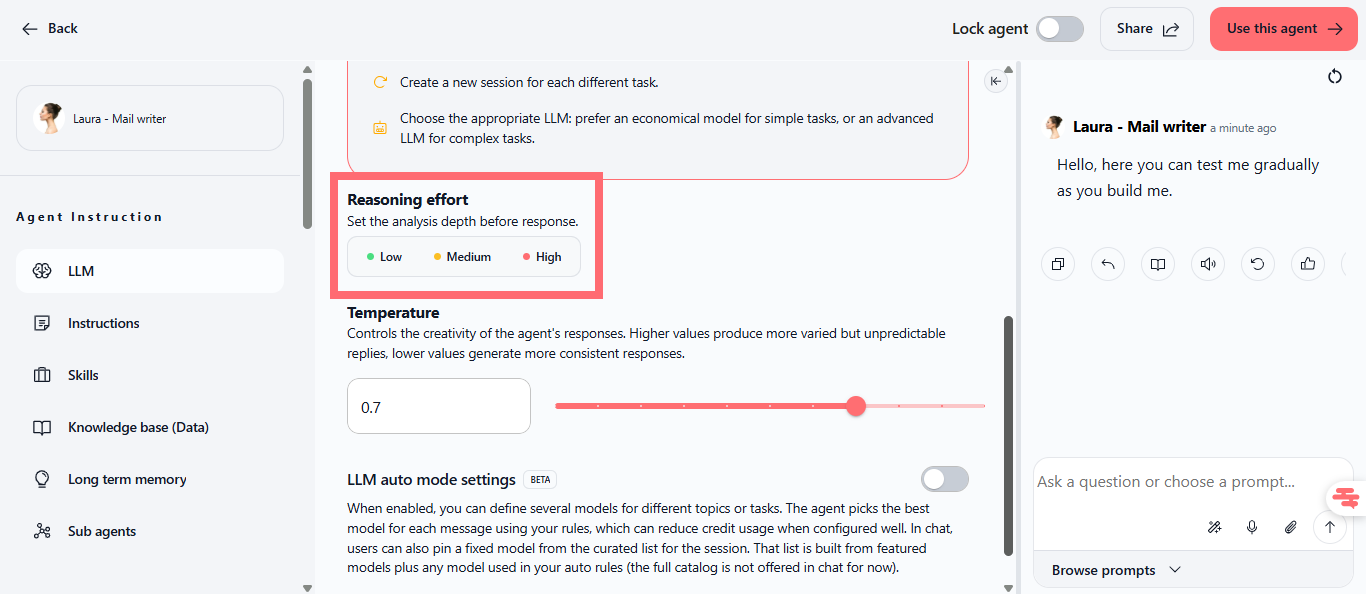
Reasoning effort configuration lets you control how much analysis your agent performs before responding. Set the thinking level to Low, Medium, or High to balance speed, quality, and credit usage.
Low: Fast responses, minimal analysis, perfect for simple questions and quick replies
Medium: Balanced analysis, ideal for most tasks
High: Deep reasoning, best for complex problems, detailed analysis, and nuanced decisions
Higher thinking levels increase token consumption per message, so your credits are used faster. This is particularly useful for advanced reasoning tasks where depth matters more than speed.
Find it at: Agent settings → Agent Instruction → LLM → Reasoning effort
Compatible with: Anthropic Claude models (4.5, 4.7 series) and equivalent advanced reasoning models
Available on: All plans
How to test it: Open an agent, set reasoning effort to High, ask a complex analytical question, and observe the deeper reasoning in the response. Then compare with Low setting to see the difference.
Chat just got cleaner and more focused
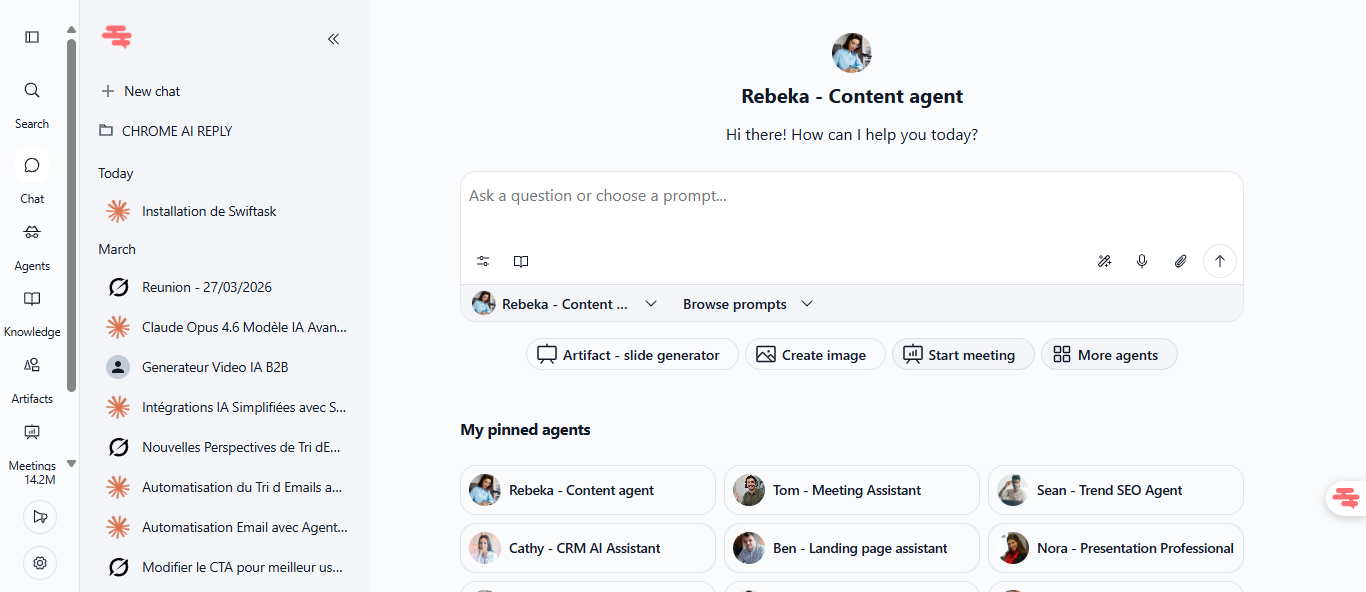
Improved chat welcome interface is now centered and more immersive, making it easier to navigate between agents and access pinned agents at a glance. Perfect for admins who want to pin their most-used agents while changing the default agent to something other than Swiftask.
The centered layout eliminates sidebar clutter and puts your agents front and center, so switching between specialized agents (content writer, data analyst, customer support) is faster and more intuitive.
Available on: All plans
How to test it: Go to Chat, pin 2–3 of your favorite agents, then change the default agent. Notice how the pinned agents are now more visible and easier to access.
Let your agents pick the right LLM for the job
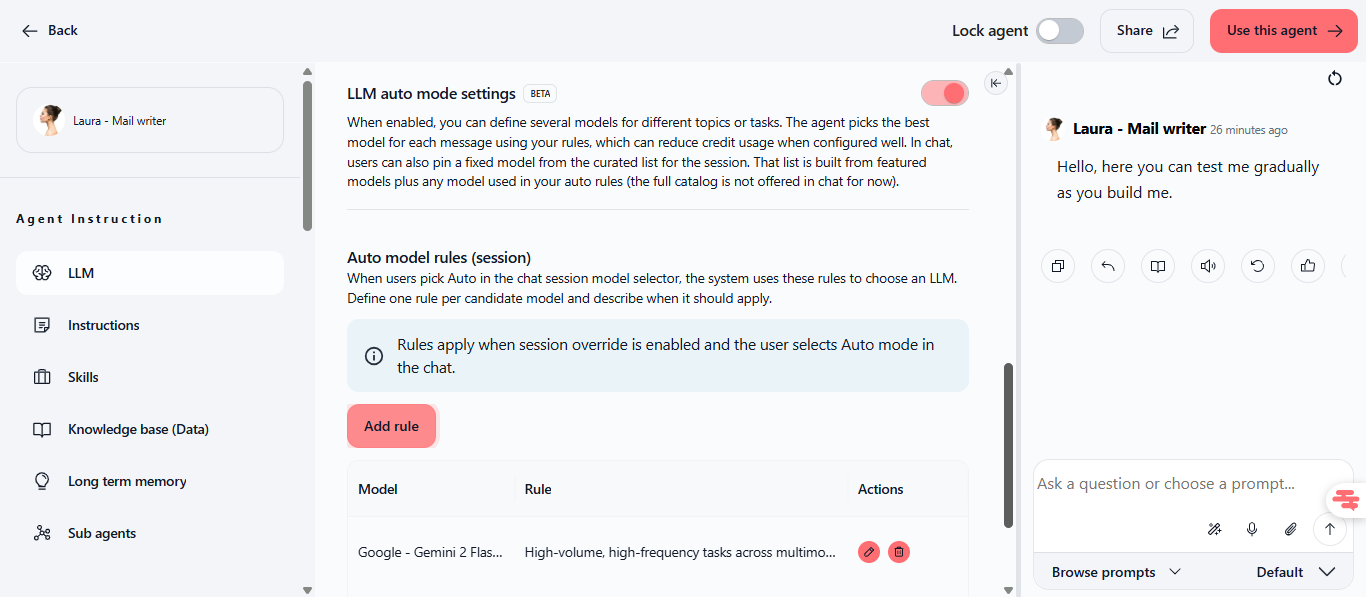
Auto mode (beta) is intelligent LLM routing that lets you define multiple models and automatically routes each user question to the best model for the task. Save credits by using economical models for simple questions and advanced models only when needed.
How it works:
Define multiple LLM options in your agent configuration
Set routing criteria based on question complexity and type (e.g., "Use Gemini Flash for simple questions, Claude for analysis")
The system analyzes each user query and automatically selects the most cost-effective model
Users can pin a specific model for the session if they prefer consistency
The routing is transparent and automatic, no special prompts needed. But you can influence behavior by specifying task priorities in your agent instructions.
Find it at: Agent settings → Agent Instruction → LLM auto mode settings
Example: Route simple FAQ questions to a fast, economical model (saving credits), while routing complex analysis to a powerful model only when needed.
Available on: All plans
How to test it: Enable Auto mode, define 2–3 models with different rules, then ask your agent a simple question and a complex one. Watch as it routes each to the appropriate model.
Your agents can now create interactive diagrams
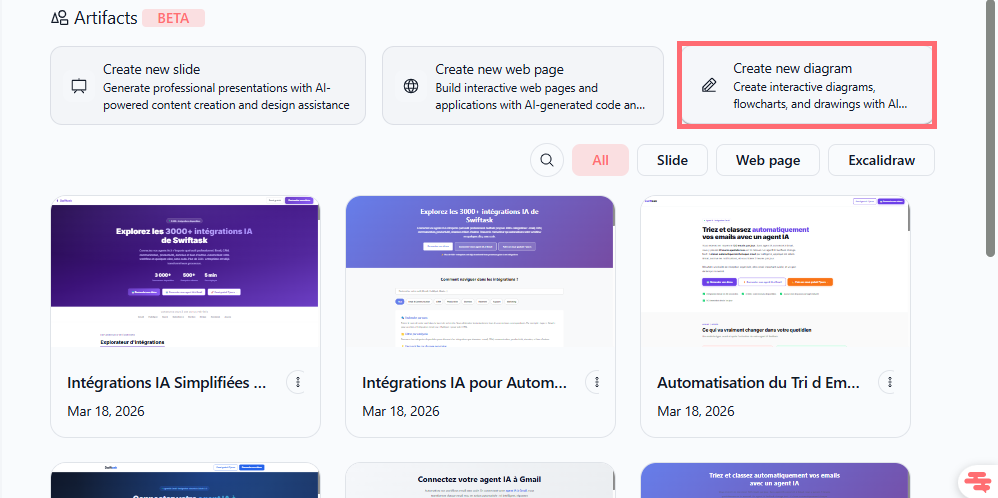
Diagram creation in Artifacts lets your agent generate flowcharts, sequence diagrams, mind maps, and other visual structures directly in your artifacts. All diagrams are fully editable : modify colors, text, layout, and connections right in the artifact after generation.
Perfect for:
Visualizing processes and workflows
Creating org charts and hierarchies
Mapping out project timelines and dependencies
Documenting system architecture
Your agent detects visualization requests in your prompts and automatically generates structured diagrams. The diagrams render in an interactive, editable format (Mermaid-style), so you can tweak them without regenerating.
Find it at: Artifacts → Create new diagram → Choose an AI agent
Available on: All plans
How to test it: Ask an agent "Create a flowchart of our customer onboarding process" and watch it generate an editable diagram. Then click on the diagram to modify colors, add steps, or reorganize the flow.
Email management just got smarter
Enhanced IMAP/SMTP email handling improves how your agents manage email workflows. Sent folders are now synchronized bidirectionally, and threading keeps conversation context intact throughout long email exchanges.
What's improved:
Sent folder sync: Your sent emails are automatically synchronized between Swiftask and your email client
Threading: Long email conversations stay grouped together, preserving context and preventing lost information
Seamless integration: Works with Gmail, Outlook, and other IMAP/SMTP providers
No impact on triggers: Agent email triggers (Trigger from Outlook, Trigger from IMAP) continue to work exactly as before
This is especially useful for agents handling customer support, sales follow-ups, or any workflow where email context matters.
Available on: All plans
How to test it: Set up an agent with email skills, send a series of emails back and forth, and verify that the conversation thread stays intact and sent emails appear in both Swiftask and your email client.
Tips & best practices
For reasoning effort: Start with Medium for most tasks. Use High only for complex analytical work where depth matters more than speed, since it consumes more credits.
For Auto mode: Define clear, simple rules (e.g., "Use Gemini Flash for questions under 50 words, Claude for longer analysis"). Test with real questions to ensure routing matches your expectations.
For chat navigation: Pin your 3–5 most-used agents. This keeps your workspace focused and makes switching between specialized agents instant.
For diagram creation: Use specific language in your prompts ("Create a flowchart of...", "Show me the sequence diagram for..."). The more structured your request, the better the diagram.
For email workflows: Always enable threading in your email skills to preserve conversation context. This prevents miscommunication and keeps your audit trail clean.
Ready to upgrade your agents? Start with Auto mode to optimize credit usage, then use reasoning effort for your most complex tasks. Your agents are now smarter and more efficient.