Meeting recording, now even smarter and more compact — June 2026 Update
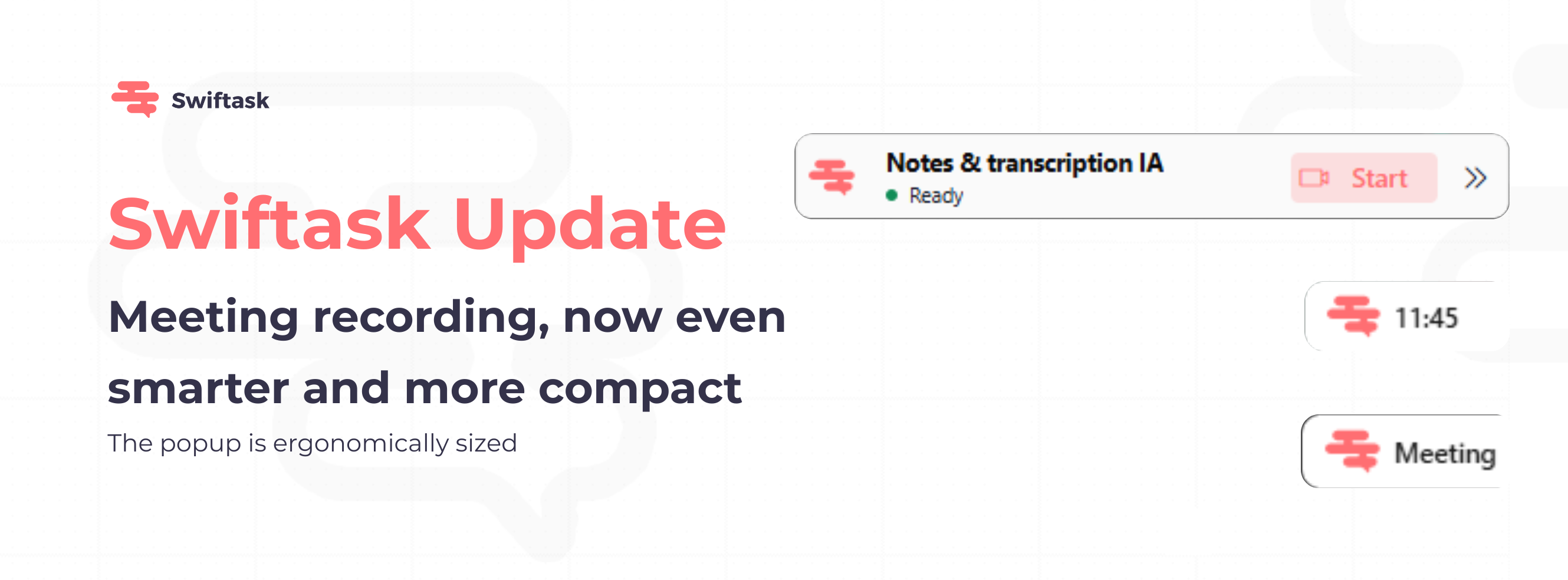
We've redesigned how you start recording meetings in the Swiftask Chrome extension. The new popup is more compact, easier to dismiss, and lets you control recording with minimal screen clutter. Whether you're on Google Meet, Teams, or Zoom, recording is now just a click away.
Smart meeting recording popup
When you join a meeting on Google Meet, Teams, or Zoom, a compact popup appears inviting you to start recording. The popup is ergonomically sized to stay out of your way while remaining visible and accessible.
Appears automatically when you join a supported meeting (Google Meet, Teams, Zoom)
Compact design: Takes minimal screen space with an ergonomic layout
Close anytime: Click the close arrow (×) to dismiss the popup if you don't want to record
Minimize to button: When dismissed, a simple button remains visible next to the Chrome extension icon (bottom-right corner)
Reopen easily: Click the button to bring the popup back at any time
Available on: All Swiftask plans (Pro, Team Starter, Team Growth, Custom)
Minimized recording timer
Once you start recording, you can minimize the popup to keep your meeting view clean. The recording timer stays visible in a compact state next to the Chrome extension icon.
Timer format: Recording duration displays in HH:MM:SS format (e.g., 00:45:23)
Always visible: See your recording time without needing to expand the popup
Ergonomic display: Clean, readable timer design that doesn't distract from your meeting
Expand anytime: Click the button to bring the full popup back if you need to stop or adjust settings
Works on: Google Meet, Teams, Zoom
How to test it
Install or update the Swiftask Chrome extension from the Chrome Web Store
Join a meeting on Google Meet, Teams, or Zoom
Observe the popup: It appears automatically after you join
Test dismissal: Click the close arrow (×) to dismiss it
Verify the button: A small button should appear next to the Chrome extension icon (bottom-right)
Reopen the popup: Click the button to bring the popup back
Start recording: Click "Record" in the popup
Minimize the popup: Click the minimize arrow to collapse it to the extension icon
Check the timer: Verify that the recording time displays in HH:MM:SS format (e.g., 00:15:30)
Test across platforms: Repeat steps 2-9 on Google Meet, Teams, and Zoom to ensure consistency
Why this matters
Less clutter: Minimize the popup to keep your meeting view focused
Full control: Dismiss or reopen recording options with a single click
Always informed: See your recording time at a glance without expanding the popup
Multi-platform: Same smooth experience on Google Meet, Teams, and Zoom
For everyone: Available on all Swiftask plans with no extra setup needed
Ready to try it? Update the Swiftask Chrome extension and join your next meeting to see the improved recording interface in action.