Overview
Written By Stanislas
Last updated 4 days ago
Overview
Chat is your gateway to AI in Swiftask. It's the default screen you land on, and the place where you ask questions, get advice, generate content, and work with specialized agents—all from one unified interface.
Chat connects you to multiple AI models and lets you switch between them instantly. You can also invoke specialized agents, attach files or knowledge, and reuse saved prompts, without leaving the conversation.
Use Chat whenever you need a quick answer, want to compare AI models, or need to bring in an agent for a more specific task.
Prerequisites
An active Swiftask account and workspace.
Access to at least one AI model or agent (availability depends on your plan).
A supported browser if you plan to use voice or microphone features.
Browser permission for microphone access if you intend to use voice input (you'll be prompted the first time).
Step-by-step guide
1. Open Chat from the side panel
Swiftask's side panel gives you quick access to every major section of the platform: Chat, Agents, Knowledge, Artifacts, Meetings, and Projects.
Click the Chat icon in the side panel to open the Chat section.

2. Explore the Chat section panel
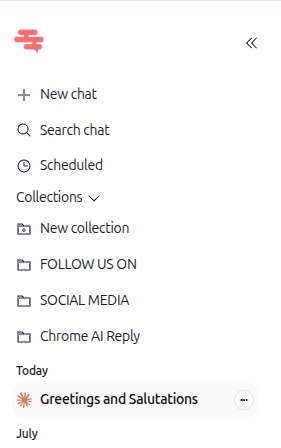
Once inside Chat, a dedicated panel appears on the left with the following elements:
New chat – Start a fresh conversation.
Search chat – Find a past conversation by keyword.
Scheduled tasks – Manage your scheduled tasks and recurring agent workflows.
Collections – Expand this section to see your custom folders that group related conversations by topic or project. Click New collection to create one.
Conversation history – Below your collections, past conversations are listed and grouped by date (Today, Yesterday, by month, etc.). Click any conversation to resume it.
3. Use the central chat interface
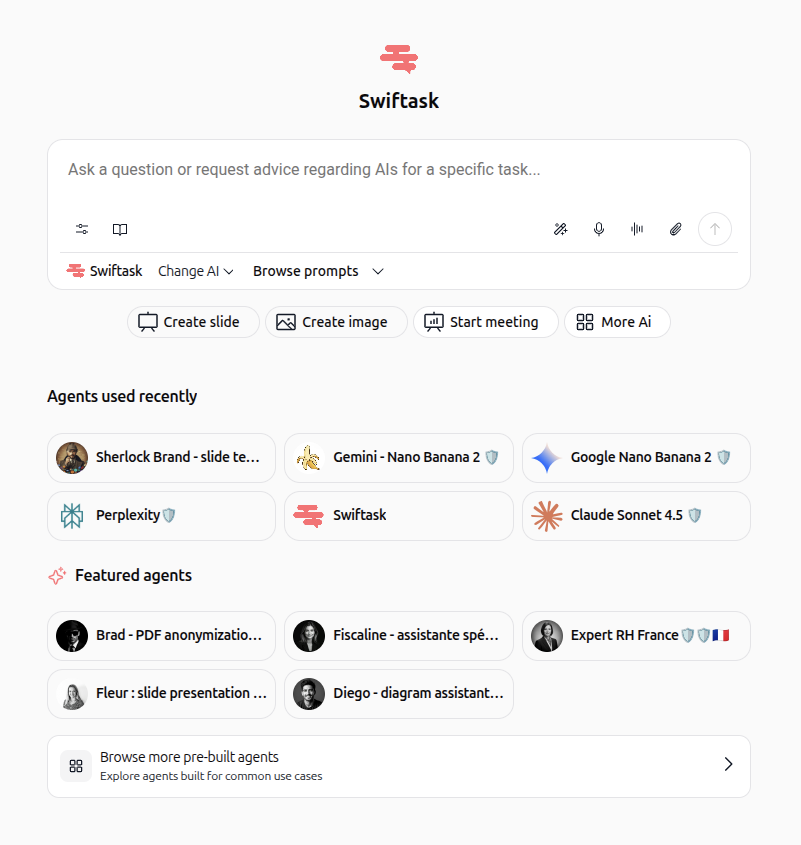
The main area is where you write messages and start conversations.
Message input field: Type your question or request in the input box (for example: "Ask a question or request advice regarding AIs for a specific task...").
Icons on the left of the input: Two icons give you extra options for your message and let you attach knowledge to the conversation. These are covered in more detail in dedicated guides.
Icons on the right of the input:
Magic wand icon – Enhance prompt: improve or refine your message before sending it.
Microphone icon – Start recording: dictate your message with your voice.
Soundwave icon – Start conversation: begin a real-time, hands-free voice exchange with AI.
Paperclip icon – Attach file: upload a document, image, or file for AI to analyze.
Send button – Send your message.
Below the input field:
Swiftask / Change AI – Shows the current AI model. Click to switch to another available model.
Browse prompts – Open your saved prompt library to reuse ready-made instructions.
Quick action buttons: Shortcuts such as Create slide, Create image, Start meeting, and More Ai let you jump straight into common tasks.
Agents used recently: A grid of agents you've interacted with recently. Click one to switch to it instantly.
Featured agents: A curated selection of pre-built agents for common use cases. Select Browse more pre-built agents to discover more.
Practical use cases
Get a quick answer: Type a question in the input field and press send. The default model responds instantly, no setup needed.
Switch to a specialized agent: Instead of the default model, pick an agent from Agents used recently or Featured agents to handle a task that needs specific expertise, like drafting HR documents or analyzing a PDF.
Analyze a document: Click the paperclip icon, attach a file, and ask AI to summarize or extract information from it.
Reuse a saved prompt: Open Browse prompts, pick a saved template, and send it without retyping the same instructions.
Tips & best practices
Use collections to keep conversations organized by project, client, or topic.
Check Featured agents before building a new agent—a pre-built one might already fit your need.
Use Search chat instead of scrolling to quickly find an old conversation.
Save frequently used instructions as prompts to speed up repetitive tasks.
Troubleshooting
I can't find a past conversation. Use Search chat to look it up by keyword, or check whether it was saved inside a specific collection.
Voice icons don't respond. Make sure your browser has microphone permission enabled for Swiftask.
An agent I used before isn't showing in "Agents used recently." This section only displays your most recently used agents. Use Search chat, Featured agents, or Browse more pre-built agents to find it.
Additional resources
Using agents from Chat
Agent voices
Chat - Instant conversation call with AI
Chat - Dict from microphone
Chat - Prompt
Chat – Attaching files & documents
Chat - Managing history / finding past conversations
AI recommendation from chat
Chat - Generate / export files