Edit your AI-generated slides like you created them yourself — June 2026 Update
We've made manual editing in Swiftask artifacts more powerful and intuitive. You can now generate a slide with AI once, then edit it exactly like you would in Word or Canva, without having to ask AI to make every small change. Total control. Your way.
Complete Slide Management
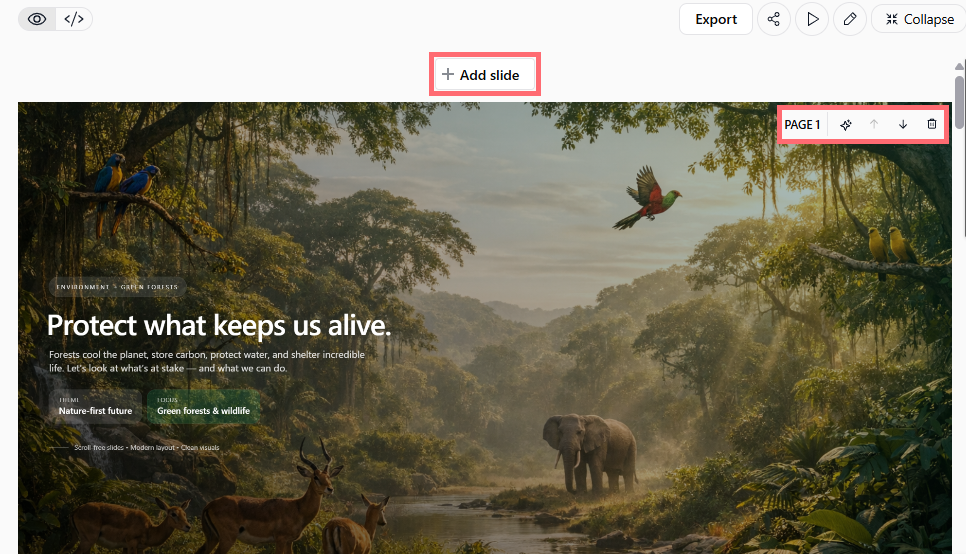
When you open a presentation, you have instant access to tools to organize your slides:
Add slides: Click the "+ Add slide" button to insert a new slide anywhere in your presentation.
Reorder slides: Use the up/down arrows (or drag-and-drop) to change the order of your slides.
Delete slides: Click the delete icon to remove a slide.
Full Manual Content Editing
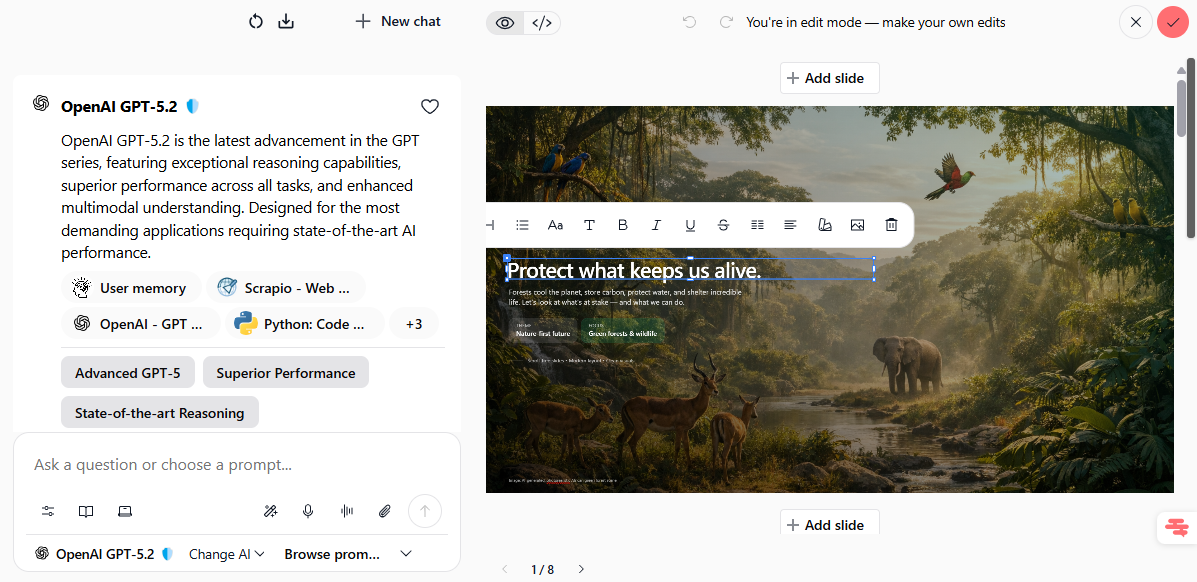
Once your slide is generated by AI, click the edit icon (pencil) to enter edit mode and modify the content directly with a full formatting toolbar at your fingertips.
Text formatting: Convert text to headings or lists, adjust font size and family, apply bold, italic, underline, strikethrough, text spacing, and alignment.
Image management: Add images to any slide, remove existing ones, and access more image modification options.
Element resizing: Resize elements by height or diagonally for precise layout control.
Per-slide undo history: Use Ctrl+Z (or the redo button) to undo changes—and the undo history stays isolated per slide, so you can switch between slides and still undo on the previous one.
Where to find it: Artifacts → select a slide → Edit icon (pencil)
Available on: All Swiftask plans (Pro, Team Starter, Team Growth, Custom)
Why this matters
Previously, if you generated a presentation with AI and wanted to change the text color, font size, image, or slide order, you had to ask the AI, which meant waiting for a new iteration and risking losing your other edits. Now, you have total control. Generate once, edit as much as you want, reorder as you please, and it feels like you designed the presentation yourself.
How to test it
Create a slide artifact: Go to Artifacts → Create new slide, describe your need (e.g., "Create a 3-slide presentation about Q2 results"), and let AI generate it.
Manage order and add slides (without entering edit mode):
Click "+ Add slide" to add a new slide.
Use the up/down arrows next to the page number to reorder.
Click the delete icon to remove a slide.
Enter edit mode: Click the pencil icon to edit the content of the active slide.
Edit text: Click any text element to bring up the formatting toolbar. Try:
Changing text size and font.
Making text bold or italic.
Converting text to a bulleted list.
Changing text alignment.
Edit images: Click an image to select it, then:
Remove it by clicking the delete icon.
Add a new image by clicking the image icon in the toolbar.
Resize elements: Click and drag the corners or edges of an element to resize it.
Undo changes: Press Ctrl+Z (or click the redo button) to undo. Switch to another slide, edit it, and come back, your undo history is still there.
Save: Click the checkmark (✔) icon to save your edits.
That's it. No more back-and-forth with AI for every little tweak. Your slides, your way. 🎨