Less configuration, more choice, and time given back to your daily routine
Hi everyone,
We are kicking off the month of October with our first set of new features. A redesigned chat widget, simplified agent creation, two new AI models, meeting briefings, and PowerPoint exports: there is plenty to explore.
💬 The chat widget: a fully redesigned interface
As a reminder, the chat widget is your AI agent embedded on any page of your website. Your visitors click, ask their question, and get an answer—no account, installation, or waiting required.
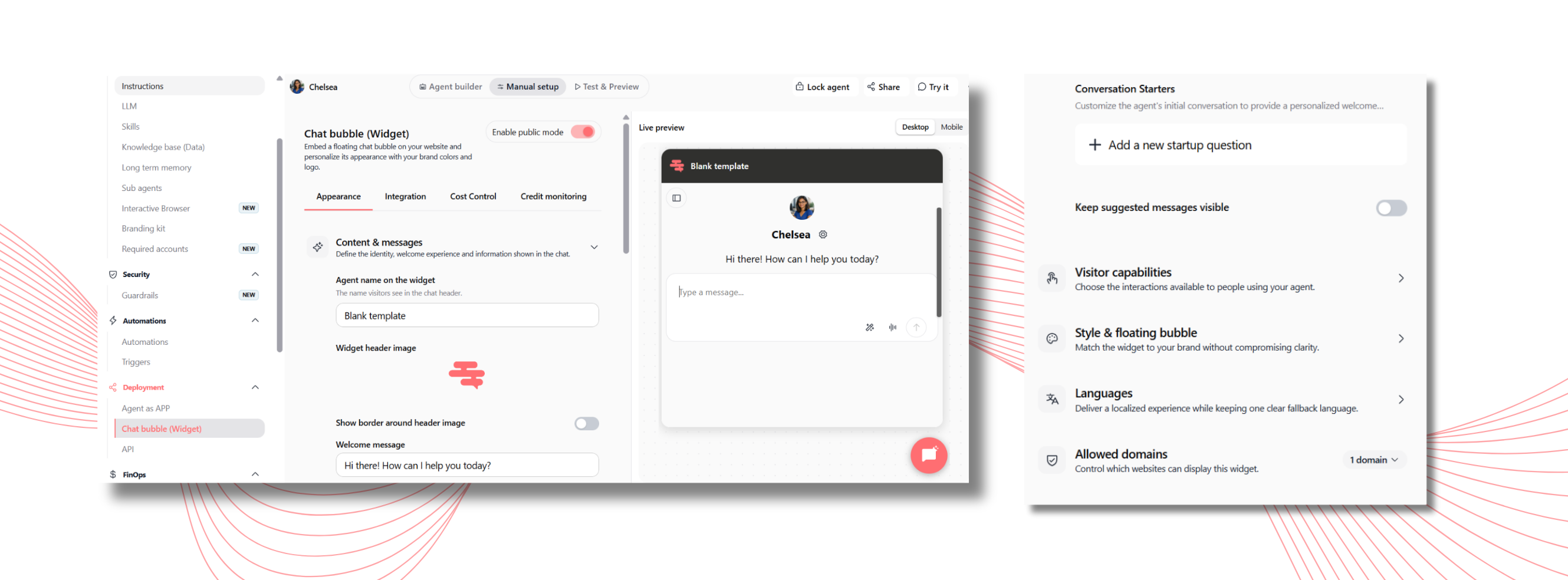
What changed is the entire configuration screen.
No more back-and-forth cycle of "adjust settings, save, refresh the site, repeat." Your settings are now on the left, a live preview is on the right, and you can switch between desktop and mobile view in just one click. This is often where you realize a welcome message is three times too long on a phone screen.
Best of all, settings are organized by topic. You only expand what you need.
Content and messages: Everything your visitor reads—agent name, header image (with or without border), welcome message, input field text, and footer. You can set a dedicated message for mobile devices, adjust the appearance delay in seconds (with separate settings for desktop and mobile), add a dismissible notice, and offer starter questions—clickable suggestions that prevent blank-page syndrome and remain visible throughout the conversation.
Visitor capabilities—customizable to your liking: Allow visitors to attach files, dictate questions or switch to voice mode, copy responses, rate their usefulness, and clear conversation history. You can also disable the widget entirely if needed during an update.
Appearance: Light, dark, or system-matched themes, monochrome mode, accent colors (which can be restricted to the header or send button), and corner rounding. For the floating bubble: customize its icon, position (left or right), and a small label like "Have a question?"—which significantly impacts click-through rates.
Languages: The widget automatically adapts to the visitor's browser language.
Allowed domains: Restrict which websites are authorized to display your agent. On any other site, the widget simply won't open. This prevents your agent and credits from being used on unauthorized pages.
Where to find it: Agents → Your Agent → Deployment → Chat Widget
✨ Agent creation now starts with your need, not a catalog
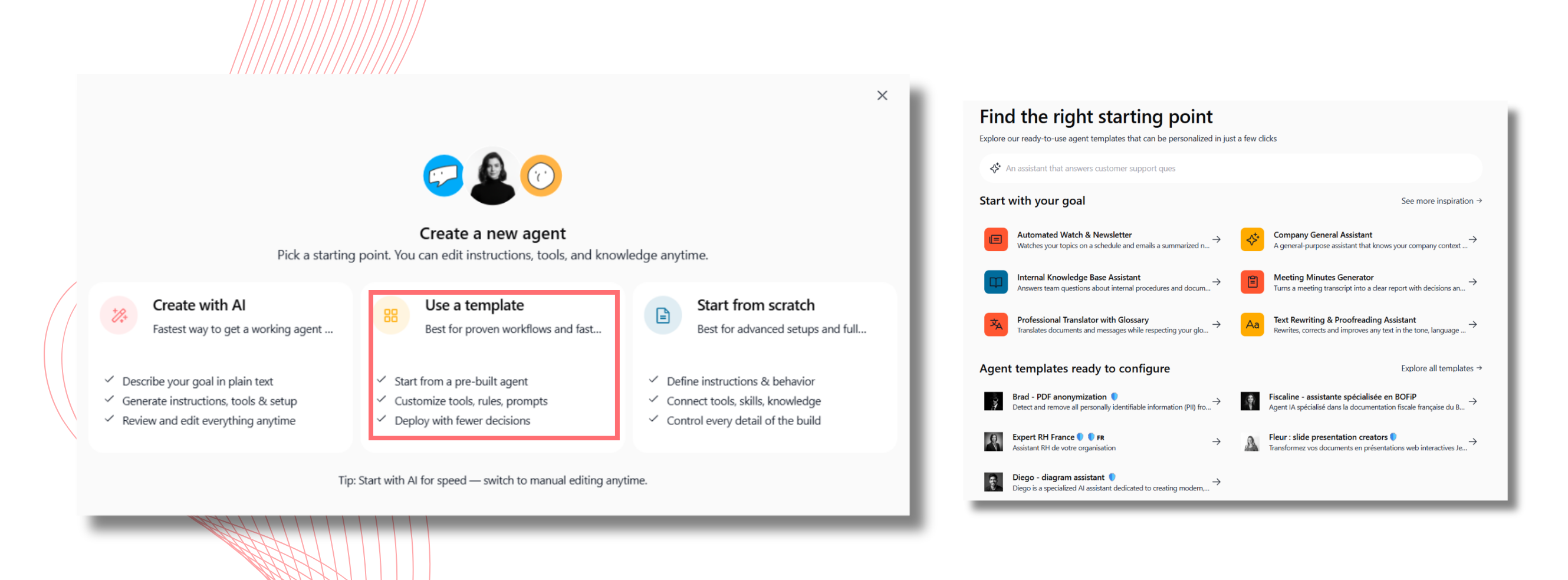
The old gallery forced you to pick a template before you even knew which one matched your needs. We turned that concept on its head.
The page now opens with "Find the right starting point": simply describe what you are looking for in your own words. "An agent that summarizes my emails every morning" is all it takes.
If you prefer a guided approach, two shortcuts are available:
Start from a goal: Monitoring & newsletters, internal procedure assistants, meeting minutes, technical glossary translations, proofreading, etc.
Start from a pre-built agent: Document anonymization, tax assistance, HR expertise, presentation or diagram creation.
You no longer need to know how to configure an agent to get a functional one. You start with a need, Swiftask sets up the foundation, and you fine-tune from there.
Where to find it: Agents → Create an Agent → Use a Template
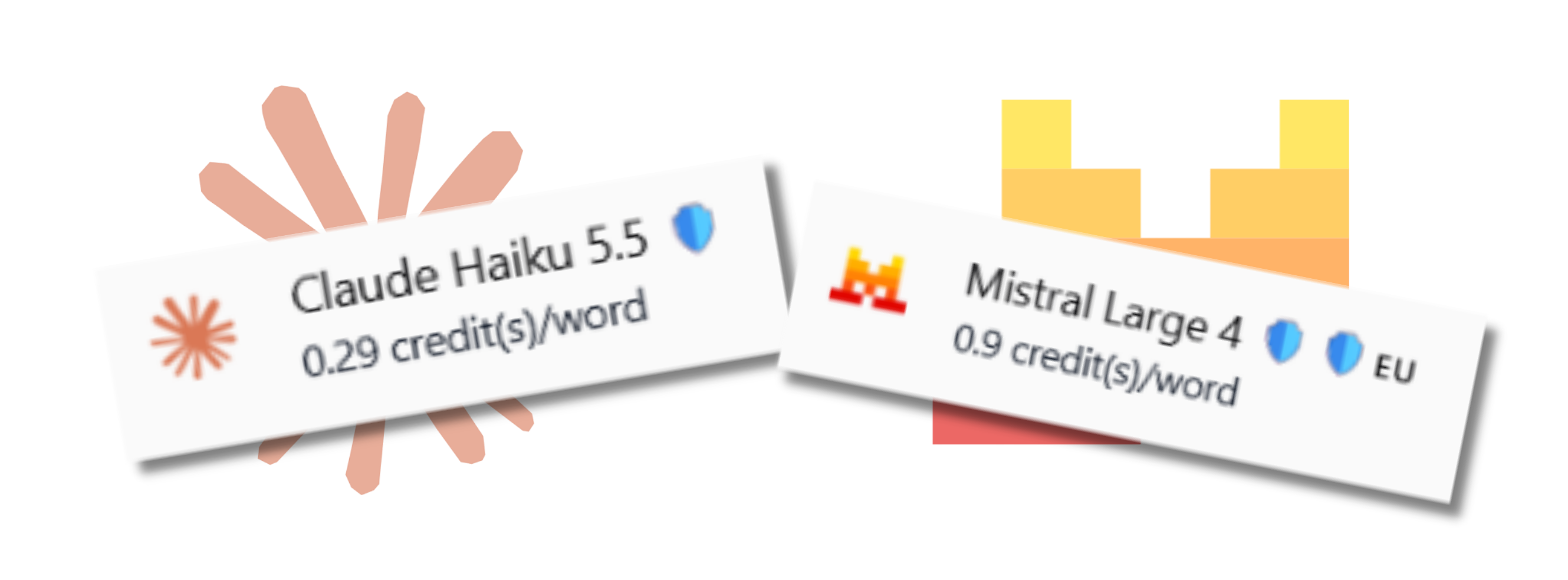
🧠 2 new models join Swiftask : Claude Haiku 3.5 & Mistral Large 4
As a reminder, Swiftask never locks you into a single AI model: you choose the engine behind each agent and can switch models whenever you want. We are adding two very distinct options this week.
Claude Haiku 3.5: The sprinter. It is the fastest and most cost-effective model in the Claude family. It responds almost instantly at a fraction of the cost of larger models. It excels at high-volume, repetitive tasks—sorting and routing incoming requests, extracting information from documents, summarizing, and classifying. It is also an ideal choice for a customer support agent on your website where every second counts. Furthermore, it handles very long documents without requiring chunking.
Mistral Large 4: The European specialist. Designed and trained in Europe within Mistral's data centers. It speaks over 160 languages, including all official EU languages, and processes both text and visual inputs (images, charts, technical schematics). It excels in demanding fields such as finance, legal, cybersecurity, and engineering, processing voluminous files in a single pass.
Where to find it: Agents → Your Agent → LLMs or Chat → Change AI
📋 Meeting briefing: show up prepared, zero prep required
Your Google Calendar meetings now come with automated prep notes. Right from your calendar event, Swiftask generates a comprehensive briefing: meeting context, attendees, key discussion points, and essential background knowledge before walking into the room (or joining the Meet call).
You generate the briefing once from the event page.
It then automatically appears in the Meetings tab every time you open that event.
No need to regenerate it or scramble through past emails and notes five minutes before start time.
Example: You have a client meeting on Thursday at 2:00 PM scheduled in your calendar. You generate the briefing on Monday. On Thursday at 1:55 PM, you open the meeting in Swiftask: account history, pending topics, and key questions are right there. You enter the meeting fully informed without frantically reviewing old email threads.
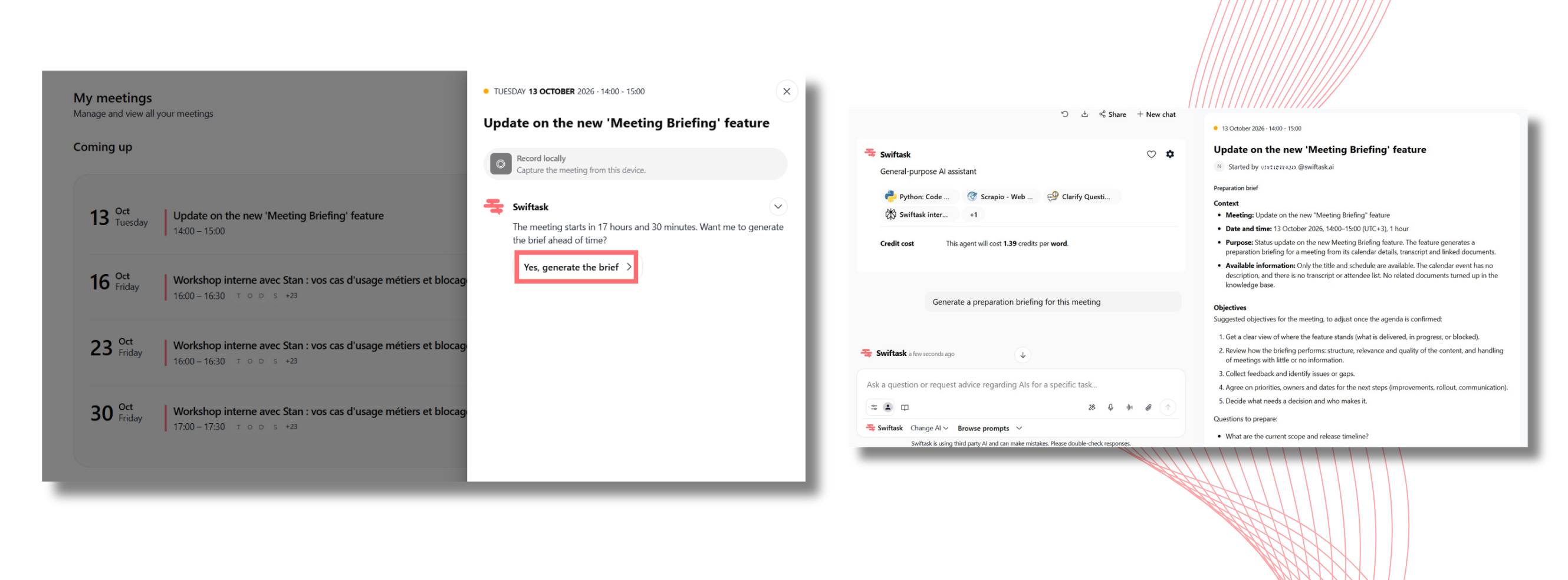
How to use it: Connect your Google Calendar to Swiftask, open an upcoming event, and click to generate the briefing. It will follow you all the way to the big day.
📩 Send tasks to your agents via email while keeping full control
Every agent can now have its own dedicated email address. Send an email directly from your standard inbox—with or without attachments—and the agent will execute your request autonomously. No need to log into Swiftask; your agent works directly inside your existing workflow.
This email intake feature can be toggled on or off from the agent's profile using the "Send an email to this agent" option. It is disabled by default, giving you full control over when your agent is reachable via email.
Example: You just wrapped up a client meeting and you are on the train back. You forward the meeting notes and two attachments to your "Sales Summary" agent right from your phone. It processes the information, drafts a summary, and prepares follow-up actions while you travel. You didn't even need to open a separate app.
Why the toggle switch matters: Email addresses can spread quickly. Anyone with access to the address could send instructions to your agent and consume your credits without prior approval. The toggle allows you to enable access when needed and turn it off when you are away or off the clock.
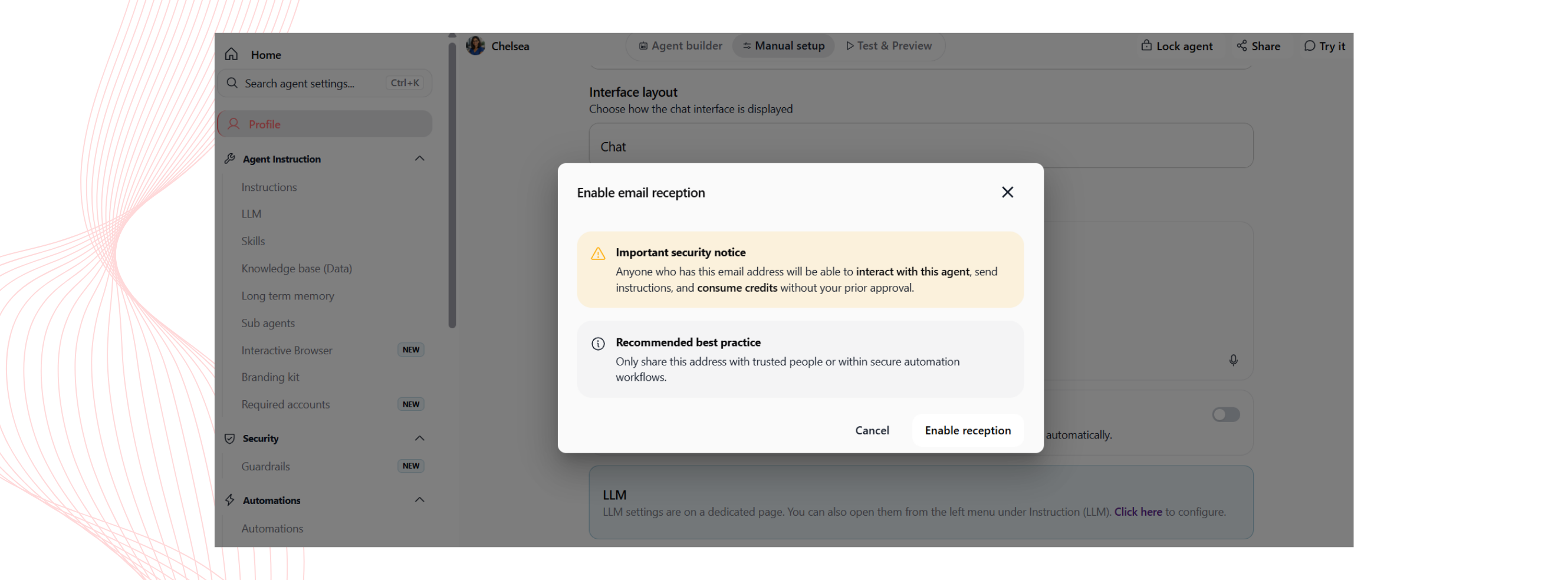
How to use it: Open your agent → enable "Send an email to this agent" → confirm. Copy the generated email address (which can also be customized), and share it strictly with trusted contacts or internal automation tools.
🎞️ PowerPoint exports: fully editable at last
Until now, PowerPoint exports often felt like a series of static images—making it impossible to fix a typo or update a metric without starting over. That is now fixed. Text, shapes, tables, and charts are exported as native, editable PowerPoint elements while preserving the layout created in Swiftask.
Text remains editable text: Bold, italics, colors, font sizes, bullet points, numbered lists, and alignments are preserved with PowerPoint-compatible fonts.
Design integrity: Rounded corners, borders, drop shadows, transparency settings, gradients, images, and icons render accurately.
Native tables: Cell merges, custom colors, and borders carry over cleanly.
Editable charts: Column, bar, line, pie, donut, area, and combo charts (bars + line with secondary axis) remain fully functional.
Style consistency: Colors, legends, titles, and units (€, %, $, etc.) are preserved intact.
The export process is now more reliable: Brand Kit assets load properly, files are neatly saved in the corresponding conversation thread, and operations remain stable even during simultaneous multi-user exports. Access to artifacts is also better secured—only artifacts within your active workspace can be exported.
Example: Your quarterly deck is complete, but updated September metrics come in the night before your presentation. Open the exported .pptx file, click on the chart, update the value—done in 30 seconds without reopening Swiftask or rebuilding the slide.
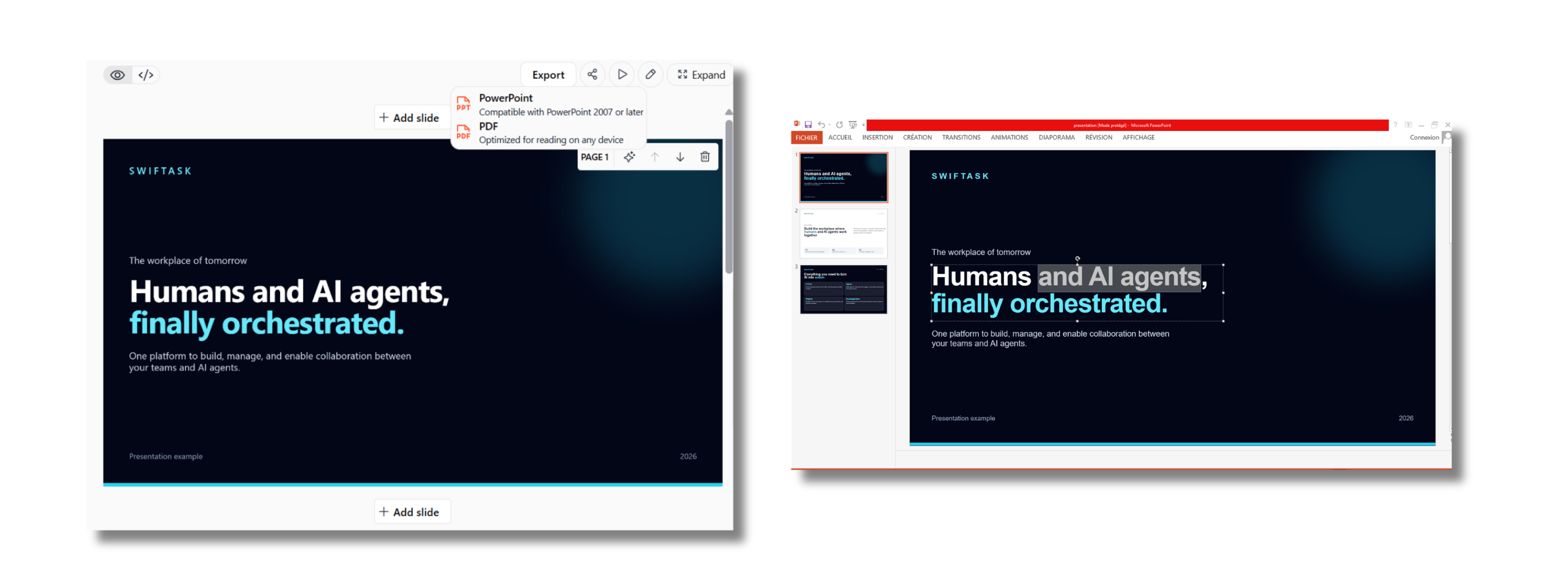
No setup required: Open any presentation in Artifacts and click Export to PowerPoint.