Take control of your automations at a glance — June 2026 Update
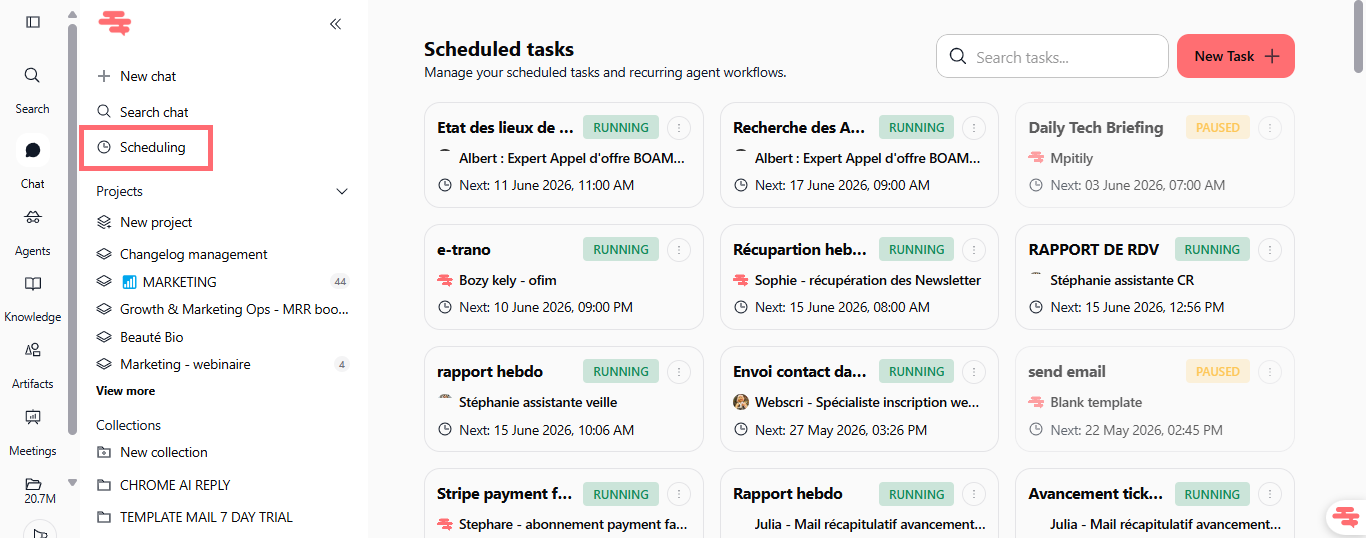
We've streamlined how you manage agent automations. You now have a single command center for all your scheduled tasks, with a cleaner configuration interface and instant visibility into what's running, paused, or coming next.
Scheduling: Your automation command center
All your automated agent tasks are now visible in one place. A new Scheduling section in your sidebar gives you an overview dashboard where you can see every scheduled task, its current status, and when it runs next. No more hunting through agent settings to find what's active.
See all automated tasks at once: View every recurring task, one-time automation, and scheduled workflow in card format
Status visibility: Each task shows whether it's running, paused, or scheduled, with the next execution time displayed clearly
Search and filter: Quickly find specific automations using the search bar
Create new automations: Click "New Task" (top right) to set up a new scheduled task without leaving this view
Available on all plans: No limits on the number of automations you can manage
Find it at: Sidebar → Scheduling (below "Search chat")
How to test it: Open your sidebar and click "Scheduling". You'll see all your agent automations displayed as cards with their status and next run time. Click "New Task" to create a new automation and see the streamlined form.
Optimized automation configuration interface
Creating and editing automations is now faster and clearer. The form is more intuitive, with better field organization and helpful hints at each step.
Streamlined form layout: Title, instruction, automation type, and scheduling options are organized logically
Faster setup: Fewer clicks to configure frequency, time, timezone, and date ranges
Voice input support: Describe your automation by voice in the instruction field (microphone icon in the form)
Consistent across interfaces: The same clean form appears whether you're creating an automation in an agent's settings or from the Scheduling dashboard
Better defaults: Start Date, End Date, and timezone are optional, so simple automations take seconds to set up
Find it at: Agents → [Agent Name] → Automations section, or Scheduling → New Task
How to test it: Open any agent, go to the Automations section, and create a new recurring task. Notice the cleaner form layout and the ability to use voice input for the instruction field. Then test creating another automation from the Scheduling dashboard, you'll see the same optimized form.
Improvements
Automation status badges are now more prominent and color-coded for instant recognition (green for running, yellow for paused), making it easy to spot which tasks are active without reading labels.