Your brand, locked in. Your team, visible. Your agents, protected. Swiftask Update – Early April, 2026
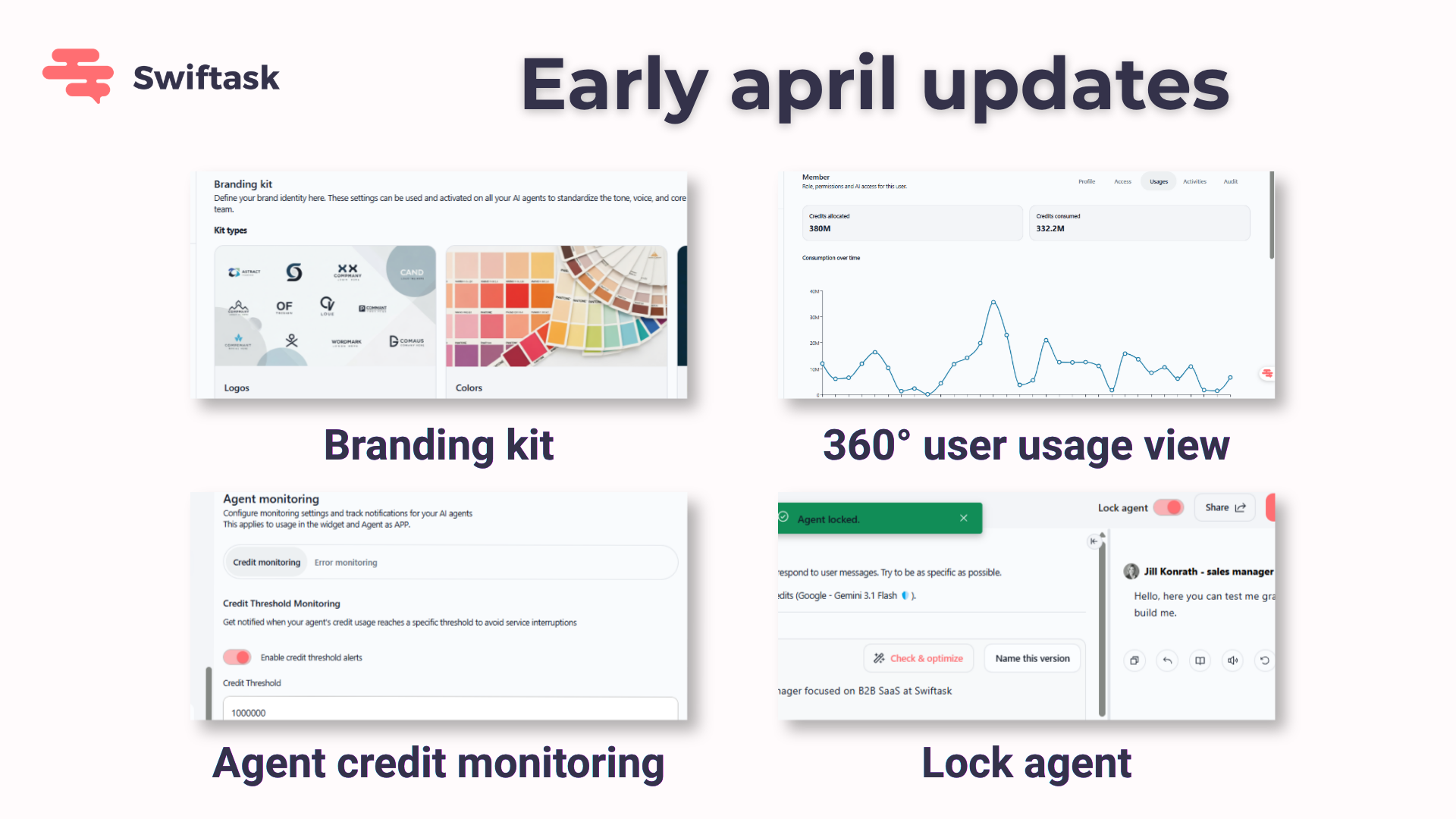
We've shipped five powerful tools to help you scale AI safely. Whether you're managing a fleet of agents across your organization, keeping your brand consistent, or making sure nothing breaks in production—this update gives you the control you need.
Your brand identity, now everywhere
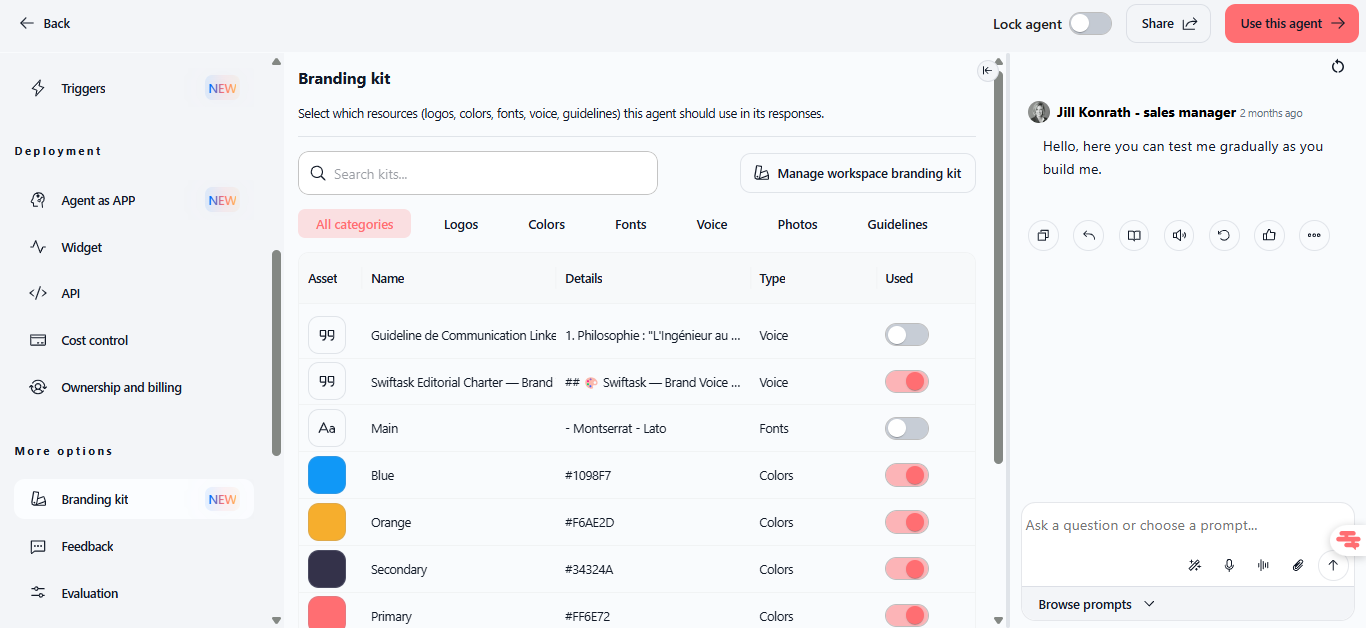
Branding kit lets you define your brand once and apply it automatically to every agent. Upload your logo, colors, fonts, tone guidelines, and brand rules to your workspace, then attach or remove them per agent with a single click. When you update a brand resource, it updates everywhere—no manual reconfiguration needed.
Create brand resources once at the workspace level (logos, colors, fonts, voice guidelines, photos, rules)
Attach or remove resources per agent instantly
Changes propagate to agent system prompts within 5 minutes
Requires
WORKSPACE_MANAGE_BRANDING_KITpermissionAvailable on all plans
Find it at: Workspace settings → Brand identity
How to test it: Create a workspace branding resource (e.g., add your company logo), attach it to an agent, and ask the agent to create a slide or document. You'll see your brand applied automatically.
See exactly what your team is doing
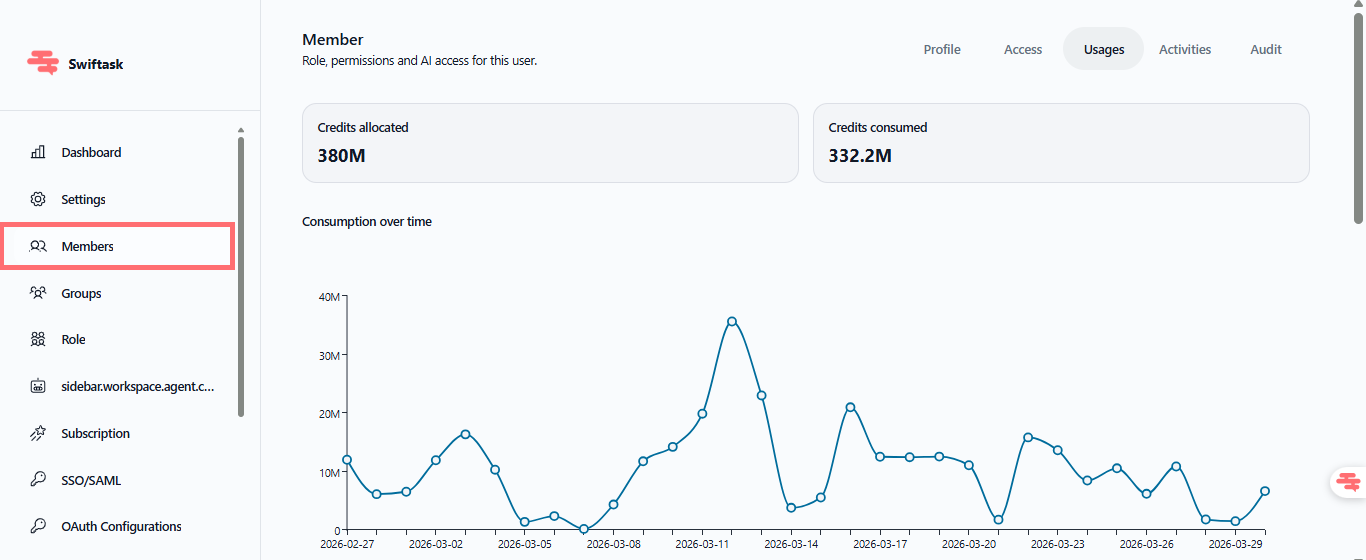
Admin workspace – 360° user usage view gives you complete visibility into every team member's activity, agents, and credit consumption in one place. No more hunting through logs or asking "who created that agent?" or "which LLMs is this person using?"—it's all there.
For each member, you can instantly see:
Join date, last login, credit limit, group memberships, and all permissions
Every agent they've created and the LLMs they're using
Real-time credit consumption and activity history
Associated projects and roles
Find it at: Workspace settings → Members → click the eye icon on any member
Availability: Team Starter, Team Growth, and Tailored/Enterprise plans (admins only)
How to test it: Go to your Members section and click the eye icon next to a team member's name. Explore their profile, agent list, and usage data.
Stop agents before they drain your budget
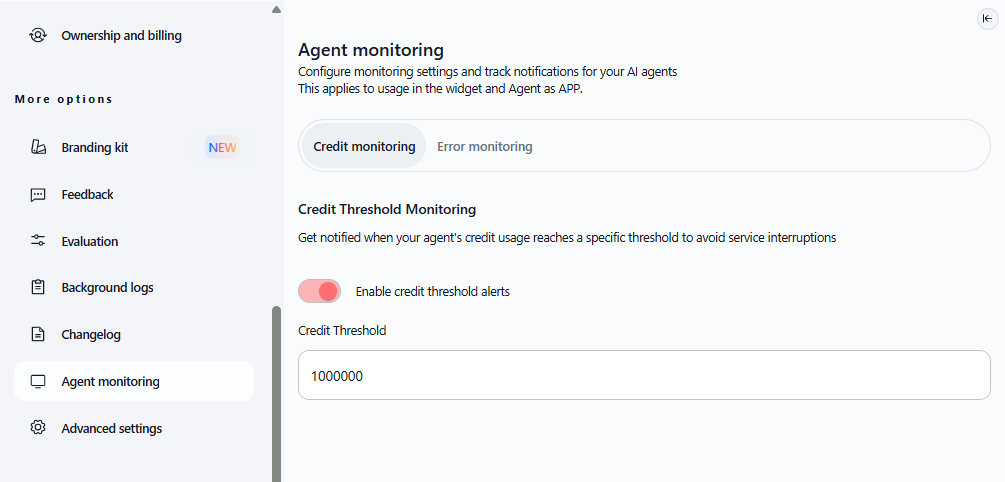
Agent credit monitoring lets you set a custom credit threshold for each agent and get notified in-app when usage approaches that limit. Perfect for production agents, public widgets, or any agent you want to keep under control.
Set any credit limit per agent
Get in-app alerts as usage approaches your threshold
Monitor each agent independently
Available on all plans
How to test it: Open an agent, go to its monitoring settings, set a credit limit, and simulate usage to trigger an alert.
Lock your agents so they don't break
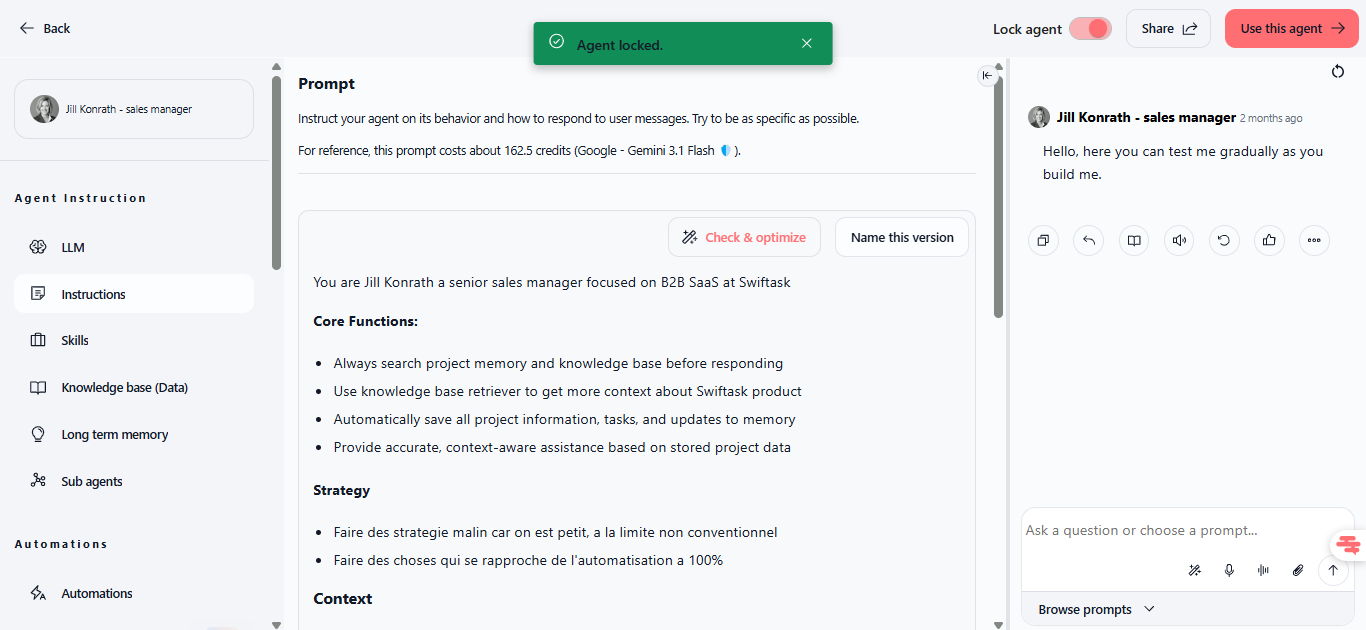
Lock agent is a one-click way to protect production agents from accidental changes. When locked, only owners and admins can modify the agent's prompt, skills, data sources, sharing, or any other configuration—but everyone can still use the agent in chat.
Toggle lock on or off at the top of any agent page
Only owners and admins can unlock
All settings are protected: prompt, skills, data sources, sharing, duplication, and more
No impact on usage, credits, or performance
Available on all plans
Find it at: Agent page → top section → "Lock agent" toggle (next to Share and "Use this agent")
How to test it: Open an agent you own, turn on the Lock agent toggle, then try to edit it as a regular user—you'll see a message asking you to contact the owner.
Your team's credentials stay with your team
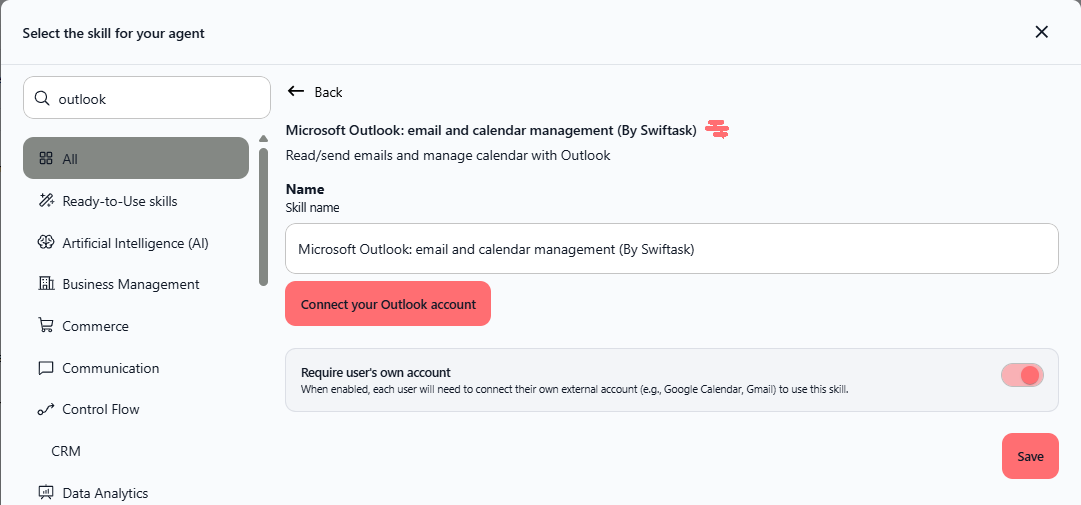
Require user's own account is a toggle on external agent skills that ensures each person uses their own Gmail, Slack, Google Drive, or calendar account instead of sharing yours. No more credential sharing, full audit trails, and complete privacy.
When you enable this toggle:
Each user authenticates with their own account the first time they use the agent
Personal data (emails, files, calendar events) stays on their account
Every action is traceable to the person who performed it
Users can only access what their own account permissions allow
Find it at: Agent → Skills → Edit any external skill → "Require user's own account" toggle
Works with: Gmail, Google Drive, Slack, Outlook, Microsoft Teams, Google Calendar, Outlook Calendar, and all external service integrations. Available on all plans.
How to test it: Create an agent with a Gmail skill, enable the toggle, share it with a colleague, and have them authenticate with their own Gmail account. Send a test email through the agent and verify it came from their account, not yours.
What's next
These five features work together to give you governance, visibility, and control at scale:
Use branding kit to keep all agents consistent
Use admin visibility to monitor who's building what
Use credit alerts to prevent runaway costs
Use agent lock to protect production configurations
Use per-user auth to maintain security and accountability
All available on all plans. No surprises, no lock-in.
Tips & best practices
For brand consistency: Start with a core set of resources (1 logo, 2–3 colors, 1 voice description, 1 key guideline). You can always add more. Remember to name resources clearly ("Main logo," "Brand blue #0066CC") so they're easy to find.
For admin oversight: Review your members list quarterly. Check credit usage weekly to spot unusual patterns. Keep at least two admins to prevent lockout.
For production safety: Lock agents after major updates. Communicate with your team that locked agents require owner approval for changes. Unlock temporarily when broad edits are needed, then re-lock when stable.
For security: Always require user's own account when sharing agents with external integrations. This prevents credential sprawl and keeps your audit trail clean.
Known details
Branding kit changes to agent system prompts are cached for up to 5 minutes. After attaching or removing a resource, allow this delay before fully testing the agent's response.
The "Require user's own account" toggle applies uniformly to all recipients. If you need different behaviors, create separate agent versions.
Agent locking can be triggered programmatically via the
setBotLockedmutation (API). Only owners and admins should call it.Admin 360° view is available only on Team plans and above; Free and Pro plan workspaces have basic member management only.
Ready to lock down your governance? Start with branding kit to unify your agents, then use admin visibility to track activity, credit alerts to manage costs, agent lock to protect production, and per-user auth to keep security tight. Your fleet is now under control.