Cloud synchronization
Written By Stanislas
Last updated About 1 month ago
Overview
Swiftask cloud synchronization automatically links your desktop client, web platform, and mobile devices into a unified workspace. Every audio recording and transcription is securely streamed and stored in cloud infrastructure.
This eliminates manual file transfers and ensures that updates, edits, and AI-generated insights remain consistent everywhere. Teammates with workspace permissions can access shared records as soon as processing completes.
Prerequisites
To use cloud synchronization, you need:
An active Swiftask account signed in across your devices.
A stable internet connection for uploading and syncing meeting data.
Workspace membership with view or edit permissions for shared meeting content.
Step-by-step guide
Log in to your Swiftask account on the desktop app, web browser, or mobile device.
Record a meeting or upload an audio file; audio chunks stream to the cloud continuously during capture.
Open the Meetings section on any other device or browser window.
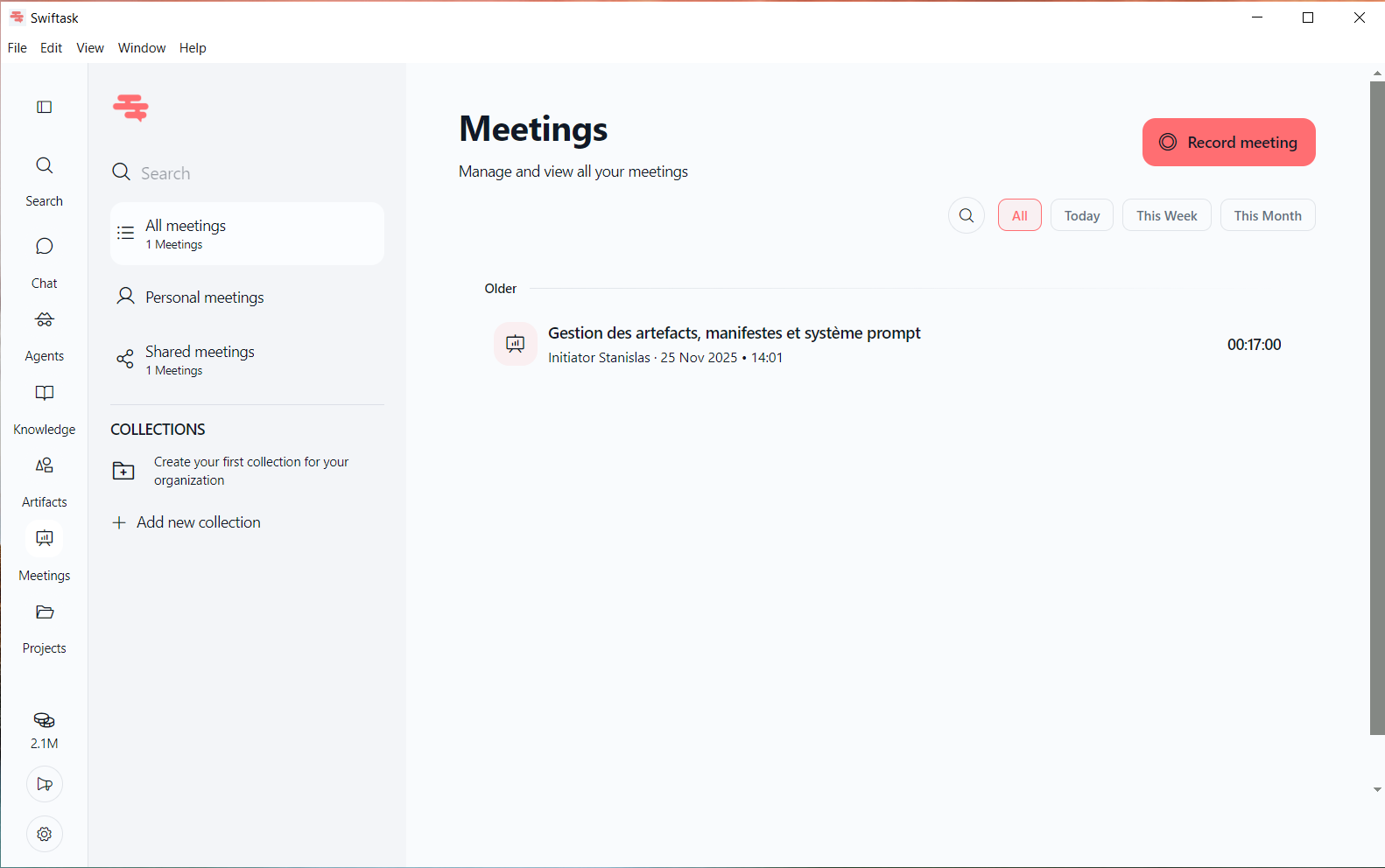
Locate your synchronized meeting in All meetings or Personal meetings.
Open the meeting transcript to view synced text, speaker notes, and AI summaries across devices.
Practical use cases
Cross-device continuity: Record an in-person client meeting via the desktop app on your laptop, then review the transcript on your mobile device while traveling.
Instant team access: Record an internal debrief on your desktop, and let colleagues review key action items immediately from their web browsers.
Disaster recovery: Safeguard critical business discussions against local device crashes or hardware failures with automatic cloud storage.
Tips & best practices
Maintain active login: Use the same user account across all devices to keep personal recordings and workspace data aligned.
Check sync status: Allow active recordings to finalize upload before shutting down your computer or disconnecting from Wi-Fi.
Share securely: Use workspace collection permissions and secure shareable links rather than exporting raw files manually.
Troubleshooting
Meeting not visible on second device: Ensure both devices are logged into the same Swiftask account and refresh the browser page.
Sync stuck or pending: Reconnect to the internet and leave the desktop app open for 1–2 minutes to allow background queues to finish syncing.
Permission denied error: Request access from the meeting owner or workspace administrator if a shared recording is restricted.
Additional resources
Introduction - AI-assisted meetings – Discover the full capabilities of AI-assisted meeting workflows.
Meeting recording – Learn how to capture live meetings across desktop and web platforms.
Analyzing meeting transcripts with AI – Query transcripts, watch video playback, and generate reports.
Organization by collection – Structure your synchronized meetings into dedicated project collections.
Was this helpful?
Still need help? Ask the team