Test skill connection
Written By Stanislas
Last updated About 1 month ago
Overview
The test connection feature verifies that an external tool, integration, or sub-agent can establish a live, working connection before you save it.
Testing confirms that your credentials, server addresses, and permissions are valid without modifying external data or consuming workspace AI credits. Use it whenever you connect a new skill or update settings on an existing tool.
Prerequisites
A Swiftask account with access to an active workspace (available across all plans).
An existing agent or permissions to manage skills in your workspace.
The required credentials, API tokens, webhook URLs, or database connection details for your integration.
Why test skill connections before using an agent
Testing your skill connections before chatting with or deploying an agent is a critical step:
Prevent runtime failures during conversations: If an agent tries to use a tool with incorrect credentials or an unreachable server during a chat, the action will fail. Testing upfront keeps conversations running smoothly for your users.
Immediate diagnosis: You receive instant, specific feedback (such as missing fields or an incorrect password) instead of unexpected agent errors later.
Verify that features actually exist: For services like Odoo CRM or databases, the test confirms that the specific features (such as Contacts or Opportunities) and tables are installed and accessible on your account.
Safe and non-destructive: The test performs a genuine connection check without creating dummy data, modifying records, or sending test emails.
Zero credit cost: Running connection tests does not consume any workspace AI credits.
How the verification process works
When you test a connection, Swiftask follows a simple four-step process:
Trigger the test: You click the Test connection button in the skill configuration modal.
Send details: Swiftask securely sends your entered credentials and parameters to the validation service.
Live check: The server attempts to connect directly to the external service (such as an email provider, Odoo, database, or API).
View results: You see an instant result banner within 10 seconds:
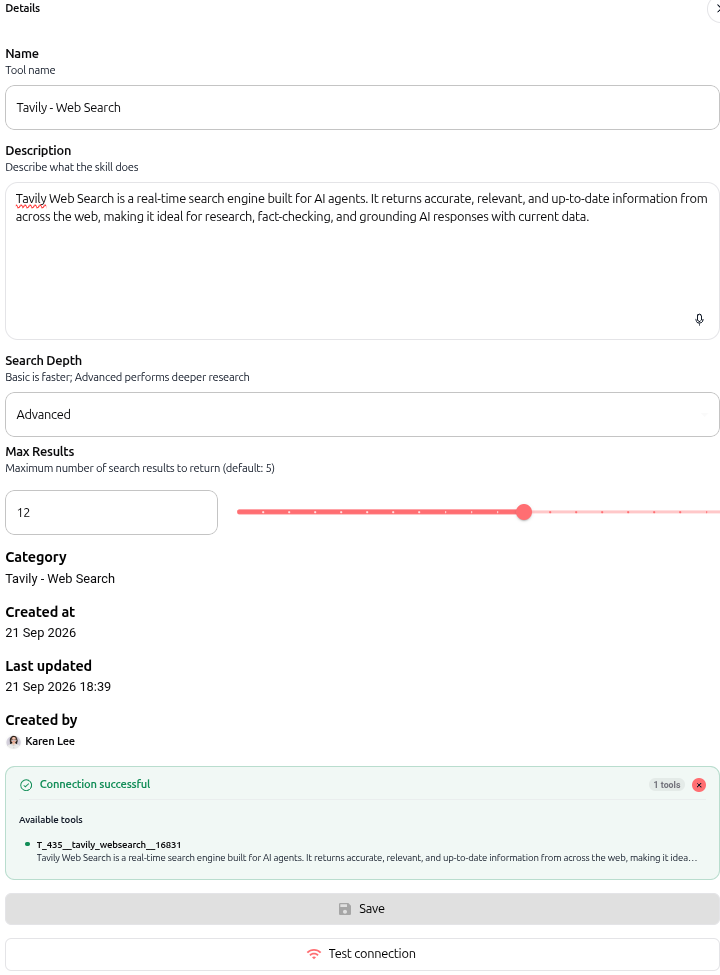
Connection successful: A green badge confirms the connection and lists the available tools you can use.
Connection failed: A red banner shows the exact error so you can fix it right away.
Step-by-step guide
You can access and test skill connections through two distinct navigation paths in Swiftask.
Access path 1: From agent settings
Navigate to Agents in the left sidebar and select the agent you want to configure.
Click Skills in the left navigation under Agent settings.
Click Add a skill to select a new integration, or click the eye icon on an existing active skill to open its details drawer.
Access path 2: From the Toolkit menu
Navigate to the main left navigation bar from the Agents section and click Skills under the TOOLKIT heading.
Filter between the Personal or Shared with me tabs, or click Add skill to configure a workspace-wide integration.
Click any existing skill row to open its details drawer.
Running the connection test
Fill in all required configuration fields (such as server URLs, API keys, usernames, passwords, or scopes).
Click the Test connection button located at the bottom of the modal next to Save.
Inspect the verification banner:
If the connection succeeds, a green badge displays the number of active tools enabled for this skill.
If the connection fails, review the red diagnostic banner to see what needs to be fixed.
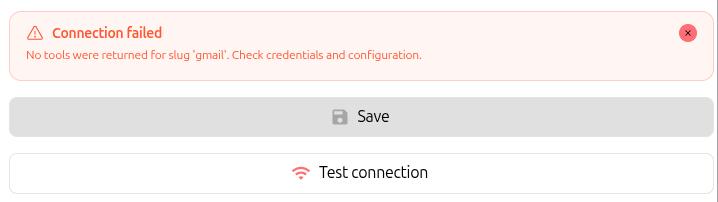
Once verified, click Save to confirm and attach the skill.
What is tested across integrations
The validation check performs specific verifications depending on the tool you configure:
General validation for all tools
Checks that you filled in all required fields.
Tries to load the tool to make sure it works properly.
Captures any errors and displays them clearly.
Email sending (SMTP)
Checks that you entered your SMTP server address (for example:
smtp.gmail.com).Checks that your email address and password are provided.
Connects directly to the email server to confirm your credentials are valid.
Email reading (IMAP)
Performs the same checks as SMTP, confirming that your agent can connect and read incoming emails.
Relational databases (PostgreSQL)
Checks that the database address, port, and credentials are provided.
Connects to the database and runs a simple test to make sure it works.
Odoo CRM
Checks that your Odoo server URL, database name, username, and password are provided.
Connects to your Odoo instance to verify your login credentials.
Checks that the features you want to use (such as "Contacts" or "Opportunities") are installed on your Odoo instance.
Microsoft 365 and Outlook
Checks that your account authentication is working properly.
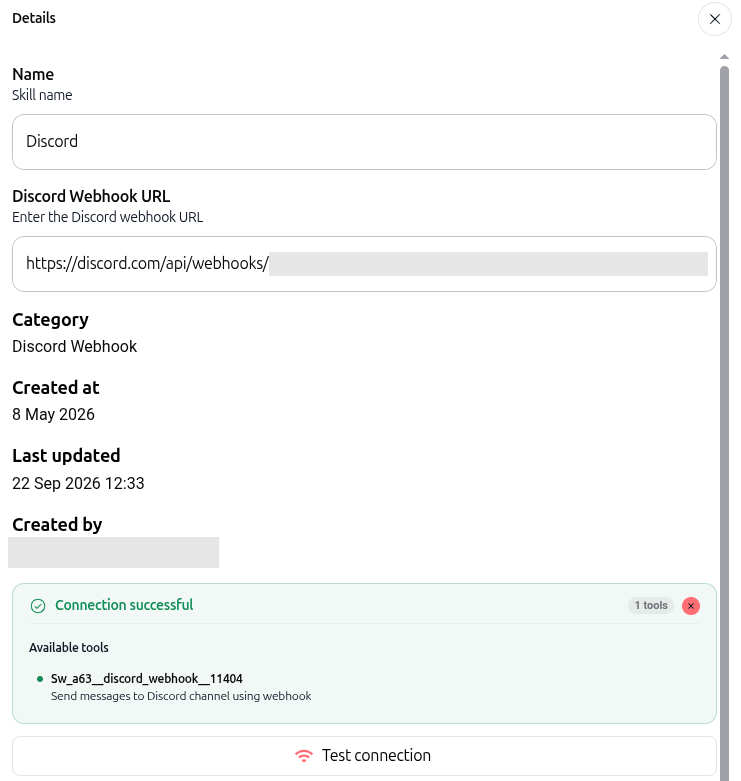
Webhook endpoints (Discord)
Checks that your webhook address is reachable without sending test messages to your channel.
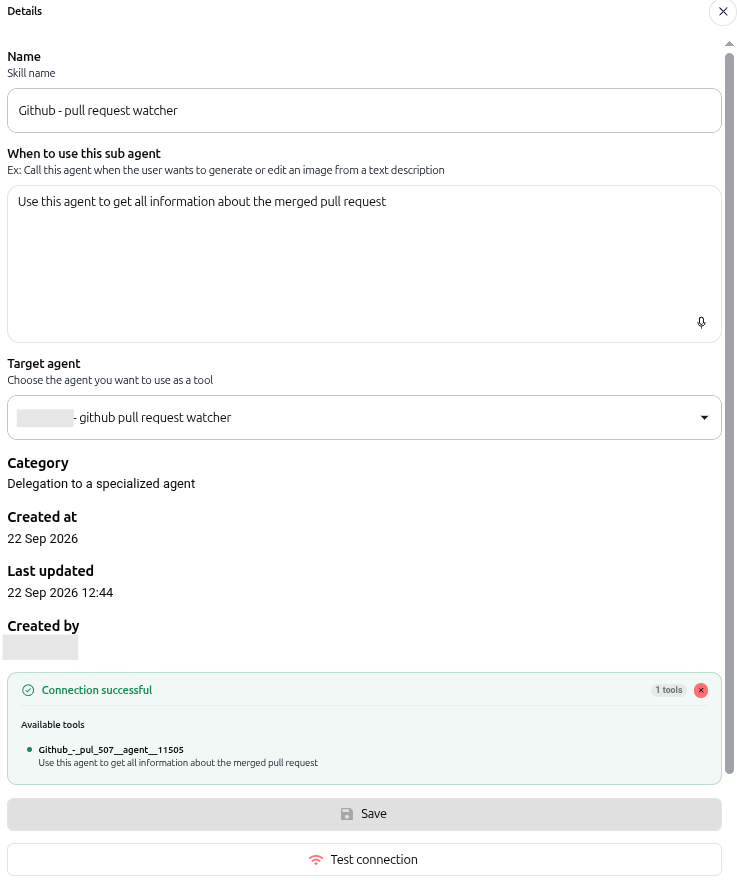
Sub-agent delegation
Checks that the target sub-agent is available and ready to receive tasks.
Practical use cases
Tavily web search
Verify search engine integration parameters such as search depth and result limits. A successful test activates real-time web search capabilities for your agent.
Discord webhooks
Validate incoming webhook URLs before deployment. The test checks server reachability without posting messages to your channels.
Sub-agent delegation
Ensure specialized agents are accessible and properly linked before assigning tasks. Testing verifies that task delegation channels function seamlessly.
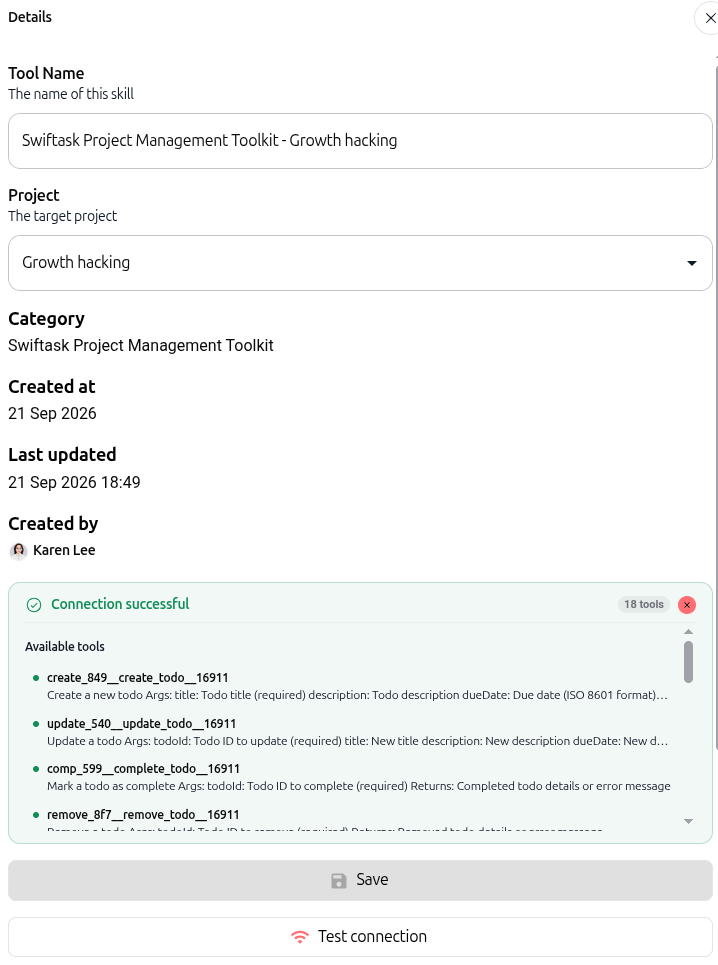
Swiftask project management toolkit
Verify workspace project connections and permissions. The test returns available actions for creating, updating, completing, and removing tasks.
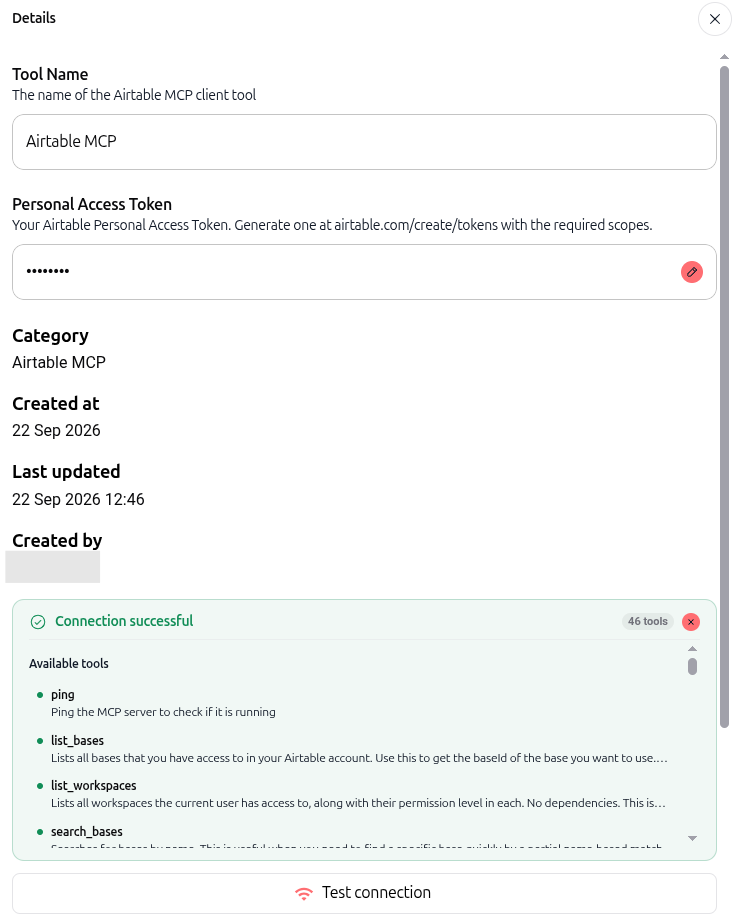
Airtable MCP
Validate your Model Context Protocol server connection and personal access token. The test confirms server availability and loads complete schema and record manipulation tools.
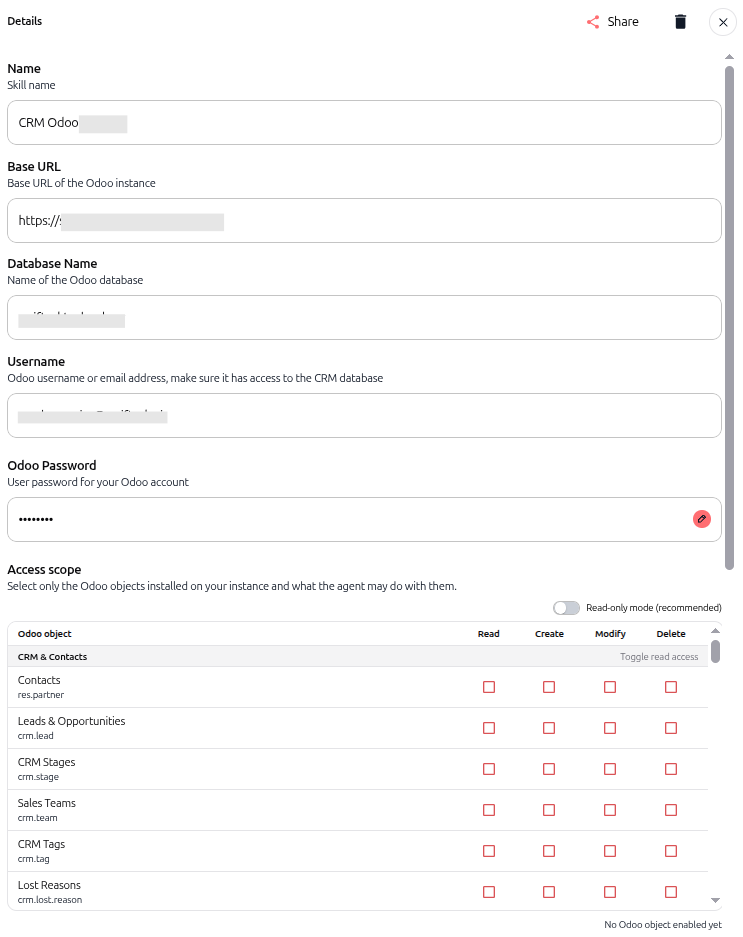
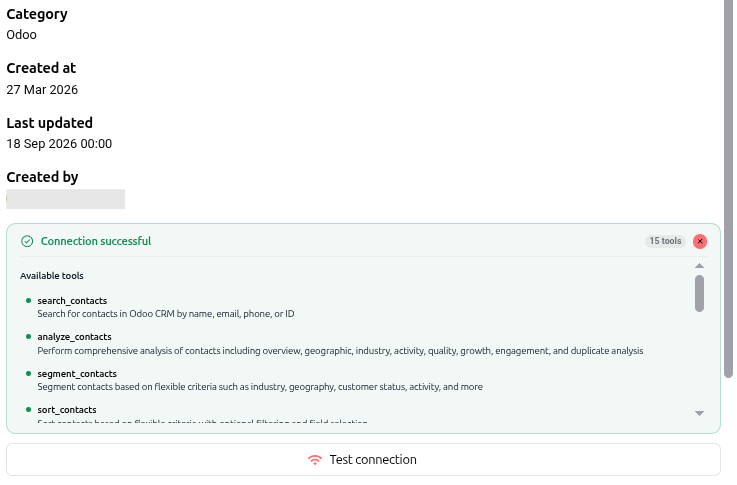
Odoo CRM
Connect an enterprise Odoo deployment by entering the server URL, database name, and credentials. The test confirms authentication and discovers accessible CRM objects, exposing actions to search, analyze, and segment contacts.
Tips & best practices
Always test before saving: Run a connection test whenever you create a skill or update credentials to avoid runtime errors during agent execution.
Genuine live connection: Tests establish an authentic server connection rather than a simulation, ensuring high reliability.
Safe and non-destructive: The check only inspects status and availability; it never creates, modifies, or deletes your production data.
Fast execution: Most connection checks complete within a few seconds and will not exceed 10 seconds.
Zero credit consumption: Running connection tests does not consume workspace AI credits.
Troubleshooting
Additional resources
Attach a skill from configuration
Browse & discover skills
Skills overview
Sub agents
Was this helpful?
Still need help? Ask the team