Audio transcription
Written By Stanislas
Last updated 8 months ago
Overview
Audio transcription allows you to upload pre-recorded audio or video files and convert them into accurate text transcripts using AI-powered speech recognition. Unlike meeting recording, transcription works with existing audio files—no recording session needed. You can upload files directly, select your preferred AI transcription service, and get an instant transcript with full speaker identification and multi-language support.
Prerequisites
To use audio transcription, you need:
A Swiftask account (sign up at swiftask.ai)
Audio or video files in a supported format (MPEG, MP3, M4A, X-M1A, WAV, WEBM, MP4)
No desktop app required – transcription is available directly in the web interface
No recording needed – upload existing files anytime
Step-by-step guide
1. Access the Transcription section
Navigate to the Meetings section in the left sidebar of Swiftask.

Click on Transcription to open the transcription interface.
2. View your transcriptions list
The transcription screen displays all your uploaded and processed audio files.
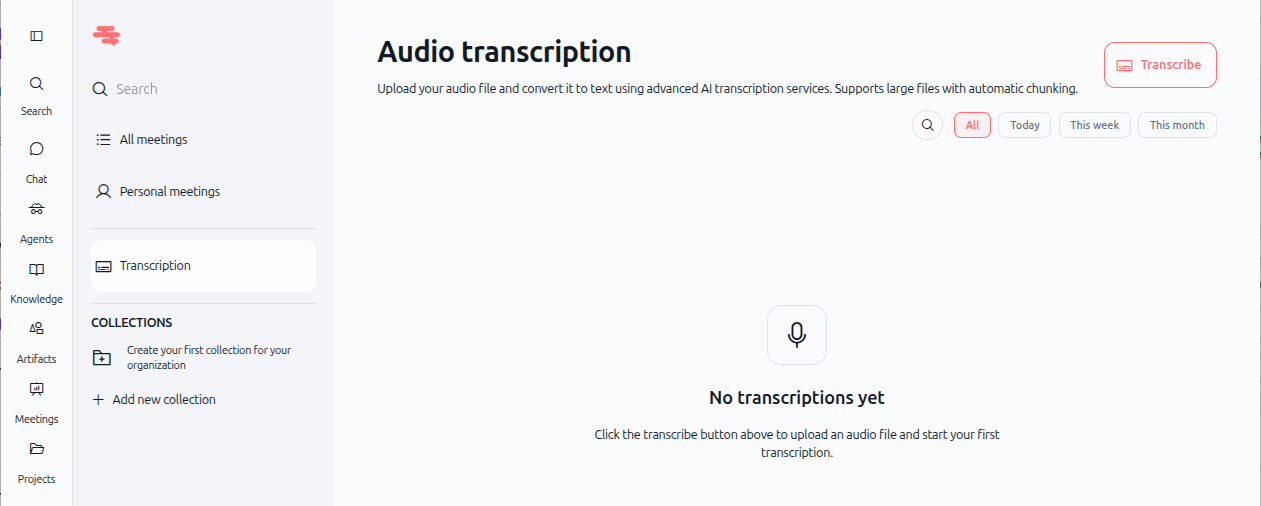
When you first open Transcription, you'll see an empty state. The screen includes:
Search bar – Find transcriptions by name or content
Filter options – View all transcriptions or organize by collections
Transcribe button – Upload a new audio file (top right, red button)
3. Click the Transcribe button
In the top right corner, click the red Transcribe button to upload a new audio file.
A new page opens titled "Audio transcription" with options to upload and configure your transcription.
4. Upload your audio file
In the upload dialog, you'll see a drop zone labeled "Drop your audio file here."
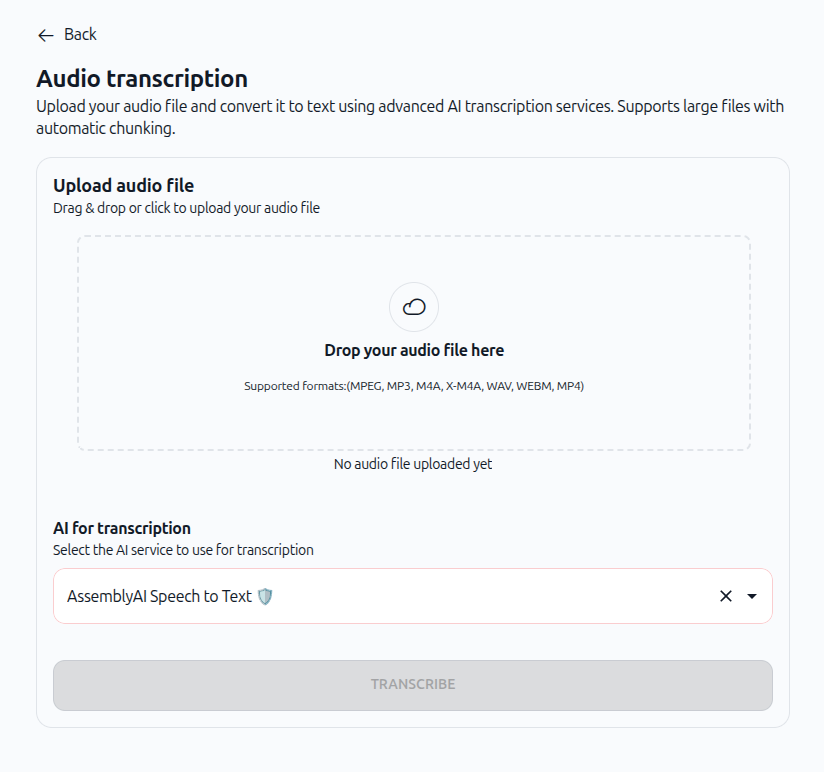
You can:
Drag and drop your audio file into the drop zone
Click to browse and select a file from your computer
Supported formats: MPEG, MP3, M4A, X-M1A, WAV, WEBM, MP4
File size: No limit – Swiftask handles large files with automatic chunking
5. Select your AI transcription service
Below the upload area, you'll see a section labeled "AI for transcription" with a dropdown menu.
The default service is AssemblyAI Speech to Text, which provides:
Multi-language speech recognition
Speaker identification (Speaker A, Speaker B, etc.)
Automatic chunking for large files
High accuracy even with background noise
You can click the dropdown to select a different AI service if available.
6. Start transcription
Once your file is uploaded and the AI service is selected, click the TRANSCRIBE button to begin processing.
Swiftask uploads your file and begins transcription. Depending on the file length, this typically takes a few moments.
7. View your completed transcription
Once transcription is complete, your file appears in the transcription list.
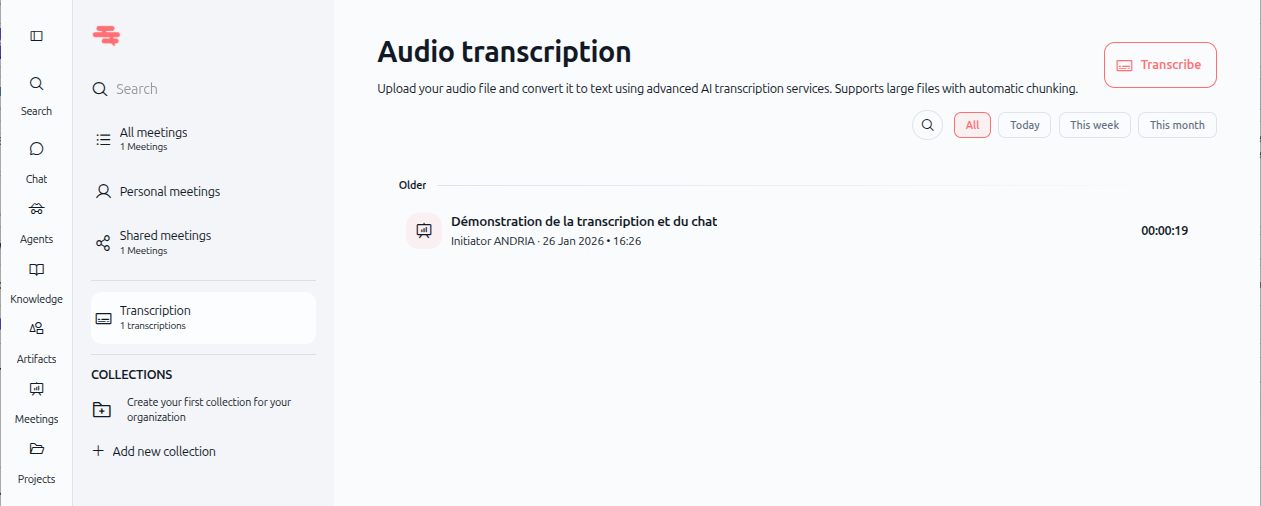
Each transcription entry shows:
File name – Title of your audio file
Initiator – Who uploaded the file
Date and time – When the file was uploaded
Duration – Length of the audio (e.g., "00:00:19")
Click on any transcription to open it and view the full text, search content, or perform AI analysis.
Practical use cases
Podcast or webinar transcription
Record a podcast episode or webinar and upload the audio file to get an instant transcript. Share the transcript with your audience or use it for content repurposing.
Interview documentation
Upload recorded interviews (client calls, user research sessions, or candidate interviews) to create searchable transcripts for future reference and analysis.
Training material conversion
Convert recorded training sessions or instructional videos into text format so participants can review and search for specific topics.
Legal or compliance recording
Upload recorded meetings, depositions, or compliance reviews to create official transcripts for audit trails and regulatory documentation.
Tips & best practices
Use clear audio quality
While Swiftask handles background noise well, clearer audio produces more accurate transcripts. Minimize background noise, speak clearly, and use a quality microphone when recording.
Choose the right file format
All common formats are supported. Use MP3 or WAV for best compatibility and quality.
Organize with collections
Create collections to organize your transcriptions by project, client, or topic. This makes it easier to find and share transcripts later.
Review transcripts for accuracy
After transcription completes, review the text for any technical terms, proper nouns, or industry-specific language that the AI might need adjustment.
Use search for large transcripts
For long transcriptions, use the browser's search function (Ctrl+F or Cmd+F) to quickly find specific words or topics within the transcript.
Export and share
Once transcription is complete, you can download or share the transcript with your team using secure links.
Troubleshooting
Upload fails or times out
Cause: Network connectivity issue or file corruption.
Solution:
Check your internet connection
Verify the file is not corrupted by trying to play it in another application
Try uploading again
If the file is very large, ensure you have a stable connection before starting
Transcription is incomplete or inaccurate
Cause: Poor audio quality, heavy background noise, or unclear speech.
Solution:
Verify the audio file plays correctly
Check that speakers are speaking clearly and at a natural pace
If background noise is heavy, consider re-recording in a quieter environment
Review the transcript and manually correct any errors or technical terms
File format not supported
Cause: The uploaded file is in an unsupported format.
Solution:
Use one of the supported formats: MPEG, MP3, M4A, X-M1A, WAV, WEBM, or MP4
Convert your file using a free online converter or audio editing software
Try uploading again with the converted file
Transcription takes too long
Cause: Very long audio files or system load.
Solution:
Wait a few more moments – transcription usually completes within minutes
Refresh the page to check the current status
For very long files (over 1 hour), transcription may take longer
Contact support if transcription is stuck for more than 30 minutes
Additional resources
Record meeting – Step-by-step guide to recording live meetings with automatic transcription
Meeting transcription – Learn how to analyze and interact with transcribed meetings using AI
Quick interface tour – Navigate the Meetings section and other Swiftask features
Chat – Use AI Chat to analyze and extract insights from your transcripts
Was this helpful?
Still need help? Ask the team