Using computer access on desktop
Written By Stanislas
Last updated About 1 month ago
Overview
Computer access connects Swiftask AI agents directly to your desktop environment. It allows agents to inspect files, execute terminal scripts, and assist with complex local tasks while keeping you in full control.
Use computer access when automating developer tasks, analyzing local codebases, processing local files, or launching desktop applications and browser workflows with AI assistance.
Prerequisites
Before using computer access, ensure you have:
The Swiftask desktop app open and running.
A Pro, Ultra, or Team subscription plan.
Administrator privileges on your computer if your tasks require elevated terminal access.
Step-by-step guide
1. Register your computer
You can register your computer to interact with Swiftask agents in two ways:
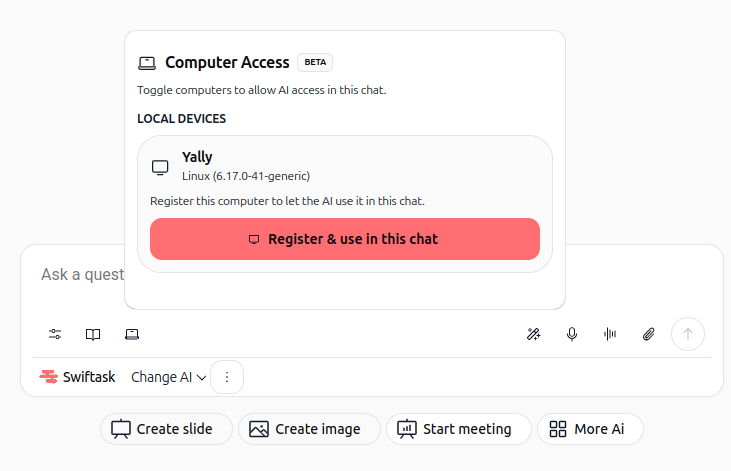
Directly from Chat: Open any conversation, click the laptop icon in the bottom chat toolbar, locate your machine under Local devices, and click Register and use in this chat.
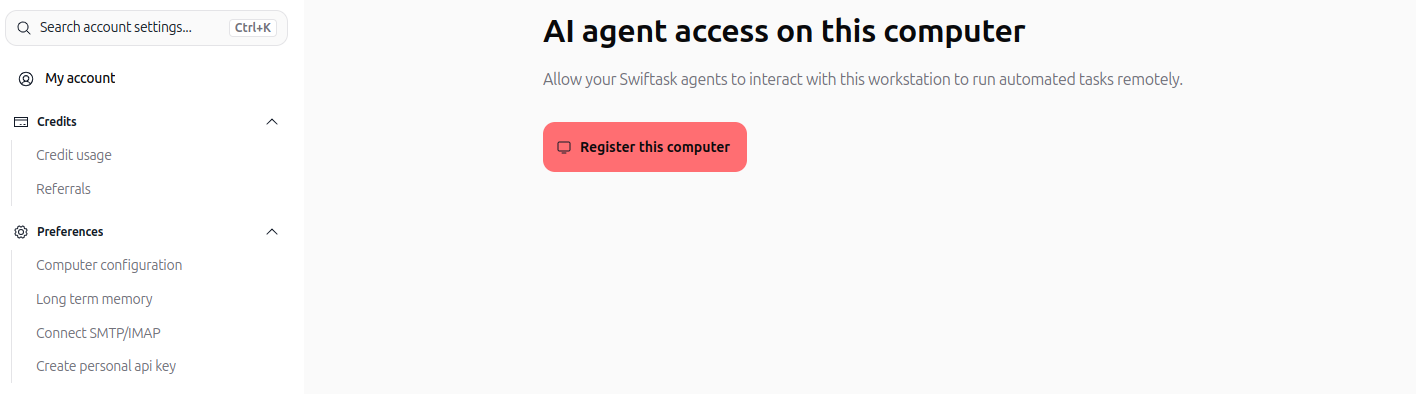
From Account Preferences: Navigate to Account Settings → Computer configuration and click Register this computer.
2. Enable computer access in a chat session
Open a conversation in Chat.
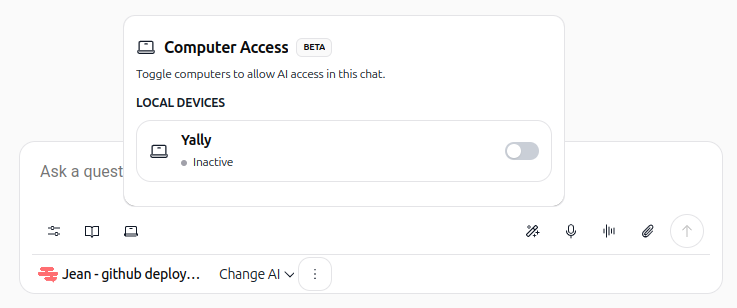
Click the laptop icon in the bottom toolbar to open the Computer access popover.
Confirm that the status displays Ready — shell connected next to your machine name.
Turn on the toggle switch to activate computer access for this specific chat conversation.
3. Configure granular permissions for your chat
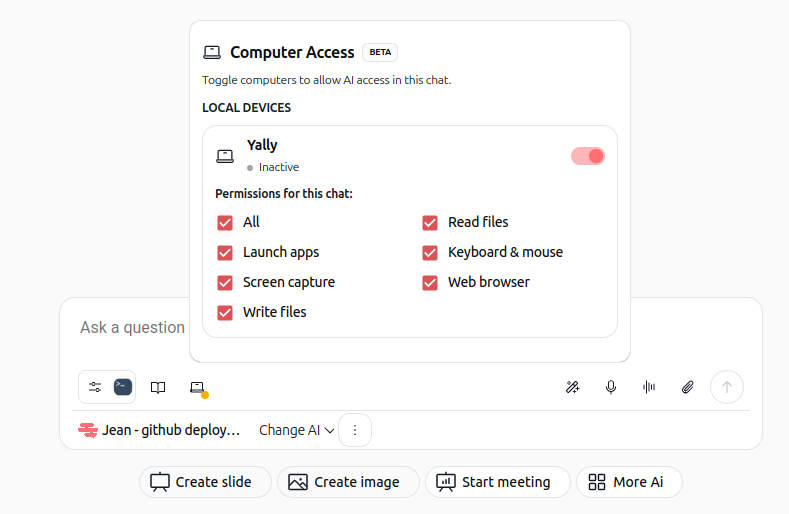
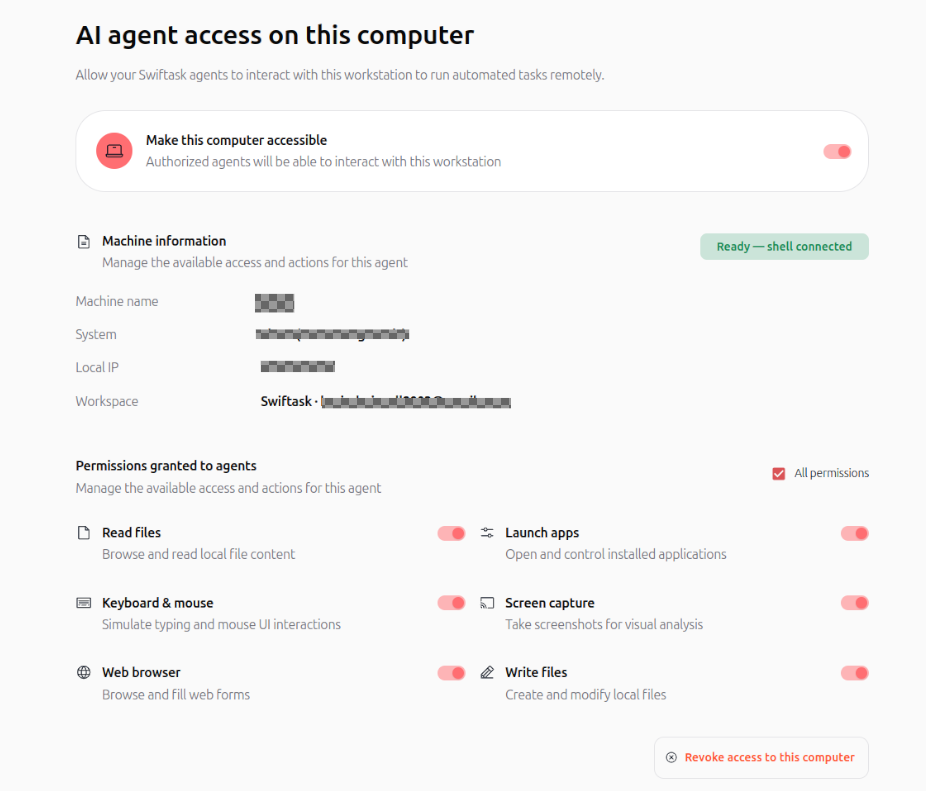
Once the computer is enabled in your chat, customize the exact permissions you grant to the agent for this session:
All : Quickly select or deselect all permissions at once.
Read files : Allows the agent to browse directories and read local file contents.
Launch apps : Permits opening and controlling installed desktop programs.
Keyboard & mouse : Simulates key presses, text typing, and user interface interactions.
Screen capture : Takes visual snapshots of your screen for AI analysis.
Web browser : Opens websites, browses pages, and fills web forms.
Write files : Authorizes the agent to create and edit local files on your machine.
4. Manage global preferences and revoke access
Go to Account Settings → Computer configuration to view your global computer status.
You can enable or disable global access anytime using the Make this computer accessible toggle.
To permanently remove the device connection, click the red Revoke access to this computer button.
Practical use cases
Reading local files and directories
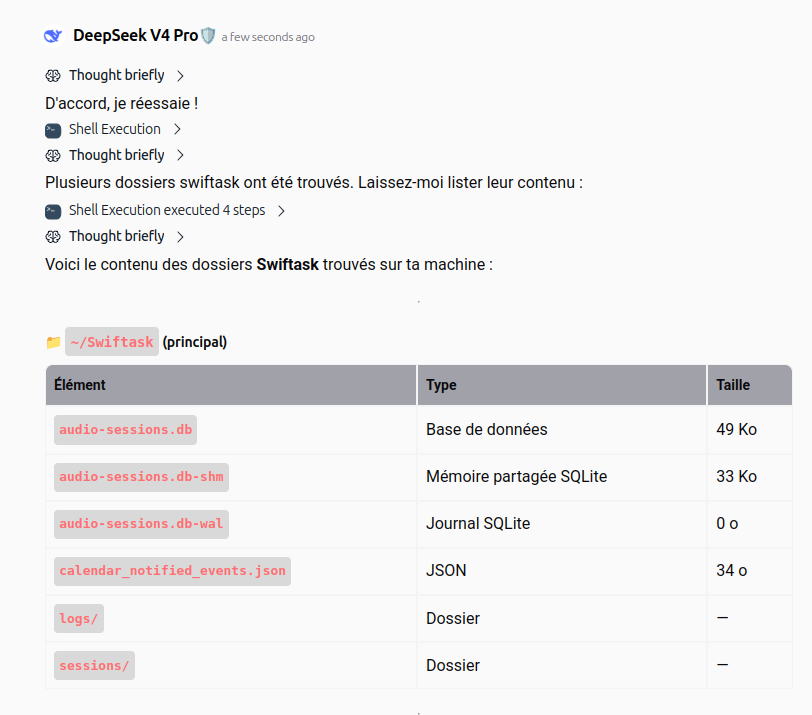
Ask an agent to inspect a local project directory or locate specific files on your drive. The agent lists the files, checks file sizes, and parses content without requiring manual file uploads.
Writing and generating local files
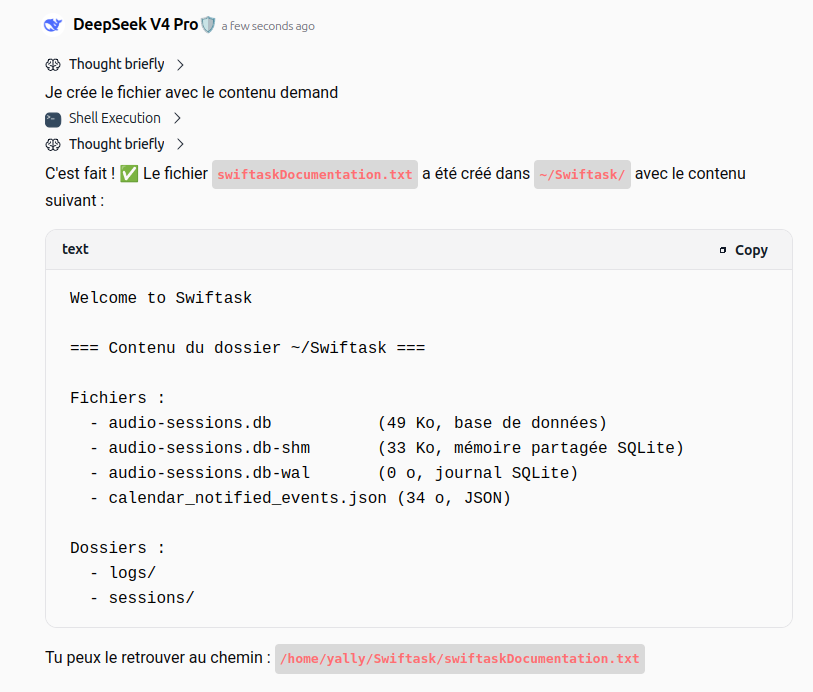
Instruct the agent to generate documentation, scripts, or summaries and write them directly into your local folders. The agent creates the target file at the specified path and confirms its saved contents.
Launching desktop applications
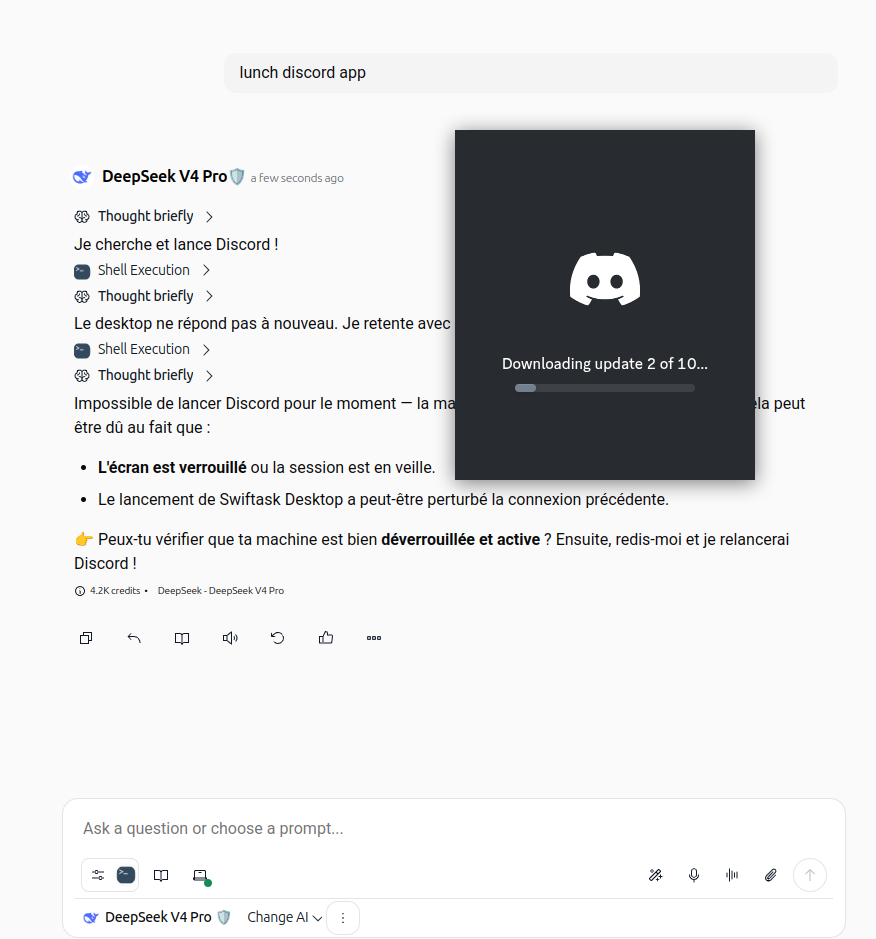
Request the agent to launch desktop programs installed on your system, such as Discord, your code editor, or communication tools. The agent triggers the application launch and informs you of the startup status.
Opening a browser to complete web tasks
Instruct the agent to open your local browser to research topics, find information on search engines, or navigate to specific websites. The browser opens directly on your screen with the requested query.

Tips & best practices
Keep computer access toggled off when not actively using local agent capabilities.
Select only the specific permissions needed for your current task to maintain strict security boundaries.
Ensure the desktop app remains open and active while working with local chat tools to prevent connection timeouts.
Confirming sensitive actions and permission prompts
Whenever an agent attempts an action that modifies disk contents or requests elevated permissions (such as package installations or root commands), Swiftask displays an explicit authorization dialog on your desktop.
Review the proposed directory and command carefully. Click Autoriser (Allow) to confirm the operation or Ne pas autoriser (Deny) to safely reject it.

Troubleshooting
Computer shows as offline or unavailable in chat
Cause: The desktop application is closed, your machine is in sleep mode, or network connectivity is interrupted.
Fix: Ensure the Swiftask desktop app is active and your computer is awake and connected to the internet.
Plan restriction error
Cause: Computer access is limited to Pro, Ultra, and Team subscription tiers.
Fix: Contact your workspace administrator to upgrade your plan in Workspace administration → Subscription.
Additional resources
Installing Swiftask desktop – Guide to setting up the app on your computer.
Workspace administration – Learn how to manage your workspace, members, and subscription.
Was this helpful?
Still need help? Ask the team