Installing Swiftask desktop
Written By Stanislas
Last updated 16 days ago
Install the Swiftask desktop application to start recording, transcribing, and analyzing your meetings with AI assistance. The desktop app detects when conversations start on your computer and automatically begins recording.
Overview
The Swiftask desktop application is required to record meetings on your computer. It runs in the background, detects when you're in a conversation (on Zoom, Teams, Meet, or other platforms), and begins recording and transcribing. After installation, you'll log in to your Swiftask account and be ready to record your first meeting.
Prerequisites
Before you install the desktop application, you need:
A Swiftask account (sign up at swiftask.ai)
A computer running Windows or Mac OS
A microphone on your device (built-in or external)
Administrator access to install software on your computer
Microphone permissions enabled in your operating system (you'll grant these during setup)
Step-by-step guide
Scenario 1: You already have meetings in your workspace
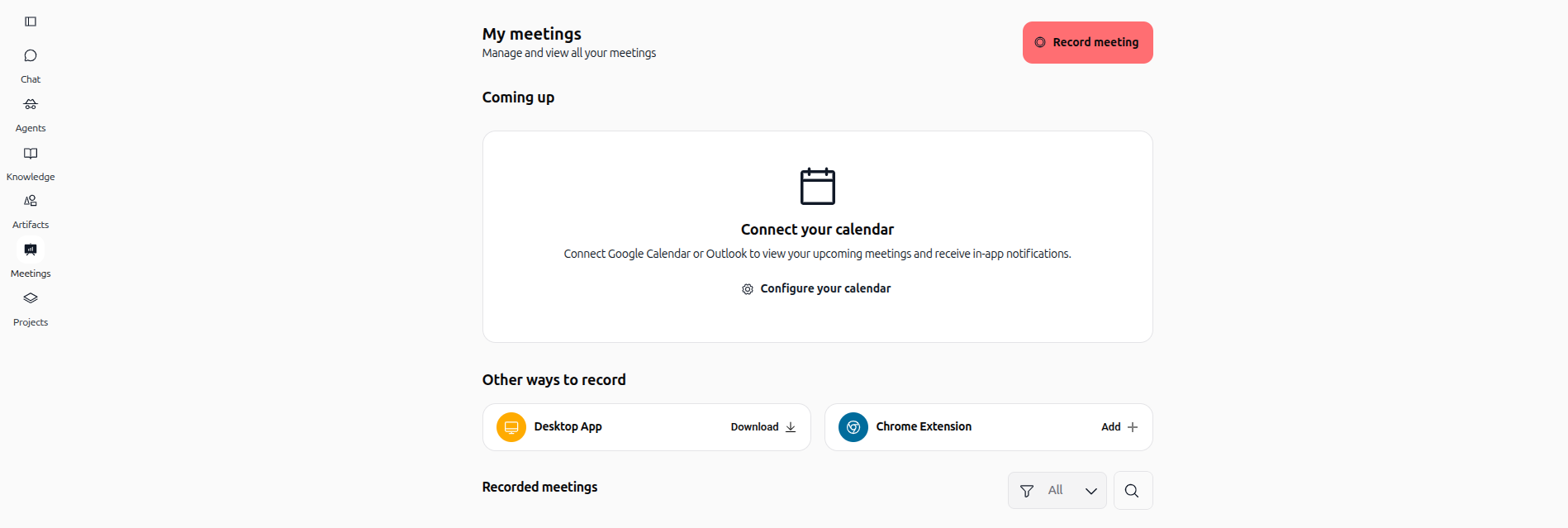
If you have existing meeting records but the desktop app is not yet installed, you'll see a Download button in the top right corner of the Meetings section.
Step 1: Open the Meetings section
Click Meetings in the left sidebar of Swiftask. You'll see your meeting library.
Step 2: Click the Download button
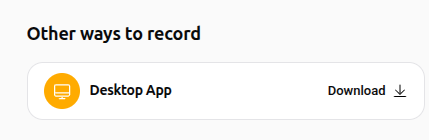
In the top right corner, click the Download button. Your browser will download the Swiftask desktop installer file.
Step 3: Run the installer
Once the download completes, open your Downloads folder and locate the installer file (named swiftask-1.0.11-x64-prod.msi on Windows or the equivalent on Mac).
Double-click the installer file to begin the installation process.

Step 4: Complete the installation
Follow the on-screen prompts to complete the installation. The installer will:
Extract files to your computer
Create a shortcut on your desktop or applications menu
Request any necessary permissions
When installation finishes, you'll be redirected to the Swiftask login screen.
Step 5: Log in to your account
Enter your Swiftask credentials to log in. Once authenticated, the desktop app will launch and be ready to use.
Step 6: Start recording meetings
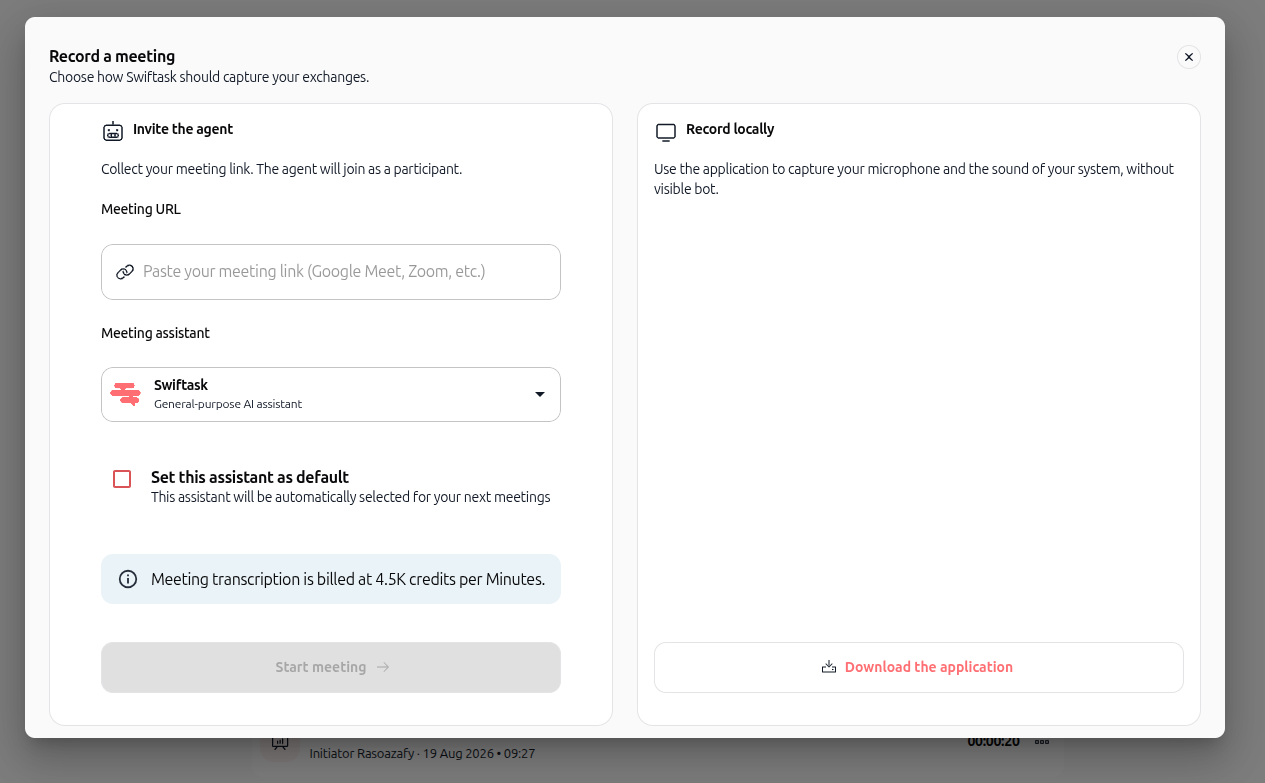
Go to the Meetings section in the app, paste your meeting link, and click "Start meeting" to start capturing your first conversation.
What happens during installation
During the installation process, the Swiftask desktop app will:
Install to your Applications folder (Mac) or Program Files (Windows)
Create a system icon or menu shortcut for quick access
Request microphone access permissions from your operating system
Request any other system permissions needed for automatic meeting detection
Troubleshooting
Download button doesn't appear
Cause: The desktop app may already be installed on your computer.
Solution:
Check your Applications folder (Mac) or Program Files (Windows) for Swiftask
If installed, open the app and verify you're logged in
If the app is installed but you don't see the Download button, refresh your browser
Installation fails or gets stuck
Cause: Insufficient permissions, antivirus software blocking the installer, or corrupted download.
Solution:
Run the installer as Administrator (Windows) or with your admin password (Mac)
Temporarily disable antivirus software during installation
Delete the downloaded file and download it again
Restart your computer and try again
App won't launch after installation
Cause: Installation incomplete, corrupted files, or system incompatibility.
Solution:
Uninstall the app completely and reinstall it
Ensure your operating system is up to date
Check that your computer meets minimum system requirements (Windows 10+ or macOS 10.14+)
Contact Swiftask support if the problem persists
Next steps
Once the desktop app is installed and you're logged in:
Record your first meeting – Go to the Meetings section and click Record Meeting
Learn about transcription – Read the Meeting transcription guide to understand how transcripts are created
Explore meeting features – Check out the AI-assisted meetings guide to see what you can do with your recordings
Additional resources
AI-assisted meetings – Overview of recording, transcription, and analysis features
Record meeting – Step-by-step guide to starting your first recording
Meeting transcription – Detailed guide to transcription features and options
Quick interface tour – Learn how to navigate the Meetings section
Ready to record your first meeting? Install the desktop app now and start capturing conversations with AI-powered transcription.
Was this helpful?
Still need help? Ask the team