Access to support and documentation
Written By Stanislas
Last updated 16 days ago
Overview
Swiftask gives you three ways to get help directly from your workspace: opening a ticket with Suzanne (the AI support agent), joining the community, or browsing the documentation. Support is included in all Swiftask subscription plans, with features and response times varying by your plan level.
Use "Need help" whenever you have a question, need guidance on a feature, or want to find a tutorial. Suzanne, the support team, and the community are here to help you get the most out of Swiftask.
Prerequisites
To access support features, you need:
An active Swiftask workspace account
Access to your workspace settings (Owner, Admin, or Member role)
Step-by-step guide
1. Access the support menu
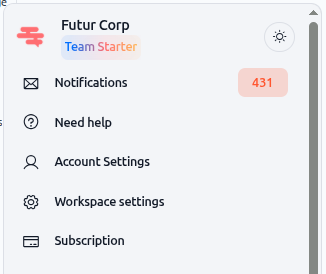
In your Swiftask workspace, locate the settings icon (gear icon) in the bottom-left corner of the sidebar.
Click the settings icon to open the workspace menu.
Select "Need help" from the menu options.
As shown below, the workspace settings menu displays several options including "Need help".
2. Choose your support option
When you click "Need help," a modal window appears with three options. Select the one that best fits your need.
3. Join the community on Featurebase
When to use this option: You want to connect with other Swiftask users, share feedback, or get help from the community.
Steps:
Click "Join our Community" from the support menu
You'll be redirected to the Swiftask community
Browse existing feedback and feature requests
Post your own feedback or question
Engage with other users and the Swiftask team
Expected result: You connect with other Swiftask users, see how others are using the platform, and contribute to shaping future features through public feedback.
4. Browse the documentation
When to use this option: You want to learn how to use a feature, find tutorials, or search for answers to common questions.
Steps:
Click "Browse Documentation" from the support menu
You'll be redirected to the Swiftask Help Center
Use the search bar to find articles related to your question
Browse by category (Getting Started, Agents, Projects, Workspace Administration, etc.)
Read the guides and follow the step-by-step instructions
Expected result: You find self-service answers and learn how to use Swiftask features independently.
Practical use cases
Case 1: Quick question about a feature
You're unsure how to configure an agent. Instead of opening a ticket, you ask Suzanne the question. She searches the documentation and provides an answer with a link to the relevant guide. You follow the instructions and solve the problem in minutes.
Case 2: Community discussion and feedback
You have an idea for a new feature. You post it on the Featurebase community feedback page where other users can vote on it and comment. The Swiftask team monitors this feedback and uses it to prioritize future development.
Tips & best practices
Use the search bar first: Before opening a ticket, search the Help Center — many answers are available instantly.
Browse by category: If you don't have a specific question, browsing by category can help you discover features you didn't know about.
Check community feedback: Before posting a new idea, search existing posts — someone may have already requested it.
Additional resources
Viewing current support tickets – Learn how to follow up on a ticket you've already submitted
Using agents from chat – Learn how to use Suzanne and other agents from the chat interface
Was this helpful?
Still need help? Ask the team