Interactive browser
Written By Stanislas
Last updated 8 days ago
Overview
Interactive browser allows your AI agent to browse external websites autonomously directly within Swiftask. It enables agents to open pages, follow links, fill out forms, and extract information dynamically.
Use this feature when you need your agent to take direct online action from chat, such as submitting web forms, completing external service registrations, running real-time research, and extracting live web data.
Prerequisites
An active Swiftask account.
An existing AI agent configured in your workspace.
Available workspace credits (interactive browsing consumes 2,000 credits per minute).
Step-by-step guide
1. Access agent instruction settings
In the left navigation sidebar, click Agents.
Select the agent you wish to configure.
In the top navigation bar, click Manual setup.
In the left settings panel under Agent Instruction, select Interactive Browser.
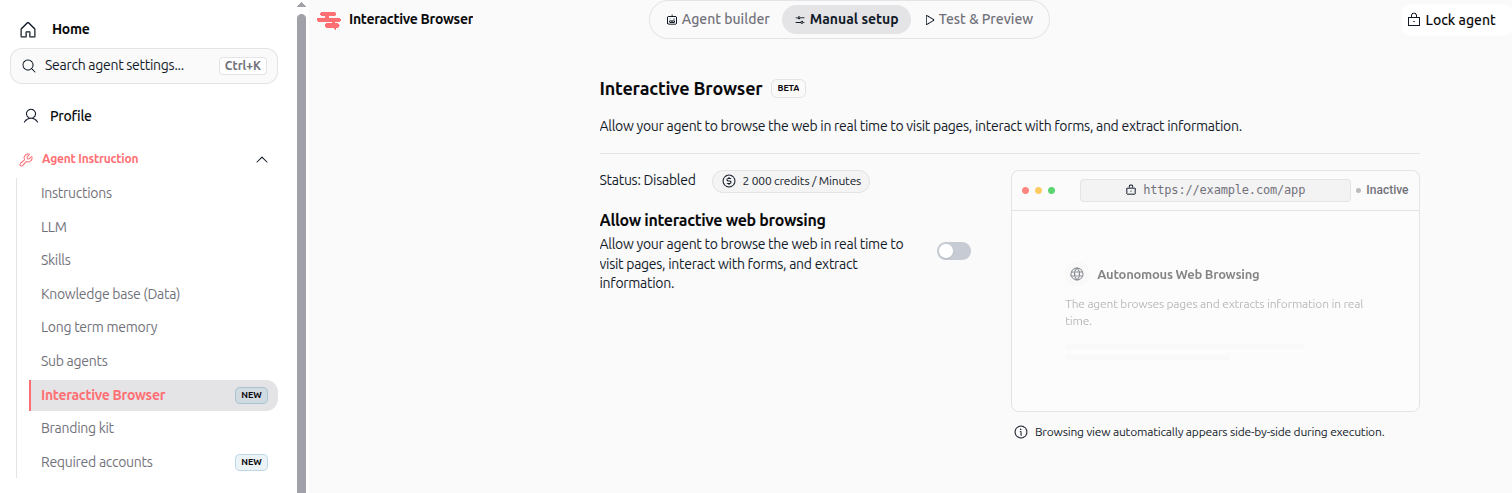
2. Enable interactive web browsing
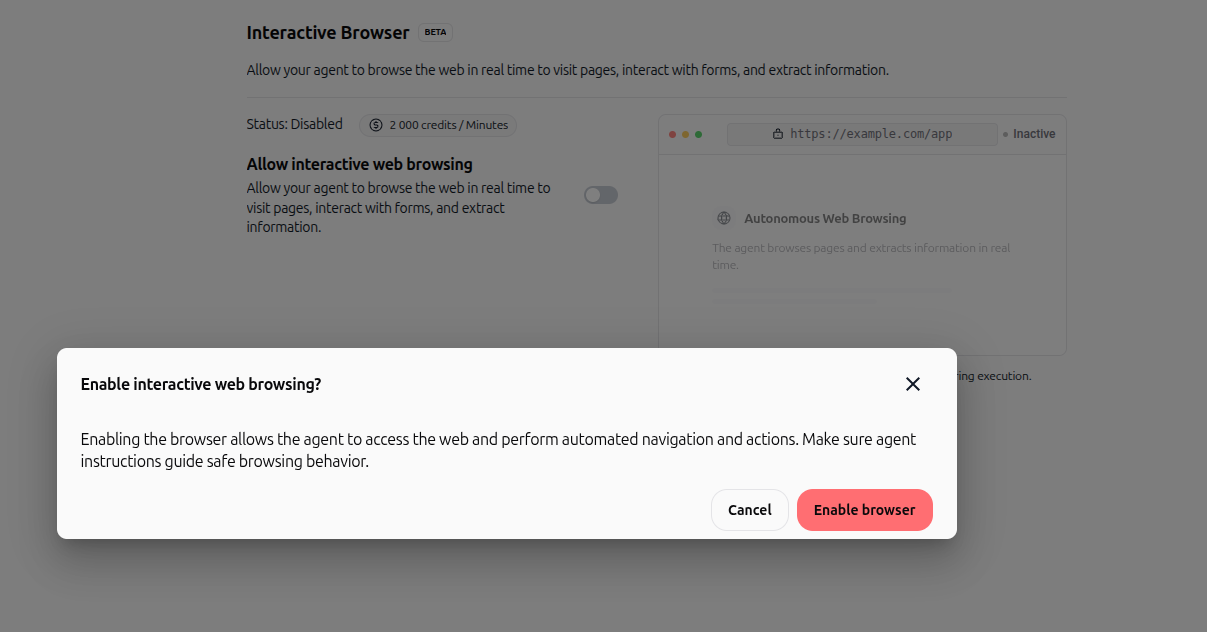
Locate the Allow interactive web browsing toggle switch.
Click the toggle to switch it to active.
In the Enable interactive web browsing? confirmation modal, review the safety recommendation and click Enable browser.
3. Configure session persistence (optional)
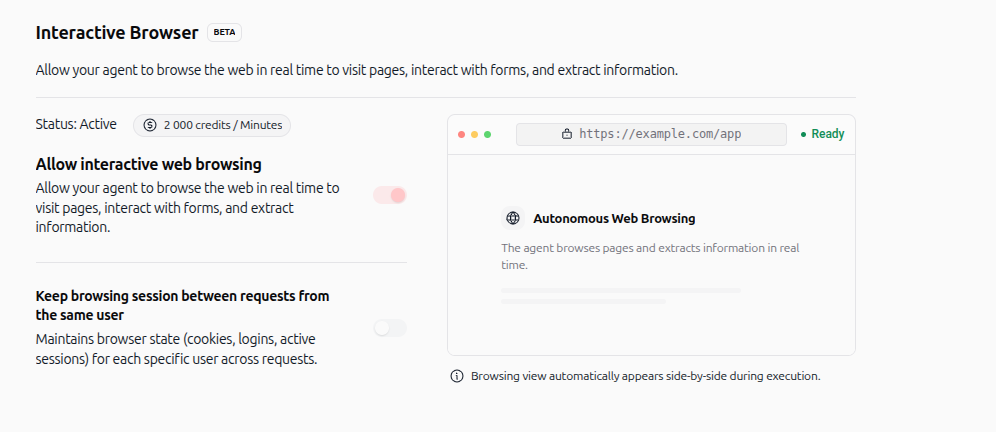
Locate the Keep browsing session between requests from the same user toggle switch.
Turn the toggle on if your agent needs to maintain cookies, active logins, and browser state across subsequent requests from the same user.
4. Test web browsing in real time
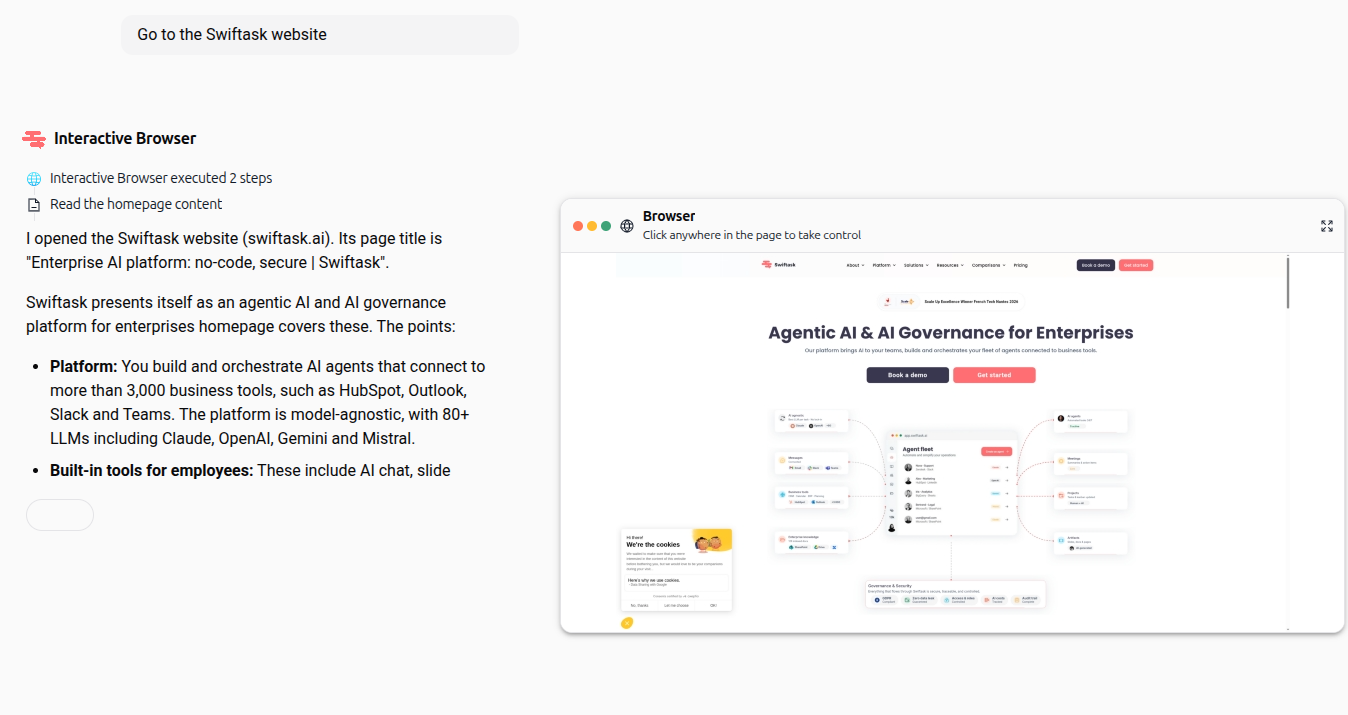
In the top navigation bar, click Test & Preview (or open a chat session with your agent).
Enter a prompt that requires web navigation, such as "Go to the Swiftask website".
Observe the agent's progress and the side-by-side live browser window.
Click the expand icon to view full-screen.
Practical use cases
Chat-driven web actions: Instruct your agent in chat to navigate specific websites and execute browsing tasks live on screen.
Form completion and direct submission: Have your agent fill out online forms, enter requested information, and submit them directly to external portals.
Autonomous online research: Ask your agent to explore websites, blogs, or documentation to gather and summarize up-to-date data.
Persistent authenticated navigation: Maintain session state across consecutive prompts so the agent can stay logged in to web tools during multi-step tasks.
Tips & best practices
Provide specific browsing instructions in the agent prompt to ensure safe, focused navigation.
Leave session persistence disabled when each request requires a fresh, isolated browsing session.
Keep track of your credit balance since active browsing uses 2,000 credits per minute.
Troubleshooting
Browser does not activate: Check that the Allow interactive web browsing toggle is turned on and that your workspace has sufficient credits.
Session context is lost between messages: Ensure the Keep browsing session between requests from the same user toggle is enabled.
Page requires human intervention: Click directly into the side-by-side browser panel to complete captchas or cookie consents manually.
Additional resources
Was this helpful?
Still need help? Ask the team