Required accounts
Written By Stanislas
Last updated 8 days ago
Overview
The Required accounts setting allows agent creators to specify external services—such as Gmail, ticketing systems, or CRMs—that each user must connect individually before using the agent.
This ensures all external actions performed by the agent execute under each user's personal credentials rather than a shared workspace account. It preserves data privacy, prevents unauthorized access, and maintains clear accountability across team workflows.
Prerequisites
Before configuring required accounts, ensure you have:
A Swiftask account with permissions to create or edit agents.
An existing agent in your workspace.
The external service integrations available in your workspace.
Step-by-step guide
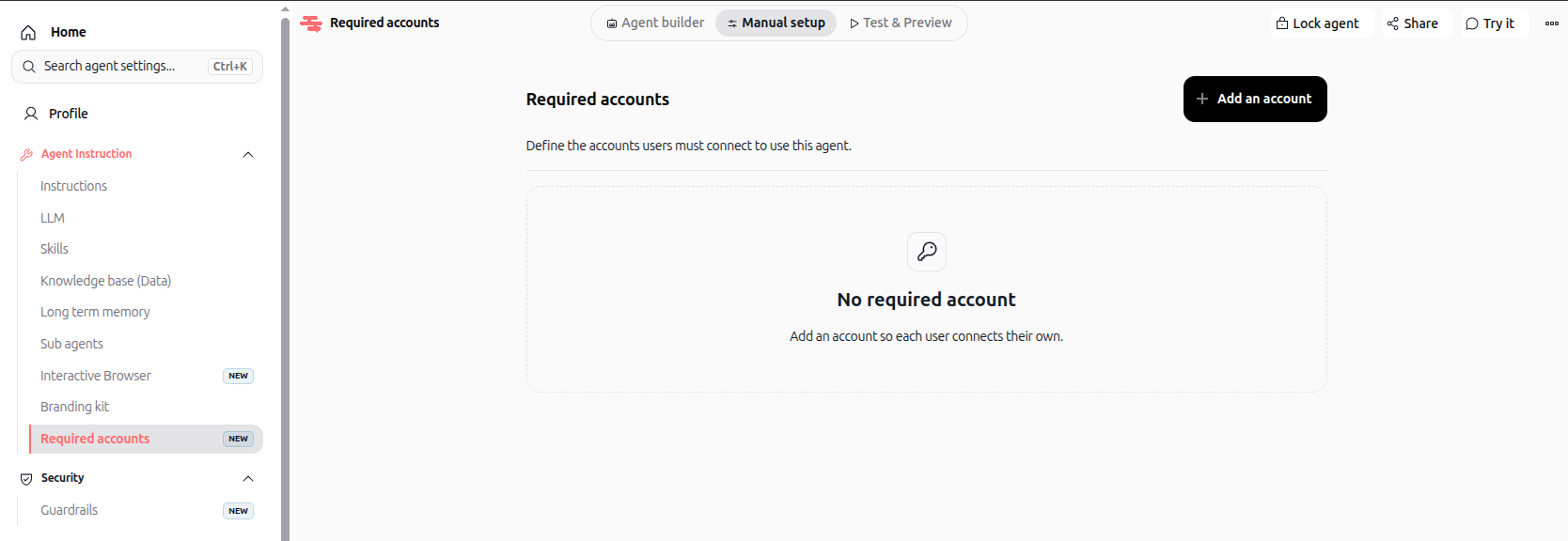
1. Open the Required accounts section
In the left navigation sidebar, click Agents.
Select the agent you want to customize and click the pencil icon to enter edit mode.
In the left editor menu under Agent Instruction, click Required accounts.
2. Add an account requirement
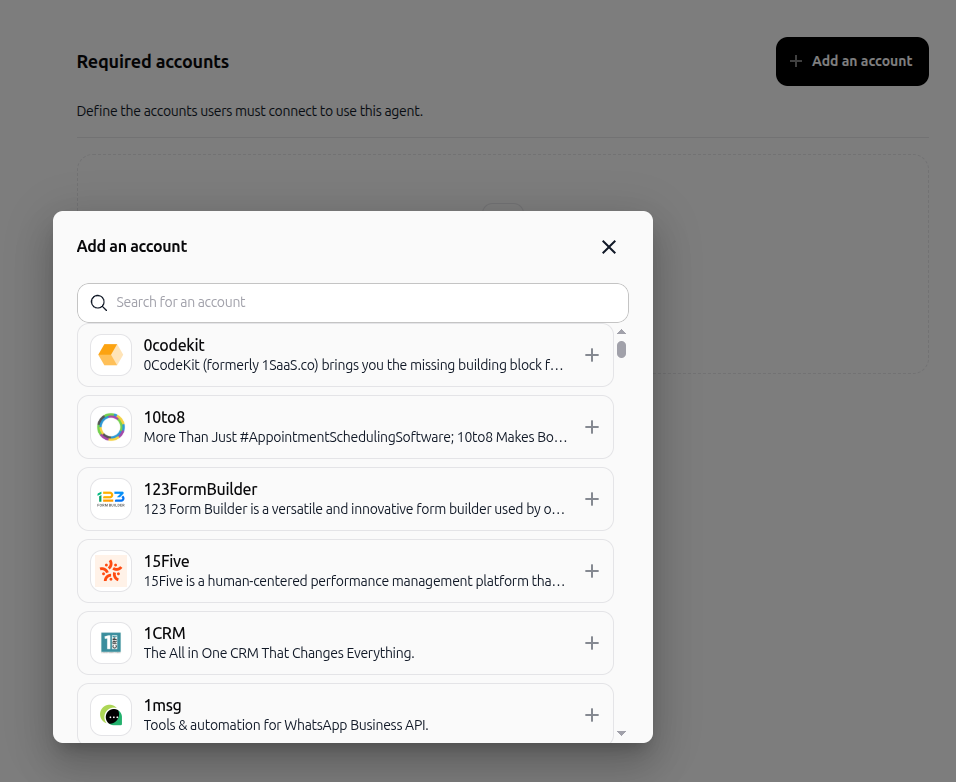
In the Required accounts header, click + Add an account.
In the Add an account modal, browse the catalog or use the Search for an account bar.
Click the + button next to the service you want to require (e.g., Gmail).
3. Configure validation and view connections
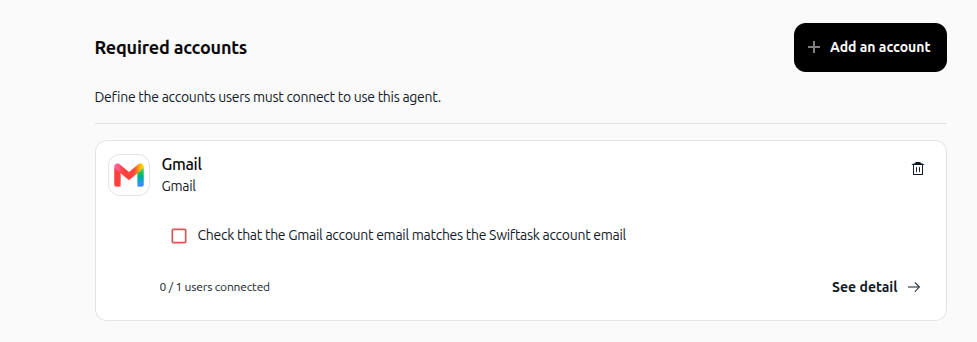
Locate the service card in the Required accounts list.
Select the validation checkbox (e.g., Check that the Gmail account email matches the Swiftask account email) if you want to require that connected account identities match Swiftask user credentials.
Check the connection gauge (e.g., 0 / 1 users connected) to see workspace progress.
Click See detail → to inspect the list of connected members and their connection statuses.
To remove an account requirement, click the trash can icon on the service card.
4. Connect accounts as an end user
Open the agent in Chat.
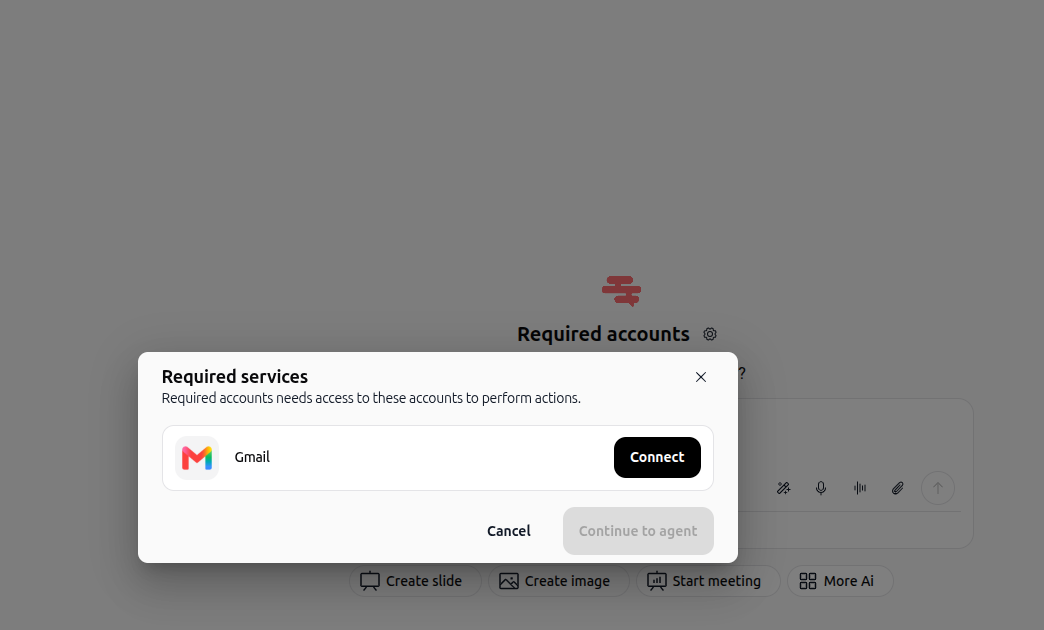
A Required services modal appears stating that the agent needs access to specific accounts to perform actions.
Click Connect next to each listed account and authenticate your credentials.
Once connected, click Continue to agent to start interacting.
Practical use cases
Personal email workflows: Require each employee to connect their own Gmail account so that drafted and sent emails originate directly from their address.
CRM updates: Ensure sales team members connect their personal CRM profiles so lead updates and notes reflect the correct owner.
Customer support ticketing: Enforce individual support desk authentication so tickets processed by the agent remain assigned to the active user.
Additional resources
Was this helpful?
Still need help? Ask the team